Switch localization service data format
This article describes in detail how to switch the data format of a cloud localization library, including the operation steps for changing the data format on the cloud localization library list page and in the cloud localization library management interface.
Enter the cloud localization service management interface
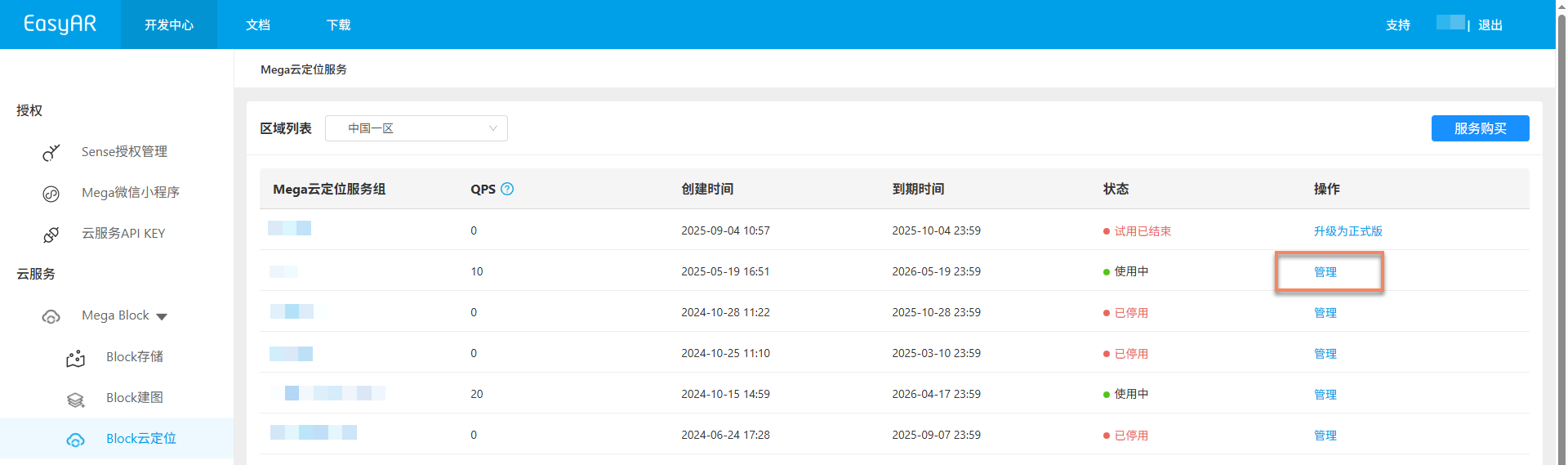
Log in to EasyAR Developer Center, choose Mega Block -> Block Cloud Localization from the left menu, select the corresponding Mega cloud localization service group, and click Manage.
Select a data format switching method
There are two ways to switch the localization service data format:
Switch on the localization library list page
After entering the cloud localization library list page, click the Switch button for the corresponding cloud localization library data format to open the data format change dialog.

Switch in the localization library management interface
Select the corresponding cloud localization library and click the
Managebutton to enter the cloud localization library management interface.
After entering the cloud localization library management interface, click the
Switchbutton at the cloud localization information data format to open the data format change dialog.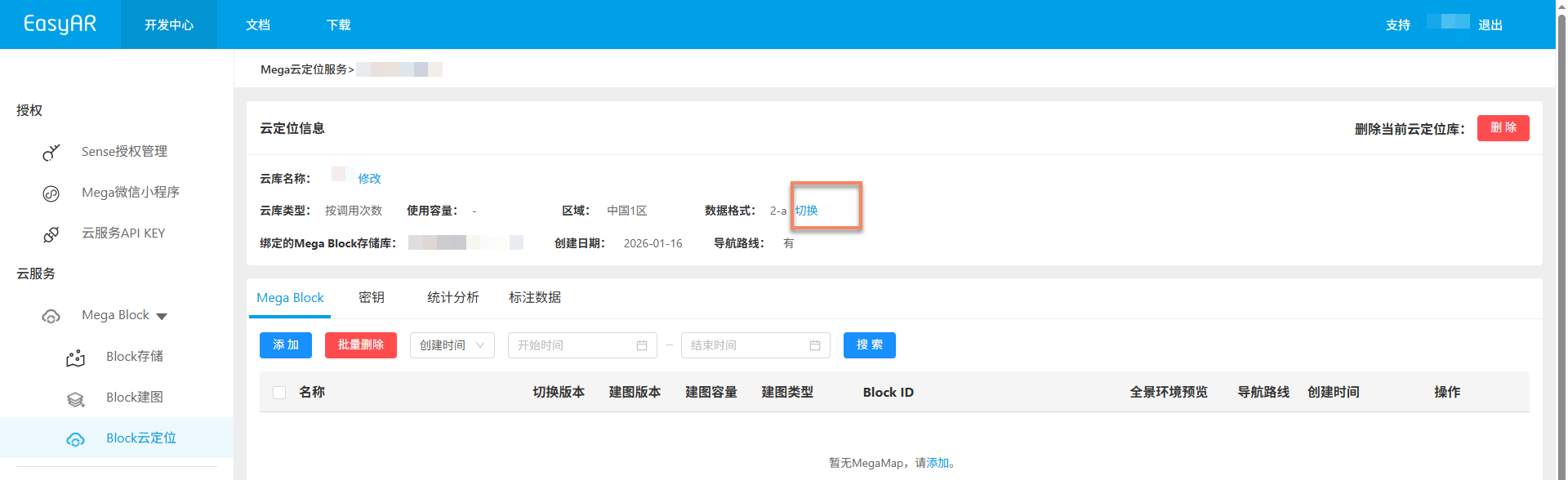
Confirm the data format change
Select the corresponding data format in the pop-up data format change dialog.
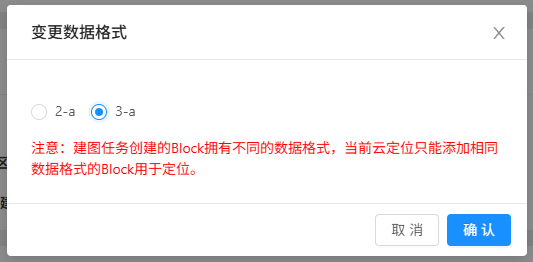
After clicking the
Confirmbutton, a secondary confirmation dialog will appear.Click
OKto successfully change the data format.
Important
Note: changing the data format will clear all added maps in this cloud localization library. After the change succeeds, please add them again.