Configure a Localization Database
After environment acquisition, mapping, and successful Mega Block generation are complete, you need to create a cloud localization service, bind the project to the service, and add the Mega Block to the localization database instance to complete the overall configuration. This chapter describes the steps in detail to help you quickly complete the configuration process.
Check that Mega Block generation is complete
Log in to the console
- Visit the EasyAR console and log in
Enter storage management
- Navigate to Mega Block -> Block Storage
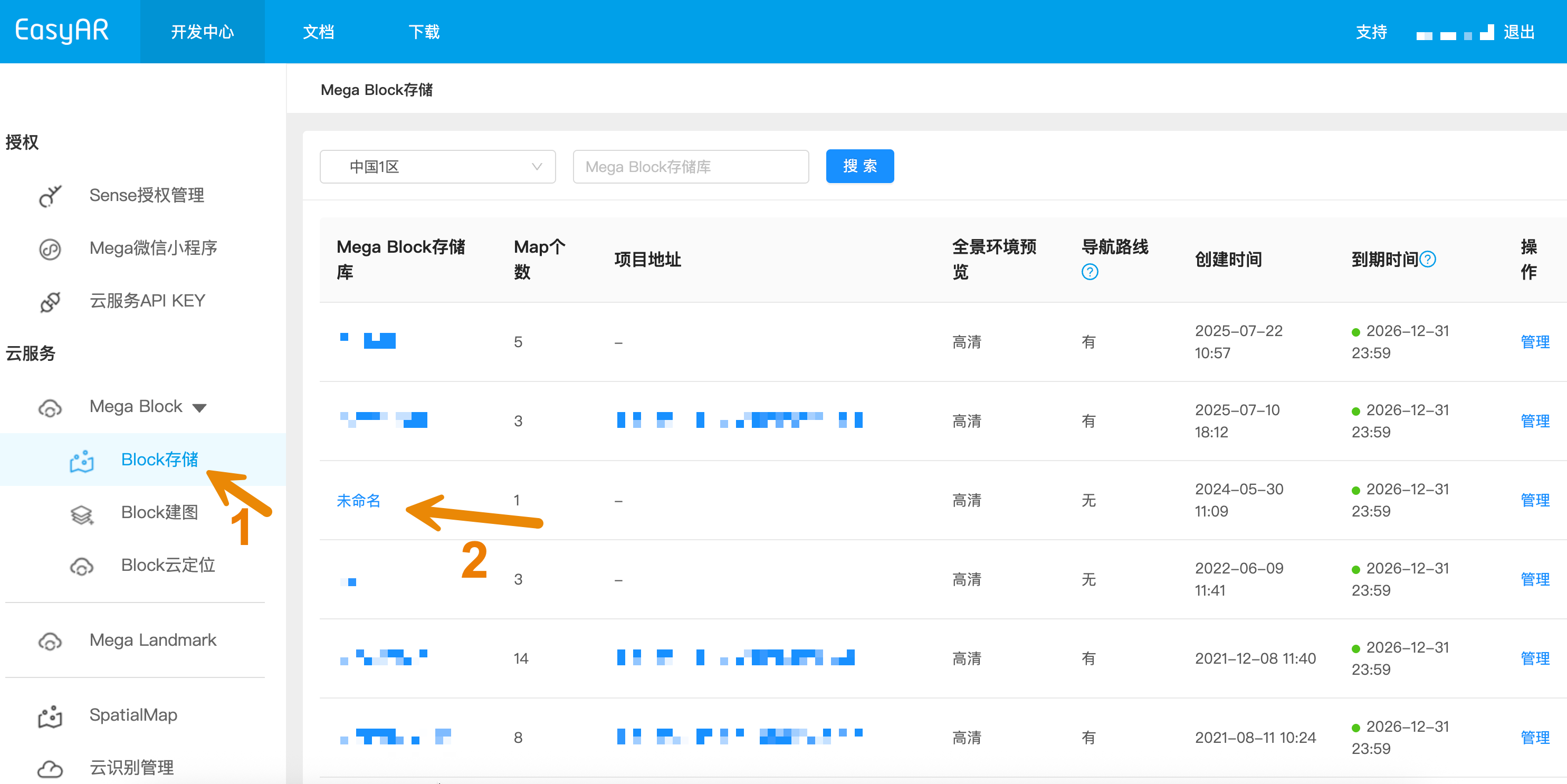
- View project details
- Select the corresponding project in the storage list
- Confirm that a Mega Block has been successfully generated in the project
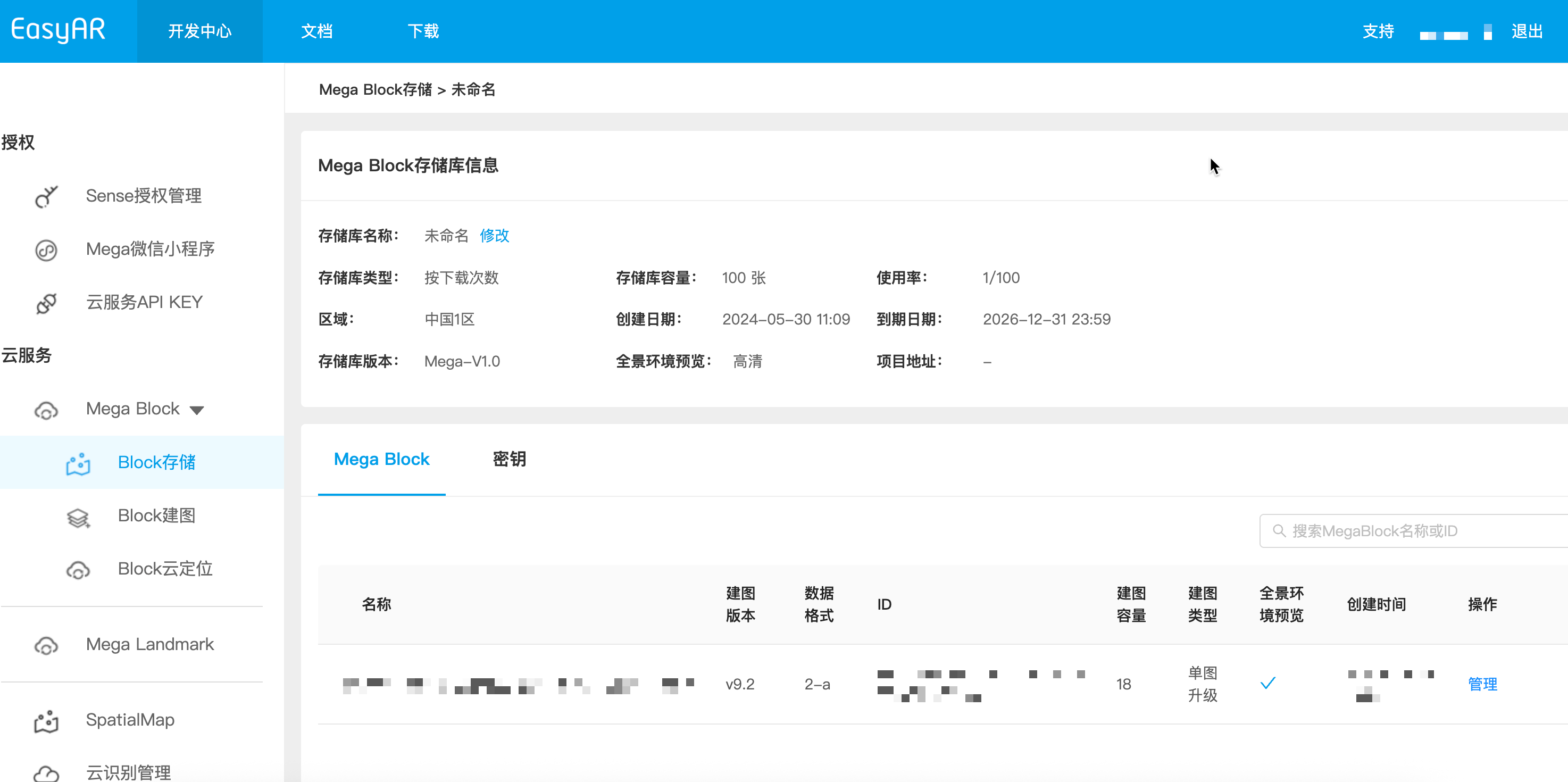
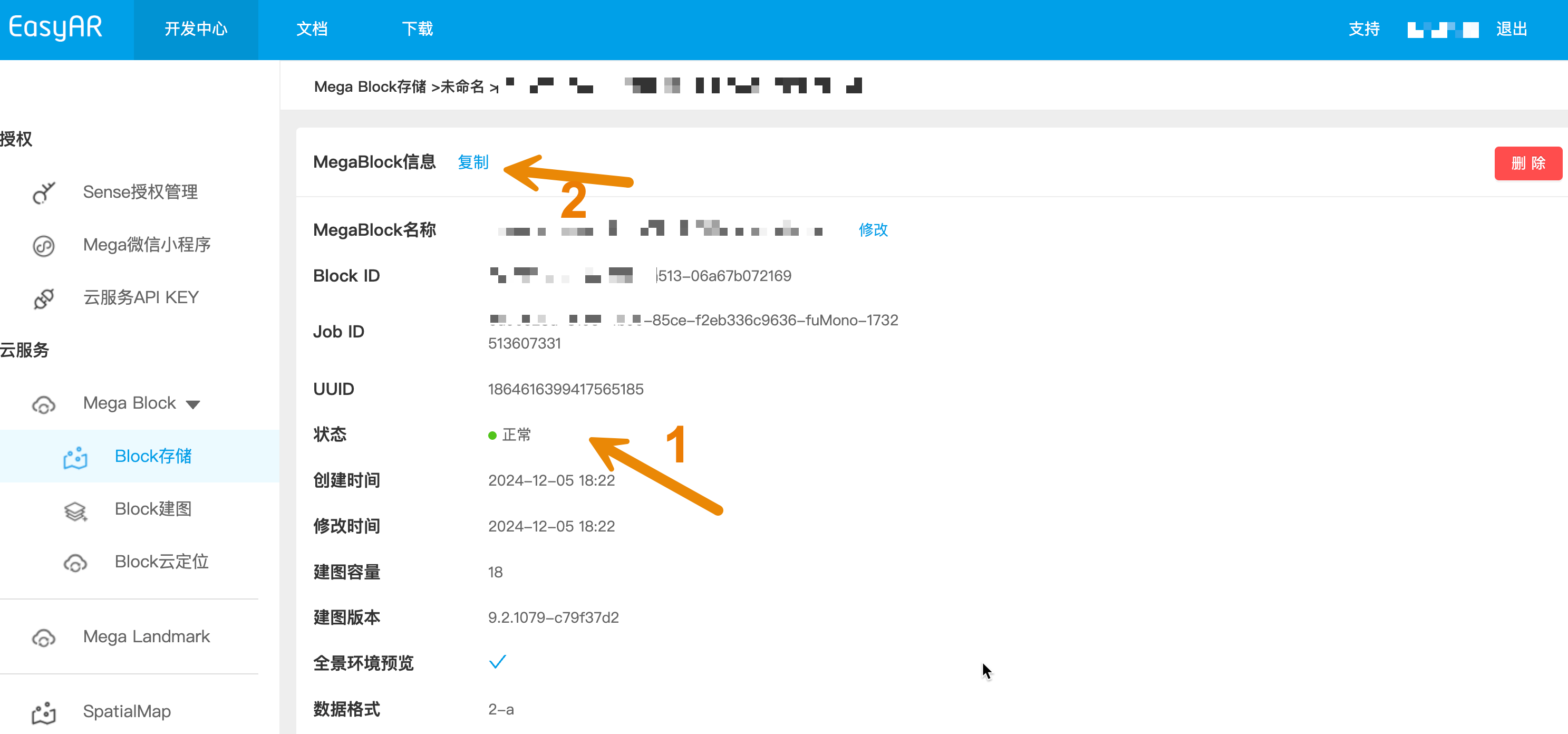
- Check the Block status
- Click the "Manage" button for the Mega Block record to view details
- Make sure the Mega Block status is "Normal"
- If you find abnormal information, it is recommended to click the "Copy" button to save the Mega Block information. Before localization database configuration starts, you can provide the information to technical support for analysis
Create a cloud localization database
Navigate to Mega Block -> Block Cloud Localization
Create a cloud localization service group
- If there is no existing service group, the list will be empty
- You can create a cloud localization service group through sales staff or directly online
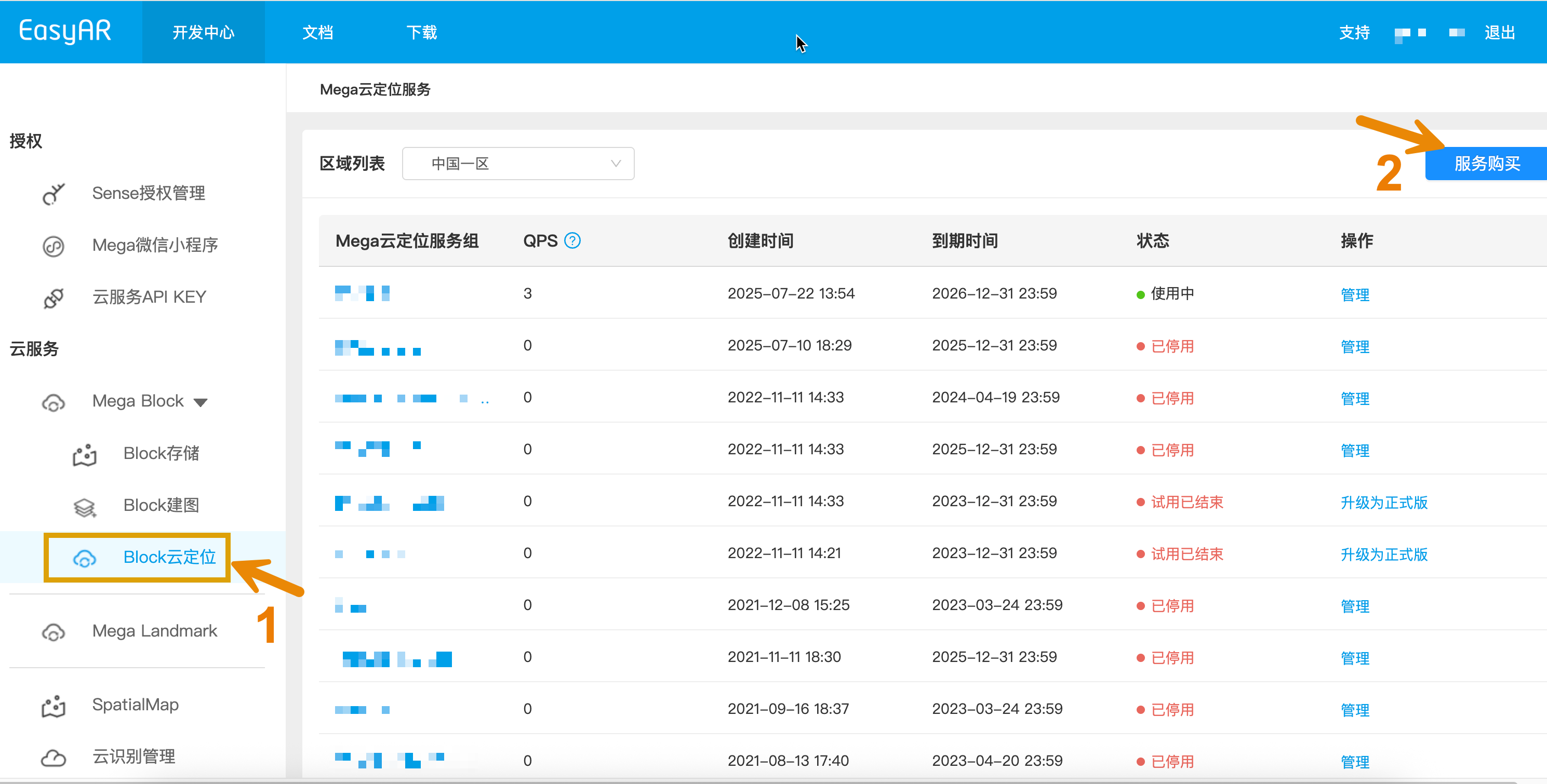
- Manage the service group
- After creation succeeds, click "Manage" to enter the service group management page
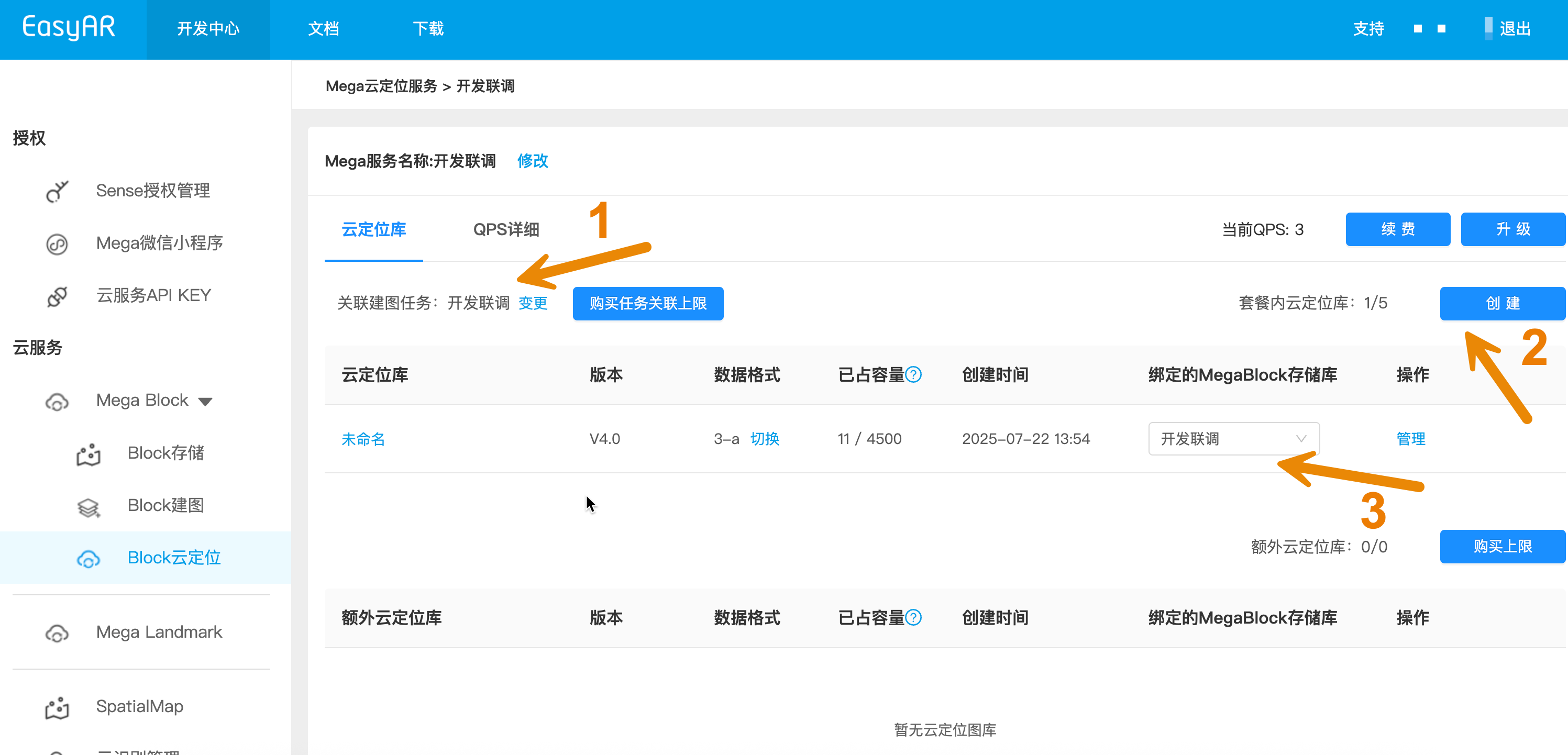
Basic configuration steps
- Project association: Bind the mapping project to the cloud localization service group (marked as 1 in the figure)
- Instance creation: Create a new cloud localization database instance in the service group (marked as 2 in the figure)
- Storage binding: Select the corresponding Mega Block storage and bind it to the cloud localization database (marked as 3 in the figure)
Enter instance management
- Click "Manage" to enter the cloud localization database detail management page
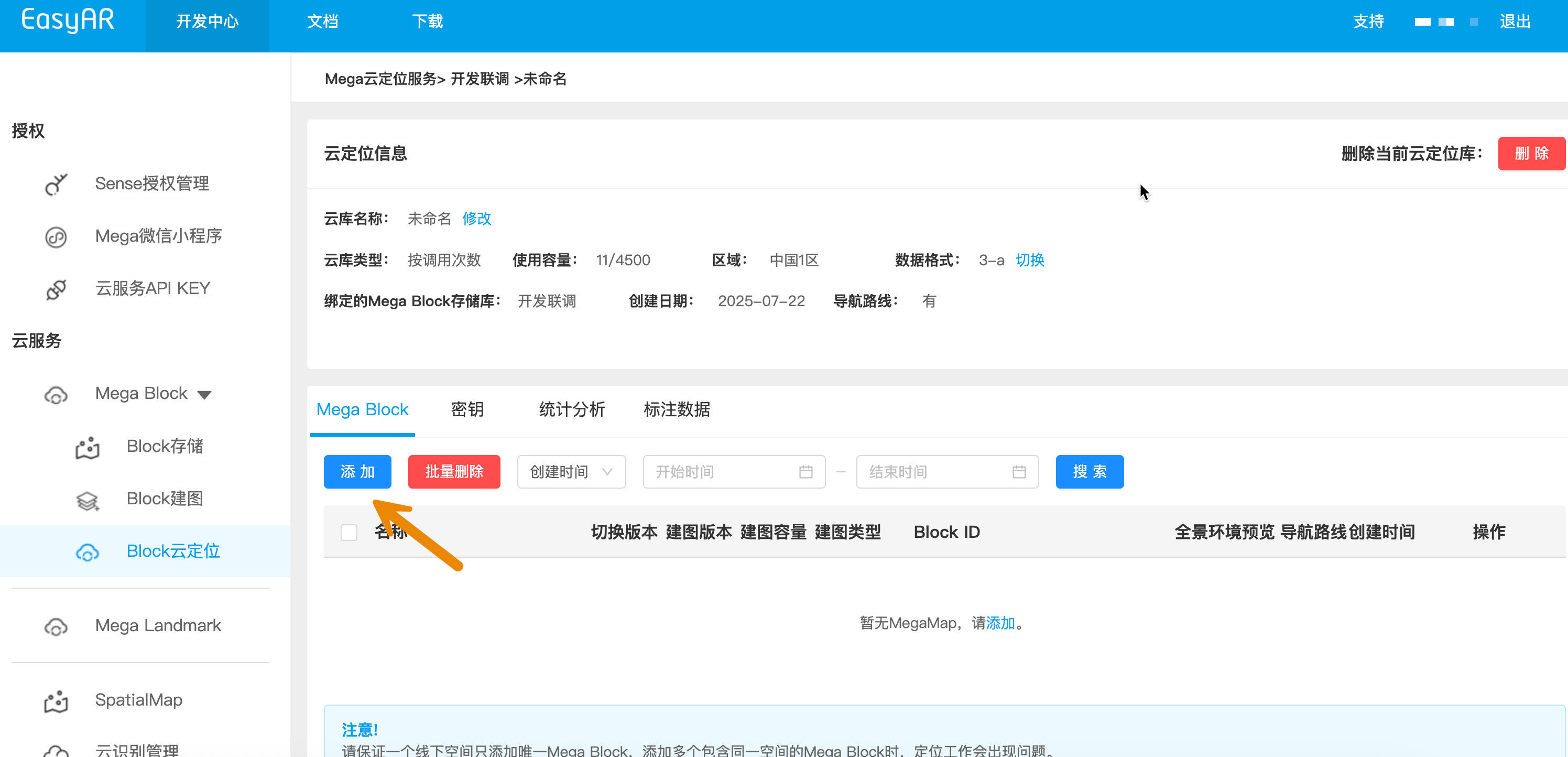
Configure the Mega Block in the cloud localization database
- Click the "Add" button and select the Mega Block to add from the list
- Confirm the selection to complete the add operation
- Be careful not to select the wrong version
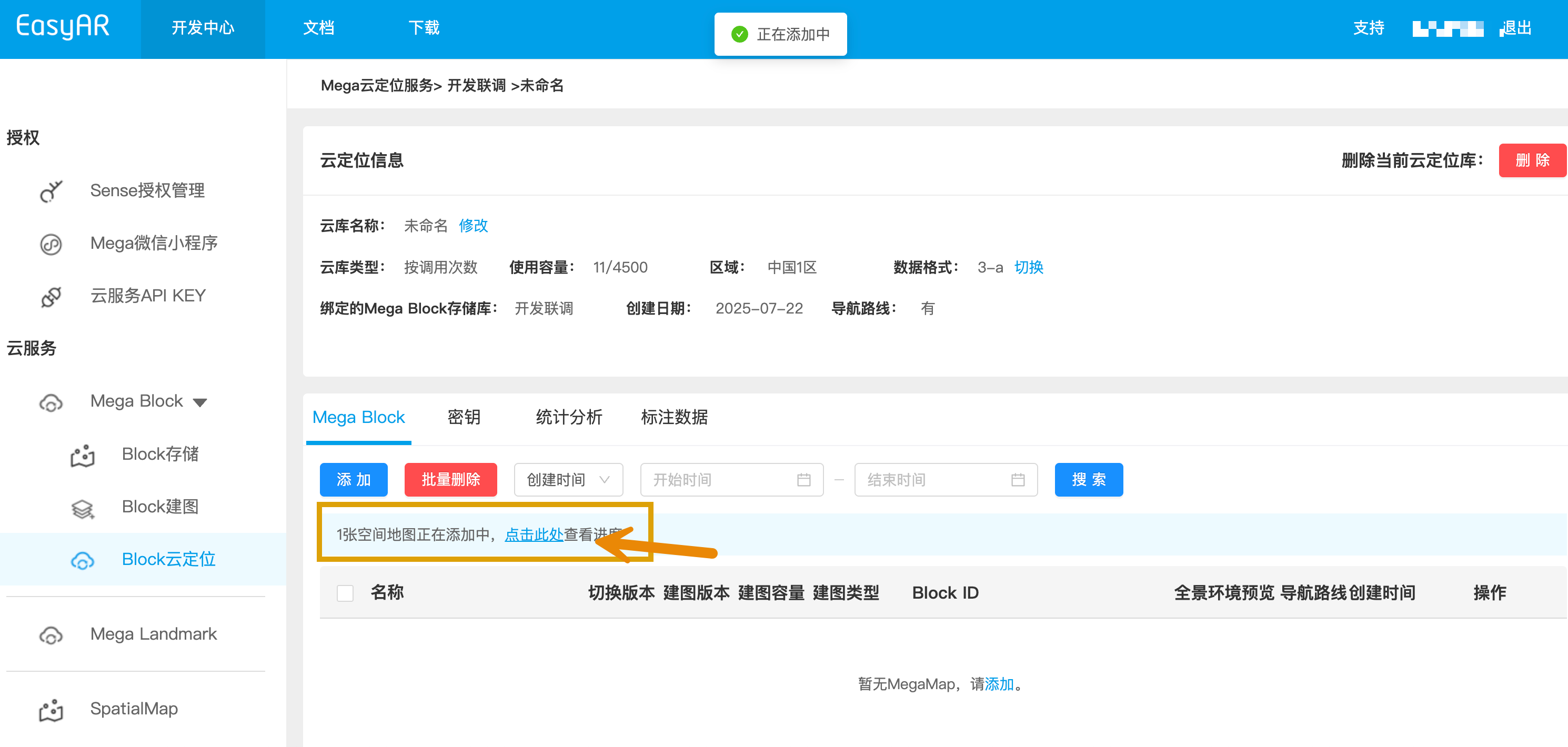
Monitor add progress
- The system will display the add progress status. Please wait patiently until processing is complete
Exception handling
- If adding fails, you can delete the progress and add it again as long as there is no conflict
- If it fails repeatedly, contact technical support
Completion confirmation
- After the add operation succeeds, the page will display the complete configuration information
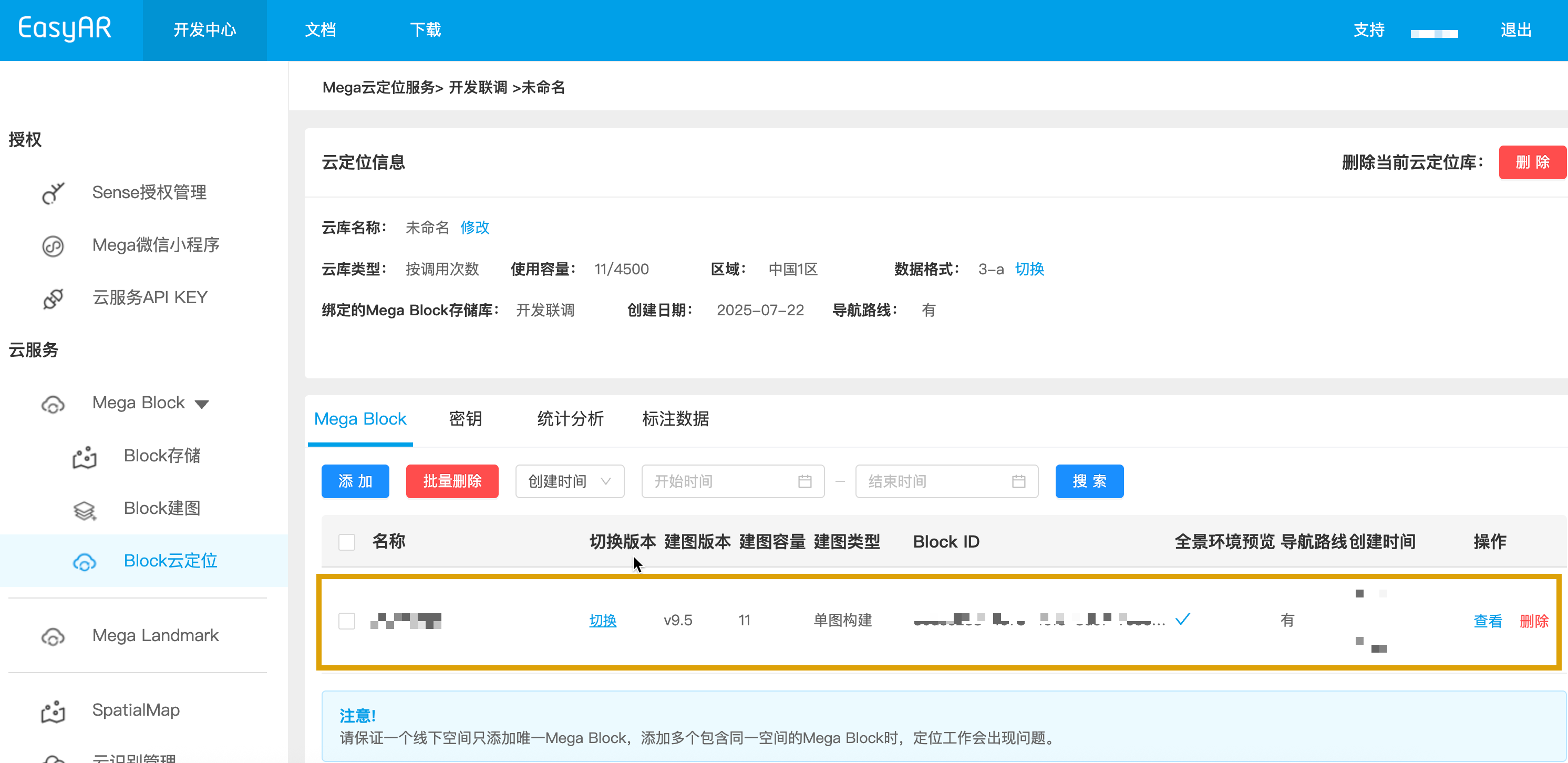
Complete deployment
Congratulations! You have now completed all configuration work for the cloud localization database. Next, you can start verification testing for the cloud localization feature and begin your AR application development journey. 🎉