Quickly verify the localization service
This chapter describes how to quickly verify whether the localization service and localization library have been configured successfully. With the WeChat Mini Program or native App provided by Mega Toolbox, you can quickly verify whether the localization service works normally onsite or through photos (offsite), making it easier to perform preliminary checks for configuration and data issues.
Preparation
The localization library has been created, and the Mega Block localization map has been added to the localization library. Refer to the previous topic: How to prepare a cloud localization library
Download and install Mega Toolbox (for quick verification)
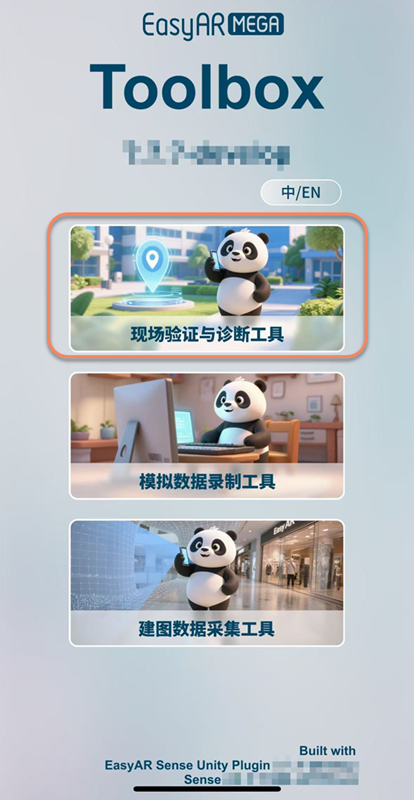
Mega Toolbox
Mega Toolbox is a verification tool provided by EasyAR and supports the following platforms:
Native application, supporting Android and iOS
The EasyAR official website provides a download channel. Go to the download page -> select download
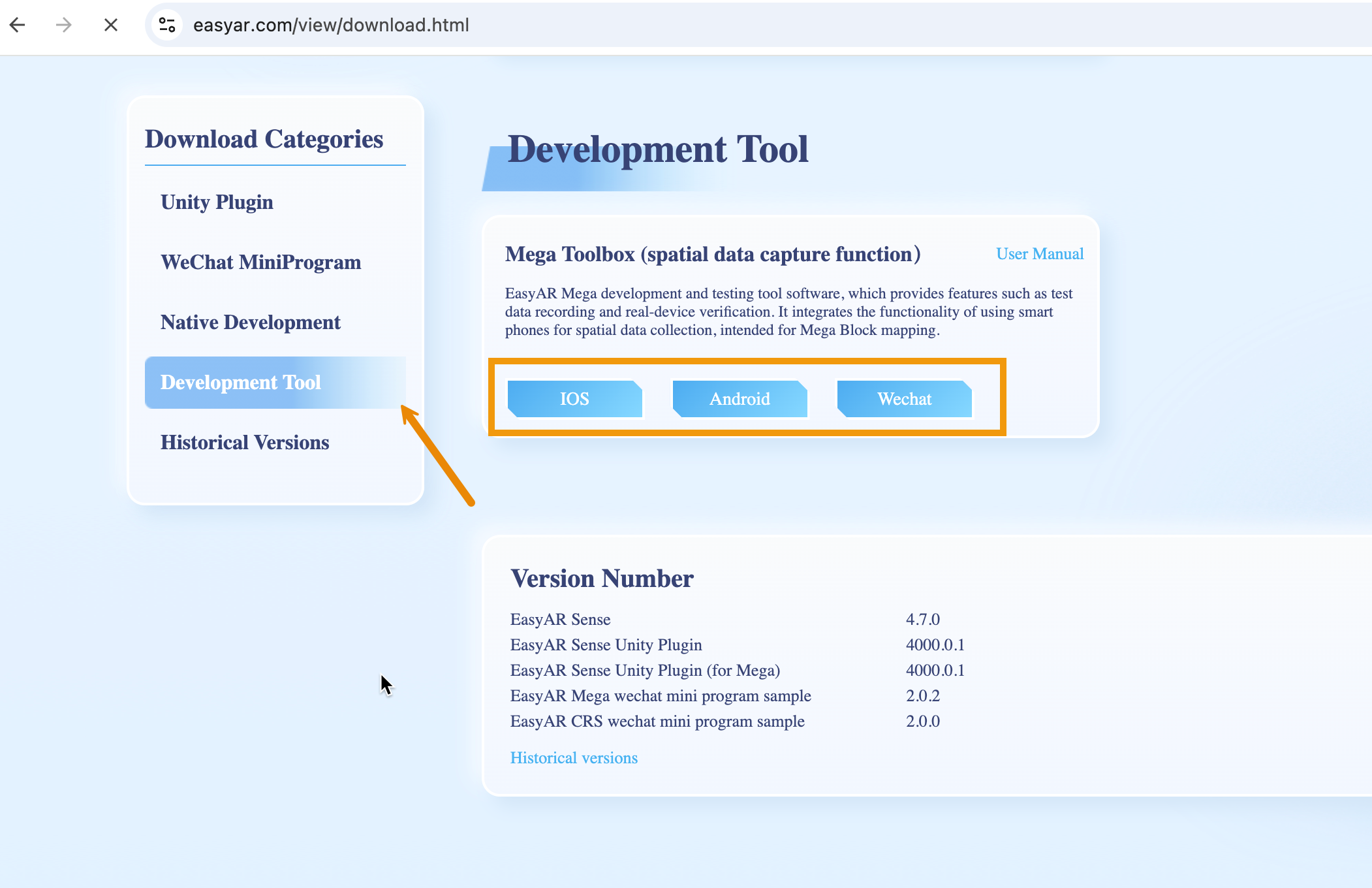
WeChat Mini Program
Scan with WeChat

Quickly verify the localization service
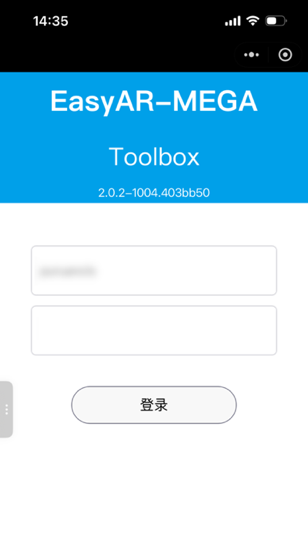
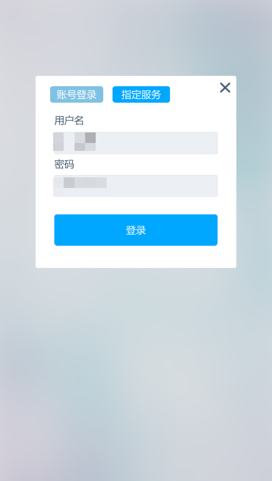
Open the mini program and log in with your EasyAR account
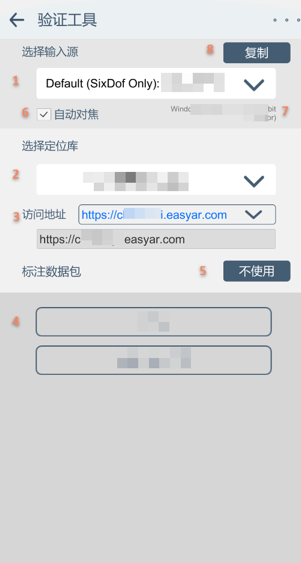
Select the localization service group and localization library to verify
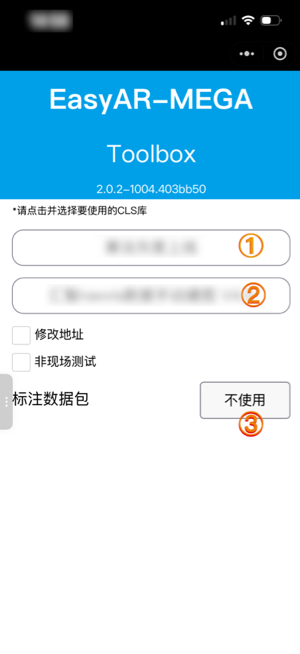
- Select
Cloud localization service group, click it, and select from the drop-down list. - Select the corresponding
Cloud localization library, click it, and select from the drop-down list. - Click
Do not useto enter the localization page directly.
- Select
Allow authorization
To use the localization feature normally, authorize camera and location permissions first.


Quick
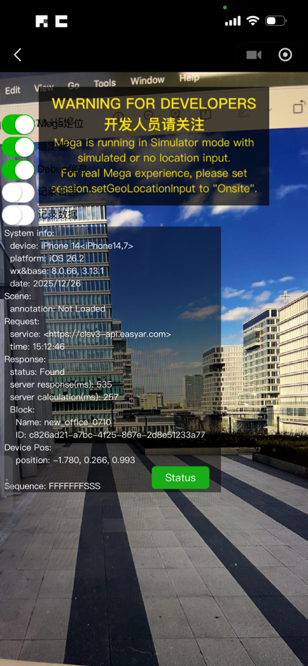
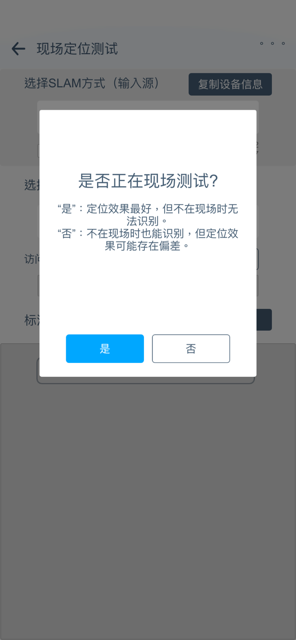
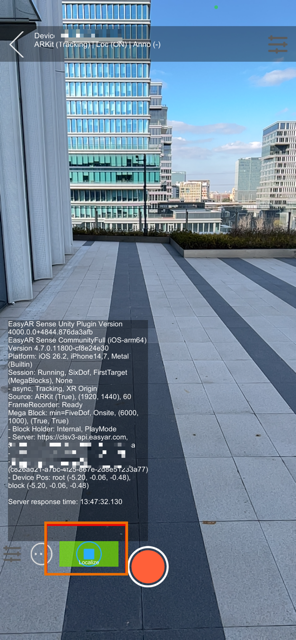
onsiteverification (recommended): after entering the onsite verification page, multiple status characters are displayed at the bottom of the interface. S means localization success (Success), and F means localization failure (Failed). Multiple S characters indicate stable successful localization.
Quick
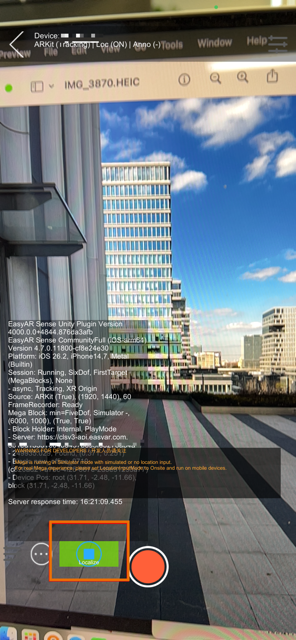
offsiteverification: check “offsite test” and aim at an onsite photo for simulated localization. Many S characters in the status output below indicate localization success.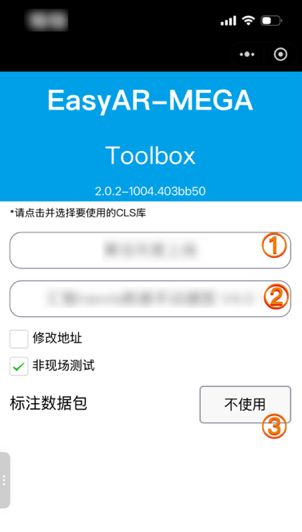
The localization debug information returns the text prompt
status: QpsLimitExceeded, which indicates that the localization service is running normally but the current QPS exceeds the limit. To resolve this issue, see Localization service capacity limit and expansion.The localization debug information returns the text prompt
UnKnownError, which indicates that the localization service is running abnormally. EnableRecord logsandRecord data, record the error information, and contact EasyAR customer service.