View mapping reports
This article describes in detail how to view mapping reports, including report contents, viewing methods, and handling steps when mapping fails, helping users quickly locate and resolve issues.
Mapping report contents
The mapping report provides detailed information, including input data details and output result statistics, helping users understand mapping quality and data integrity.
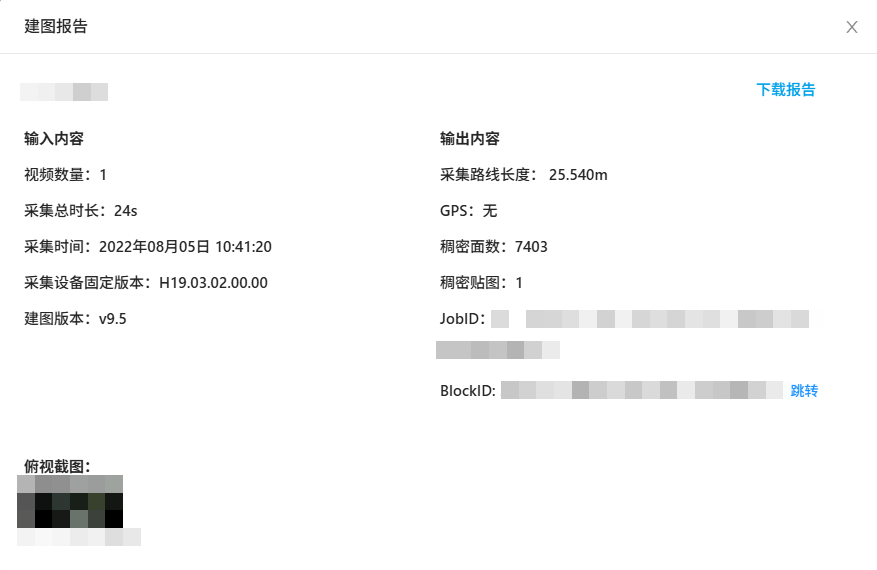
Input contents
The input contents of the mapping report include the following information:
- Number of videos: number of video files uploaded in the acquisition task.
- Total acquisition duration: total duration of the videos, in seconds.
- Acquisition time: start time of the acquisition task.
- Acquisition device firmware version: firmware version number of the acquisition device.
- Mapping version: system version number used to generate mapping results.
Output contents
The output contents of the mapping report include the following information:
- Acquisition route length: total route length recorded during acquisition, in meters.
- GPS: whether the acquisition task contains GPS data.
- Dense face count: number of mesh faces generated during mapping.
- Dense textures: number of generated mesh textures.
- JobID
- BlockID: click to view Block details.
- Top-view screenshot: displays the top view of the mapping result, making it easier to quickly judge the mapping effect.
View mapping reports
After the mapping task is complete, you can view the mapping report in the following ways to understand detailed information about the mapping result.
View the mapping report after successful mapping
After the task completes successfully, click the Mapping report button to view mapping-related information.

View the mapping failure report
If the mapping task fails, click the
Mapping failure reportbutton to view task information and the failure reason.
Check the files yourself according to the error code and feedback information.
If the report does not clearly indicate the failure reason, click the
Download reportbutton, contact EasyAR staff, and provide the mapping failure report.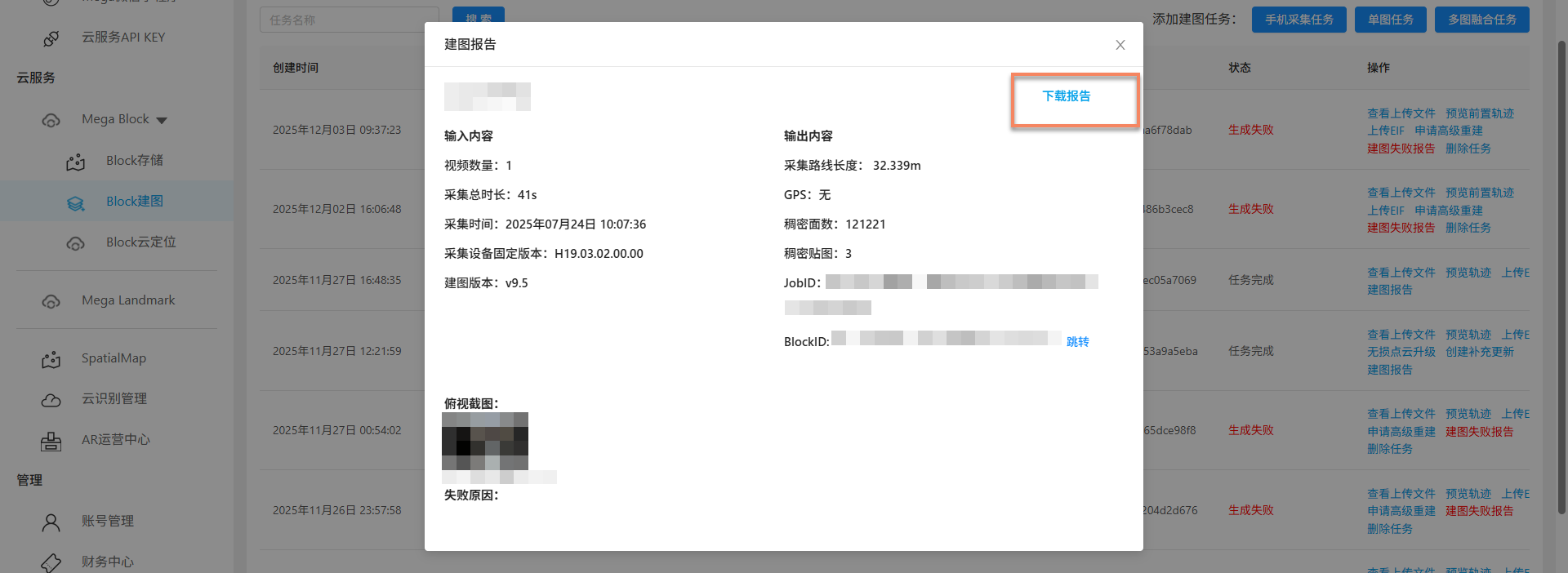
If no mapping report is generated, contact EasyAR staff and provide the task ID.

Mapping failure error codes
Various errors may occur during mapping. The following are common mapping failure error codes and their explanations, helping you quickly locate and resolve issues.
| Error code | Failure reason |
|---|---|
| 10x | Check whether the input file is corrupted |
| 102 | Check whether the input file is corrupted (possibly caused by corrupted frames in the video file) |
| 103 | Check whether the input file is corrupted (possibly caused by abnormal shutdown, or TF card recording stutter during shooting) [video error time: xxs] |
| 20x | Internal error, please provide feedback |
| 201 | Internal error, please provide feedback (possibly caused by camera slipping, collision, rapid movement, passing through a completely dark environment, or taking an elevator during shooting) |
| 30x | Internal error, please provide feedback |
| 40x | Internal error, please provide feedback |
| 50x | Server exception, try again later |
Related topics
- View mapping results