Table of Contents

View 3D reality mesh

This article details how to preview spatial models using Unity and the Mega plugin, including the complete process of Unity installation, plugin import, Block browsing tool addition, and mapping result loading.

Environment preparation

Before previewing the spatial model, you need to install Unity and import the Mega plugin.

Install Unity

Install Unity 2021.3 or later long-term support (LTS) version. Download from:

  • Mainland China: Download the installer from Unity Chinese page and follow the official instructions for installation.
  • Other regions: Download the installer from Unity official website and follow the official instructions for installation.

First, download Unity Hub. Then, you can select the Unity version on the webpage and download it via Hub, or choose and install it directly in Unity Hub.

Install Unity on the webpage

Log in/register Unity account

Open Unity Hub and log in to your Unity account (register if you don't have an account).

Register and log in to Unity account

Activate Unity license

Choose the corresponding license type for activation based on actual needs. Note: Due to differences in Unity Hub versions or language settings, the interface may vary slightly, but the core activation process remains consistent.

Add Unity License

Select license

Create a new Unity project

Create project

In some versions, such as Unity 6, you need to download the corresponding template before creating a project.

Download template

Download the Mega Unity plugin

Log in to your EasyAR account and navigate to the download page.

Download page navigation

Download the file indicated by the arrow in the image.

Download the Mega plugin

After extracting the downloaded .zip file, you will obtain the following directory structure:

Extracted files

Important

Note: Do not extract the .tgz files. These are Unity packages and should be imported directly via the Unity Package Manager.

.
└── EasyARSenseUnityPluginForMega_**.zip          # Complete installation package
    ├── com.easyar.mega-**.tgz                    # Contains the annotation tool and Block viewer
    ├── com.easyar.sense-**.tgz                   # Contains the EasyAR Sense core library and Unity plugin
    ├── readme.cn.txt                             # Chinese readme file
    └── readme.en.txt                             # English readme file

Version number explanation: The ** in the filename represents the version number, formatted as: Major.Minor.Patch + BuildNum.BuildHash. Please refer to the latest official release for the exact version.

Import packages in the project (UPM packages)

Click Window -> Package Management -> Package Manager, then click the + button in the top-left corner of the pop-up window and select Install package from tarball....

Install package

Please import the following packages in order:

com.easyar.sense-**.tgz
com.easyar.mega-**.tgz
Note

Before importing, it is recommended to copy the .tgz files to your Unity project folder (e.g., store them in the Packages directory). Do not move or delete these .tgz source files after importing, otherwise Unity will not be able to load the corresponding packages.

Verify if the plugin is imported successfully

Right-click in the Hierarchy panel. If you can see the component creation options for EasyAR Sense and EasyAR Mega, it means the plugin has been imported successfully.

Verify successful import

Add block viewer tool

Right-click on a blank area in the Hierarchy panel and select EasyAR Mega > Tool > Block Viewer (Edit Mode).

Add block viewer tool

A new node will appear after adding.

Add block viewer tool

Load mapping result block

Log in to EasyAR account

Click the node added above, and enter the EasyAR account username and password in the toolbar.

Log in in Unity

Select the corresponding cloud service and repository

Click the button in the upper-right corner of the cloud service component, select Mega Block -> Mega Block Storage Service in the pop-up dialog, then choose the repository where the mapping results are located below, and finally click the "OK" button.

Mega cloud service component

Mega cloud service pop-up

Load block

Select the mapping result block in the Mega Blocks component and click the "Load" button to preview the spatial model in the scene.
If you are not familiar with Unity operations, you can refer to the Unity beginner tutorial.

Load block

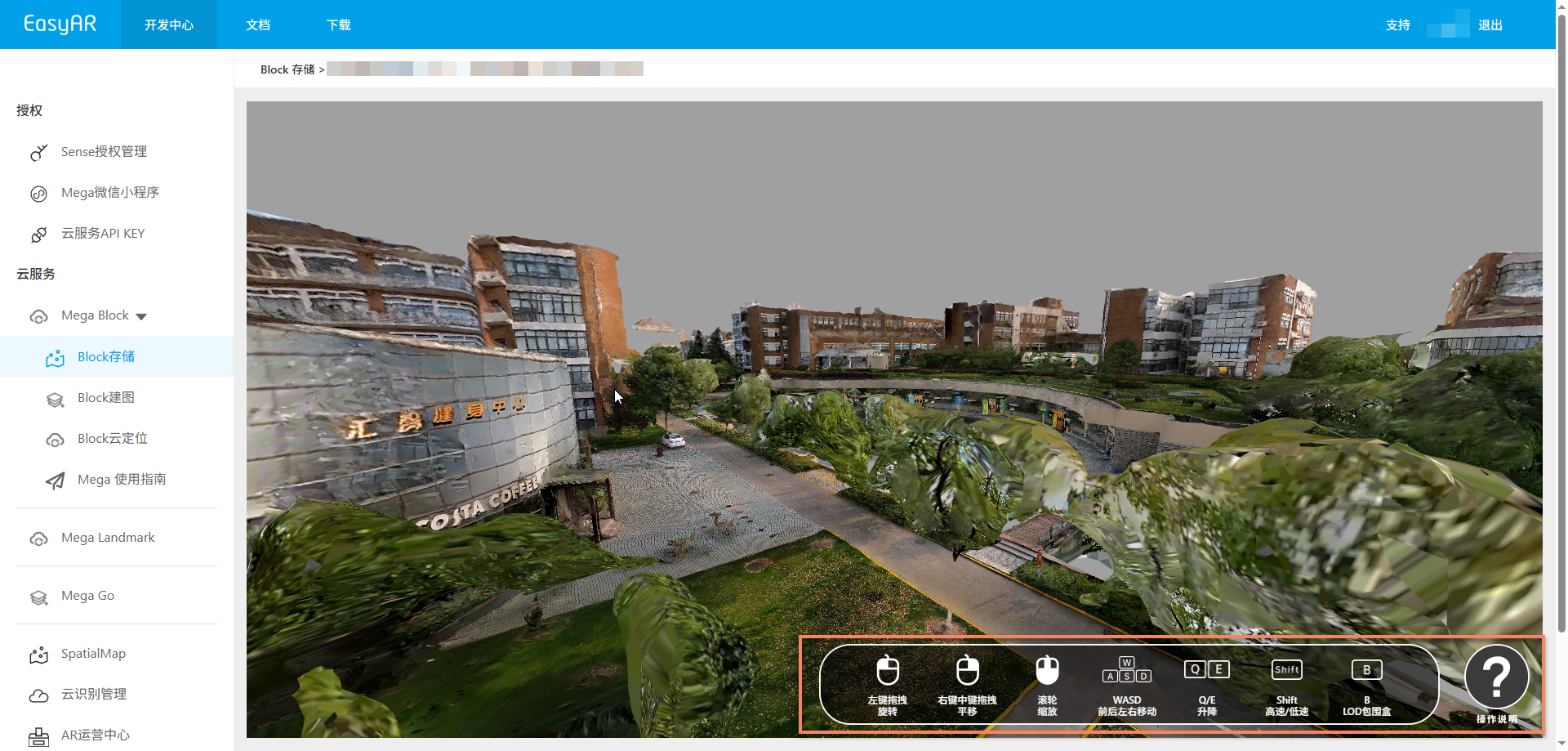
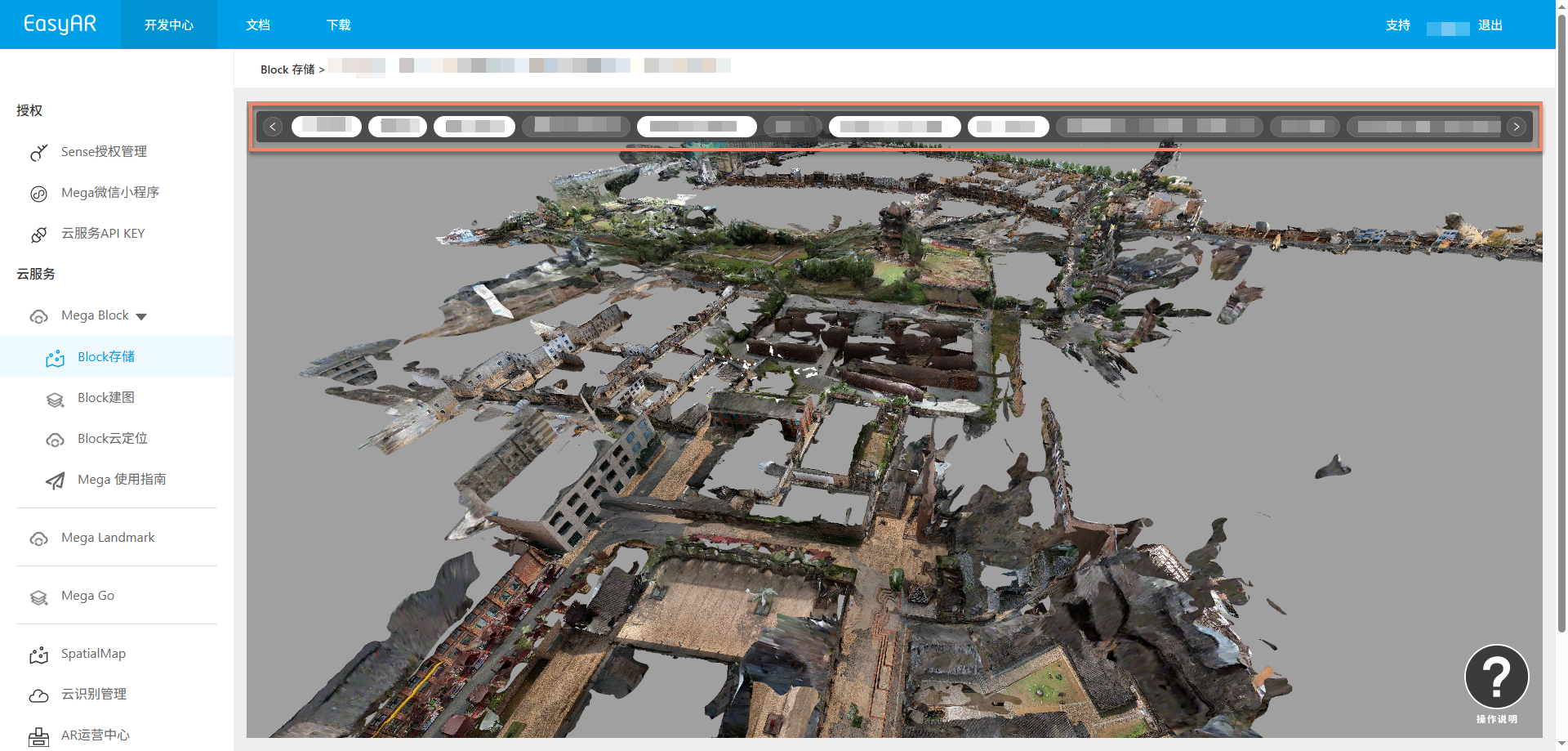
The preview block effect is as follows:

Preview block