Preview mapping trajectories
This article describes how to preview mapping trajectories and determine whether the trajectory map matches the route plan used during acquisition. By comparing the shapes of the route plan and the trajectory map, you can ensure that the acquisition path is complete and that no areas were missed. If the trajectory does not match the plan, you can reacquire data or perform supplementary acquisition, then upload the data again for mapping.
Regular single-map tasks
Click the
Preview trajectorybutton.

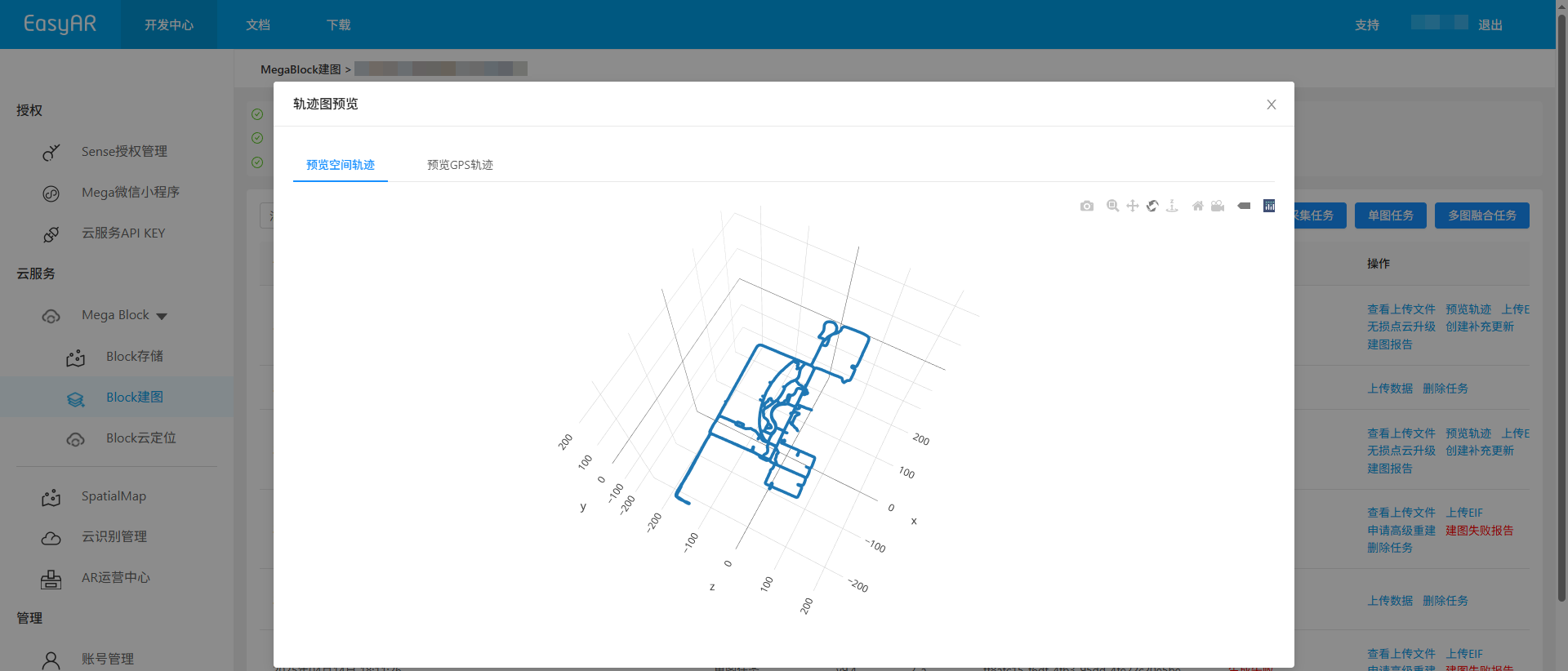
Preview the spatial trajectory map in the popup window.
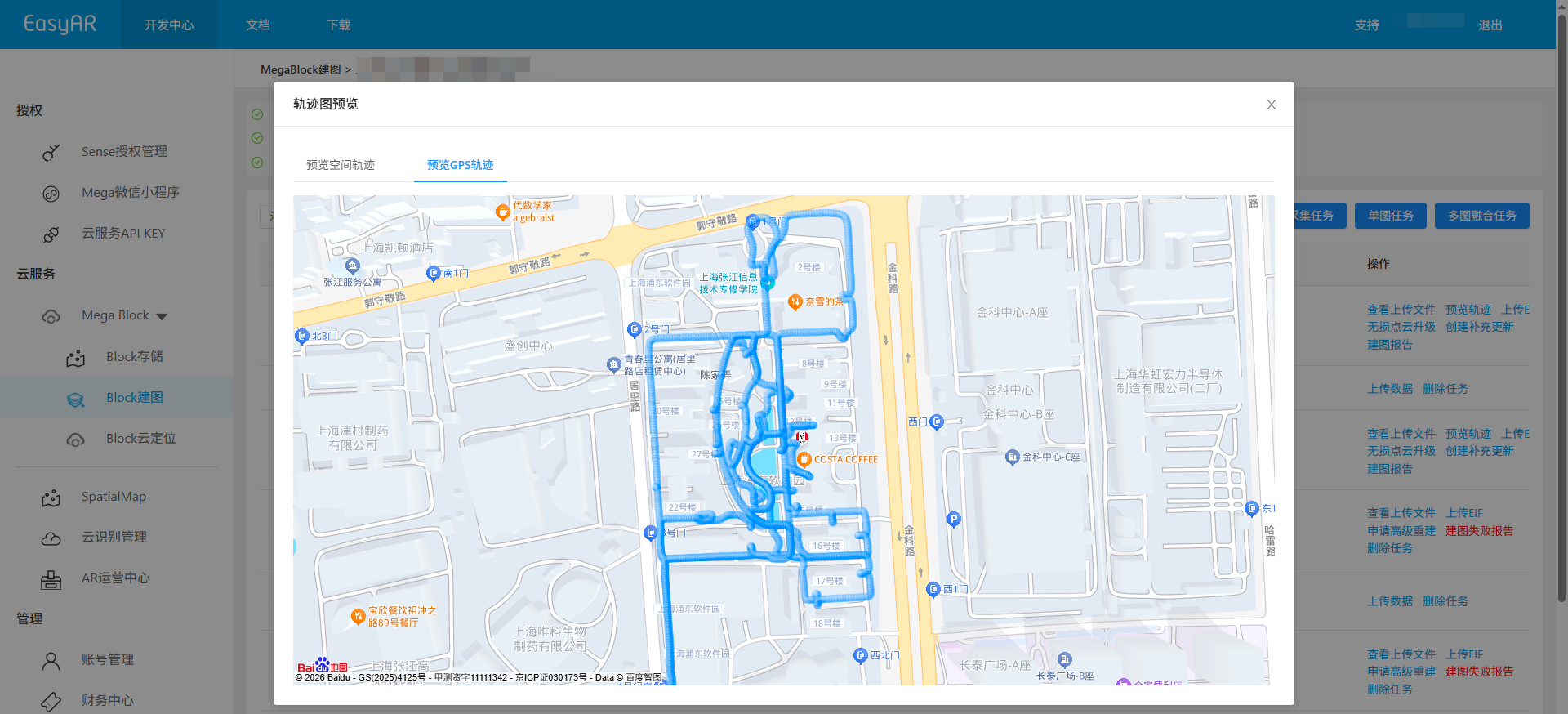
If the acquired data is in an outdoor area with good GNSS signal, the system will automatically generate a GNSS trajectory map.
Multi-map fusion tasks
Click
Multi-map fusion managementto enter the multi-map management page.
In the multi-map fusion mapping result list, click the
View trajectory databutton.
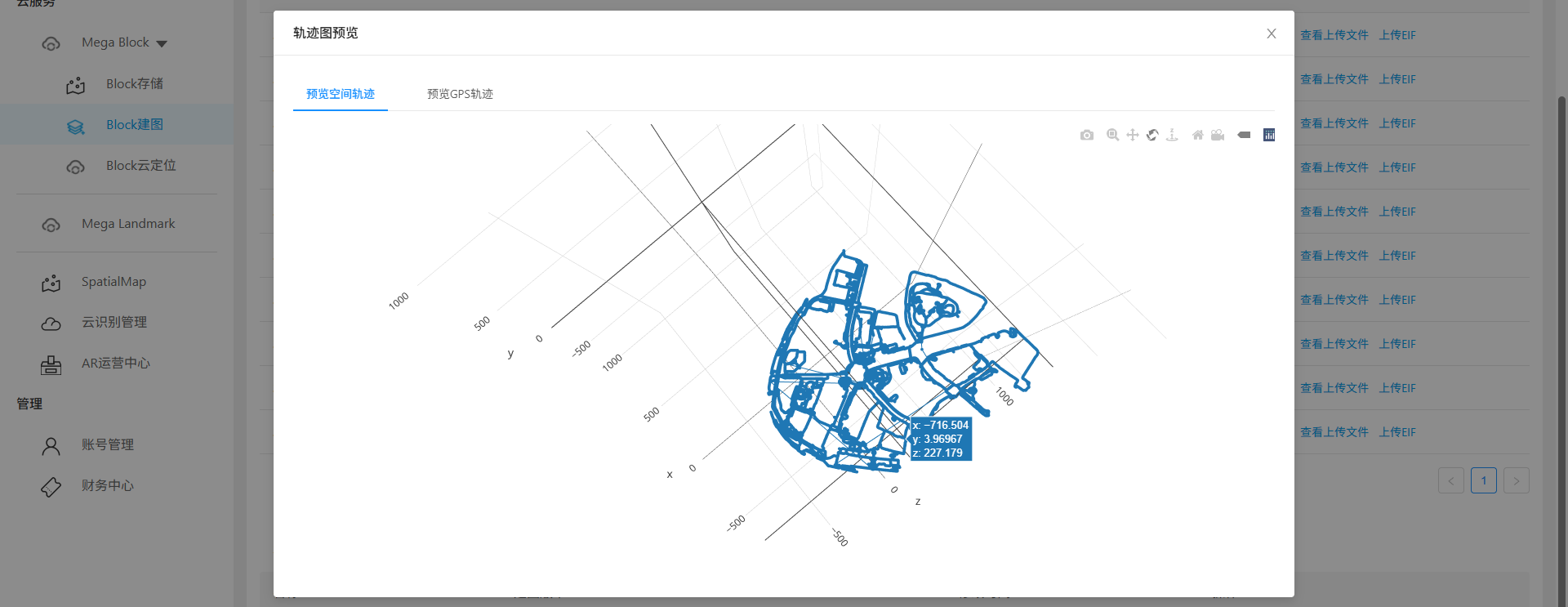
Preview the trajectory map in the popup window.
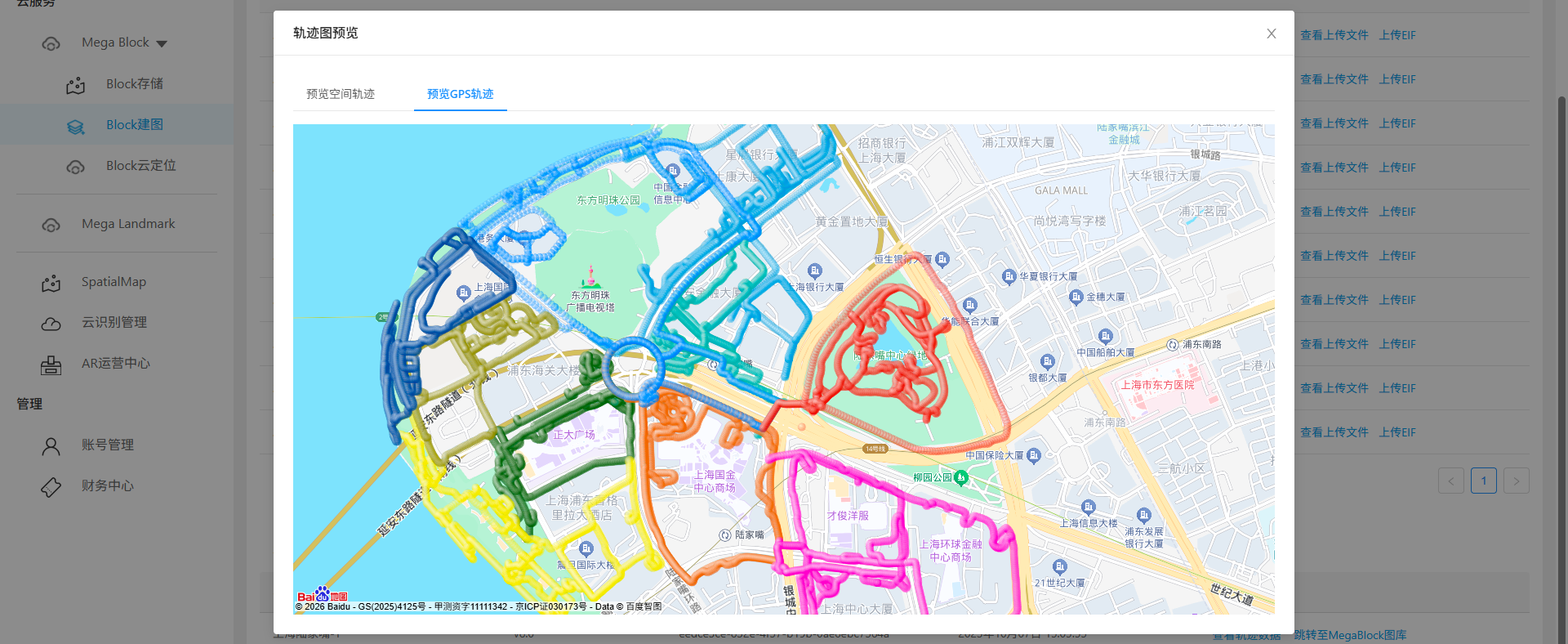
If the acquired data is in an outdoor area with good GNSS signal, the system will automatically generate a GNSS trajectory map.
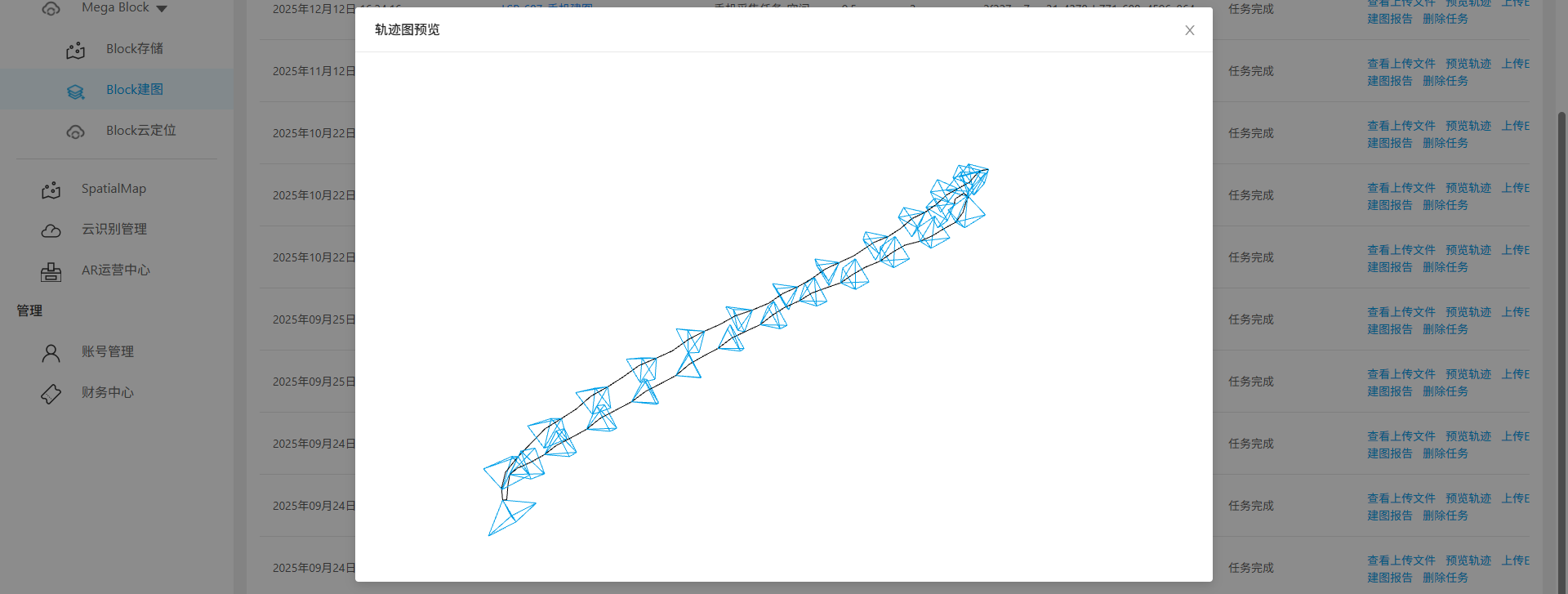
Small-scale phone acquisition tasks
Click the
Preview trajectorybutton.
Preview the trajectory map in the popup window.
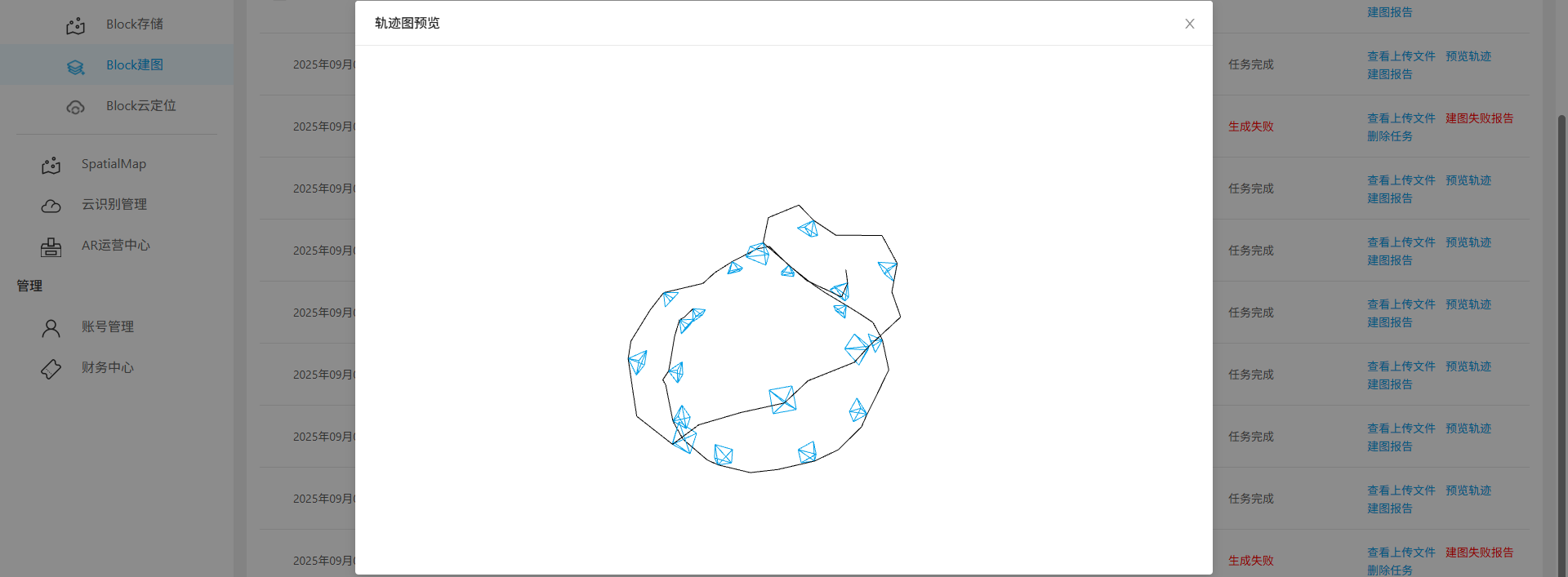
Object phone acquisition tasks
Click the
Preview trajectorybutton.
Preview the trajectory map in the popup window.
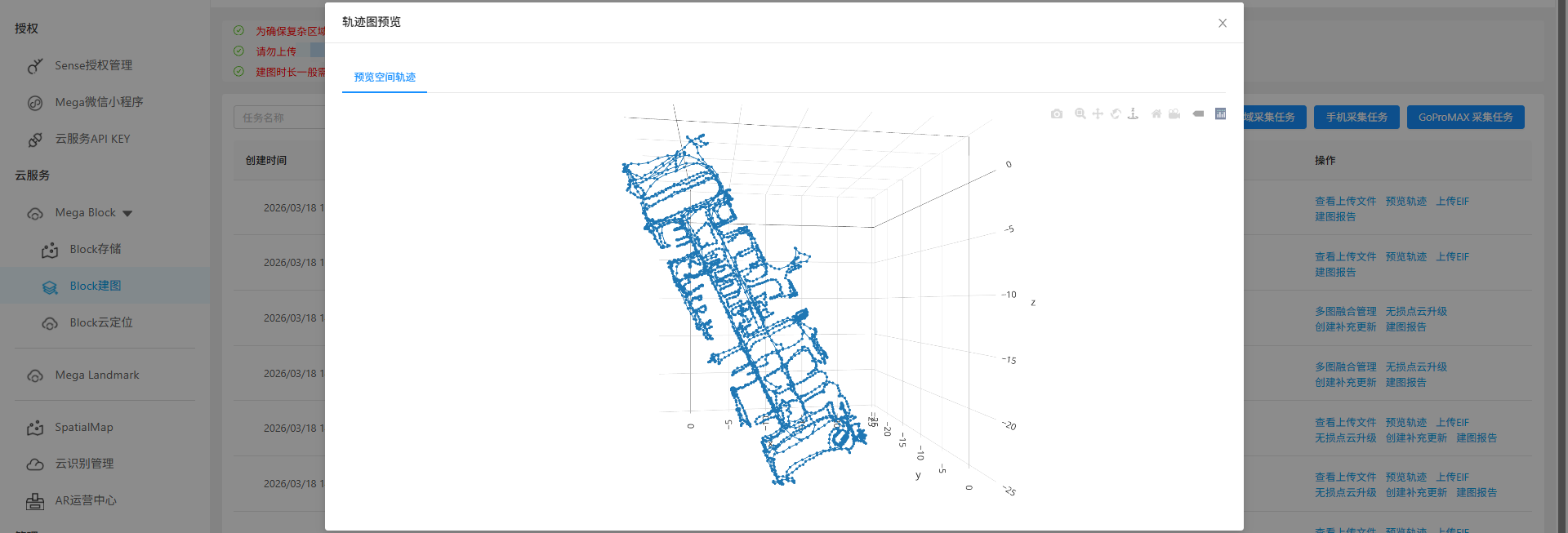
LiDAR acquisition tasks
Click the
Preview trajectorybutton.
Preview the spatial trajectory map in the popup window.
Related topics
- View mapping results