View Block information
This article describes in detail how to view detailed Block information after mapping succeeds.
Feature entry
After mapping succeeds, you can enter the Block details page through a mapping task or the Block repository to view detailed information about the corresponding Block.
Access through a mapping task
On the mapping task management page, click the corresponding task name to jump to the corresponding Block details page, except for multi-map fusion tasks.
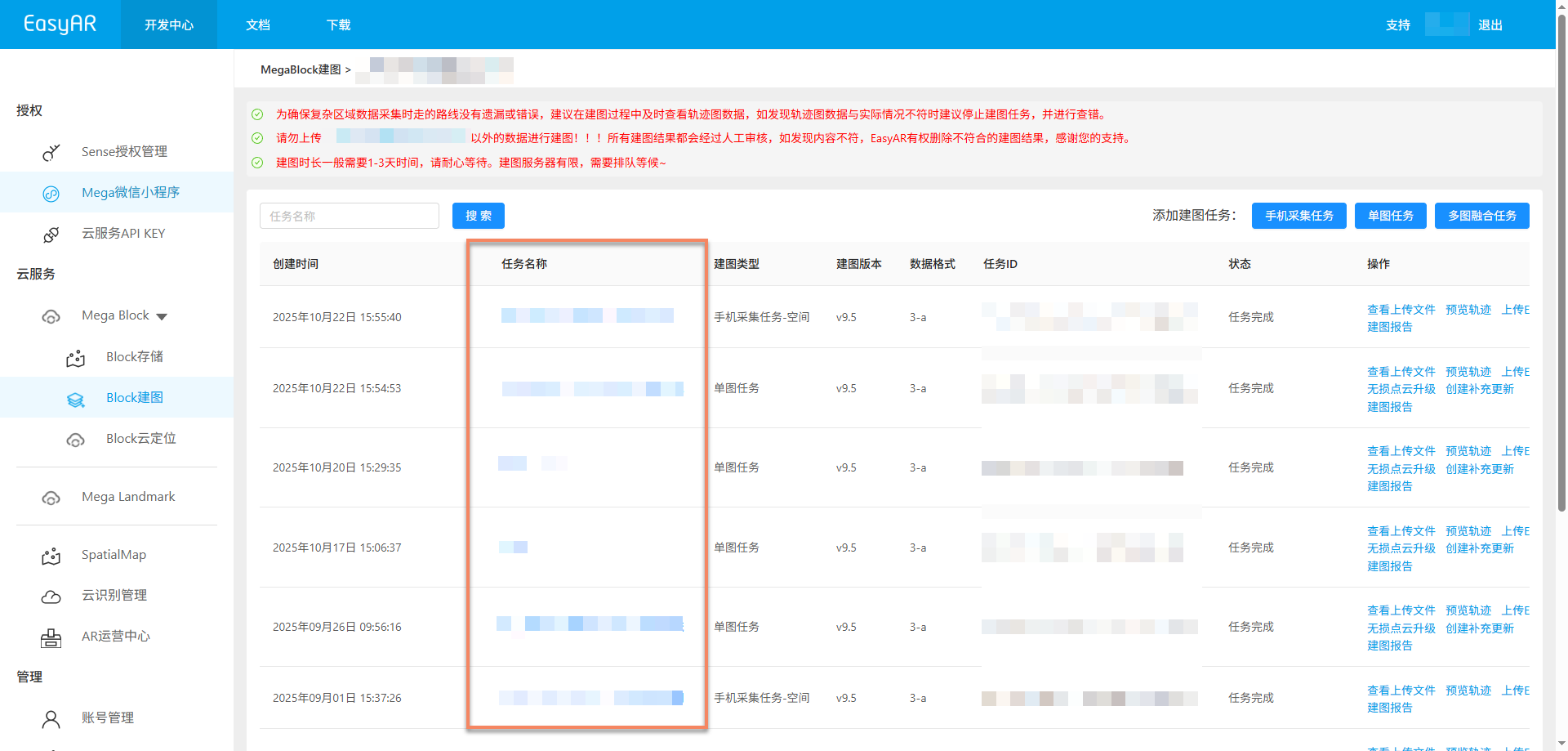
Multi-map fusion tasks need to access Block details through the multi-map fusion management page:
Click the
Multi-map Fusion Managementbutton to enter the multi-map fusion management page.
In the multi-map fusion mapping result list, click the
Go to MegaBlock Gallerybutton to jump to the corresponding Block details page.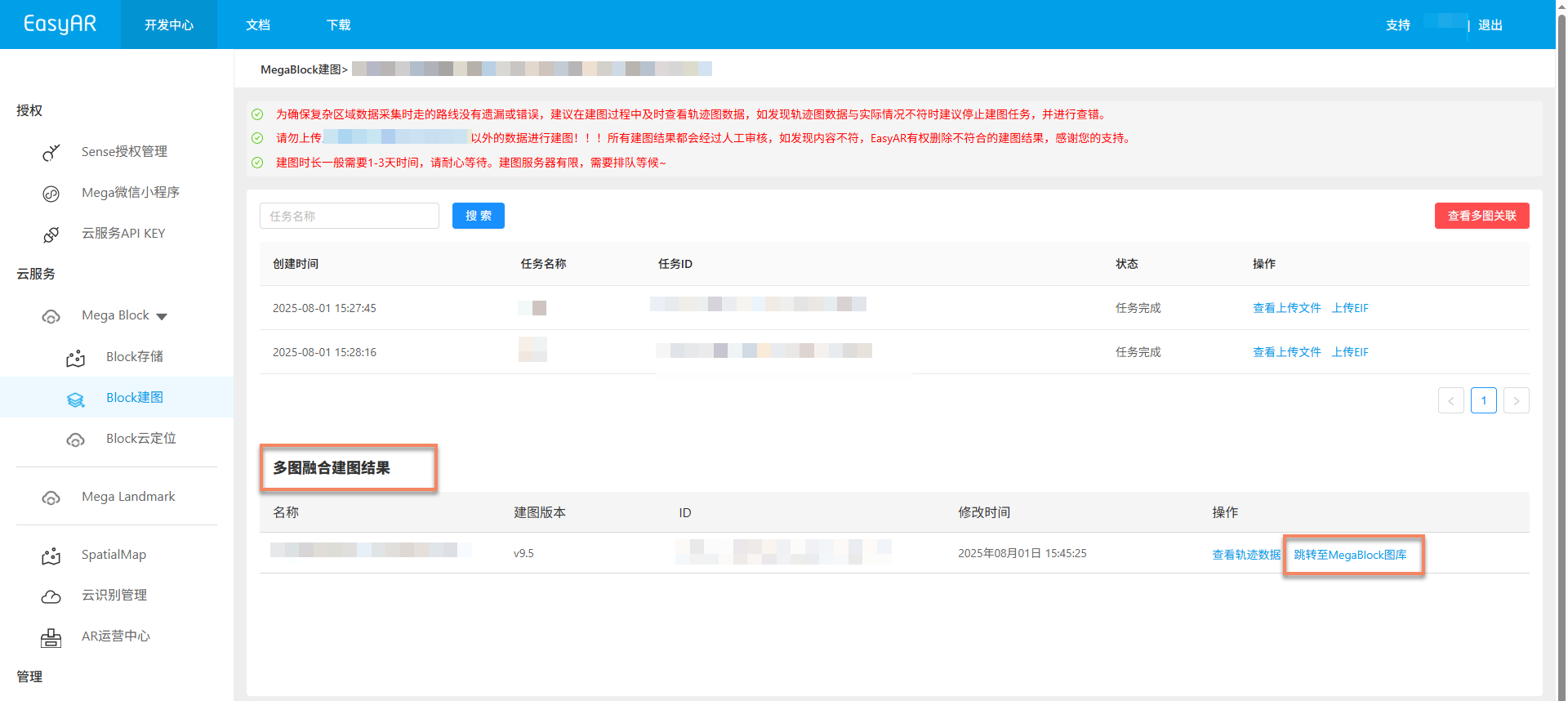
Access through the Block repository
On the mapping project management page, view the mapping result of the corresponding project, then click the corresponding
Mapping Resultto jump to the Block repository page.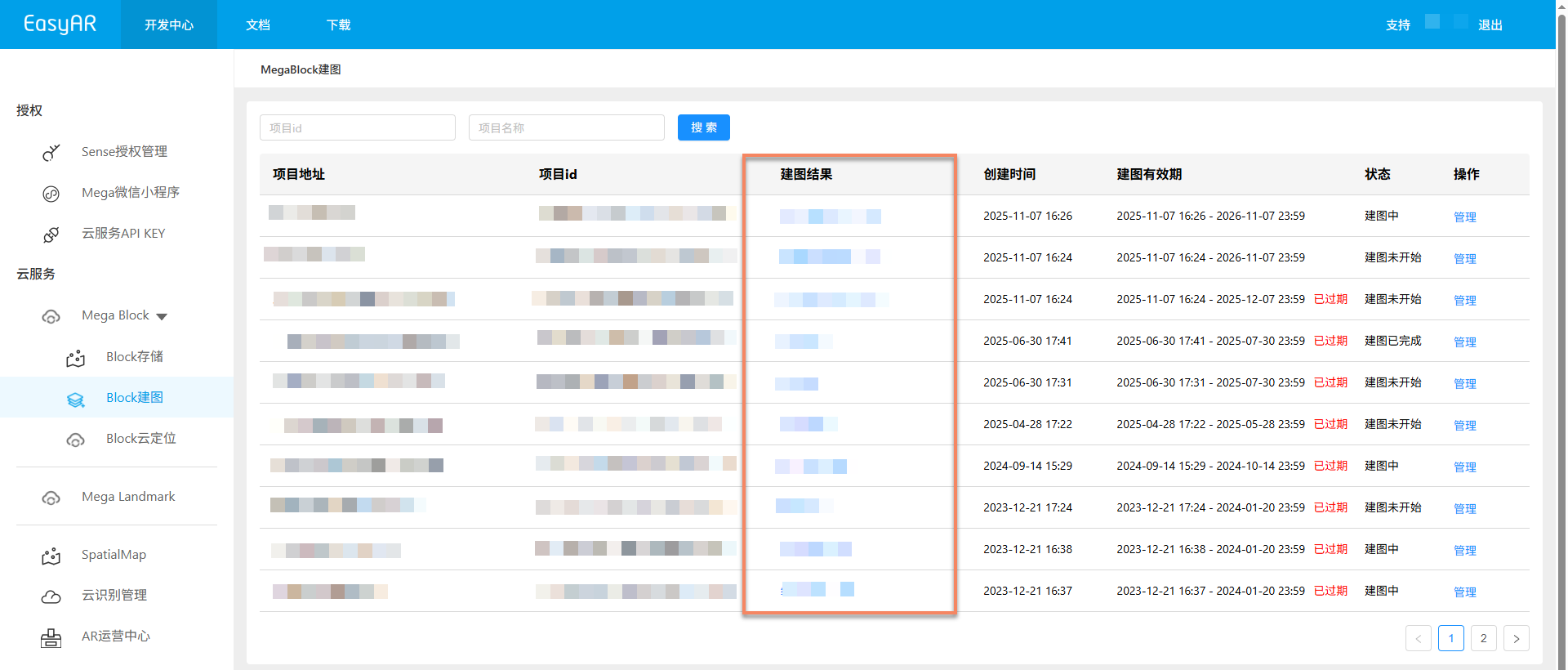
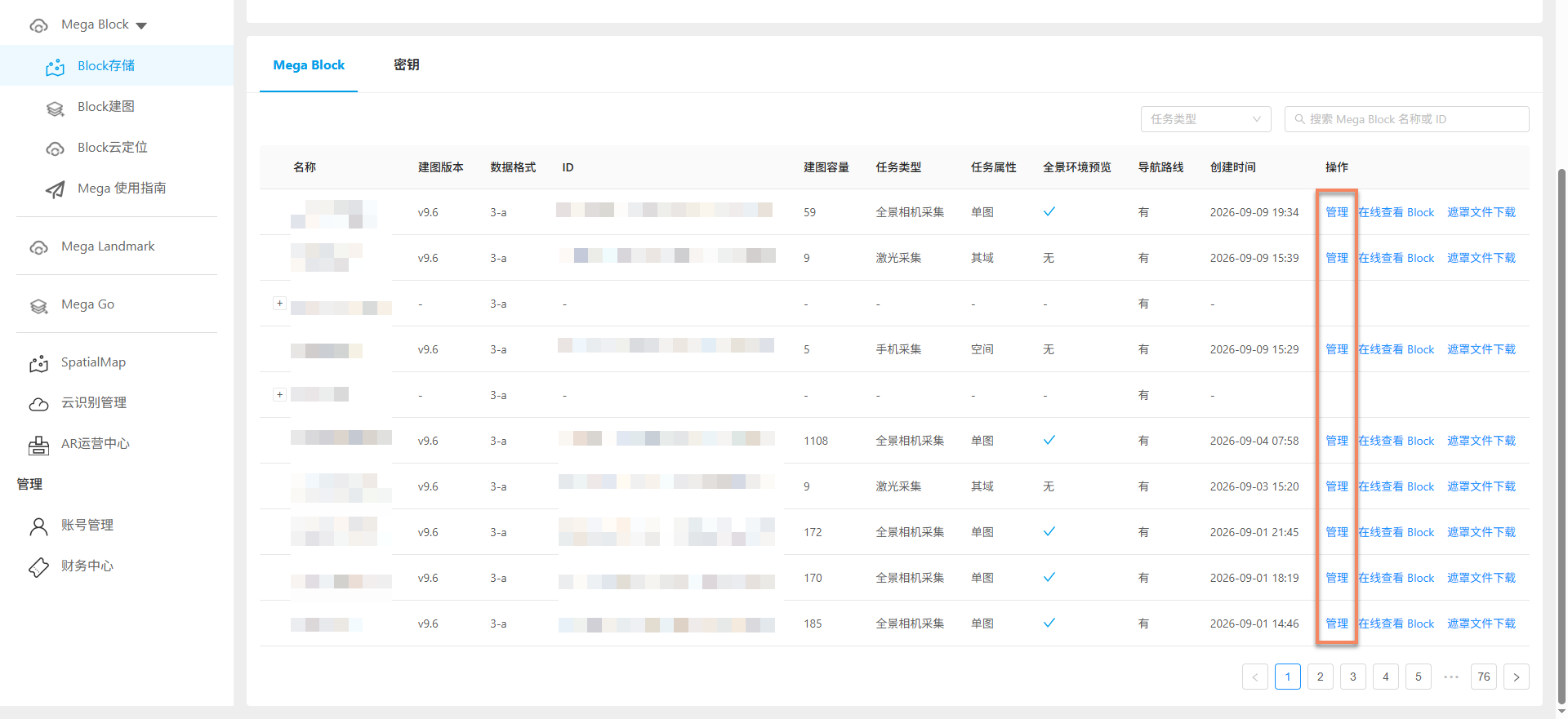
On the Block repository page, find the corresponding Block.
Manage: click to view detailed Block information.View Block online: view the mapping result Block online. Only mapping version >= 9.4 is supported. For detailed instructions, see View Block online.Download mask file: download low-precision and standard-precision mask files. Only mapping version >= 9.6 is supported.
Block details
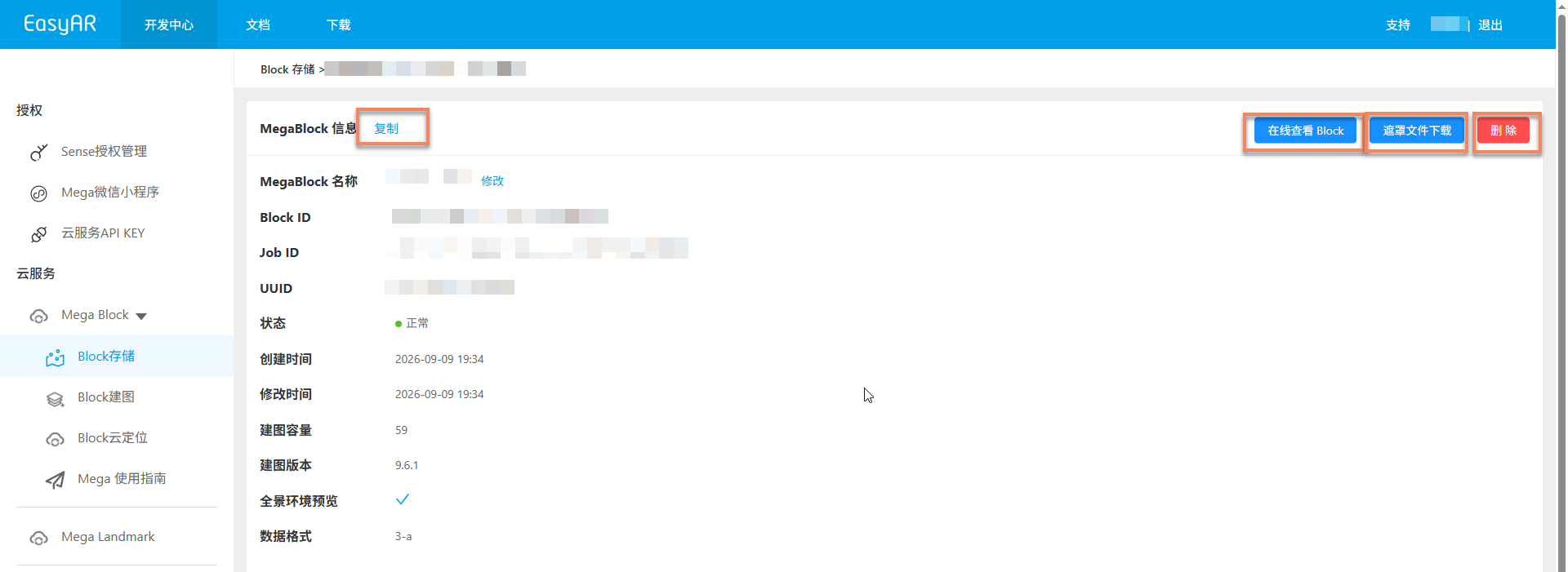
On the Block details page, you can view related information, including the following operations:
- Copy information: Click the
Copybutton in the upper-left corner to quickly copy all Block details - Delete Block: Click the
Deletebutton in the upper-right corner. After secondary confirmation, the Block can be deleted, provided that the Block is not loaded or in use - View Block online: Click the
View Block onlinebutton in the upper-left corner to view the mapping result Block online (mapping version must be 9.4 or later) - Download mask file: Click the
Download mask filebutton in the upper-left corner to download low-precision and standard-precision mask files (mapping version must be 9.6 or later)
Warning
Deleting a Block is irreversible. Operate with caution. Before deletion, make sure the Block is not loaded or in use to avoid affecting running applications.
Related topics
- View mapping results
- Use mapping results for localization