Login component
Mega Studio includes three components: Block Viewer for Unity Developer, Block Viewer, and Annotation Tool. Each component needs to log in to cloud services when used, in order to access Mega mapping or localization services. The three components use the same login method. Mega Studio provides two service access methods: "access your own services" and "access others' services".
Note
Starting from version 2.13, Unity application development should use the block editor tool.
Access your own services
If you have an EasyAR Developer Center account and password, you can directly log in with the account and password.
Select the required
EasyAR.Mega.*component inHierarchy. In theInspectorpanel, selectAccountas the access method, fill in the account information, and clickLogin.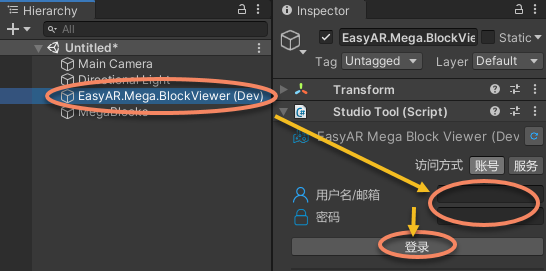
Click the button on the right side of
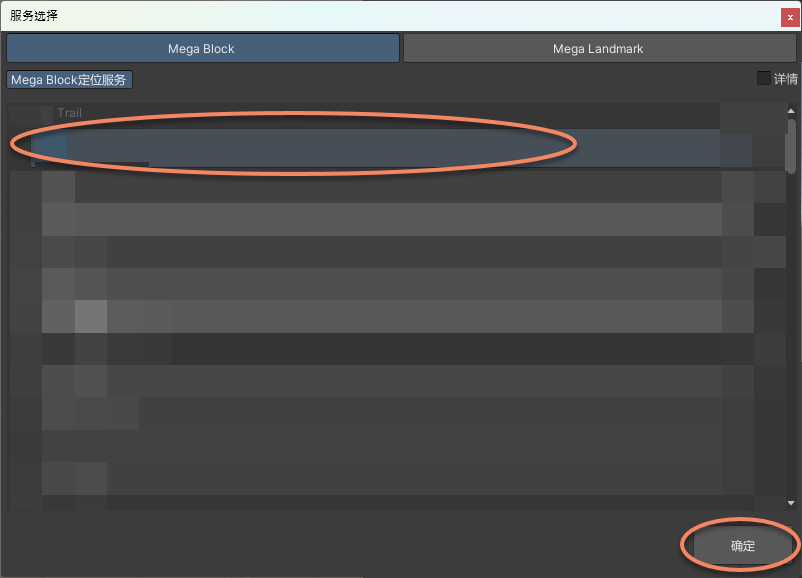
Mega Cloud Service. TheMega Localization Servicewindow will pop up. Select the localization service you need and click OK.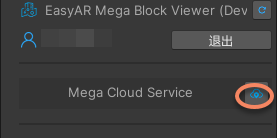
Access others' services
If you do not have an EasyAR Developer Center account and password, you can log in using Mega Localization Service.
Select the required
EasyAR.Mega.*component inHierarchy. In theInspectorpanel, selectServiceas the access method, and clickEnter.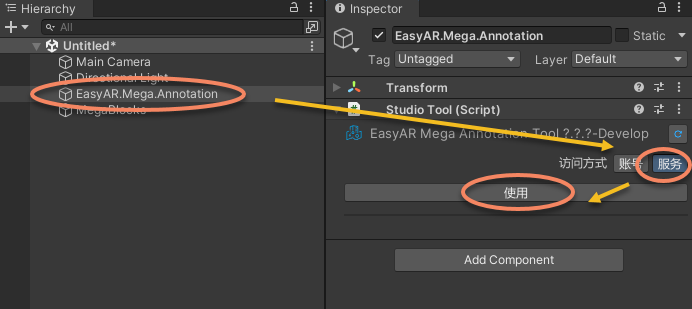
Click the button on the right side of
Mega Cloud Service, and enter either of the following methods inMega Block Localization Service.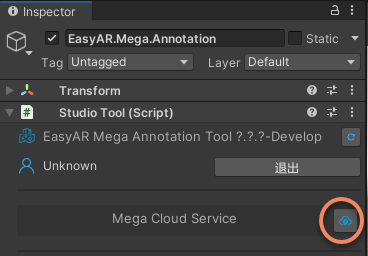
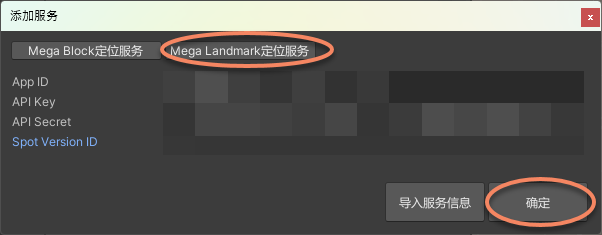
Directly import service information. This service information is exported from Mega Studio. For details, refer to cloud service component.
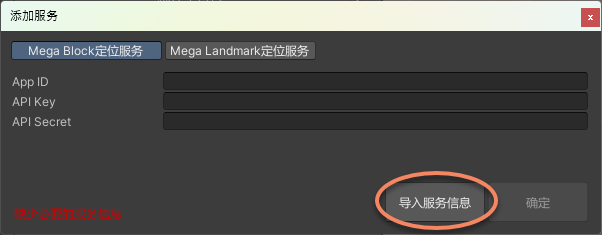
Directly add
App ID,API Key, andAPI Secretin the interface, then click OK.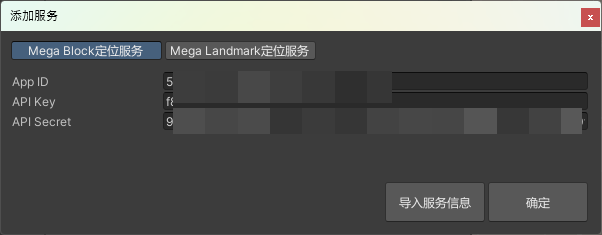
Click the button on the right side of
Mega Cloud Service, and enter either of the following methods inMega Landmark Localization Service.Directly import service information. This service information is exported from Mega Studio. For details, refer to cloud service component.
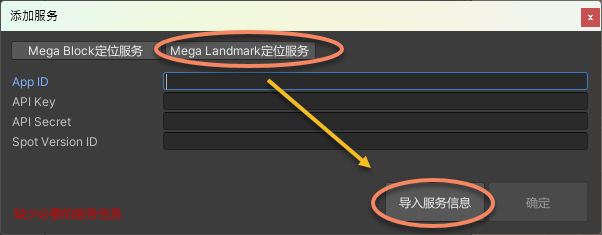
Directly add
App ID,API Key,API Secret, andSpot Version IDin the interface, then click OK.