Cloud Service Components
This manual details the control functions and usage methods provided by the Mega cloud service components in the Unity editor.
Note
Starting from version 2.13, when developing Unity applications, you should use the block editor tool.
Initial State
The initial state refers to the state when the tool is newly created, and the user has not logged in to an account or entered through the service entry.
Access Method: Account
This state refers to the state of the component when the access method is switched to the account in the initial state. At this time, the user should log in by entering the account and password.
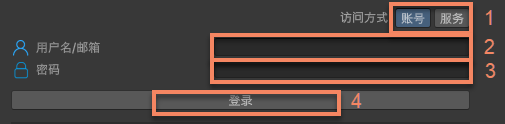
| Number | Control Name | Control Type | Function Description |
|---|---|---|---|
| 1 | Access Method | Radio Button | Select the service access method. |
| 2 | Username/Email Input Box | Input Box | Enter the account. |
| 3 | Password Input Box | Input Box | Enter the password. |
| 4 | Log in | Button | Log in using the username/email and password. |
Access Method: Service
This state refers to the state of the component when the access method is switched to the service in the initial state. At this time, the user should directly enter and supplement the service information in subsequent operations.

| Number | Control Name | Control Type | Function Description |
|---|---|---|---|
| 5 | Use | Button | Access using the service method. |
Service Not Selected State
This state refers to the state where the user has entered through the account or service entry but has not selected a service. At this time, the user should select a service through the 8 Select Service button.
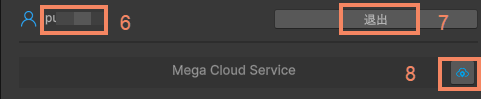
| Number | Control Name | Control Type | Function Description |
|---|---|---|---|
| 6 | Account Name | Text | Account Access: Displays the name of the currently logged-in account. Service Access: Displays as Unknown. |
| 7 | Log out | Input Box | Log out of the logged-in account and return to the initial state. |
| 8 | Select Service | Button | Account Access: Pop up the service selection menu. Service Access: Pop up the add service menu. |
Service Selection Menu
- When using the Annotation Tool and Block Viewer for Unity Developer, after clicking 8 Select Service, the service selection menu that pops up includes the cloud positioning service groups and cloud positioning libraries that the account has permission to access:
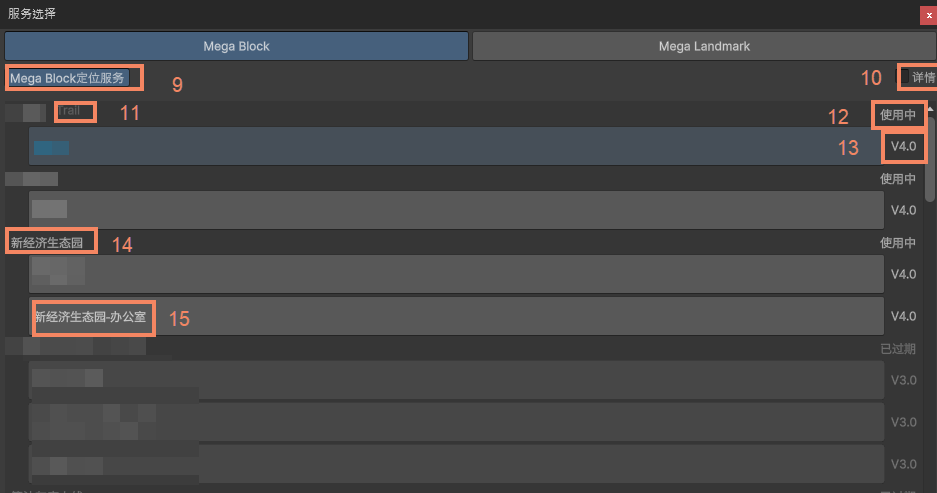
The service selection menu when the 10 Details switch is not turned on. | Number | Control Name | Control Type | Function Description | | --- | --- | --- | --- | | 9 | Select Service Type | Radio Button | Select the service type. When using the Annotation Tool and Block Viewer for Unity Developer, you can only select Mega Block Positioning Service. | | 10 | Show Details | Switch | Control whether to show details. | | 11 | Trial Flag | Text | Indicates that the cloud positioning service group is for trial use. | | 12 | Availability Status | Text | Displays whether the cloud positioning service group is available. | | 13 | Cloud Positioning Library Version | Text | The version of the cloud positioning library. | | 14 | Cloud Positioning Service Group Name | Text | The name of the cloud positioning service group. | | 15 | Cloud Positioning Library Name | Text | The name of the cloud positioning library. |
The service selection menu when the 10 Details switch is turned on. | Number | Control Name | Control Type | Function Description | | --- | --- | --- | --- | | 16 | QPS Limit | Text | The QPS limit of the cloud positioning library. | | 17 | Cloud Positioning Library AppID | Text | The AppID of the cloud positioning library. |
- When using the Block Viewer, after clicking 8 Select Service, the service selection menu that pops up includes the cloud positioning service groups, cloud positioning libraries, and Mega Block storage repositories that the account has permission to access:
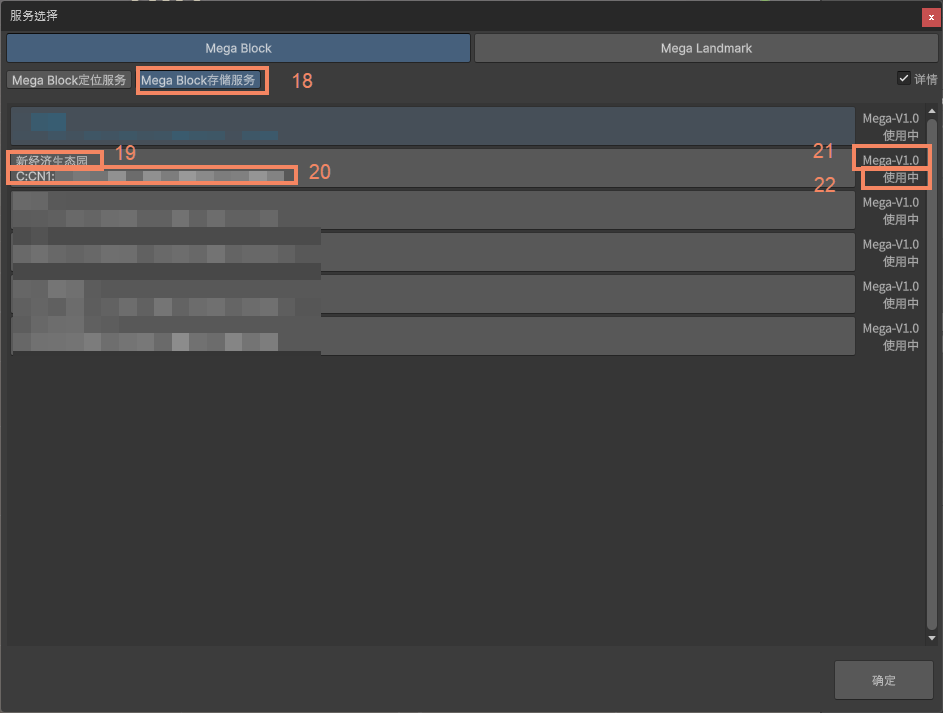
Number Control Name Control Type Function Description 18 Select Service Type Radio Button Select the service type. When using the Blocker Viewer, you can select Mega Block Positioning Service and Mega Block Storage Service. 19 Block Storage Repository Name Text The name of the Block storage repository. 20 Block Storage Repository AppID Text The AppID of the Block storage repository. 21 Block Storage Repository Version Text The version of the Block storage repository. 22 Availability Status Text Displays whether the Block storage repository is available.
Add Service Menu
This is the window that appears after switching the access method to the service in the initial state of the component and clicking the 8 Select Service button. It is used to enter service information or import a local service information file to add a service.
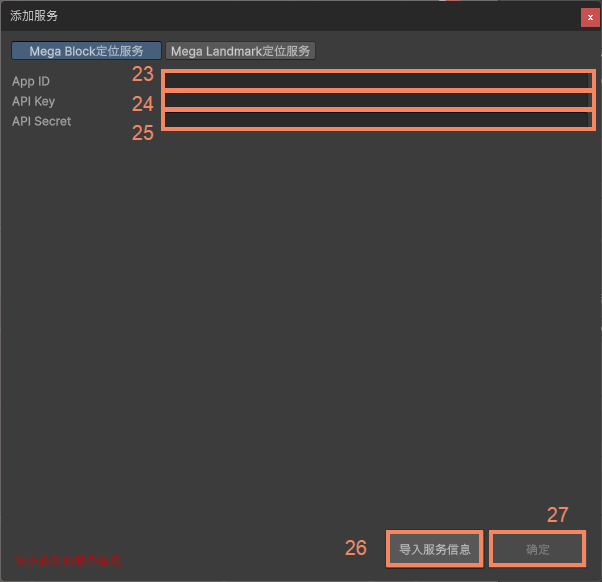
| Number | Control Name | Control Type | Function Description |
|---|---|---|---|
| 23 | Service AppID Input Box | Input Box | Enter the AppID of the service to be added. |
| 24 | Service API Key Input Box | Input Box | Enter the API Key of the service to be added. |
| 25 | Service API Secret Input Box | Input Box | Enter the API Secret of the service to be added. |
| 26 | Import Service Information | Button | Add a service by importing a locally saved service information file. |
| 27 | Confirm | Button | Confirm to add the service. |
Service Selected or Added State
This state refers to the state of the Mega cloud service component when the user has logged in to an account or entered through the service entry and has determined the service type and the corresponding cloud positioning library/storage repository by selecting or adding a service.

| Number | Control Name | Control Type | Function Description |
|---|---|---|---|
| 28 | Service Information | Text | Displays the service type and the name and version of the library in the current selection. |
| 29 | Export Service Information | Button | Export the information of the currently selected or added service. The saved service information can be imported through 26 Import Service Information. |