Block Viewer Tool (Unity Development)
Important
This tool has been removed in version 2.13. For Unity application development, use the block editor tool instead.
This article applies only to version 2.12 and earlier.
Block Viewer Tool (Unity Development) is an independent, lightweight function module in Mega Studio, designed specifically for developers so they can directly view and preview completed Mega Blocks. It lets you load, browse, and inspect cloud-generated Block data directly in the Unity Editor, and it also supports direct verification of localization results without writing any code or running a complete application.
Tip
This tool is designed specifically for Unity developers. Compared with the EasyAR.Mega.BlockViewer tool, it additionally integrates a validation tool component. If you are not a developer, we recommend using EasyAR.Mega.BlockViewer or EasyAR.Mega.Annotation directly.
Create the viewer tool
Right-click an empty area in the
Hierarchypanel and chooseEasyAR Mega->Tool->Block Viewer for Unity Developer (Edit Mode).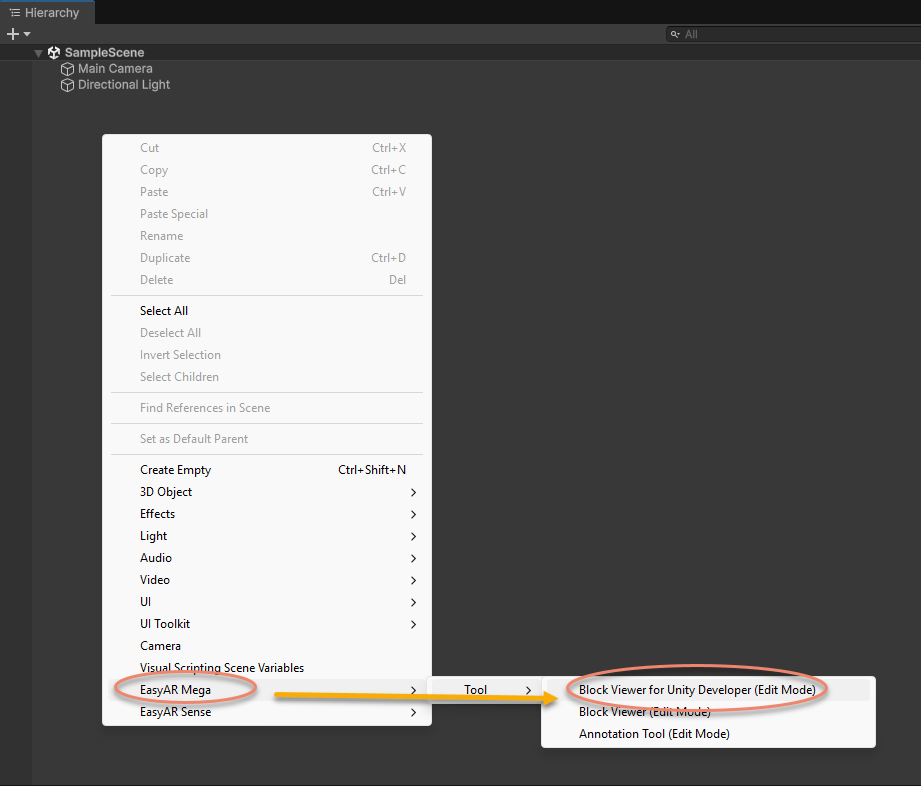
After adding it, a new
EasyAR.Mega.BlockViewer (Dev)node appears in theHierarchypanel.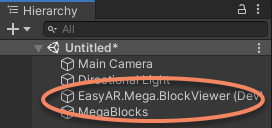
Function description
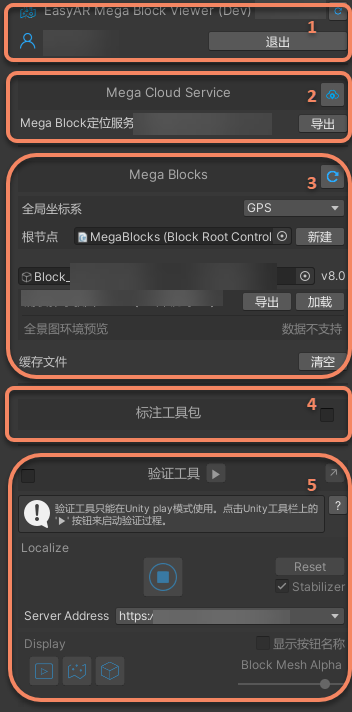
After creating the tool, you can configure it through the Inspector panel to load Block data and control model export or display.
BlockViewer (Dev) node description
Except for the validation tool, other functions of EasyAR.Mega.BlockViewer (Dev) can only be used in the editor while it is not running. Make sure the Play button at the top of the Unity Editor is not pressed. As shown below, the editor is in the stopped state when the button is a right-pointing triangle, and the functions can then be used.
At runtime, tool-related nodes and data remain in the scene and can be used together with the validation tool, but all functions of the tool itself are unavailable.

Warning
If you need to package the developed Unity application to a mobile device, be sure to delete the EasyAR.Mega.BlockViewer (Dev) node from the scene before building. Otherwise, packaging may fail or runtime errors may occur.