Record EIF data for simulation verification
The core of simulation running is to record a high-quality segment of EIF data. It is recommended that you follow the steps below for acquisition.
How to acquire
Download and install the latest Mega Toolbox. Use an iPhone or an Android phone that supports ARCore whenever possible, and acquire in the target area.
Download Toolbox
Download and install the data acquisition tool app package Mega ToolBox.
iPhone users can search for Mega Toolbox in the mobile App Store, then download and install the data acquisition tool.
For Android phones, download the Android Mega Toolbox installation package from Workflow Tools on the EasyAR download page. After downloading, you can use
adb install EasyARMegaToolbox_***.apkon a computer, or install the downloaded apk package directly on the phone.
Acquisition process
Open Toolbox and select
Simulation data recording tool.
After entering the EIF recording tool, fill in the file name (only English letters and numbers are supported), and then click the
Enterbutton.Before entering EIF recording mode, point the camera at a texture-rich area for initialization. After observing that the tracking status in the upper-left panel changes to
Tracking, point the camera at the place where test data needs to be recorded.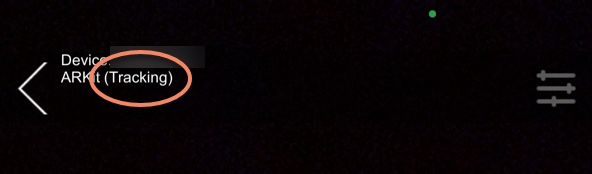
After acquisition is complete, click the stop recording button to end recording.
Acquisition notes
- Data should be acquired within the image acquisition area.
- Test data can be recorded from a visitor's perspective.
- Avoid sudden large turns or facing textureless areas such as white walls or the ground for a long time.
- Each recording is recommended to be no longer than 10 minutes.
- On some phones that use AR Engine, the tracking status may take 10 to 30 seconds to become
Tracking.
Data export
After completing simulation data acquisition on your phone, you need to export the acquired EIF data.
Export Android data
Connect the phone to the computer, enable File Management mode on the phone, enter the local file path Android/data/com.easyar.mega.toolbox/files/MegaStudio/FrameStream, and then select the data file with the corresponding name to export.
Export iOS data
Export with a Mac computer
Connect the iPhone to the Mac computer.
Open the Finder application, click the phone icon, click Trust, and then also tap Trust on the phone.

After trust is granted, click the Files menu, find the
MegaStudiofolder under theMegaToolboxApp, and dragMegaStudioto the computer desktop. If the files are large, wait patiently and make sure all files are exported completely.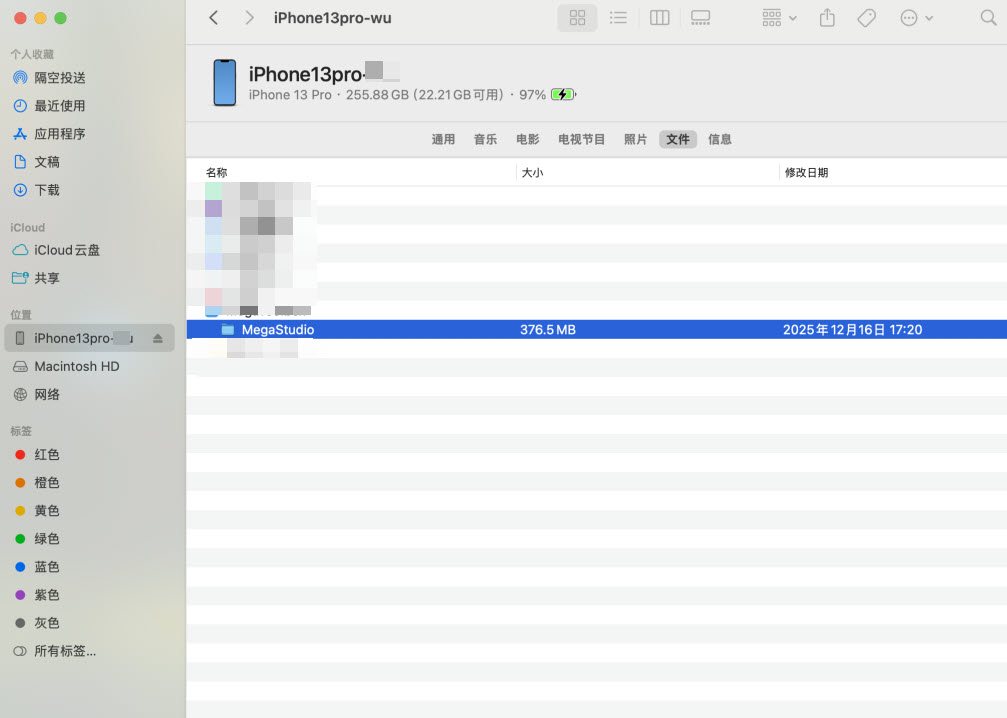
Export with a Windows computer
Download iTunes on your Windows computer and install it.
Connect the iPhone to the Windows computer and trust it.
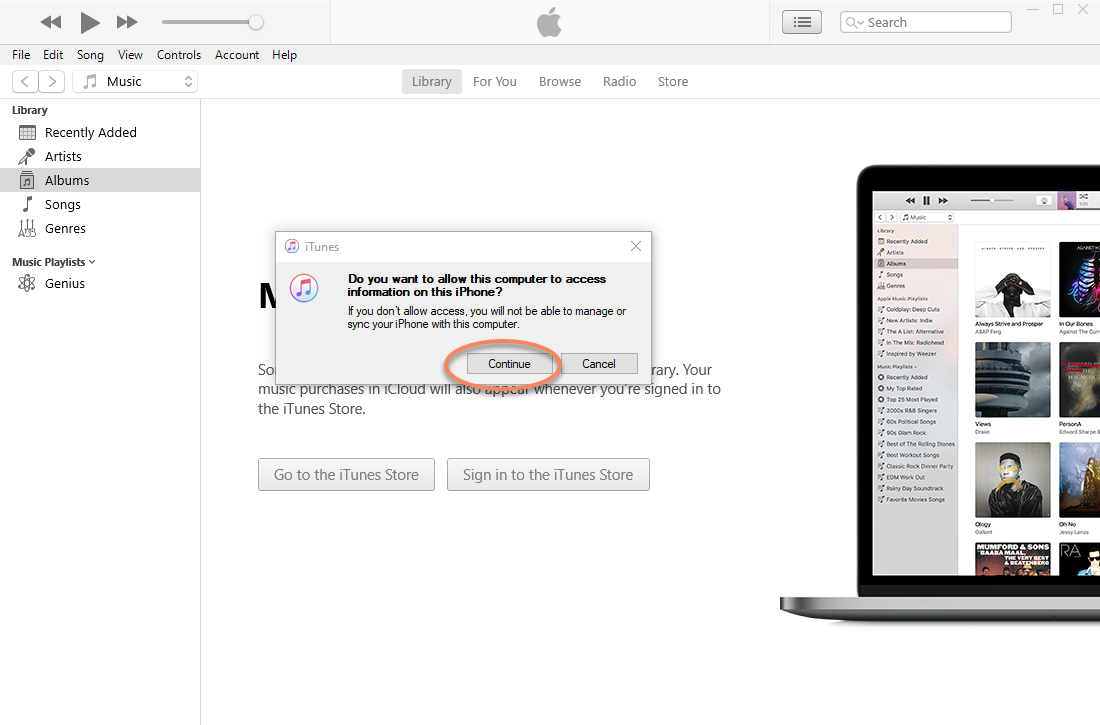
Click the phone button.
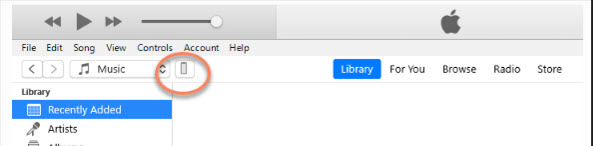
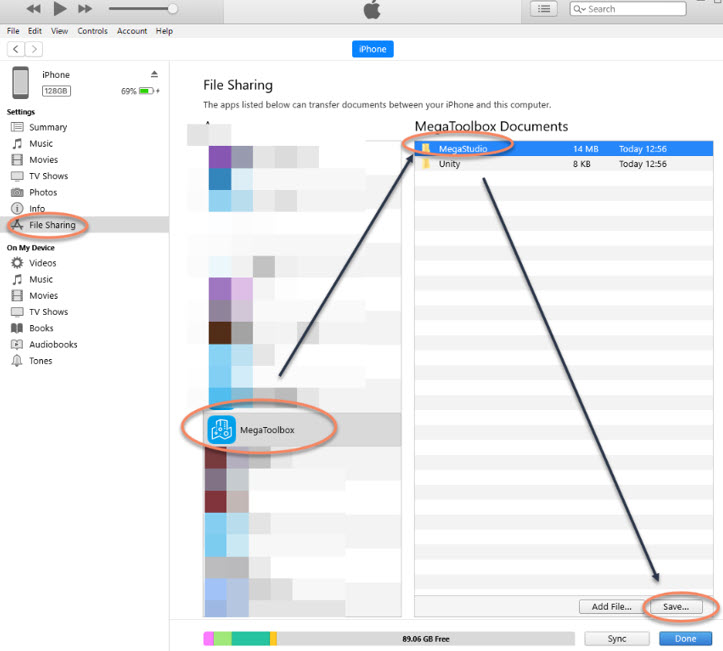
Click File Sharing, find the
MegaStudiofolder under theMegaToolboxApp, and click Save.