Add Mega Tracking Targets
This article describes how to add and configure Mega tracking targets.
Before You Start
- Check Is My Localization Library Ready for Use?
- Import the Latest Version of the EasyAR Plugin and Enable the Mega Feature
- Understand the basic concepts and usage of Unity AR Tracking Targets
Note
The following content and tools are only applicable to the process of developing Unity applications using EasyAR Mega.
If you are developing a mini-program, please refer to Create and Upload Annotations Using the Unity Editor (Mini-program Development).
If you are not developing a Unity application but want to view the Mega mapping results, please refer to Preview the 3D Real-world Mesh in the Mega User Guide.
If you are not developing a Unity application but need to simulate the operation to view the localization effect, please refer to Preview the Simulation Operation Effect in the Mega User Guide.
The content of this article requires the following Unity packages to be imported into the project:
com.easyar.sense
Mega's Tracking Target
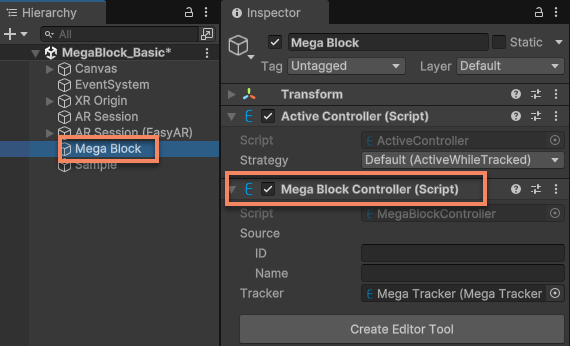
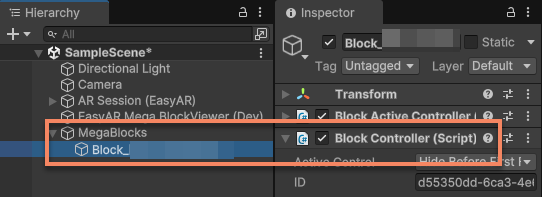
Mega's tracking target is an empty object containing the MegaBlockController component, which represents a block in Unity.
Note
When the com.easyar.mega package is not imported, the editor functions of the block are unavailable, but it does not affect the tracking effect and functions at runtime.
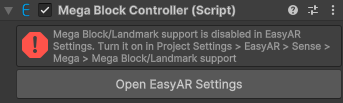
If the Mega feature is not correctly enabled in the configuration, it cannot be used.
Create Tracking Targets
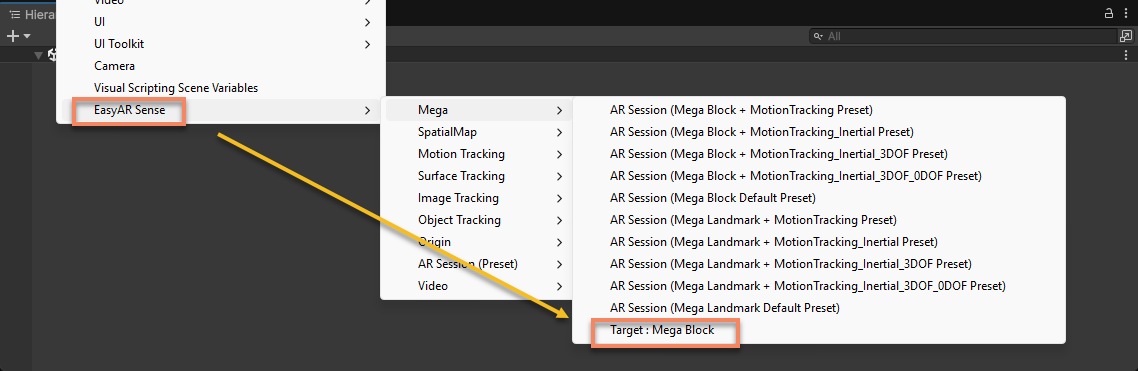
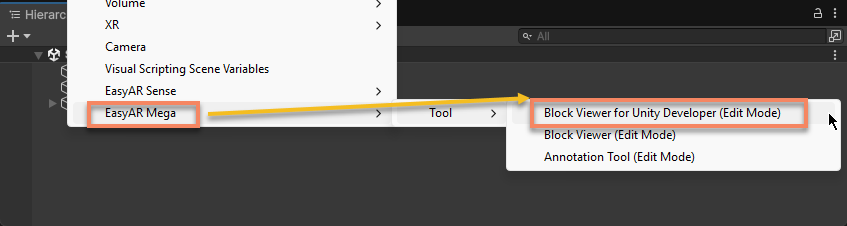
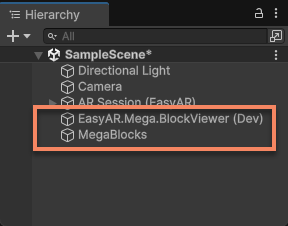
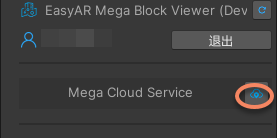
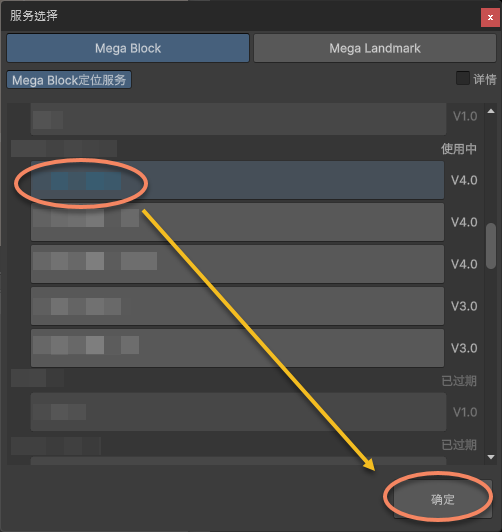
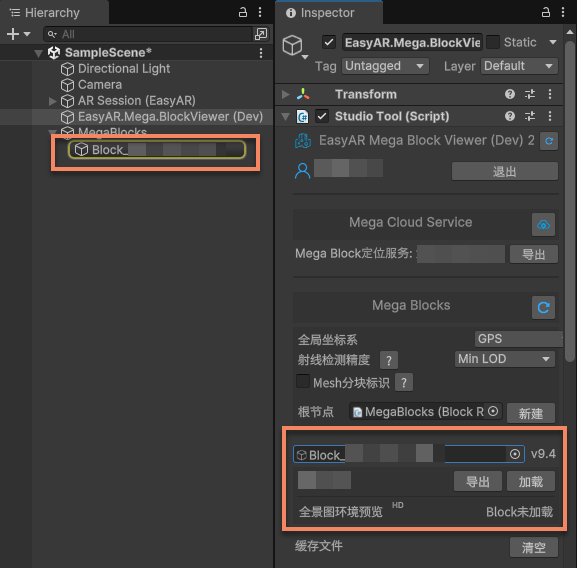
Right-click on the blank area in the Hierarchy view. You can create a Mega tracking target through the menu EasyAR Sense > Mega > Target : Mega Block.
In the script, you can use ARSessionFactory.CreateController to create it.
ARSessionFactory.CreateController<MegaBlockController>();
Configure Tracking Targets
Configure the target data source
Tracking targets can only be recognized and tracked after their sources are correctly configured.
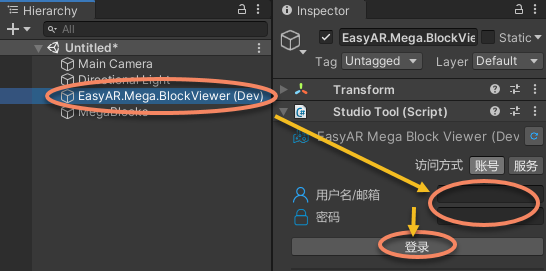
In the Hierarchy view, you can select the block node and fill in the block's ID and Name.
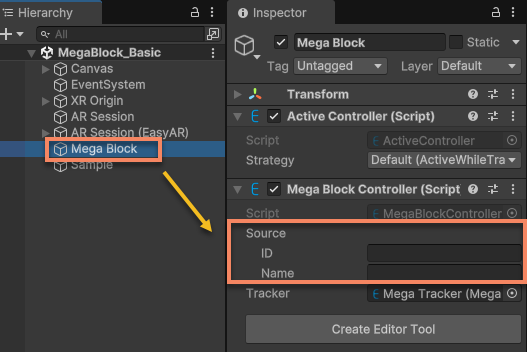
In the script, you can modify Source before the component MonoBehaviour.Start() to set the block's source.
block.Source = new MegaBlockController.BlockInfoSourceData(id, name);
Among them:
- The block id is the unique identifier of the block and must be filled in.
- The block name is the name of the block and can be filled in at will as needed. It is generally recommended to fill in the real name of the block for easy identification.
Tip
The block id and name can be obtained from the corresponding positioning library in the EasyAR Development Center.
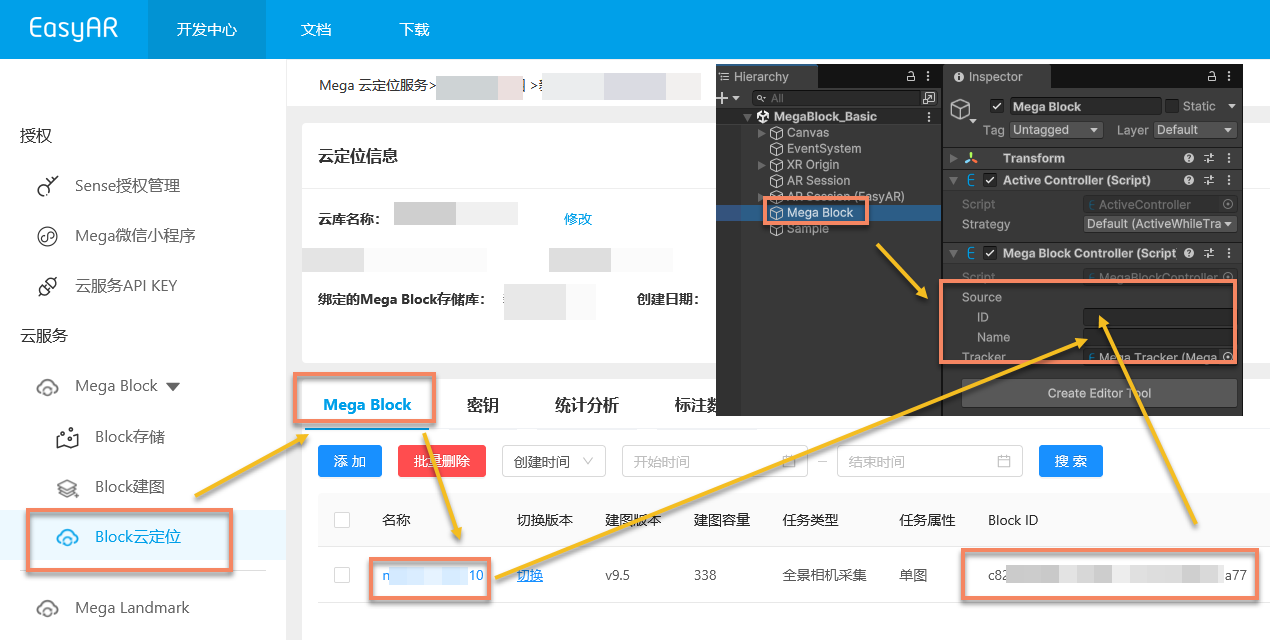
If there is no block data in the positioning library, you need to add the required Block to the positioning library and check again that the cloud positioning library is valid.
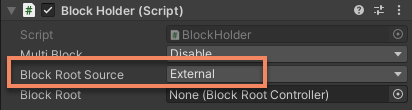
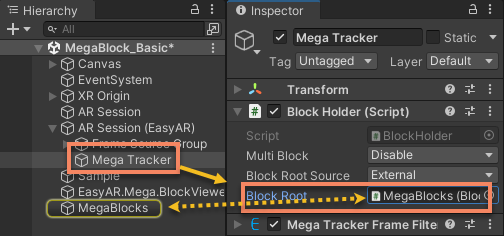
Configure the Tracker Used by the Target
The tracking target will be loaded by the configured tracker and tracked after being correctly located.
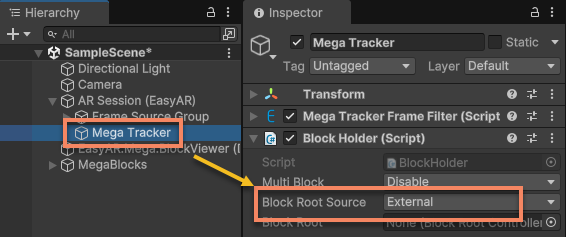
In the Hierarchy view, you can select the block node and then select Mega Tracker in the session.
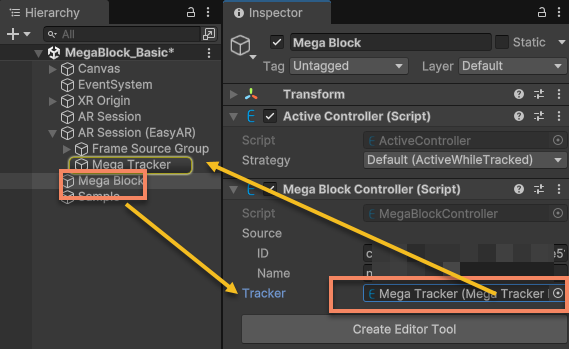
In the script, you can modify Tracker to set the tracker for the block.
block.Tracker = megaTracker;
Tracker can be modified at any time during runtime. Loading/unloading will occur while the session is running. If you set Tracker to null, the target will be unloaded from the previously set tracker. Block loading is a virtual process and will not fail.
Note
There are several key conditions for a target to be tracked:
- The id of MegaBlockController.Source must be correctly configured before MonoBehaviour.Start().
- The block corresponding to the id of Source must exist in the positioning library.
- MegaBlockController.Tracker must be configured to use the correct positioning library.
Tracking the Lifecycle of a Target
A common lifecycle for tracking a target is as follows:
flowchart LR
  sstart((session start))
  sstop([session stop])

  start("Target.Start")
  load("Load")
  tracking[["Continuous Tracking"]]

  sstart --> load --> tracking --> sstop
  start -. "Target.Tracker = tracker" .-> load
The process can be roughly divided into several stages:
- Loading: The tracking target is loaded by the configured tracker. This occurs after the target's own Start() and the session starts.
- Tracking process: After the tracking target is located, the tracker will continuously track the target's position and status until another target is located.
- Unloading: The tracking target is unloaded from the tracker, and the tracker no longer tracks the target. This occurs when the session stops or the target is set to not use the tracker.