New Mapping Project Address
This article introduces how to create a Mega Block project address in the EasyAR Development Center, including the complete operation process of logging in to the system, navigating to the mapping page, and searching for and selecting projects for management.
Operation Steps
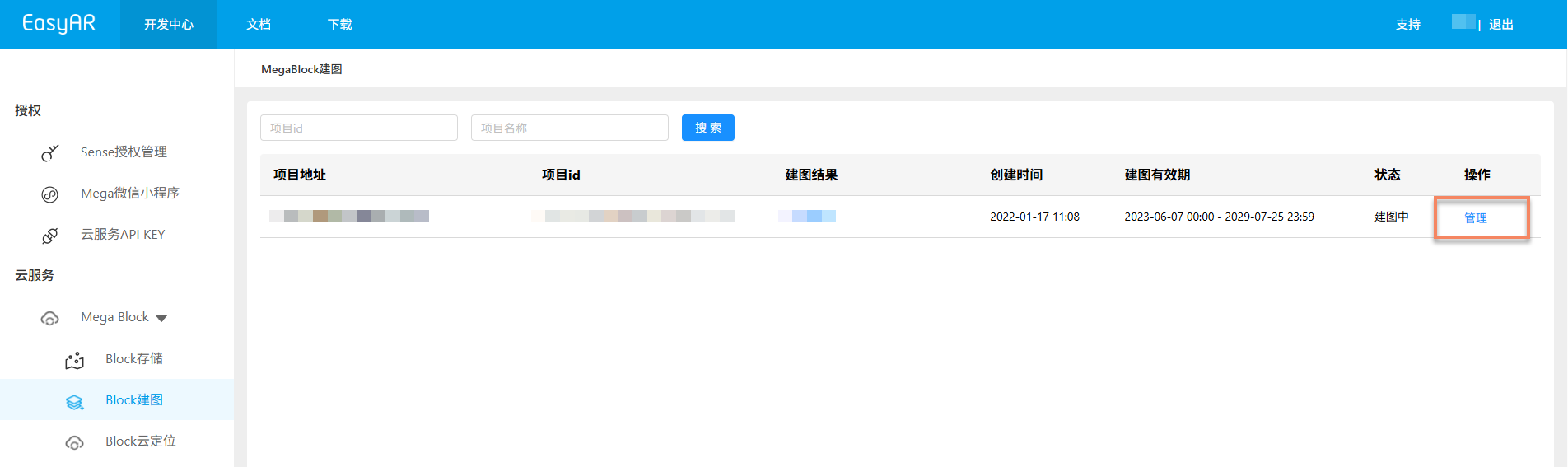
Log in to the Development Center, select Mega Block -> Block Mapping in the left sidebar menu to enter the project list page. Select the corresponding region according to the actual address of the project. When there are multiple projects in the account, you can search and filter by Project ID and Project Name. After finding the target project, click the Manage button to enter the mapping task management interface, and then you can create different types of mapping tasks (regular single map, large - scale multi - map, small - scale mobile collection mapping, object mobile collection mapping) according to actual needs.
Important
Please contact business to open a project. Be sure to provide detailed project address information to the business personnel.
Notes
- To ensure that the route taken during data collection in complex areas has no omissions or errors, it is recommended to check the trajectory map data in time during the mapping process. If the trajectory map data does not match the actual situation, it is recommended to stop the mapping task and check for errors.
- Do not upload data outside the project address for mapping! All mapping results will be manually reviewed. If the content does not match, EasyAR has the right to delete the non - compliant mapping results. Thank you for your support.
- The mapping duration is related to the size of the scene. Please be patient.