Mini-program Running Effect
This article introduces how to use the annotation data created in Mega Studio to verify the effect in the Toolbox WeChat mini-program.
Note
The following content and tools are not applicable to the Unity application development process.
If you are developing a Unity application, please refer to Package a Unity Application for Effect Verification in the development guide.
Steps to View the Effect
Before starting to view the real running effect, please ensure that you have prepared a WeChat device and have the permission to access the WeChat mini-program. At the same time, ensure that the positioning service has been configured.
Scan the QR Code of the Toolbox WeChat Mini-program
Before verifying the effect, you first need to scan the mini-program QR code through WeChat to enter the Mega Toolbox application.

Log in to Your EasyAR Account
The first step to view the real running effect is to log in to your EasyAR account in the mini-program.
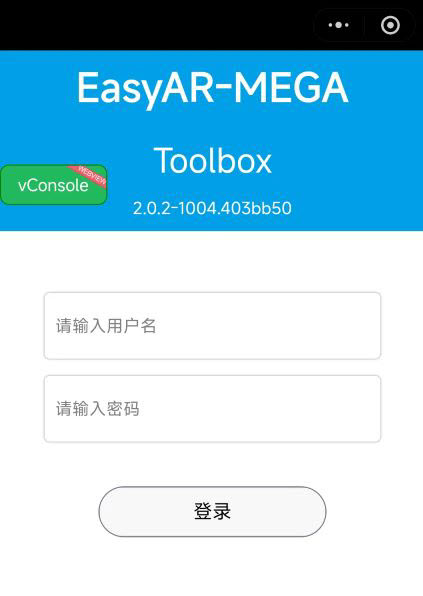
Select the Positioning Library and Annotation Data
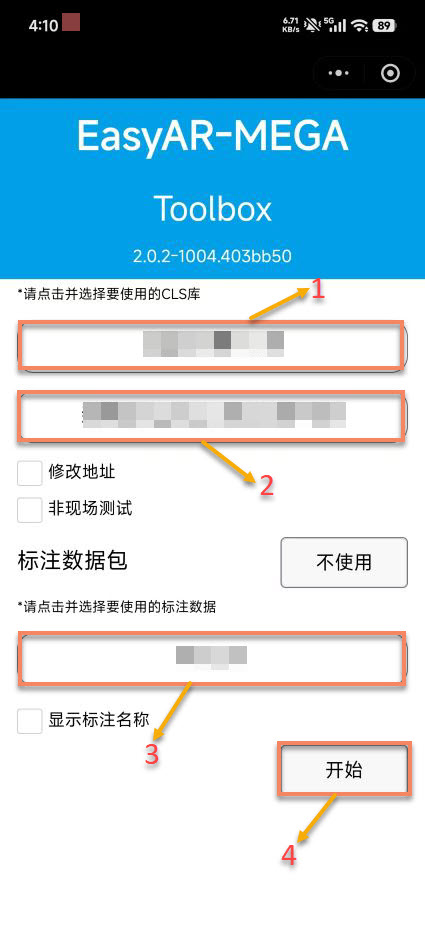
After logging in to your account, you need to select the corresponding positioning service and annotation data resources. This is a key step to achieve accurate positioning. Please note: You must select annotation data to preview the real running effect. If there is no annotation data in the current project, please create annotation data first.
Select the corresponding service and data according to the following steps:
- Select the
Cloud Positioning Service Group, and select from the drop-down box after clicking. - Select the corresponding
Cloud Positioning Library, and select from the drop-down box after clicking. - Select the corresponding
Annotation Data, and select from the drop-down box after clicking. (If there is no annotation data, please refer to: Create Annotation Data) - Click
Start.
Authorize Related Permissions
To use the positioning function normally, you need to authorize the camera and location information permissions before you can use it normally.
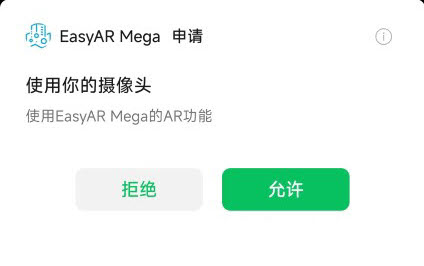
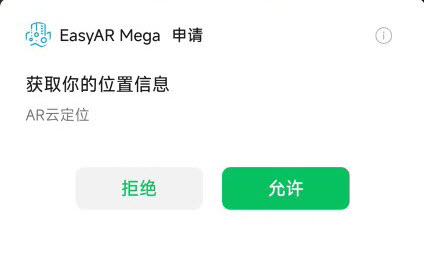
View the On-site Effect
Video demonstration:
Note
To get a better visual experience, you can turn off the Debug information to more intuitively view the positioning visual effect of the annotation content.
Status judgment description:
You can judge the current positioning status through the following three key indicators:
- Annotation cube status: It shows the white MEGA texture when the positioning is normal, and shows gray when the positioning fails.
- Parameters in the Debug information return box:
status status value: It shows the current positioning status.Sequence parameter: N means not loaded, F means positioning failed, and S means positioning succeeded.Status button: Green means the positioning succeeded, and white means the positioning failed.
The mini-program will display the status according to the return information of the service to help you understand the running situation of the positioning service:
Positioning succeeded status: If you are at the on-site location, the positioning debugging information shows the text prompt
status: Found, theStatus buttonshows green, theSequenceparameter showsS, and the calibrated cube normally shows the white MEGA texture, indicating that the positioning service has successfully located the target.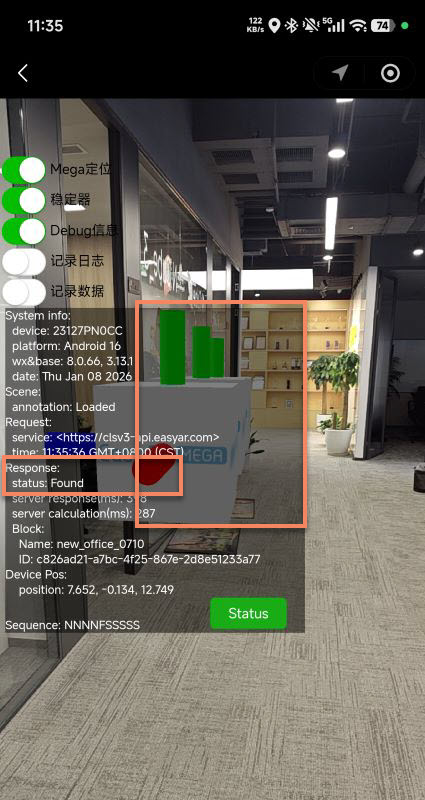
Concurrent alarm: If the positioning debugging information shows the text prompt
status: QpsLimitExceeded, theStatus buttonshows white, and theSequenceparameter showsF, it means that the positioning service is running normally, but the current QPS exceeds the limit. To solve this problem, please refer to Positioning Service Capacity Limit and Expansion.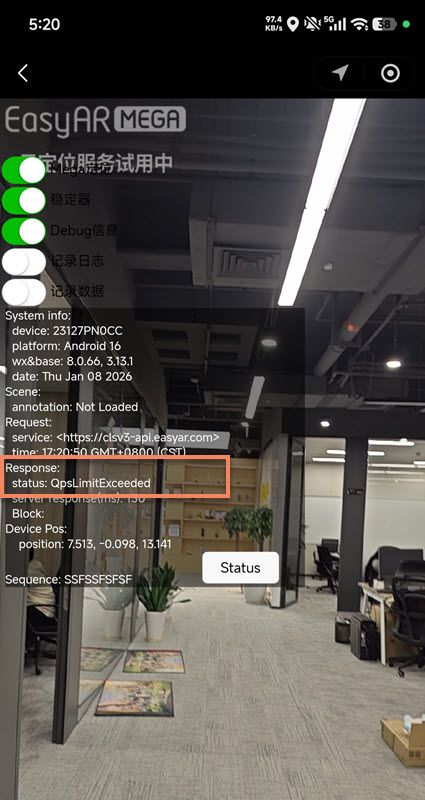
Target not found status: If you are not at the on-site location or there is no matching scene in the positioning library, the positioning debugging information will show
status: Not Found, theStatus buttonwill show white, and theSequenceparameter will showF, indicating that the positioning service is running normally but fails to locate the target.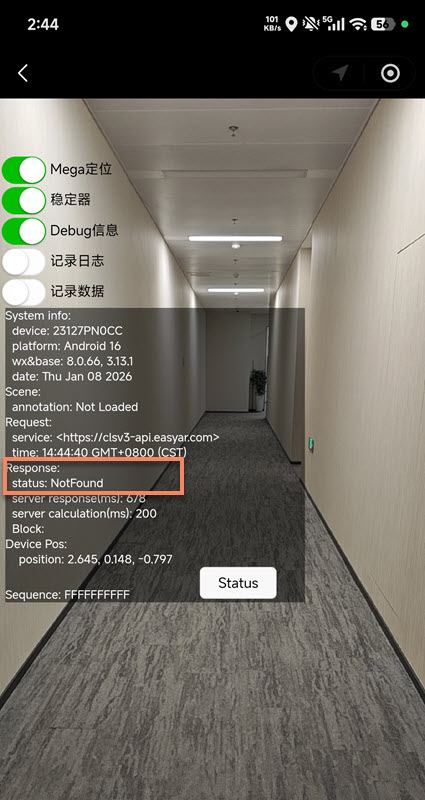
Positioning service is abnormal: The positioning debugging information shows the text prompt
UnKnownError, indicating that the positioning service is running abnormally. Please turn onRecord LogandRecord Datato record the error information and contact EasyAR customer service.