Run EasyAR Android samples
This article describes how to run the native Android samples provided by EasyAR. It uses HelloAR as an example to show how to run a sample. Other samples can be used in a similar way.
Preparation
Before you begin, make sure the following environment is ready:
- Android Studio 2025.1.2 or later
- JDK 17
- Android NDK r28
- Android phone
Download EasyAR Sense native samples and unzip them
Obtain a License Key from EasyAR Developer Center (Chinese Site / English Site). Make sure the package name is the same as the sample. For example, HelloAR should use
cn.easyar.samples.helloar
Import and build sample
In the Android Studio menu, select
File -> New -> Import Project...in order, select the directory where the sample is located, import it, and wait for Android Studio to finish downloading and configuration.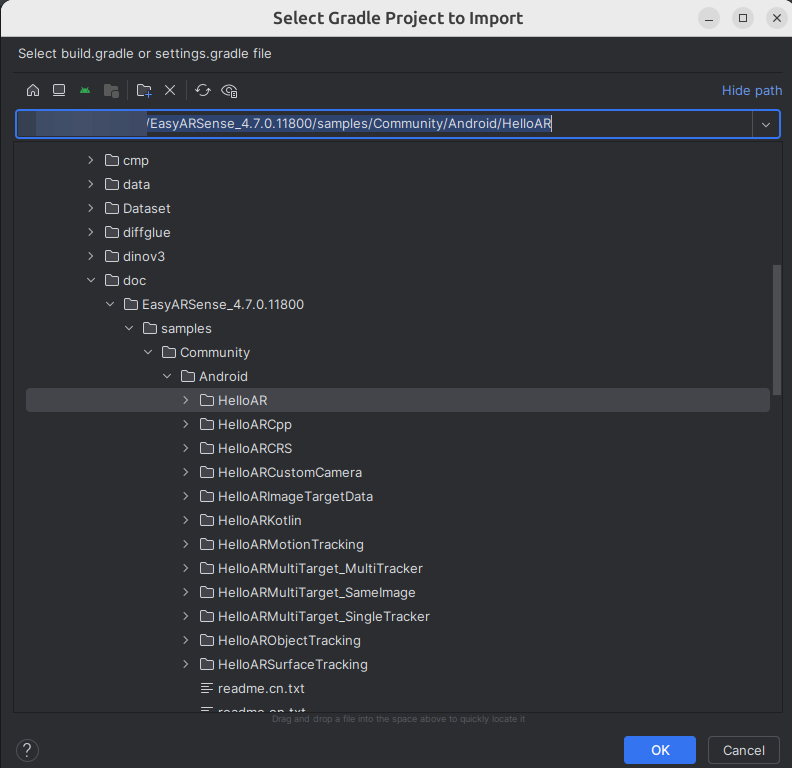
Set the license (License Key) Locate ARActivity.java according to the path, and fill in the License Key obtained from the developer center according to the code prompt.
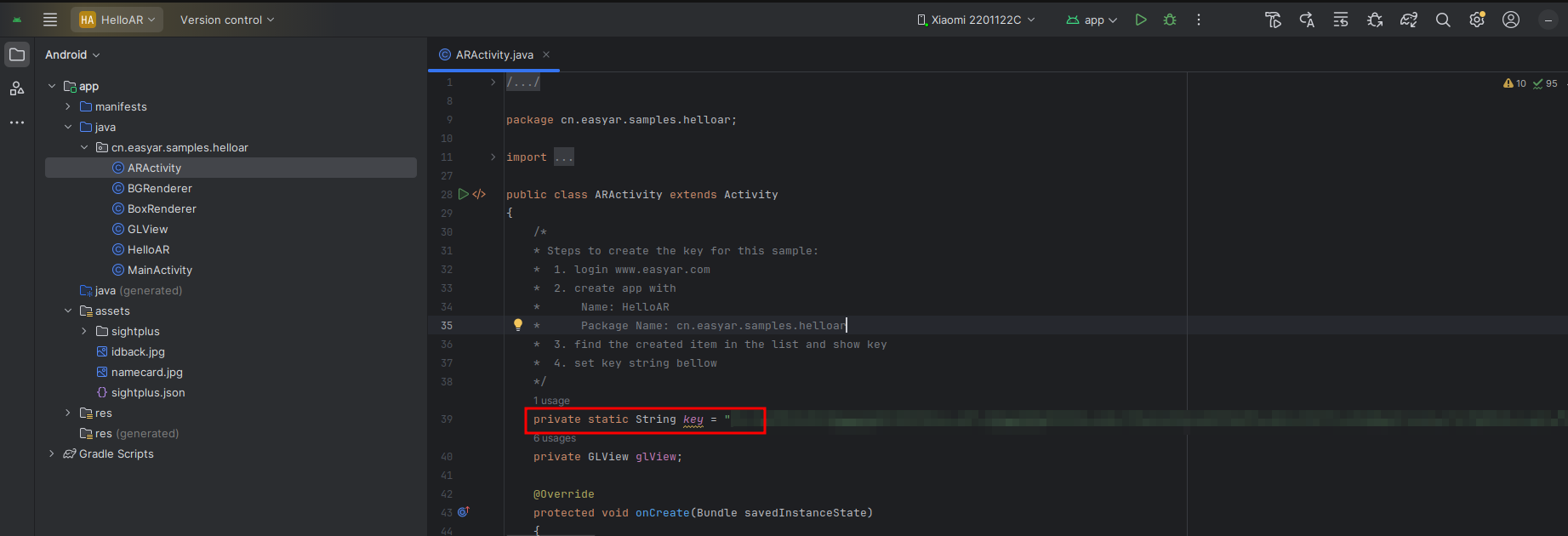
- Build and run Connect the phone to the computer, click the run button, and follow the prompts to run on the phone.
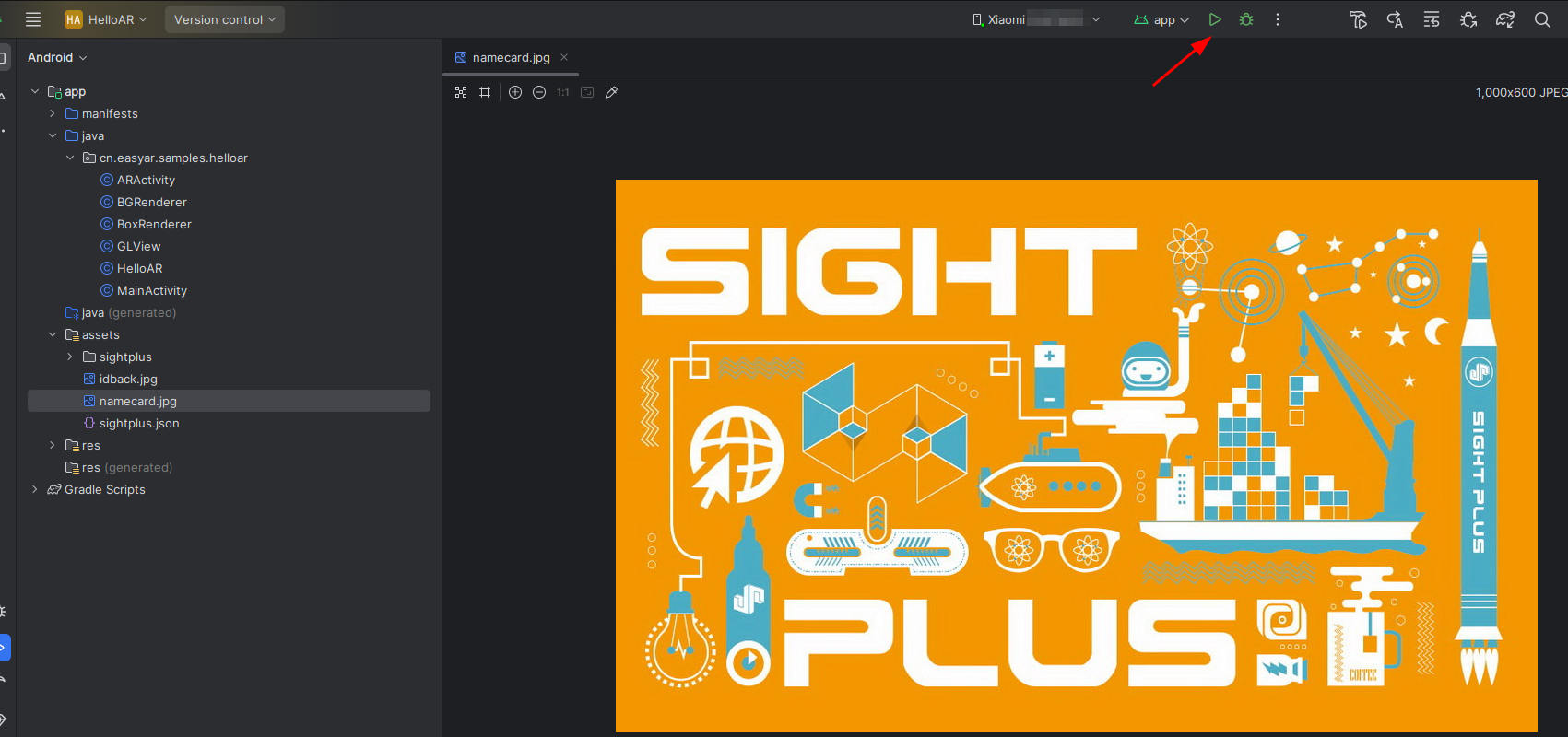
HelloAR implements recognition and tracking of planar images and overlays virtual objects. The image to be recognized in the sample can be found under the assets/sightplus path.
The running effect of the HelloAR sample is shown below.