Run EasyAR iOS samples
This article describes how to run the native iOS samples provided by EasyAR. HelloAR is used as an example here to explain how to run samples. Other samples can be used in a similar way.
Preparation
Before you begin, make sure the following environment is prepared:
- Xcode 16 or later
- A real iPhone or iPad device with an ARM64 CPU
Download EasyAR Sense native samples and extract them
Obtain a License Key from EasyAR Developer Center (Chinese Site / English Site), and make sure the package name is the same as the sample. For example, HelloAR is
cn.easyar.samples.helloar
Import and compile the sample
Open the downloaded and extracted sample with Xcode, such as
helloar.xcodeproj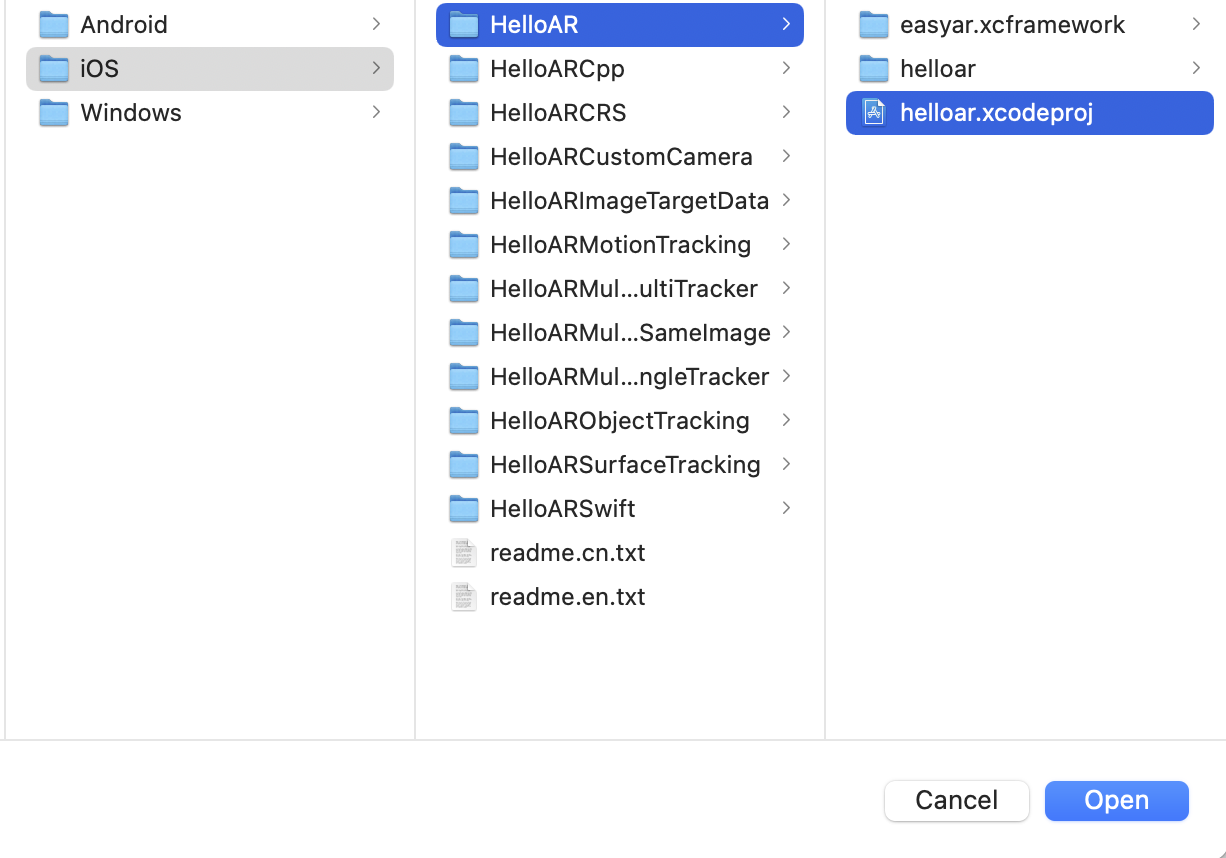
Set the license (License Key)
Find
ViewController.mby path and enter the License Key obtained from Developer Center according to the code prompt.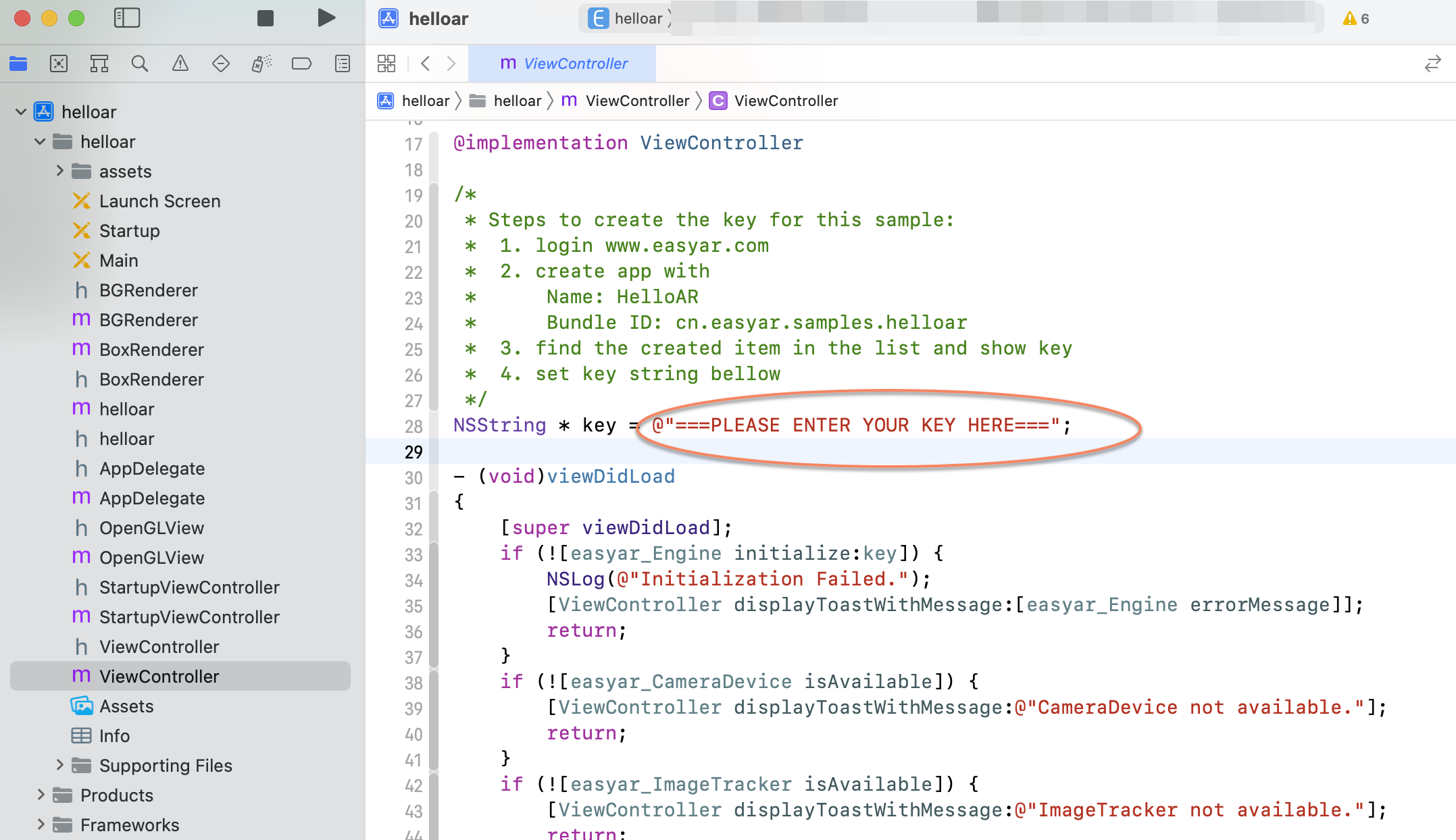
Compile and run
Connect the phone to the computer, click the run button, and follow the prompts to run the sample on iPhone / iPad.
HelloAR implements planar image recognition and tracking and overlays virtual objects. Aim the camera at the recognition image, which can also be found in the
assetsfolder, to experience the effect.