Export data collected by phone
After you finish acquisition with a phone, you need to export the collected data. The extension of phone-acquired data is .emp; pay attention to the filename suffix when exporting.
Export Android data
Connect the phone to the computer, enable File Management mode on the phone, go to the local file path Android/data/com.easyar.mega.toolbox/files/MegaStudio/EMP, and then select the data file with the corresponding name to export.
Export iOS data
Export with a Mac computer
Connect the iPhone to the Mac computer.
Open the Finder application, click the phone icon, click
Trust, and then clickTruston the phone as well.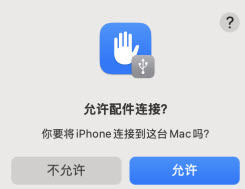
After trust is granted, click the
Filesmenu, find theMegaStudiofolder under theMega ToolboxApp, and dragMegaStudioto the desktop of the computer.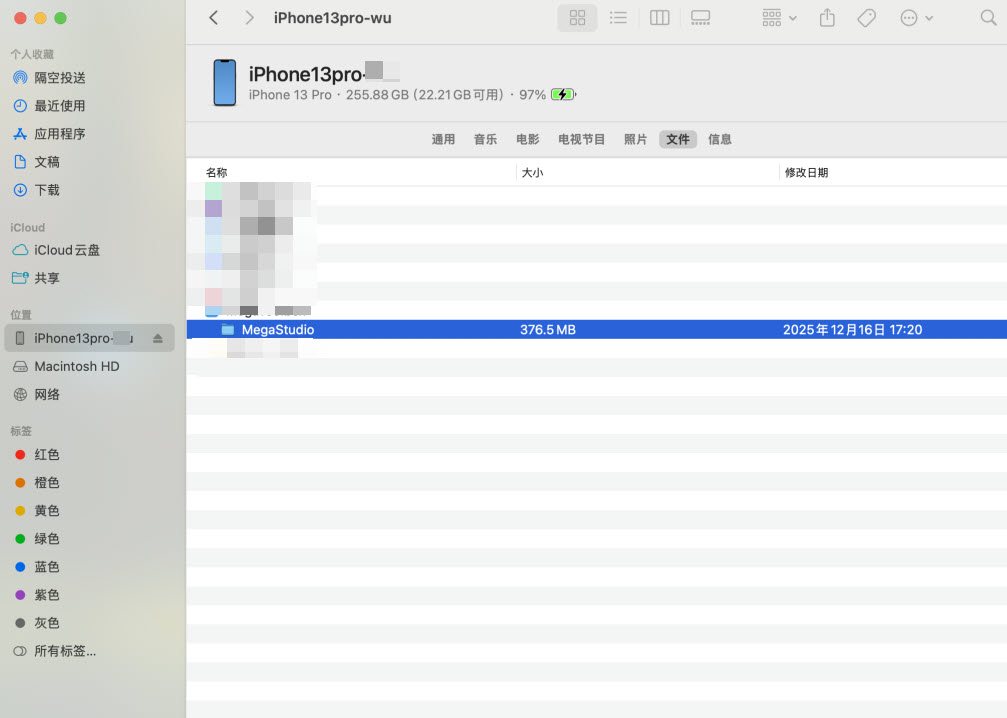
Find the
EMPfolder inMegaStudio. The***.empfiles in theEMPfolder are the acquired files.
Export with a Windows computer
Download iTunes on your Windows computer and install it.
Connect the iPhone to the Windows computer and perform trust.
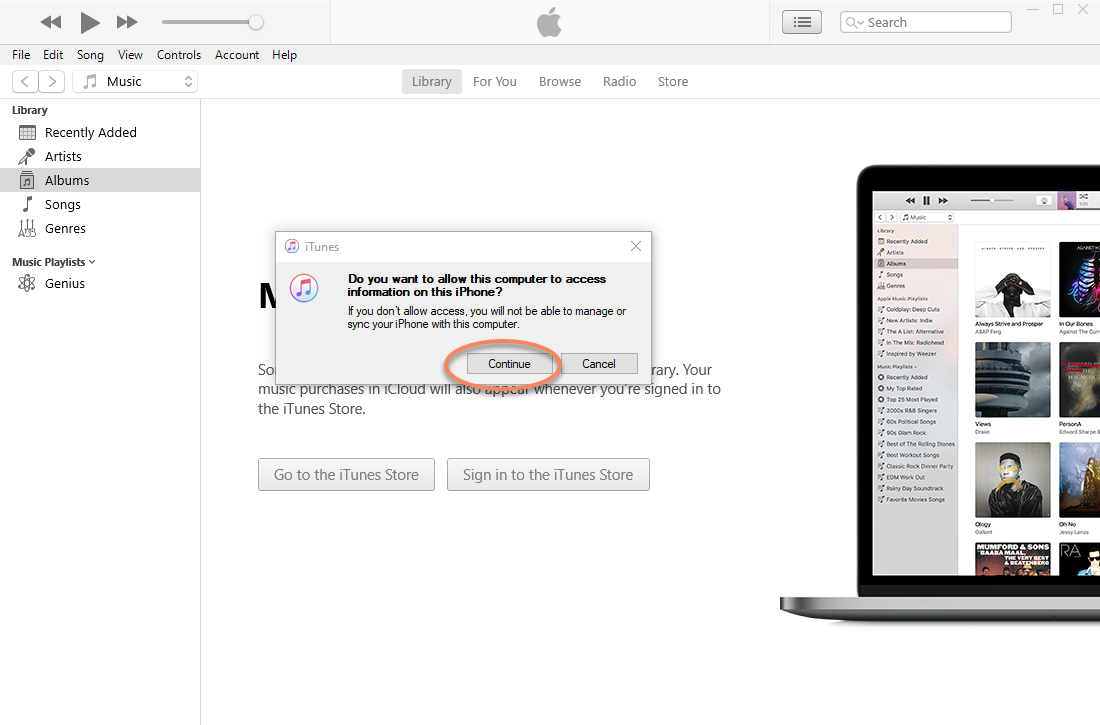
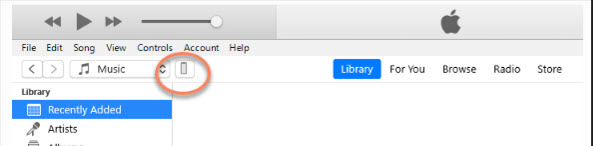
Click the phone button
Click file sharing, find the
MegaStudiofolder under theMega ToolboxApp, and click save.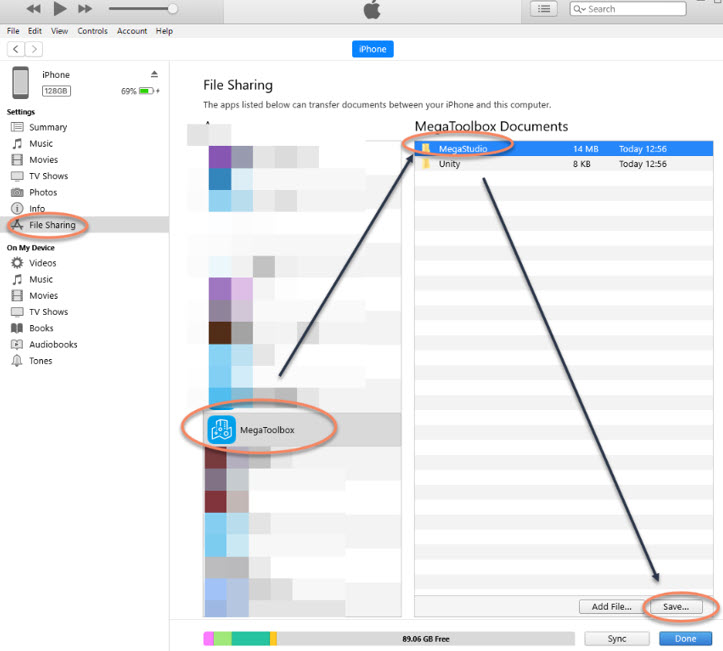
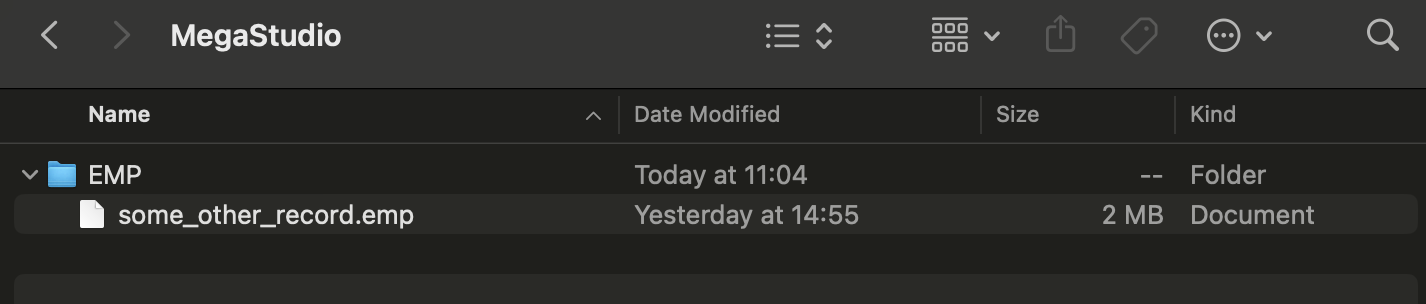
Find the
EMPfolder inMegaStudio. The***.empfiles in theEMPfolder are the acquired files.
Tip
When the folder contains a large amount of data, pay attention to whether all data has been exported. It is recommended to check the file size on the computer after export and compare it with the corresponding file size on the phone.
After the file is exported to the computer, you can use players such as PotPlayer or VLC Media Player to play the recorded video and check whether there are problems such as blur, stutter, or inability to play. If there are problems, acquire the data again.
Next steps
- Create a new mapping project in "EasyAR Developer Center"
- According to the acquired object or small-scale space, create an object phone acquisition task or create a small-scale phone acquisition task