Add a mapping project address
This article describes how to create a Mega Block project address in EasyAR Developer Center, including the complete workflow for logging in, navigating to the mapping page, searching for and selecting a project for management.
Operation steps
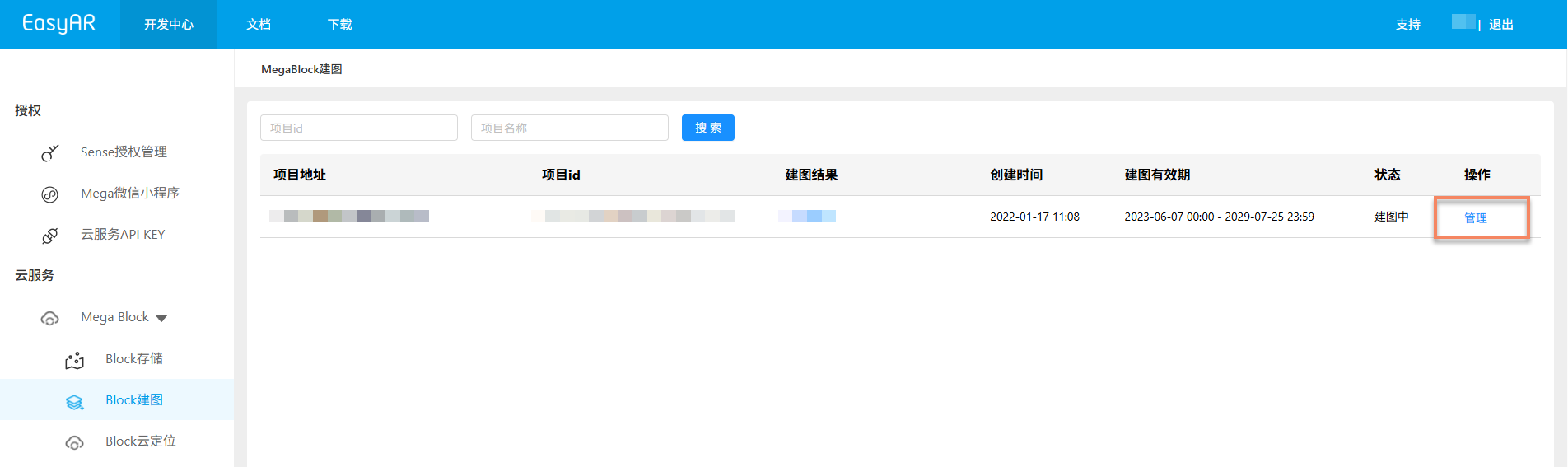
Log in to Developer Center, select Mega Block -> Block Mapping in the left menu bar, and enter the project list page. Select the corresponding region according to the actual project address. When there are multiple projects in the account, you can search and filter by project id and project name. After finding the target project, click the Manage button to enter the mapping task management interface. You can then create different types of mapping tasks according to actual needs, including regular single-map, ultra-large-range multi-map, small-space mobile collection mapping, and object mobile collection mapping.
Important
For project creation, please contact business to enable it. Be sure to provide detailed project address information to the business staff.
Notes
- To ensure that the route used for complex-area data collection has no omissions or errors, it is recommended to check trajectory data in time during mapping. If the trajectory data does not match the actual situation, stop the mapping task and troubleshoot.
- Do not upload data outside the project address for mapping. All mapping results are manually reviewed. If inconsistent content is found, EasyAR has the right to delete nonconforming mapping results. Thank you for your support.
- Mapping duration is related to scene scale. Please wait patiently.