Create a Single-Image Mapping Task
This article describes the complete workflow for a single-image mapping task, including task creation, data upload, and the mapping process, helping users complete the entire single-image mapping workflow in a standardized way.
Create a Single-Image Task
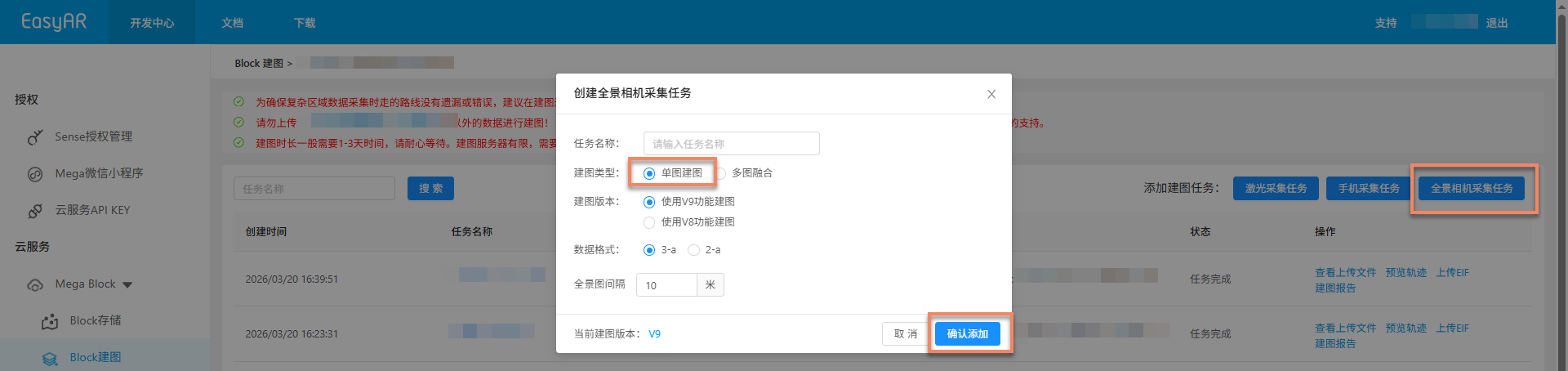
After completing Create a Project (skip this step for Mega Go), create a single-image mapping task by following these steps:
- Click
Manageto enter the mapping task management page (skip this step for Mega Go). - Click the
Panoramic Camera Capture Taskbutton in the upper-right corner. - Fill in the task information in the dialog box:
- Task Name: Enter a custom task name
- Mapping Type: Select
Single-Image Mapping - Mapping Version and Data Format: The latest version is recommended
- Click
Confirm Addto complete creation.

Note
- One mapping task corresponds to one complete data collection in the project.
- If data collection and upload are performed by external personnel, you can notify the relevant personnel to upload data according to the standard workflow after creating the task.
Task Naming Rules
Task names should be concise and clear, and follow these naming rules:
- If the names of the collection areas are clearly different, use the area abbreviation directly (for example: "Changtai Plaza");
- If areas have the same name, add a number after the area abbreviation to distinguish them (for example: "Zhouzhuang-Area 1").
Data Preparation
Before starting a mapping task, make sure the collected spatial data meets the requirements and is organized and stored according to the specification. The following sections describe the data collection devices and the naming, storage, and structure requirements for data files.
Data Collection and Export
Use a panoramic camera to collect spatial data. For device configuration and collection guidelines, see:
- GoPro Max device configuration
- GoPro Max2 device configuration
- Collection route planning
- Collection method
- Collection checklist
- GoPro Max/Max2 data export
Data folder naming
Each collection area needs a prepared main folder. The name can use the full pinyin of the province and city plus the full pinyin of the scenic area or business district name plus the area number, for example: shanghaiwaitan1.
Note: Folder names can contain only Chinese characters, English letters, numbers, and hyphens (-). They cannot contain other special characters.
Data storage location
Set the main folder on the computer's local hard drive. It is not recommended to place it on the system drive. Copy the collected data from the TF memory card into the main folder for organization. It is recommended to check available capacity in advance before copying to ensure a stable final file upload process.
Data file structure specification
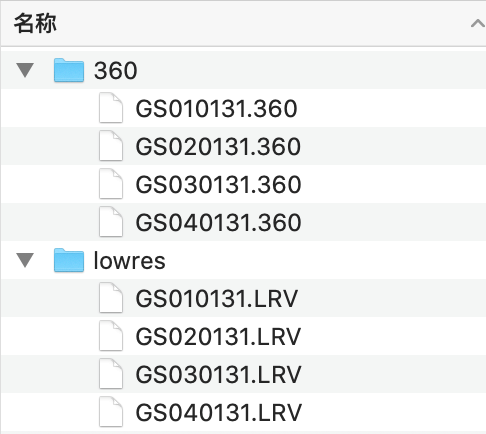
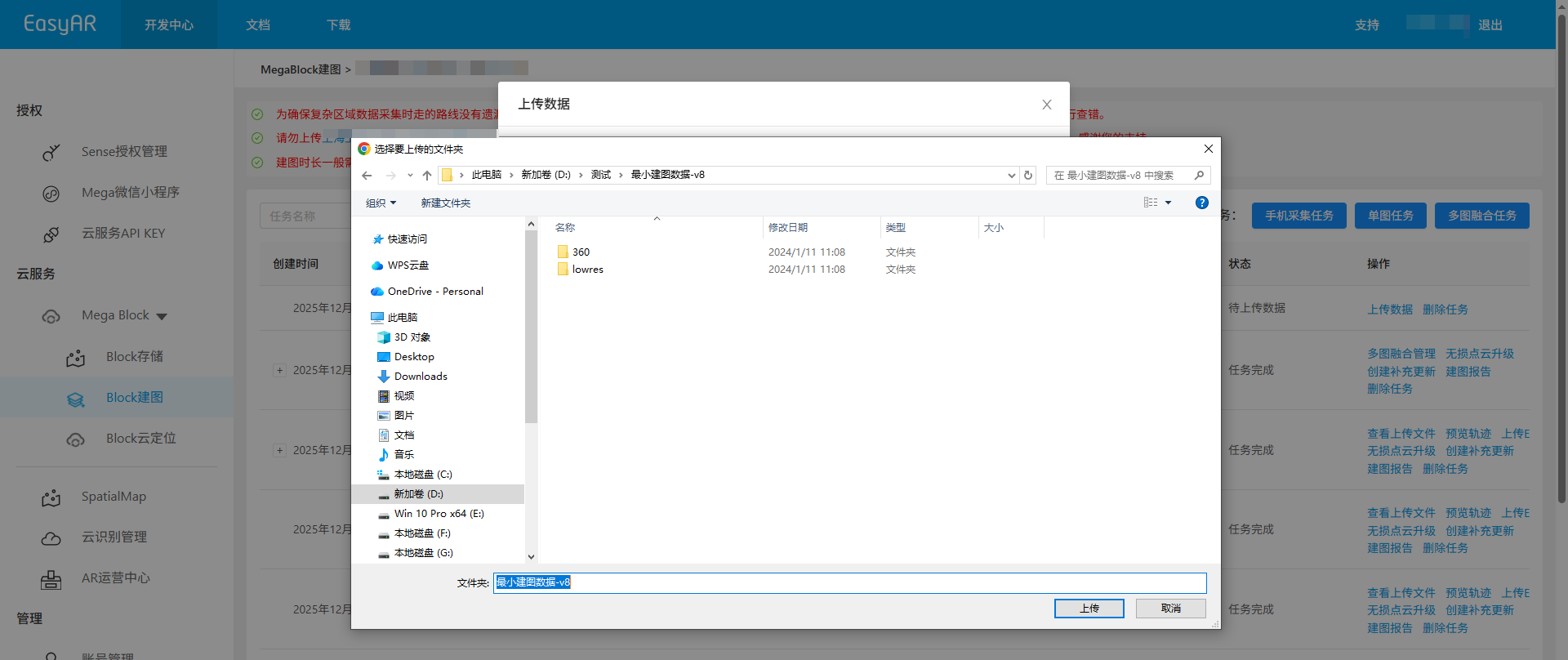
- Each area's main directory folder must contain two subdirectory folders: lowres and 360.
lowres folder: stores the LRV files generated when collecting this area.
360 folder: stores the 360 files generated when collecting this area. Their names correspond one-to-one with the LRV files. - Note: Data that is not useful does not need to be uploaded, such as videos generated for practice operations or discarded videos generated by incorrect operations during collection.
- After the data files for a single area are organized, the file structure is shown below.
Data file naming specification
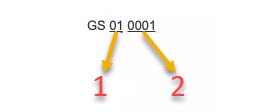
1is named: video middle number
Video middle number: The device automatically splits video every 8G during recording, so multiple video segments may be generated after collecting one area. The order of videos is sorted by the middle number from small to large. For example, if four video segments are generated when collecting one area, the video middle numbers are 01, 02, 03, and 04.2is named: video tail number
Video tail number: Normally, the video tail numbers generated when collecting one area are the same.- File name format:
starts with GS + consecutive video middle numbers starting from 01 + the same video tail number - Special case: If the battery or memory card is replaced during collection, the videos generated when continuing shooting and the videos collected before power loss or card replacement will have non-consecutive video middle numbers and different video tail numbers, but they are all data for the same area and need to be placed under the same main folder. Therefore, the start time can be recorded each time shooting starts in each area, making it easier to quickly partition data during organization.
- If the file name does not conform to the naming specification, mapping will encounter unpredictable problems. Even if mapping succeeds, the result may not be usable.
Upload Data
Click Upload Data and select the corresponding options in the pop-up window. See the following sections for details about the options:
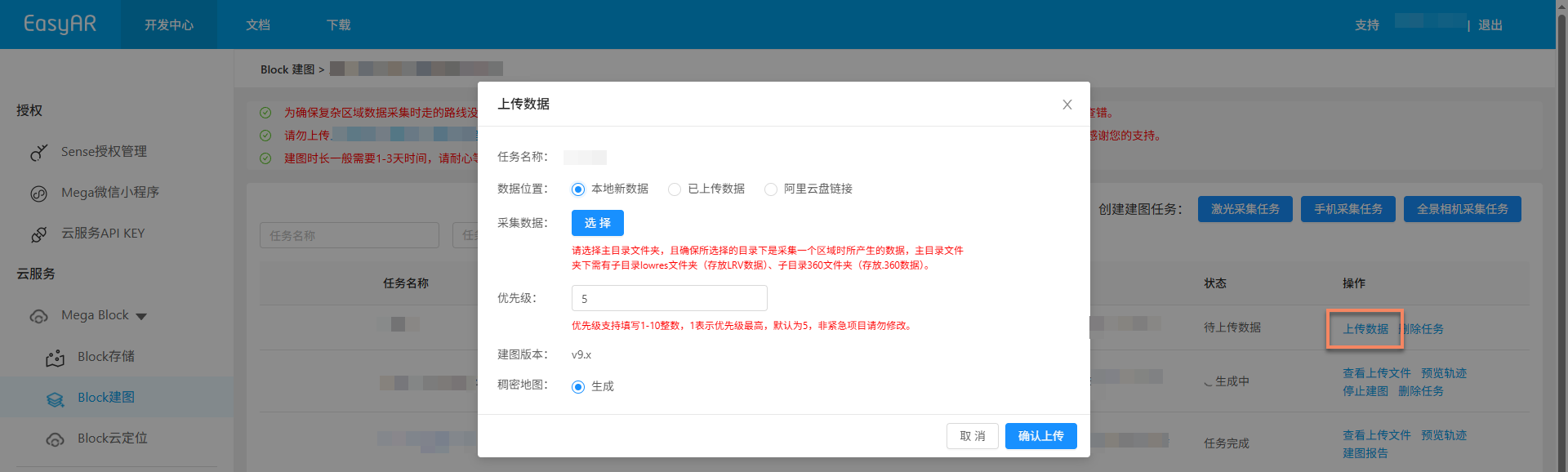
Data location
Because the mapping project regions are different, the available data upload methods are as follows:
China Region 1
Depending on the data source and storage method, you can choose any of the following methods:
- Local new data
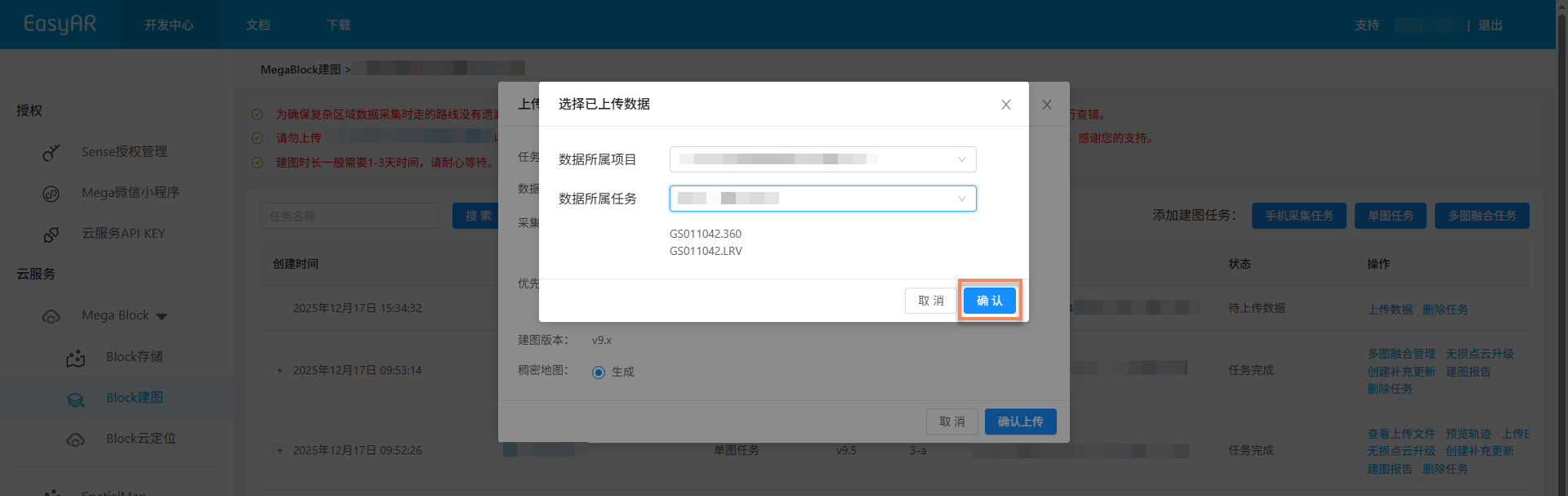
- Mapping with uploaded data (not supported by Mega Go)
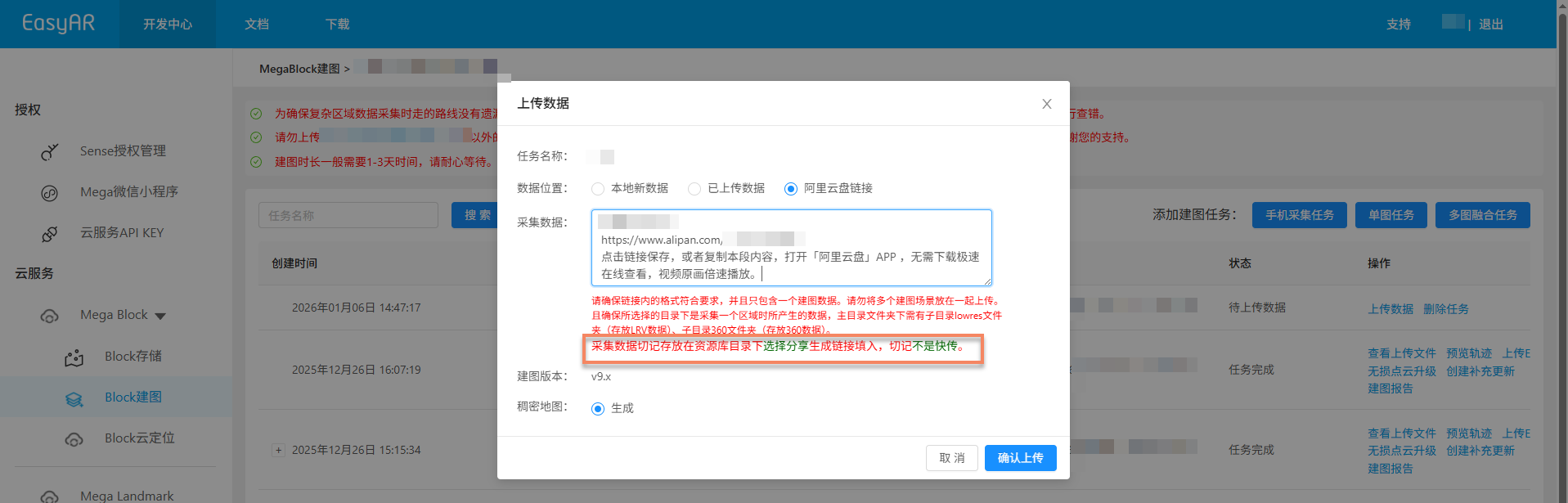
- Alibaba Cloud Drive link (not supported by Mega Go)
Global
Only the "Local new data" upload method is supported.
Acquisition data
Click Select, select the data root directory folder (see the data file structure below), and then click Upload.
Confirm upload
- After clicking the
Confirm uploadbutton, the list will show upload progress and status. - During data upload, keep the computer powered on and the network connected. Do not close the browser, refresh the page, or click other menus, otherwise the upload will be interrupted and must be performed again.
Start mapping
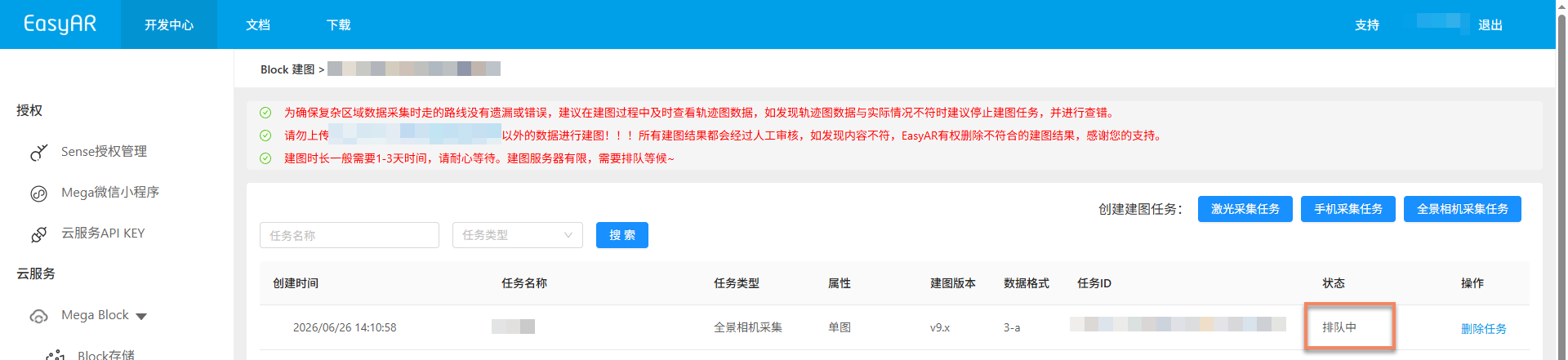
After data upload is complete, the mapping process starts automatically. The status is shown as Queued or Generating, as shown below. Please wait patiently for mapping to complete.

Auxiliary features
The following features can help you better manage and operate mapping tasks and improve work efficiency:
View uploaded files
Used to check whether the uploaded mapping files are complete and avoid mapping failure caused by missing files.
Click the
View uploaded filesbutton. In the pop-up window, view the list of all uploaded files and confirm whether the files were uploaded completely.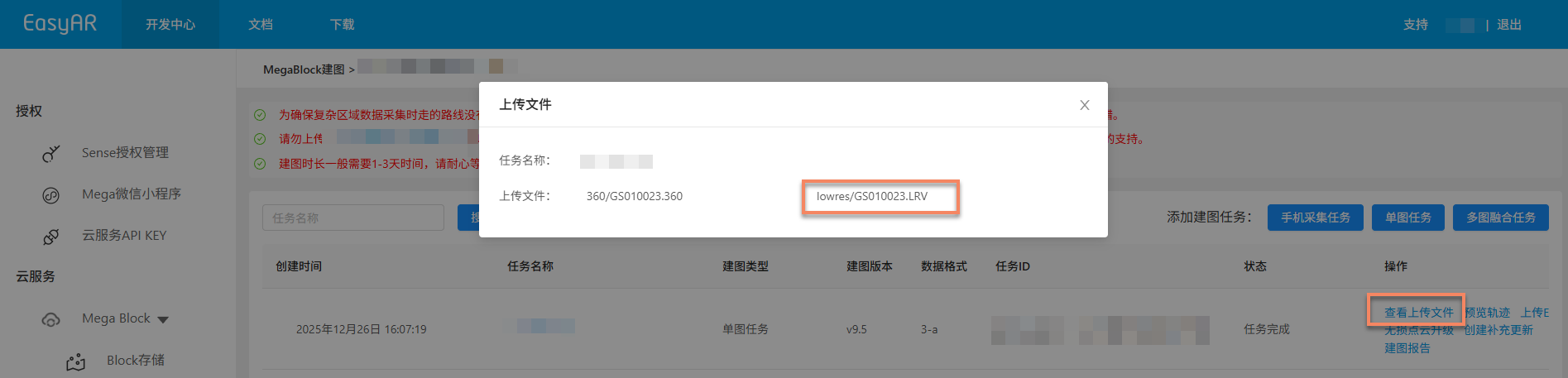

China Region 1: you can click a specific
LRV fileto preview the video online and verify whether the acquisition data quality meets requirements.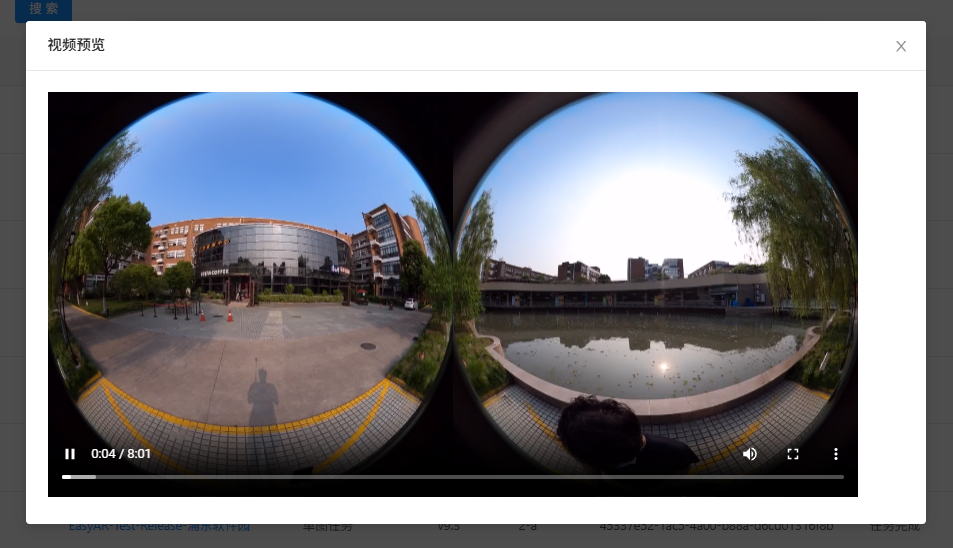
Generate pre-track
Before mapping results are generated, you can click the Generate pre-track button to generate a pre-track. By previewing the pre-track image, determine whether the actual acquisition trajectory is consistent with the preset route plan. It is recommended to compare the shapes of the route plan and trajectory image to ensure the acquisition route is complete and has no missing areas. If the trajectory does not match the plan, you can stop mapping immediately, reacquire or supplement acquisition, and then upload the data again for mapping.

Preview pre-track
After the pre-track is generated, you can click the Preview pre-track button to view the trajectory image. If mapping has been completed, click the Preview trajectory button directly to view the final trajectory.

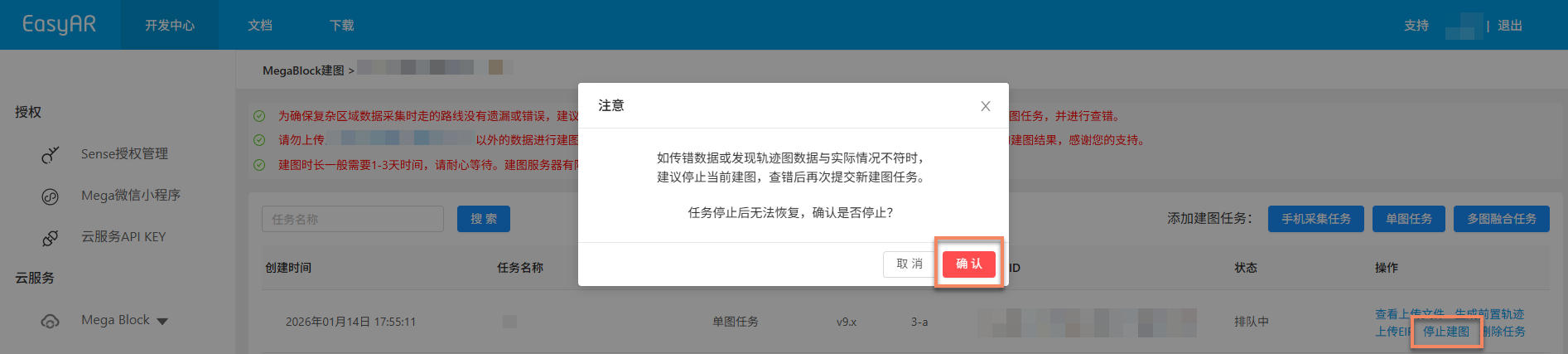
Stop mapping
Before the mapping task is complete, if you find that the wrong data was uploaded or the trajectory image does not match the actual situation, you can click the Stop mapping button and then click Confirm in the secondary confirmation dialog to stop mapping.
Delete task
If the current mapping task failed to generate or is no longer needed, you can click the Delete task or Delete button to delete the task. Click Delete in the secondary confirmation dialog to complete the deletion.


Confirm mapping results
After the task enters the mapping process, you can determine whether the mapping task is complete through Task status. When the status shows Task complete or Generation failed, the mapping task has ended.
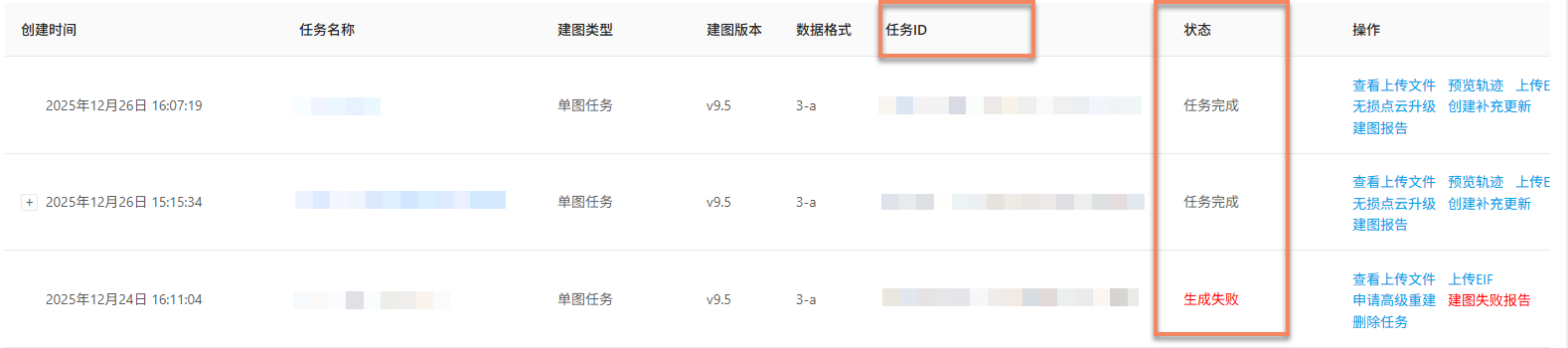
Mapping succeeded
When the task status shows Task complete, mapping has succeeded and mapping results have been generated. At this point, you can further view the mapping results and confirm whether they meet expectations.
View mapping results:
- Review acquisition route (not supported by Mega Go)
- View mapping report
- Preview spatial model
- View Block information (not supported by Mega Go)
Mapping failed
When the task status shows Generation failed, mapping has failed. It is recommended to troubleshoot in the following ways:
- View mapping report: View mapping report, and find a solution according to the report information.
- Refer to troubleshooting: read the mapping failure troubleshooting guide to obtain solutions for common issues.
- Contact technical support: if none of the above methods resolves the issue, contact EasyAR staff and provide the
JobIDin the mapping report to help locate the issue quickly.