Create an object mobile acquisition task
This article describes the complete operation process for an object mobile acquisition mapping task, including task creation, data preparation, data upload, and the mapping process. It helps users quickly complete mapping requirements for specific objects.
Create an object mobile acquisition task
The creation method differs depending on the purchased service type.
Create through the mobile acquisition task button
Click the
Mobile acquisition taskbutton in the upper-right corner.

In the pop-up dialog, set the acquisition method to
Object acquisition, enter the task name, select the mapping version and data format (the latest version is recommended), and finally click theConfirm addbutton to complete creation of the object mobile acquisition task.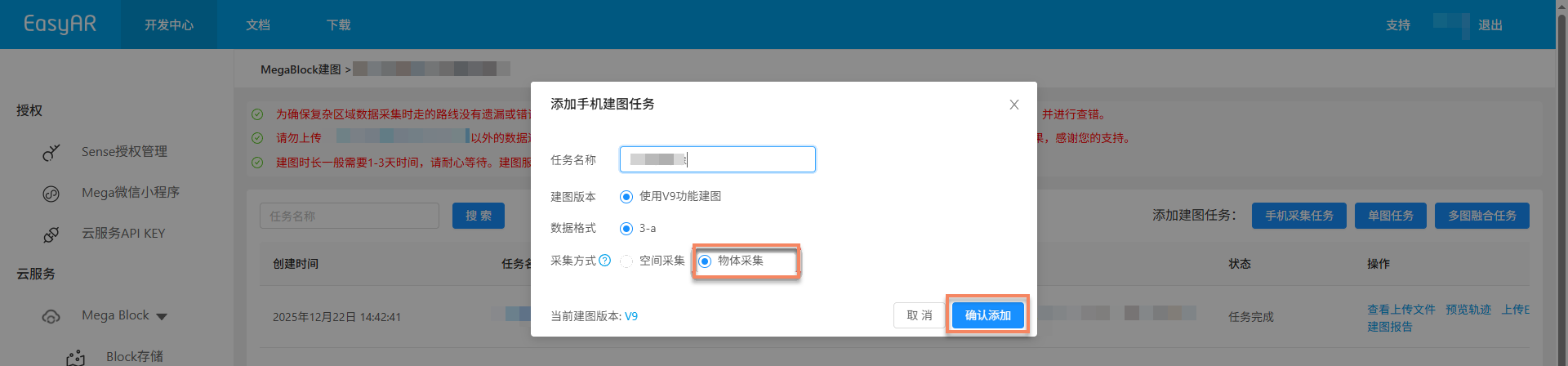
Note
This method applies to users who have purchased the complete Mega or Mega Go service.
Create through the mobile acquisition-object button
Click the
Mobile acquisition-objectbutton in the upper-right corner.
In the pop-up dialog, enter the task name, select the mapping version and data format (the latest version is recommended), and finally click the
Confirm addbutton to complete creation of the object mobile acquisition task.
Note
This method applies to users who have purchased the object acquisition service separately.
Data acquisition and export
Use a mobile phone to acquire spatial data of a specific object. For related device configuration and acquisition key points, see:
Upload data
Click the
Upload databutton.

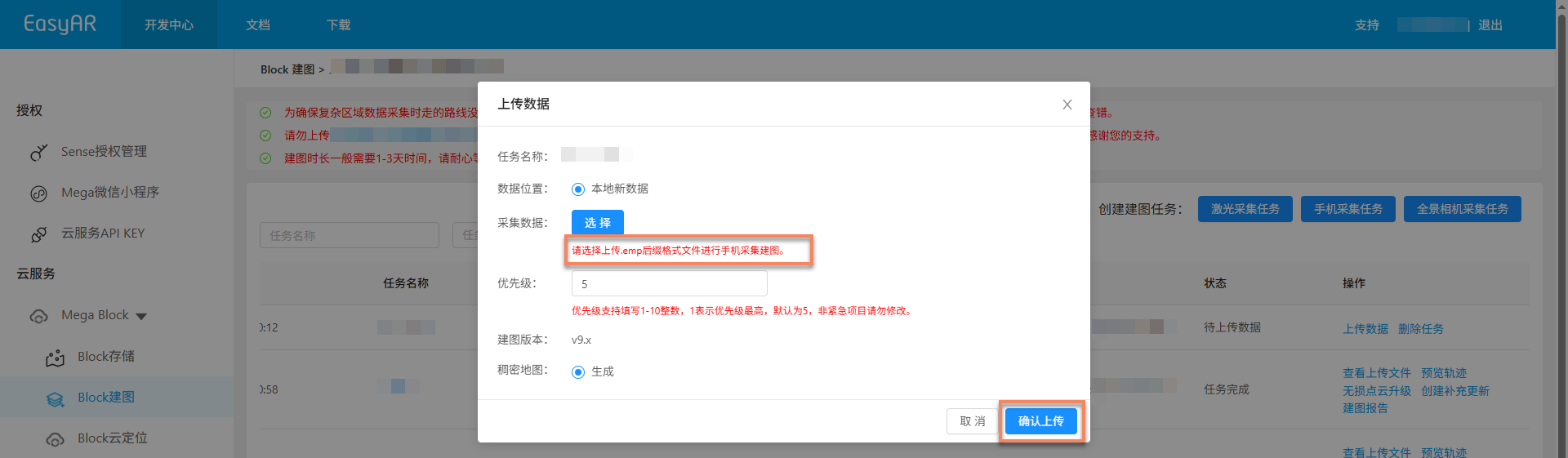
In the pop-up data upload window, complete the following configuration:
- Acquisition data: select and upload a file with the
.empsuffix format.
- Acquisition data: select and upload a file with the
After completing the settings, click the
Confirm uploadbutton.
Start mapping
After data is uploaded, the task automatically enters the mapping process, and the status is displayed as Queued or Generating. The mapping duration varies with the data size. Please wait patiently.

Auxiliary functions
The following functions can help you better manage and operate mapping tasks and improve work efficiency:
View uploaded files
Used to check whether uploaded mapping files are complete, avoiding mapping failure caused by missing files.
Click the
View uploaded filesbutton and view the list of all uploaded files in the pop-up window to confirm whether the files have been uploaded completely.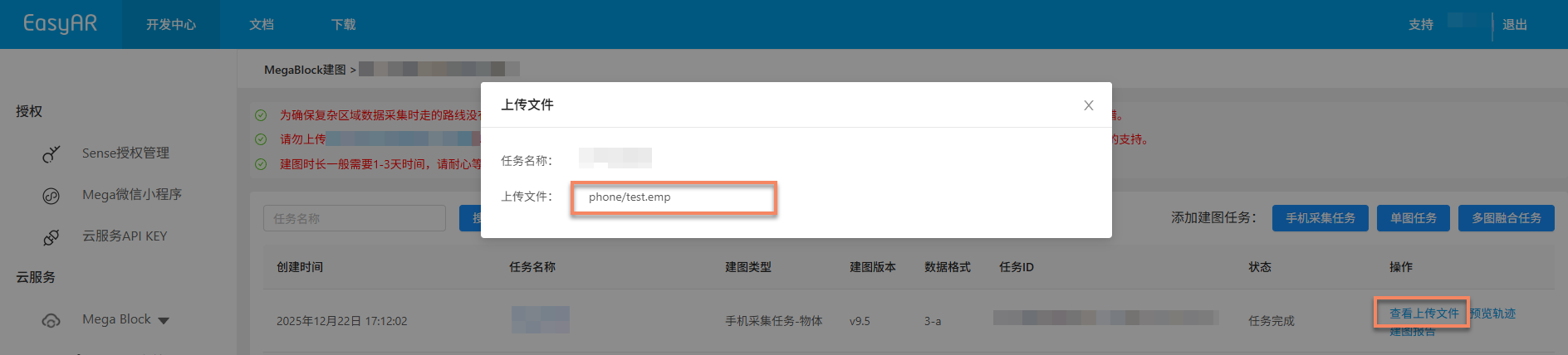
China Region 1: you can click a specific
.emp suffix fileto preview the video content online and ensure that the acquisition data quality meets the requirements.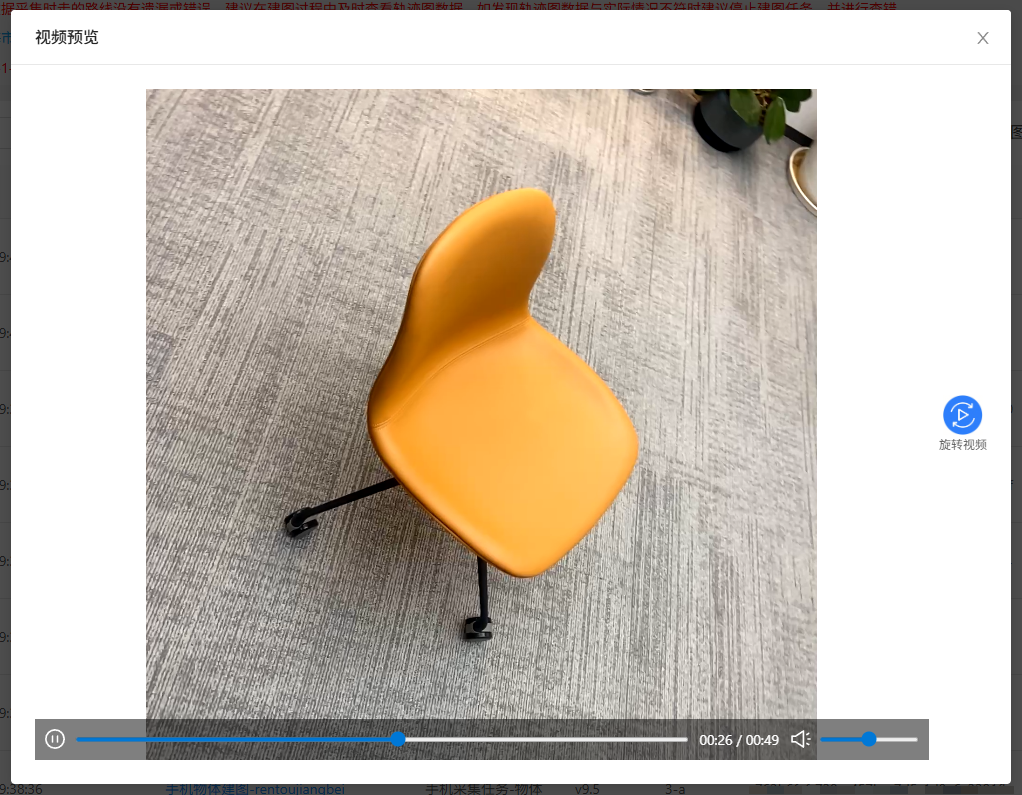
Stop mapping
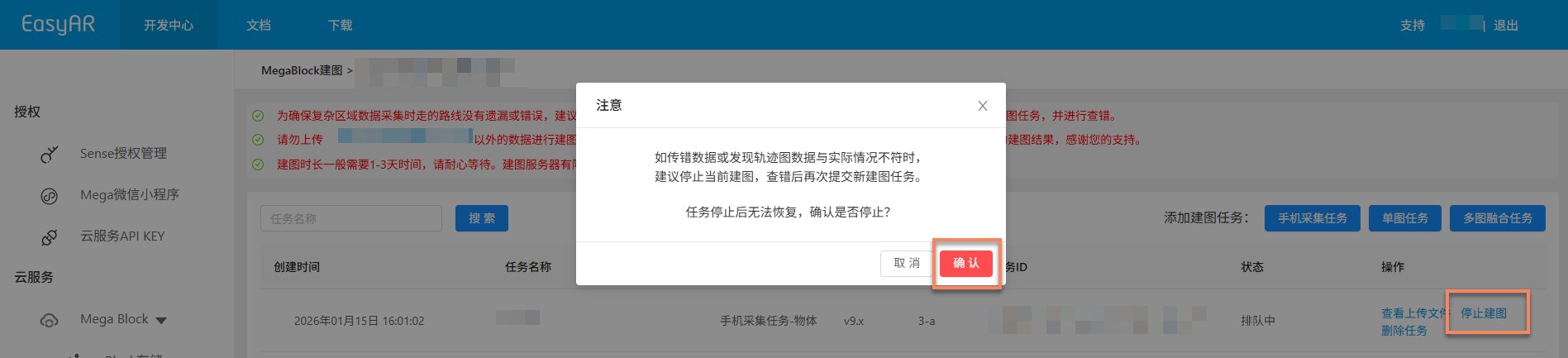
Before the mapping task is complete, if you find that the wrong data was uploaded or the trajectory graph data does not match the actual situation, you can click the Stop mapping button and then click Confirm in the secondary confirmation pop-up window to stop mapping.
Delete task
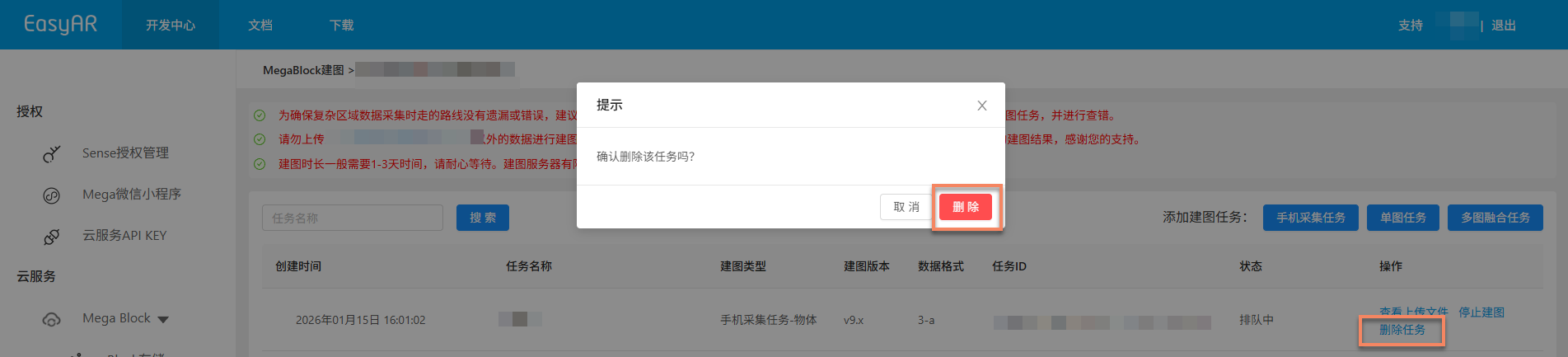
If the current mapping task generation failed or is no longer needed, you can click the Delete task button to delete the task. Click Delete in the secondary confirmation pop-up window to complete the deletion.
Confirm mapping results
After the task enters the mapping process, you can determine whether the mapping task is complete by Task status. When the status is displayed as Task complete or Generation failed, the mapping task has ended.

Mapping succeeded
When the task status is displayed as Task complete, mapping succeeded and the mapping result has been generated. You can then further view the mapping result and confirm whether it meets expectations.
View mapping results:
- Review acquisition route (not supported by Mega Go)
- View mapping report
- Preview spatial model
- View Block information (not supported by Mega Go)
Mapping failed
When the task status is displayed as Generation failed, mapping failed. It is recommended to troubleshoot as follows:
- View mapping report: View mapping report, and find a solution according to the report information.
- Refer to troubleshooting: read Mapping failure troubleshooting guide for common solutions.
- Contact technical support: if none of the above methods solves the issue, contact EasyAR staff and provide the
Task IDfor quick issue location.