Use a mobile phone to acquire object data
To implement spatial localization for a specific object, we provide an acquisition solution based on mobile phone operation. If you need spatial localization recognition for an object, use this feature. Before using a mobile phone to acquire data, carefully read the following data acquisition instructions.
Acquisition preparation
Before starting data acquisition, you need to select an object suitable for visual localization and prepare the corresponding software and hardware environment. Adequate preparation is key to obtaining high-quality map data. Before each acquisition, prepare according to the acquisition checklist.
Objects suitable for localization
It is recommended to use objects with rich textures for localization. The actual localization effect may vary depending on the object.
- Object type: objects with rich textures, such as statues, cars, billboards, chairs, toy figures, and so on
- Object size: the target object should be larger than 10cm x 10cm x 10cm. If the object is too small, mapping quality and localization accuracy will decrease
Select a suitable phone model
Before acquisition, make sure your device meets the following requirements:
- iPhone users: iPhone 11 or later.
- Android users: ARCore-supported devices (except devices disabled by EasyAR). View supported device details.
Note
Note that on ARCore-supported devices, the additional "Google Play Services for AR APP" must be installed to run ARCore features. It may already be preinstalled on some models, while other models require you to search for and install it from the app store.
Install the acquisition tool
Download and install the data acquisition tool application package Mega Toolbox:
iPhone users: search for Mega Toolbox in the App Store, then download and install it.
Android users: on the EasyAR download page, find the "Developer tools" section and download the Mega Toolbox Android installation package. After the download is complete, copy the installation package to the phone and install it directly, or use
adb install EasyARMegaToolbox_***.apkon a computer.
Acquisition process
The acquisition process is divided into three stages: launching Mega Toolbox, on-site multi-angle scanning acquisition, and saving data.
Launch Mega Toolbox
Open the installed
Mega Toolboxon your phone, tap theMapping data acquisition toolbutton, and enter data acquisition mode.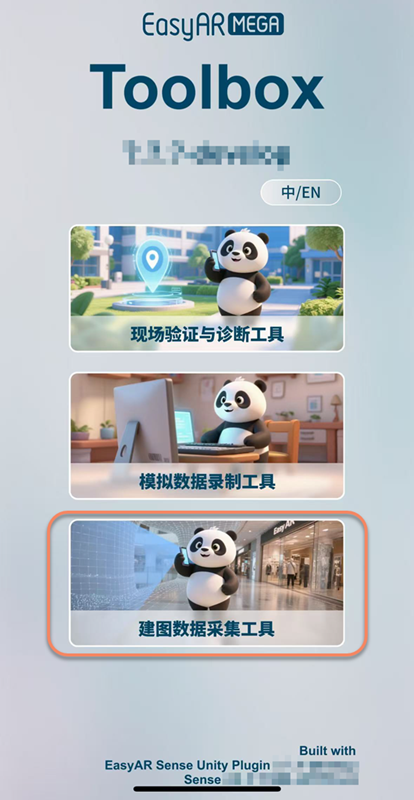
Tap the blue
+at the bottom to enter the acquisition page.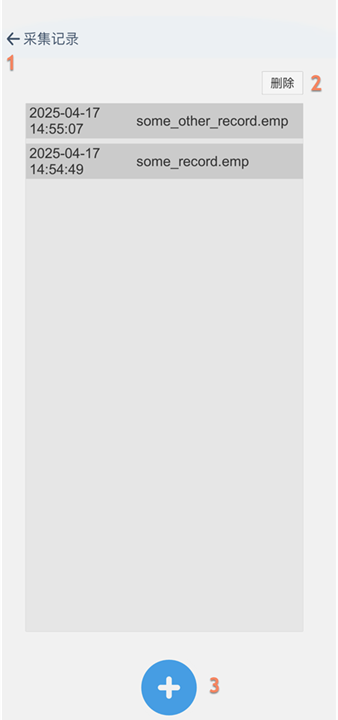
Function description
- Return to the main page
- Delete record
- Enter the acquisition page
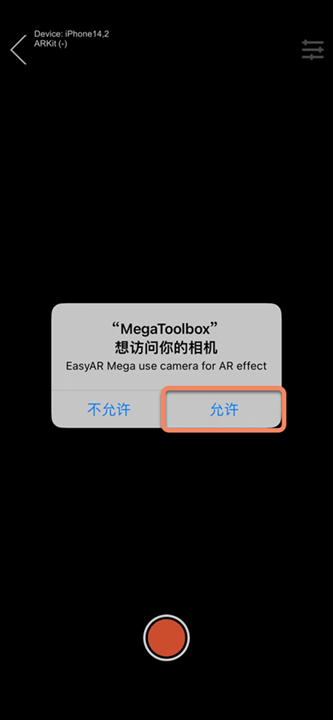
During the first acquisition, you need to allow MegaToolbox to access your camera.
Perform acquisition
After entering the shooting page, follow a specific motion trajectory to scan the object from all directions, helping build a visual map with complete coverage.
Environment and initialization:
For movable objects, it is recommended to place the object in a flat, open area with uniform lighting, such as a table. For immovable objects, temporary clutter around the target object should be cleared.
Enter the acquisition interface, first point the camera at a nearby area with rich texture, and slowly pan to initialize. After observing that the status in the upper-left corner of the panel changes to
Tracking, raise the phone toward the position to be acquired and tap the start acquisition button.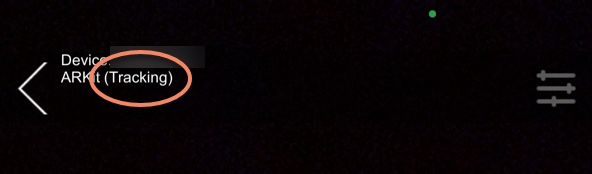
Multi-angle surround scanning:
With the object as the center, keep the phone camera facing the target object and acquire the target object by
continuously circlingit three to four times, specifically:- Horizontal acquisition for one circle: keep the camera at the middle height of the object and acquire one circle horizontally around it.
- Overhead acquisition for one circle: raise the phone and point the camera downward by 10 to 45 degrees, acquiring one circle from an overhead posture.
- Low-angle acquisition for one circle: lower the phone and point the camera upward by 10 to 45 degrees, acquiring one circle from a low-angle posture. If the object is small, this step can be skipped.
- Supplementary top acquisition: if the object is small, acquire once more from the top of the object.
Distance and detail supplementation:
- For relatively large objects, you should also acquire one more circle from a slightly farther distance. During acquisition, make the object fill the entire camera view as much as possible.
- If the object has many details, or if localization needs to focus on a specific area, acquire more local views of that part.
Tip
- Acquisition should be a single continuous acquisition. Do not interrupt the acquisition process.
- During acquisition, the phone should be more than 0.5 meters away from the object. The acquisition distance depends on the object size, but the acquired data should cover the entire object.
- The trajectory line displayed in real time during acquisition can help determine whether the acquisition is compliant.
End and save
After completing acquisition from all angles, you need to stop recording and persistently save the data to the device.
After acquisition is complete, tap the red button in the middle at the bottom to stop acquisition and enter the save page.

On the save page, enter a name for the acquired data (only English letters and digits are supported), and tap the
Savebutton. The acquired data will be saved to the phone.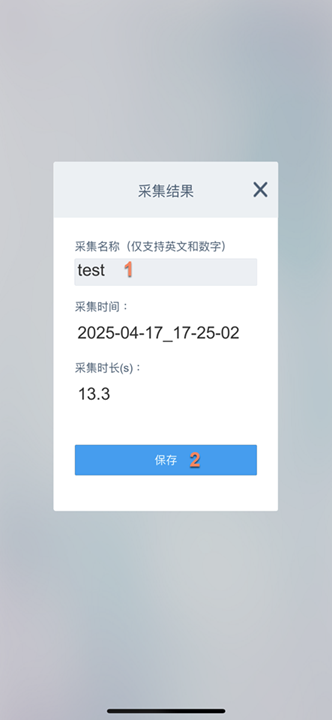
Notes
- The
Trackingstatus must be maintained throughout acquisition. Keep acquisition smooth throughout and avoid rapid turns or sudden stops. - The acquisition duration cannot exceed
15 minutes. If it exceeds15 minutes, acquisition will be forcibly ended and the save page will be entered. - Do not switch to the background during acquisition. Switching to the background will cause acquisition to fail.
- Make sure the ambient light is sufficient, uniform, and stable, and avoid areas that are too dark or overexposed.
- Do not point at white walls, metal or other solid-color surfaces, or reflective and transparent glass areas for a long time.
- If acquisition fails, restart acquisition.
Next steps
After acquisition is complete, refer to Export data to export the data, and create an object mobile acquisition task in Mega Developer Center for mapping.