Mega tracking issue troubleshooting guide
Mega uses edge-cloud fusion technology. After cloud localization succeeds, it combines device SLAM to maintain continuous tracking and ensure AR content is accurately anchored to the real world. The ideal tracking state should have no drift, low jitter, and high smoothness. This document focuses on tracking issues during Mega localization and helps you understand correct expectations, common issue categories, device differences, and when you need to contact EasyAR technical support.
Expected results
Tracking issues usually come from mapping data quality, environmental factors, or device compatibility. You can use MegaToolbox to troubleshoot. If the issue involves the runtime effect of your application, you can also test directly with your application.
With a high-quality Mega Block and a good environment, tracking should meet the following standards:
- Stable anchoring: after localization succeeds, virtual content is fixed in world coordinates, with no obvious drift.
- Robust recovery: after brief occlusion, rapid rotation, or lighting changes, tracking recovers automatically.
- Smooth performance: content rendering is normal, with no obvious jitter.
- Environmental limits: tracking quality decreases near plain walls, open floors, glass, or strongly reflective surfaces.
If your experience matches the description above, the tracking effect is basically normal.
Normal phenomena: slight jitter or brief loss is acceptable, especially during the verification stage of the creation process. If it remains stable for a long time, it is considered normal.
Use Mega Toolbox for self-service diagnosis
Tracking issues usually appear after localization succeeds. If abnormal tracking appears in the application you developed, check the localization status in Mega Toolbox (see Mega Toolbox operation manual - onsite verification and diagnosis tool). If the effects are inconsistent, first check whether there is a problem in the program implementation.
Steps
- Install Mega Toolbox on your test phone.
- Open Toolbox, enter
onsite verification and diagnosis tool, and log in with your account and password. - Select the SLAM mode and select the localization library.
- Take the phone to the exact location where the issue occurs and observe the display on the Toolbox interface.
For how to configure the localization library and how to test onsite, see onsite real runtime effect preview.
Judge by the Toolbox display results
Mega Toolbox is one of the most important diagnosis tools. It is an independent mobile App that helps you determine whether the issue comes from Mega or from your application.
Localization abnormal
If the Toolbox interface shows a status other than
FoundorNotFound, refer to localization failure handling guide to resolve it.Localization successful
The Toolbox interface shows
Found, and the placed content is also displayed normally.Normal situations include:
- The content fits the scene relatively well and moves slowly over a period of time.
- If the virtual content deviates from the scene beyond a certain range, it is corrected directly.
Abnormal situations include:
- Content in the scene keeps drifting in one direction.
- Content drifts in one direction, is pulled back, then drifts and is pulled back again.
- Content becomes larger and larger or smaller and smaller.
- Content in several places jumps back and forth.
Issue categories and troubleshooting
Use Toolbox for testing. According to the abnormal phenomenon, you can check the corresponding suggestions.
| Issue category | Possible cause | Suggested handling |
|---|---|---|
| Device status always shows NotTracking | The environment has no obvious features, lighting is poor, or the phone model is poor | Determine whether it is caused by the environment or the phone model. You can try changing the test area or phone model |
| Content in the scene keeps drifting in one direction | The phone model is poor, and SLAM has drift | Try a better phone model |
| Content drifts in one direction, is pulled back, then drifts and is pulled back again | The phone model is poor, and SLAM has drift | Try a better phone model |
| Content becomes larger and larger or smaller and smaller | The phone model is poor, and SLAM has drift | Try a better phone model |
| Content in several places jumps back and forth | There may be several similar areas in the scene. When localization starts from these areas, interference may occur | Start localization from another distinctive area, or use Bluetooth assistance |
Further testing
To better identify the issue, you can test further in the following ways. If you are a developer, refer to Mega supported devices and platform applications.
Test with a better phone model
Different devices have differences in tracking effect, mainly affected by camera quality, sensor accuracy, and processor performance. During verification in the creation process, it is recommended to test with several different models to ensure compatibility. If tracking works normally on ARKit or ARCore devices, the issue is determined to be caused by the performance of the problematic device. For weaker devices, you can try different SLAM modes for testing.
Select different SLAM modes
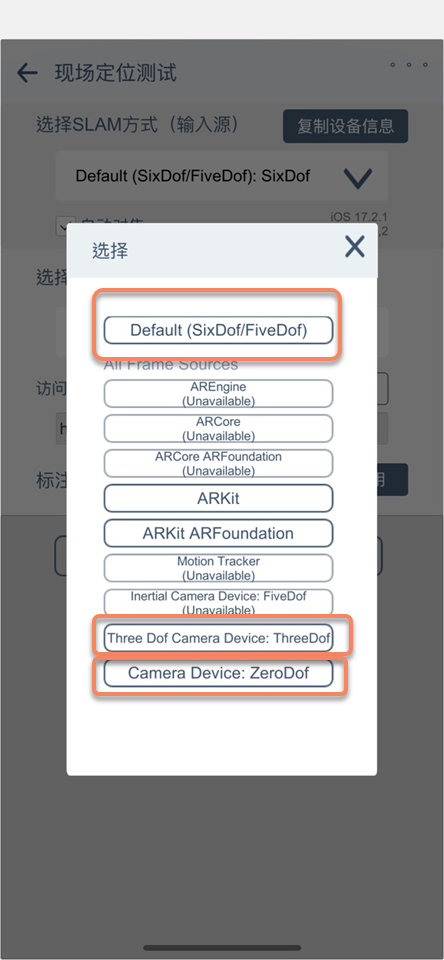
For some poorer models, SLAM accuracy is relatively poor due to phone sensor accuracy and computing power. On the onsite verification and diagnosis tool page of Toolbox, try selecting different SLAM modes for testing. You can choose FiveDof, ThreeDof, or ZeroDof to experience different tracking effects.
Situations that need feedback
Most tracking issues during the creation process are caused by devices, but the following situations may involve Block algorithm or service issues. It is recommended to give feedback to EasyAR support:
- Frequent drift still exists after testing with multiple models and multiple areas.
- Toolbox cannot localize or localization is abnormal.
- The same Block has very different effects under different weather or lighting conditions, and supplementary updates cannot resolve it.
If there are still issues, provide the onsite issue description, device information, onsite runtime screen recording, EIF file, and Mega service information/Block diagnosis information to EasyAR staff. Before giving feedback, confirm in Mega Studio that the EIF can reproduce the issue.
With this guide, you can quickly troubleshoot tracking issues during the creation stage and improve the overall quality of the Mega Block.