Mega positioning failure troubleshooting guide
Mega utilizes advanced visual positioning algorithms, achieving high-precision positioning through cloud-based Mega Blocks retrieval and visual feature matching solutions. In practical usage, various factors such as configuration errors, environmental changes, or network fluctuations may lead to positioning failures.
This document aims to assist you in quickly determining positioning status, distinguishing between "normal waiting" and "abnormal errors," and performing rapid diagnostics based on configuration, environment, and service factors.
Positioning process
You need to collect mapping data within the target area and construct a Mega Block, then add the reconstructed Mega Block to the localization library, and verify the localization library’s availability.
Within areas covered by constructed Mega Blocks, with good lighting conditions, rich features, and normal network connectivity, positioning typically succeeds within seconds. Upon successful positioning, the device’s location and pose within the Mega Block will be returned.
Check localization status
- If you use Mega Toolbox to verify localization results, you can directly view the localization status
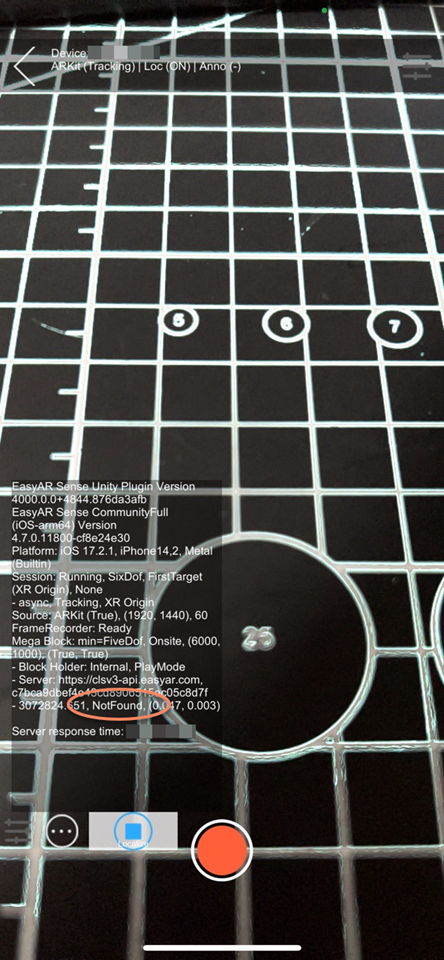
- If you are a Unity developer and localization fails, you can check the specific information
MegaTrackerLocalizationStatusreturned on the screen. If this information is not displayed, enable diagnostic information.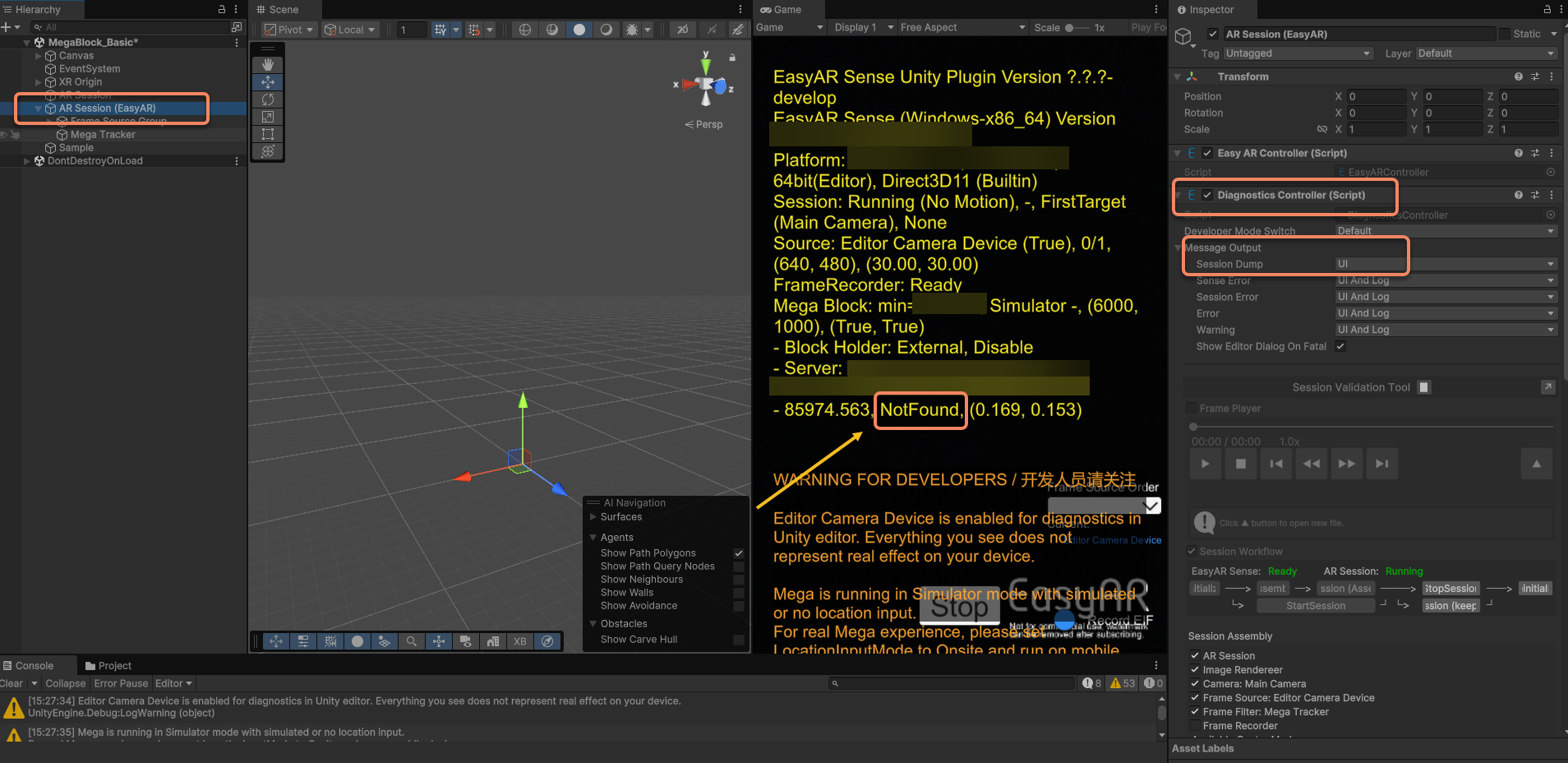 Possible values of
 MegaTrackerLocalizationStatus
| Constant | Value | Description |
|---|---|---|
| UnknownError | 0 | Unknown error |
| Found | 1 | Localized to block |
| NotFound | 2 | Failed to localize to block |
| RequestTimeout | 3 | Request timed out (exceeds 1 minute) |
| RequestIntervalTooLow | 4 | Request interval too low |
| QpsLimitExceeded | 5 | QPS limit exceeded |
| WakingUp | 6 | Service waking up |
| MissingSpotVersionId | 7 | SpotVersionId missing (likely not configured) |
| ApiTokenExpired | 8 | API token expired |
Solutions for the above exceptions:
Request timeout: Check and resolve network issues. If necessary, increase the request timeout parameter
MegaRequestTimeParameters.Timeout. Note that poor network conditions may affect tracking performance, so prioritize resolving network issues.Request interval too low: Reduce the request frequency.
Connection or transmission failure: Check and resolve network issues.
QPS limit exceeded: Contact EasyAR business peers for QPS capacity expansion.
Service waking up: The system is initializing; wait and retry later.
Missing SpotVersionId: Configure SpotVersionId.
API token expired: Regenerate API token in the EasyAR management console. Common scenarios for
UnknownError:Connection or transmission failure
Service returned an exception For
UnknownError, detailed information can be obtained viaMegaLocalizationResponse.ErrorMessage.
Common error classification troubleshooting
Based on the status and phenomena returned by positioning, common issues can be categorized into the following three types: configuration issues, environmental factors, and the service itself.
Configuration issues
This type of problem usually occurs during the development and integration phase, manifesting as the service being completely unable to start.
About license
If you encounter License, Invalid Key or similar prompts in logs or screens during development or testing, possible causes include: AppID/BundleID mismatch, expired license, or incompatible subscription plan. Please verify your license settings against the table below.
| Error | Solution |
|---|---|
| Invalid Key: No matched Bundle ID | Bundle ID does not match the license key. Modify either one to match. |
| Invalid Key: No matched Package Name | Package Name does not match the license key. Modify either one to match. |
| Invalid Key: License does not apply to current variant | Using enterprise SDK with a non-enterprise license key, or vice versa. |
| Invalid Key: License for an old version does not apply | License version is too old. Create a new license. |
| Invalid Key: Invalid format | Incorrect license format, e.g., incomplete copying. |
| Invalid Key: Server verification failed | License is deleted or lacks device permissions. For eyewear use, contact business support to add permissions. |
| License does not apply to eyewear | License cannot be used on eyewear. Use an xr license instead. |
| License is expired | License has expired. |
Additionally, note that trial version licenses have certain limitations. Using paid versions of EasyAR Sense and paid EasyAR Mega services resolves this issue. If you already use the paid version of EasyAR Sense, you may ignore or directly remove the relevant text from your sample.
Camera display anomalies
During the development or testing of EasyAR Mega applications, if anomalies such as black screens, crashes, or no camera display occur, please systematically troubleshoot and collect information by following the steps below.
- Attempt self-resolution
- If you are using Unity for development or testing, ensure you have checked the Diagnostics Controller (Script) in the AR Session (EasyAR) -> Inspector to enable diagnostic information.
- Check the content displayed on the screen or in the logs to see if there are clear text prompts on the UI.
- In most cases, error messages are self-explanatory. If the screen message or log indicates the cause of the error, resolve it based on the specific reason. For example:
cameraDevice.openWithPreferredType fail(check if the camera is available). - If it prompts "not supported" (e.g., device does not support ARCore or other features), this is a normal limitation and requires no further troubleshooting.
- Unable to resolve independently Please try to resolve the issue yourself based on the available information. If you cannot resolve it independently, to help EasyAR staff quickly locate the problem, it is essential to provide detailed, reproducible technical information. Avoid describing only phenomena like "black screen." Recommended feedback includes:
- Complete logs: Unity or Sense logs.
- Screenshots or screen recordings: The full screen during the black screen. If diagnostic information is present, ensure it is visible and captured in the screenshot.
- Detailed device information: Device model (e.g., iPhone 15, HUAWEI P40), OS version (e.g., iOS 17.1, Android 14), EasyAR Sense version, EasyAR Sense Unity Plugin version, Unity version, etc.
Not running on-site, persistent not found
Developers test using simulators or screen recordings in the office but consistently fail to locate the issue. A possible reason is that the MegaLocationInputMode is set to Onsite, but it is not running on-site. Based on the Mega location input mode, the correct mode must be selected during development:
| Constant | Value | Description |
|---|---|---|
| Onsite | 0 | Input mode for on-site usage scenarios. Location data is typically obtained from the device and input to Mega, usually handled internally by FrameFilter |
| Simulator | 1 | Input mode for remote usage scenarios. Location data needs to be simulated as on-site data and input to Mega through corresponding interfaces (optional) |
| FramePlayer | 2 | Input mode when using FramePlayer. This mode is read-only |
Caused by environmental factors
This type of issue manifests as the service functioning normally, but the location persistently returns NotFound.
Continuously notfound facing white walls or ground
When the camera view shows a large area of white walls, glass, or solid-color ground, the status will continuously return NotFound.
Reason: Visual positioning relies on texture features. Weak-texture areas cannot extract feature points.
Solution: This is normal. Move the camera to texture-rich areas for startup.
On site and textured, but persistently not found
The user is on site, facing a textured area, but localization fails for an extended period.
Possible causes:
Scene changes: The current environment (e.g., renovations, poster replacements, drastic lighting changes) differs significantly from the scene during mapping.
Uncovered area: The user's position is outside the coverage area of the original mapping collection. Solutions:
Move to the route area covered during the original collection and try again.
If the scene has undergone permanent and significant changes, re-collect and update the Block.
Caused by the service itself
Block just added, continuously wakingup
When you've just finished configuring the location library or have just started it, the service status might show WakingUp or remain NotFound for an extended period. This occurs because the Mega service has a cold start mechanism; the first load requires waking up from cold storage. Keep the network unobstructed, wait 10-30 seconds, and try again.
Service returns exception
| Https status | Status code | Reason |
|---|---|---|
| 200 | 21 | QPS limit exceeded |
| 200 | 1040 x | Incorrect parameter, library, or map data, see specific message description |
| 200 | 4000 x | Algorithm-level error, see specific description |
| 401 | - | Authentication failed, see specific message description |
| 404 | - | Incorrect path input in URL |
| 50x | - | Server program error |
Solutions for service exceptions:
- QPS limit exceeded: Contact the EasyAR business team for QPS capacity expansion
- Authentication failed: Resolve according to the specific message description. Common issues include excessive device time deviation from standard time, lack of CLS permission for API Key, etc.
- Other situations: Please report to EasyAR staff for resolution
Problem feedback
If the issue persists after following the troubleshooting steps above, please collect the following information and provide it to the EasyAR technical support team.
Export Mega Location Service information
- Unity development, plugin version >= 4003
- Unity development, plugin version 4.7 - 4002
- Mini-program development
- Other Mega Studio usage scenarios
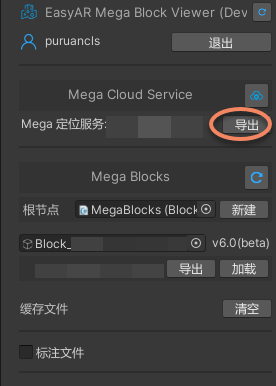
On the editor tool of the block node you are using, click the Diagnosis Info button in the following figure to export the Mega Block diagnostic information. The Mega Block Diagnostic Information only contains information about the Mega Block and the location library, and does not contain other sensitive information.
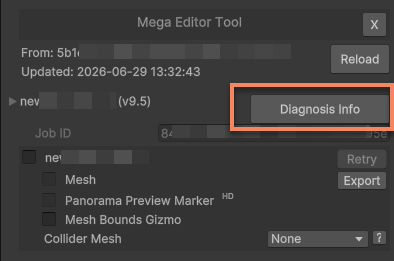
The format of the file you export should be Mega_Report_Block_<blockID>_YY-MM-DD_HH-MM-SS.json.
Recording EIF file
If you encounter issues during testing on a mobile phone, please use the Toolbox to record a mobile phone EIF file.
If you encounter issues during testing on headsets, please use the Toolbox to record a headset EIF file.
If you encounter issues in your own application, you can use your application to record an EIF file.
When using a WeChat Mini Program, you can use the Mini Program to record an EIF file.
Recording issue phenomena using mobile phones, glasses, and other devices
In the field of AR, textual descriptions often fail to convey accurate information, as interpretations can differ significantly between individuals. Meanwhile, screen recordings during runtime are highly valuable information, enabling you and EasyAR staff to establish a shared understanding. You can use the built-in functions of mobile phones, glasses, or other devices, or utilize third-party software for recording. It's important to note that screen recording generally impacts runtime performance, potentially affecting both tracking effectiveness and overall performance.
Note
Before recording, it is recommended to reference the corresponding Sample during runtime and display necessary Debug information on the screen. Alongside providing the screen recording, you should also supply the corresponding EIF data captured during the recording period.
Unity development problem feedback
If you encounter unusual issues during Unity development, you should check whether you have completed the following 4 items step by step.
Have tried the latest version of EasyAR Sense Unity Plugin. New versions typically include bug fixes and new features. It is recommended to upgrade to the latest version first.
Have read the EasyAR development documentation and Mega Guide. The documentation often contains explanations for certain situations.
Have reviewed system and Unity logs. It is recommended to provide complete logs when asking questions.
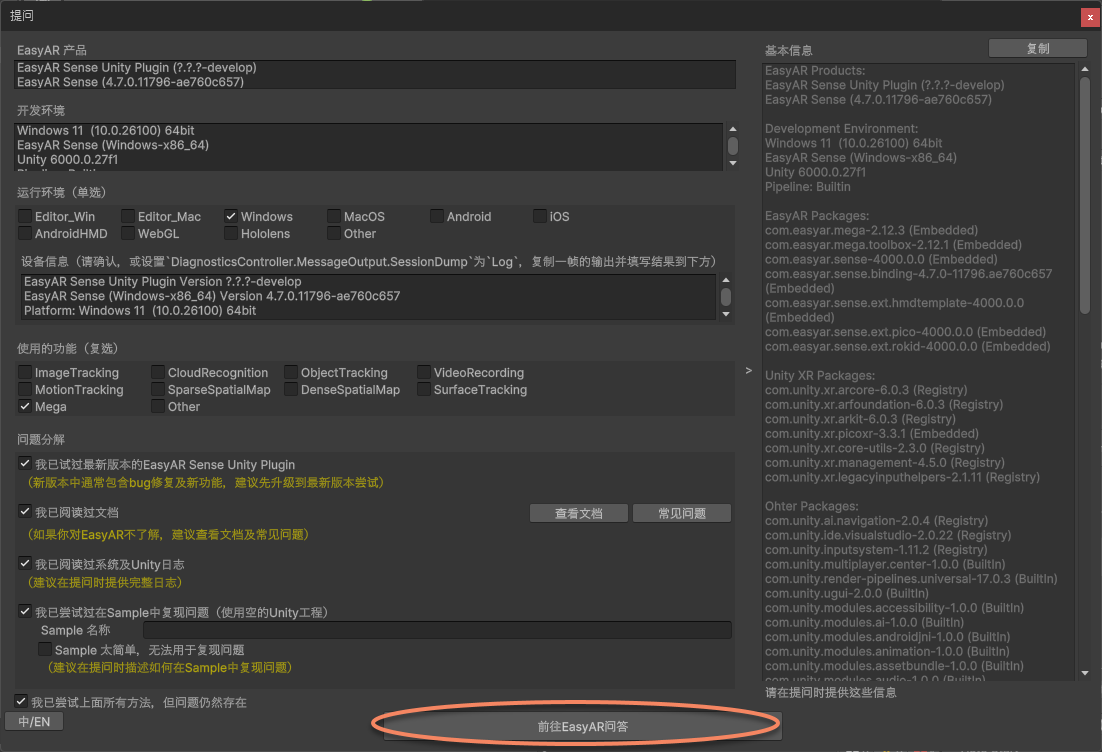
Have attempted to reproduce the issue in an empty Unity project or within the Samples. If you have completed the above 4 checks but still cannot resolve your issue, you can provide complete information following the process below in the EasyAR Sense Unity Plugin for EasyAR technical staff to analyze and solve your problem.
In Unity -> EasyAR -> Sense, select
Question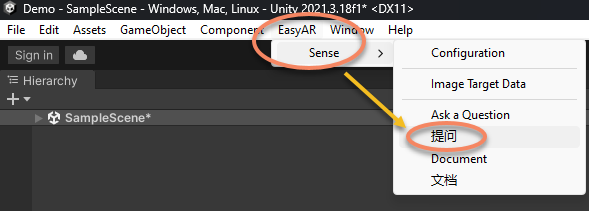
In
Question, you need to provide the following information:
- Select the problematic runtime environment. Only a single environment can be selected.
- Copy device information. In
EasyAR Session, setDiagnosticsController.DumpSessiontoLog, copy one frame of output, and fill the result below.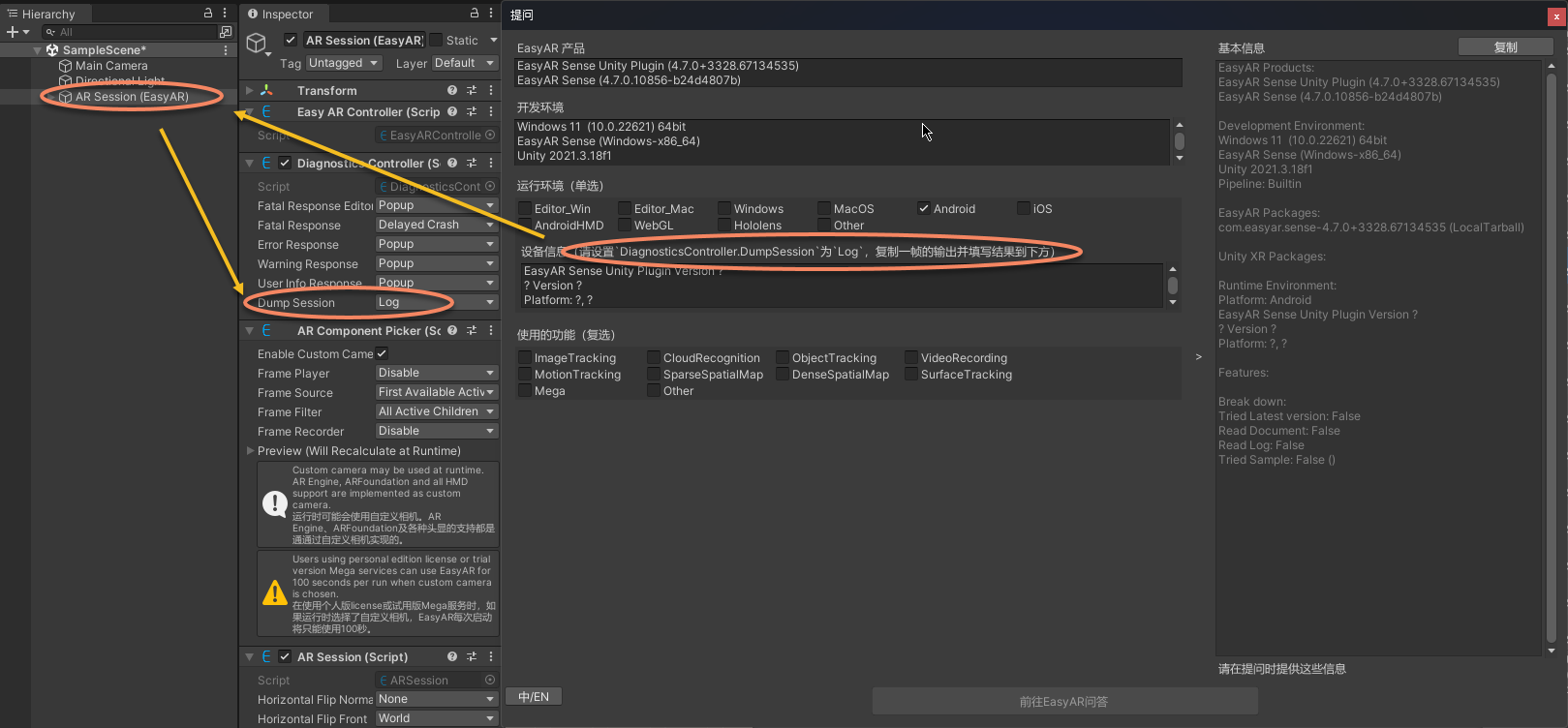
- Select all EasyAR features used when encountering the problem. Multiple selections are supported.
- Confirm you have completed the above 4 checks. It is recommended to describe how to reproduce the issue in the Sample when asking.
- Click the copy function in the upper right corner.
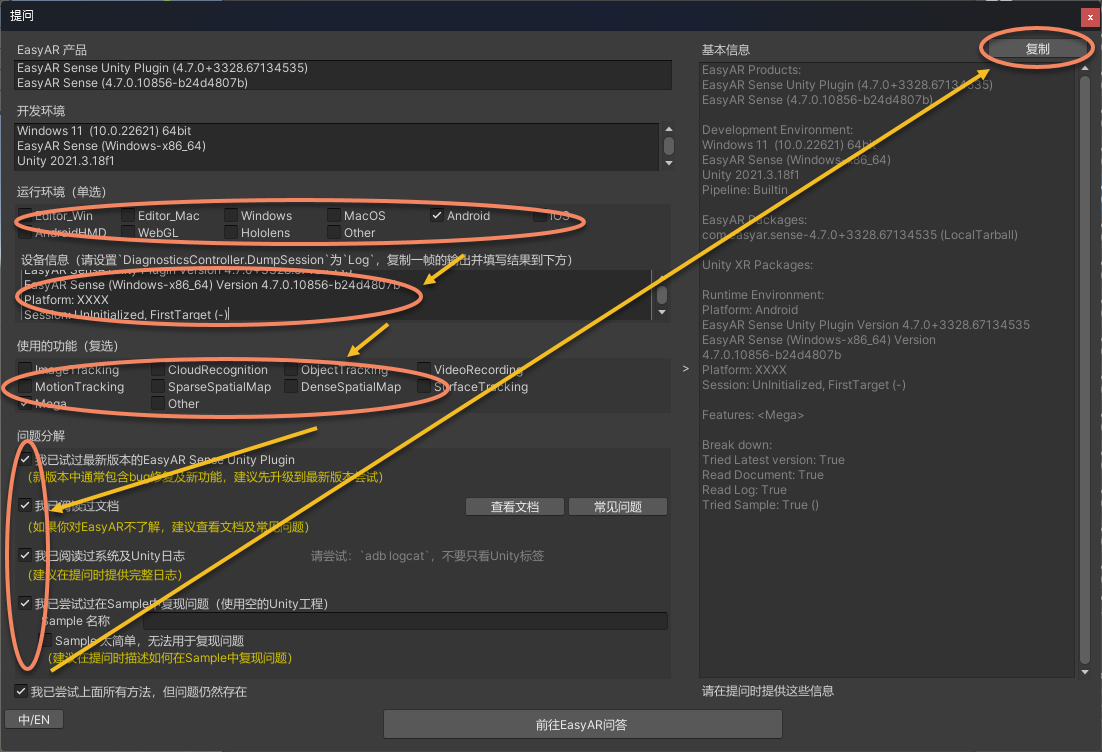 When first opening the
 Questionwindow, the information below may not be fully displayed. It will appear after selecting the environment and features.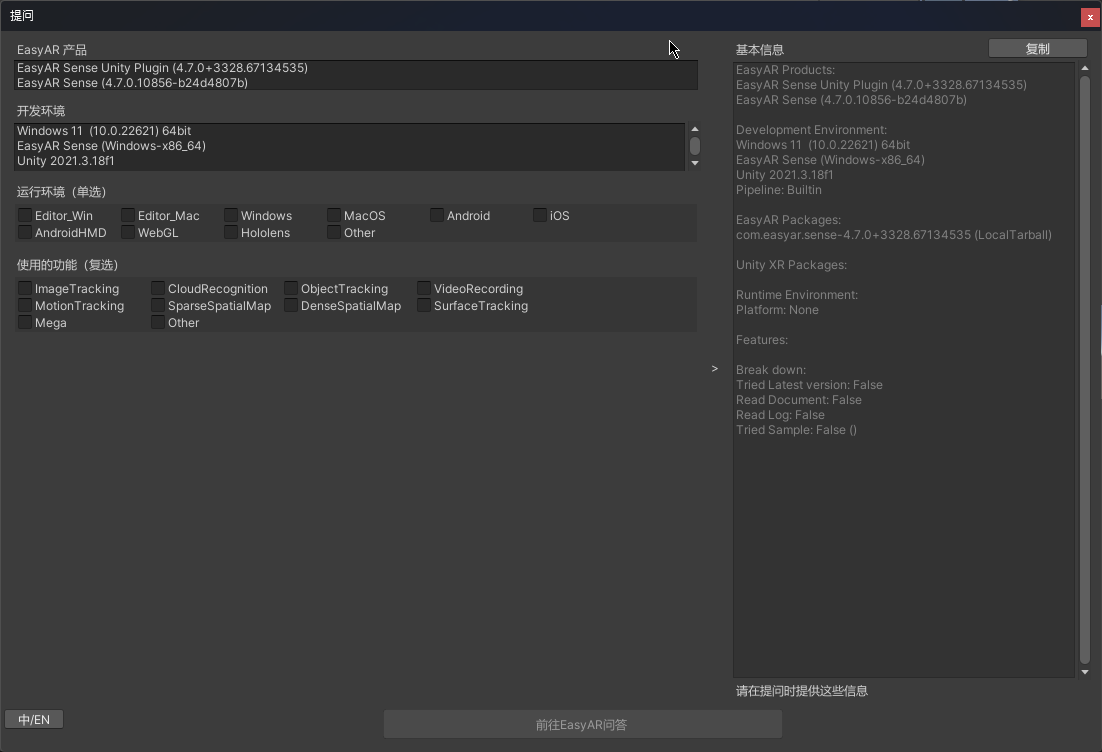
- Click
Go to EasyAR Q&Abelow to submit the copied information to EasyAR officially, or directly provide feedback to EasyAR staff.