Target image management
Target images (Targets) can be managed in the following two ways:
- Visual management: log in to the EasyAR Developer Center for manual maintenance.
- API automated management: integrate into your own business system or management backend by calling the Web Service REST API.
Important
In the cloud recognition service, target image management and image recognition are two different requirements, and the APIs correspond to two different Cloud URL entries.
Data center region selection
The data center where the image library running example is located supports the following region selections:
- China-Shanghai
- US-Silicon Valley
Method 1: manage target images in the EasyAR Developer Center
Suitable for small-scale testing or quick manual upload. The operation steps are as follows:
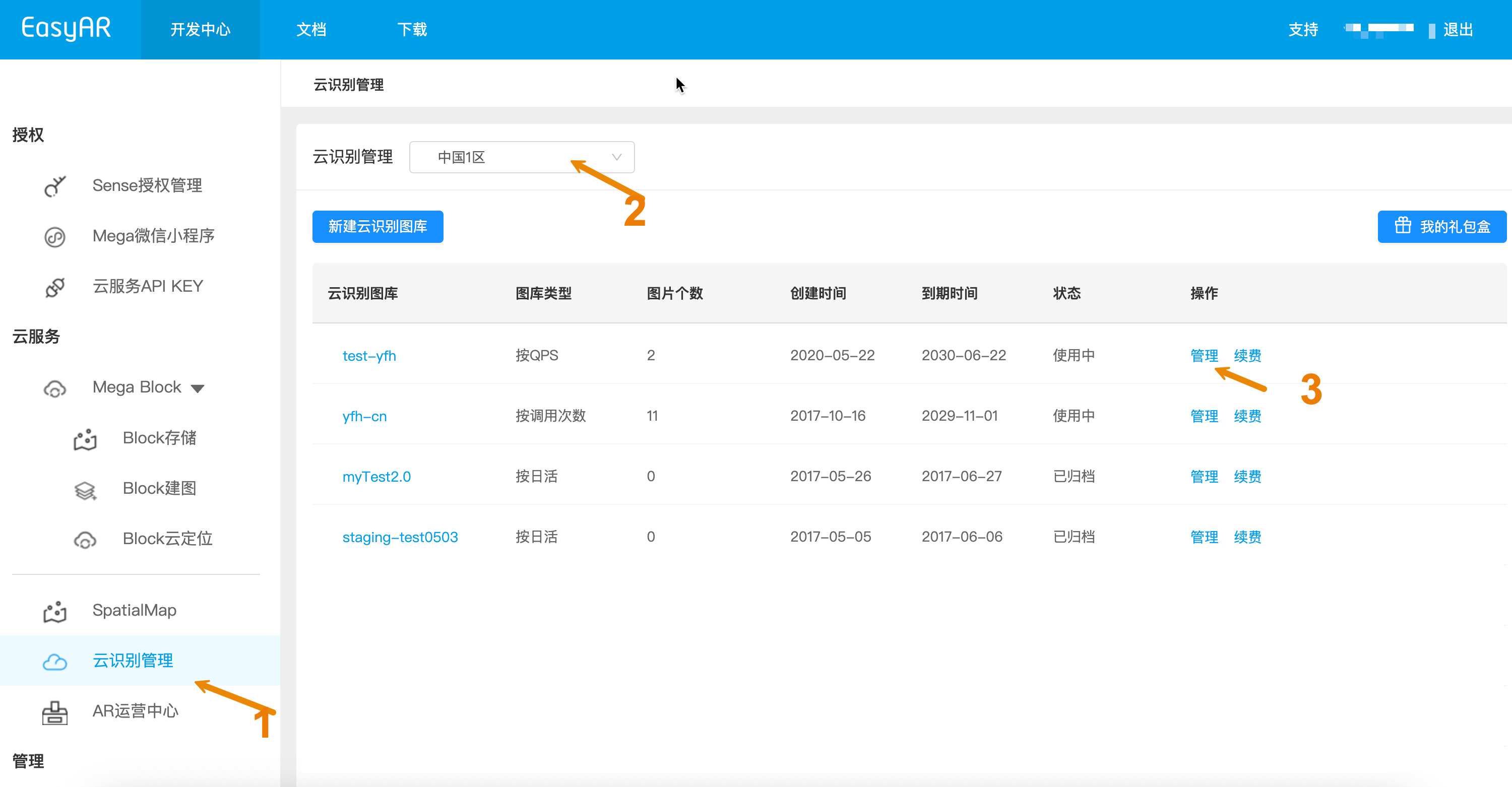
- Log in to the EasyAR Developer Center and enter Cloud Recognition Management.
- Select the target region. If an image library has not been created, create one first and enable the cloud recognition image library.
- Click Manage in the image library list to enter the target image maintenance page for upload, modification, or deletion.
Method 2: use REST API for automated management
For applications that need to process a large number of target images, it is recommended to use the Web Service REST API to implement automated workflows in your application or management backend.
Preparation checklist
The following is the checklist to prepare. Before you start managing target images, you need to prepare a new cloud recognition database instance (Cloud Database).
- CRS AppId
- API Key / API Secret or Token
- Cloud URL
- Server-end URL: target image management URL address; https uses port 443
- Client-end URL: image recognition service URL address; https uses port 8443
Important
Port distinction: the target management API entry (443) and the cloud recognition API entry called by mobile/Unity (8443) are two different channels. Be sure to distinguish them during configuration.
How to obtain each checklist item
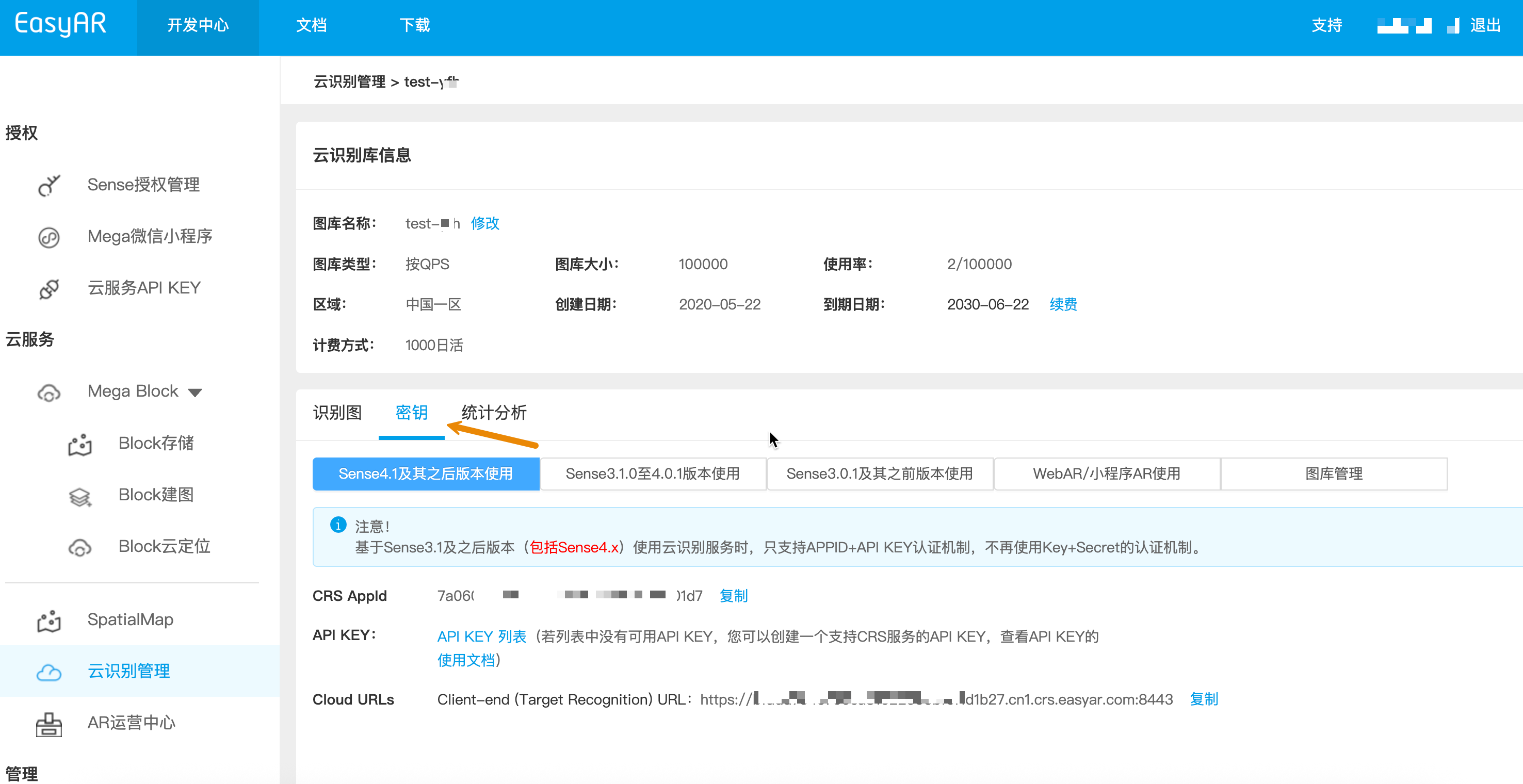
- How to view CRS AppId:
Developer Center -> Cloud Recognition Management -> Select image library -> Manage -> Key
- How to view API Key / API Secret:
Developer Center -> Cloud Service APIKey -> Copy
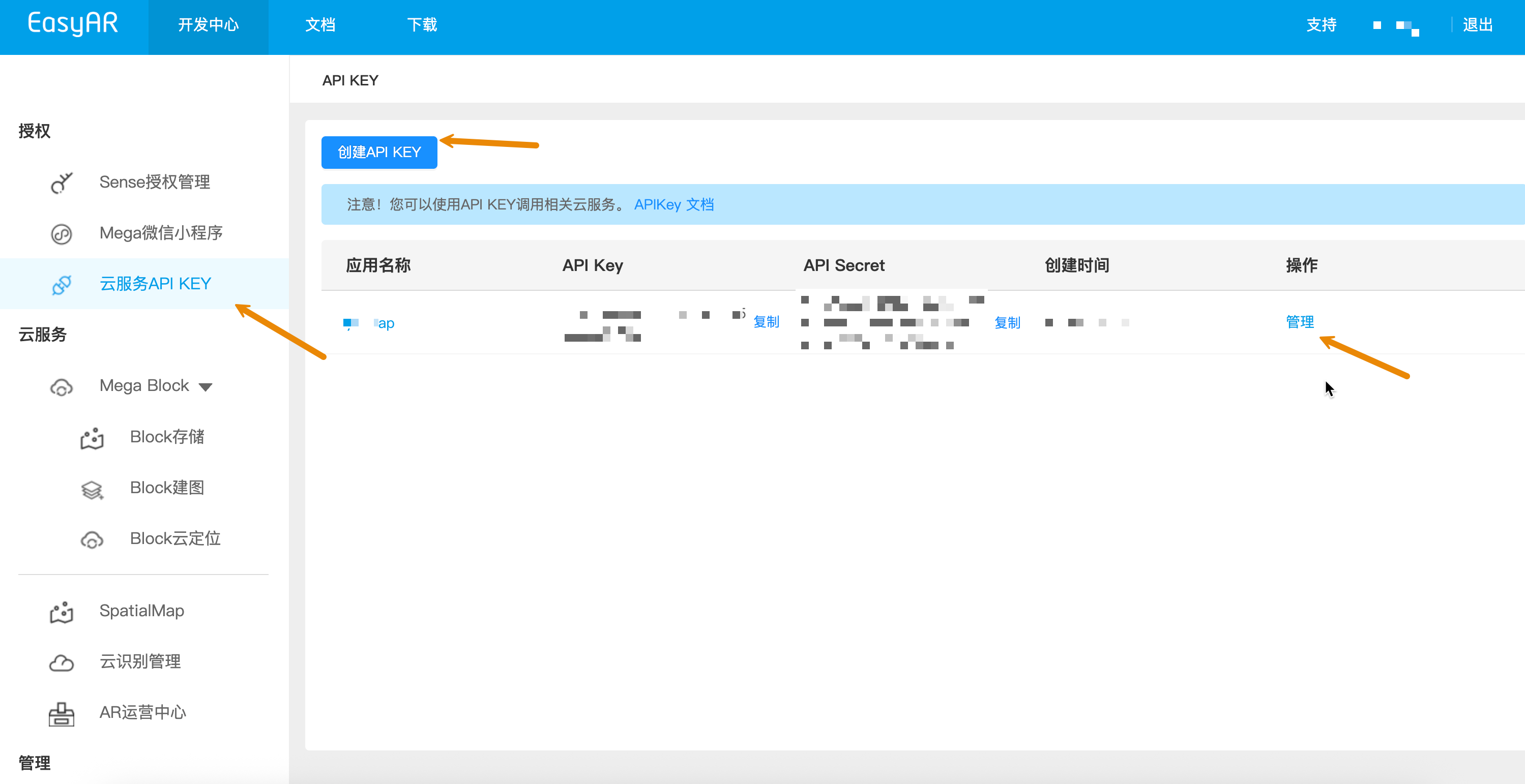
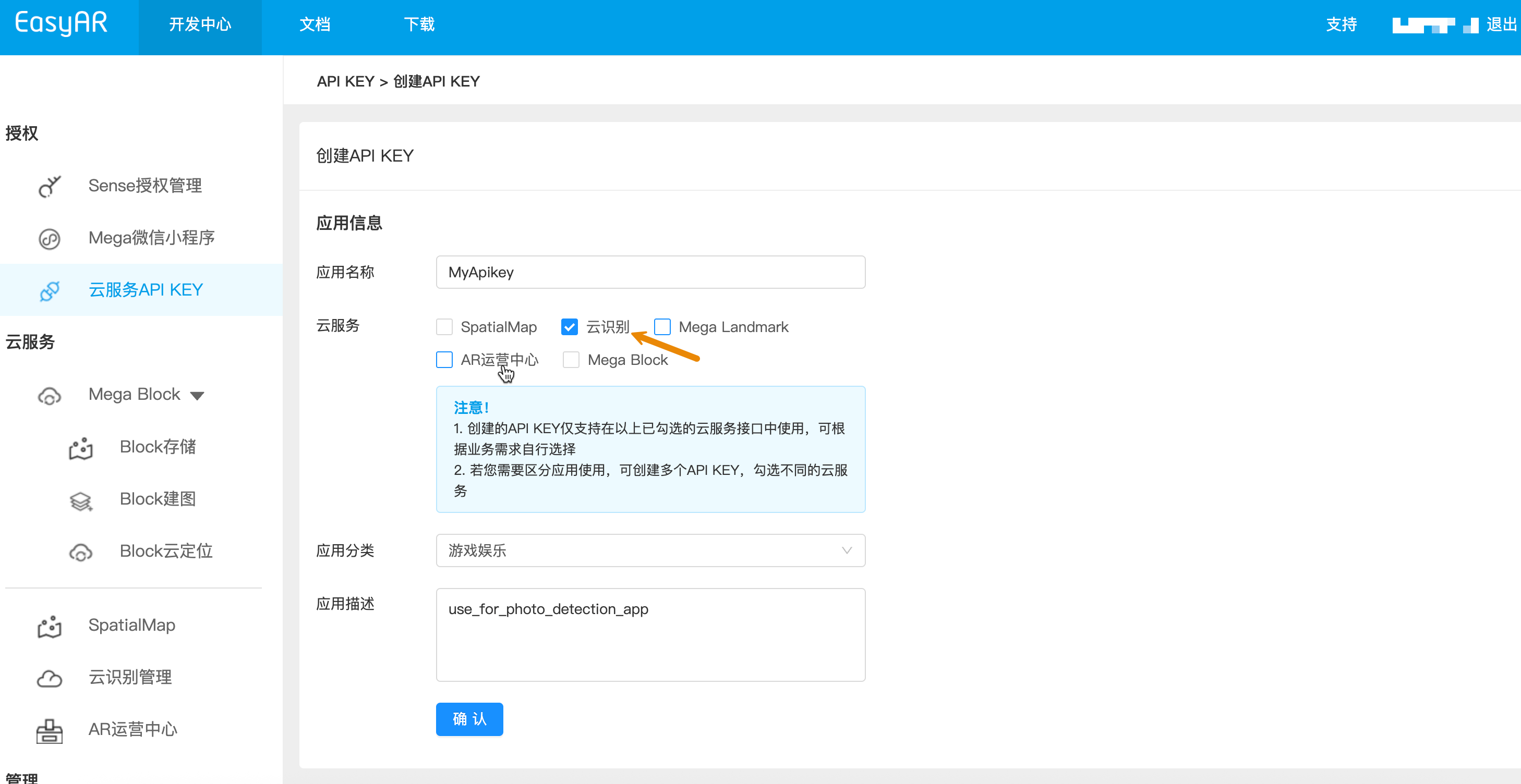
If you do not have an API Key yet, create an APIKey and make sure the cloud recognition (CRS) permission is selected. To learn more about API Key and permission control, refer to API Key introduction.
- How to view Token:
Developer Center -> Cloud Service APIKey -> Manage -> Select validity period -> Generate Token -> Copy
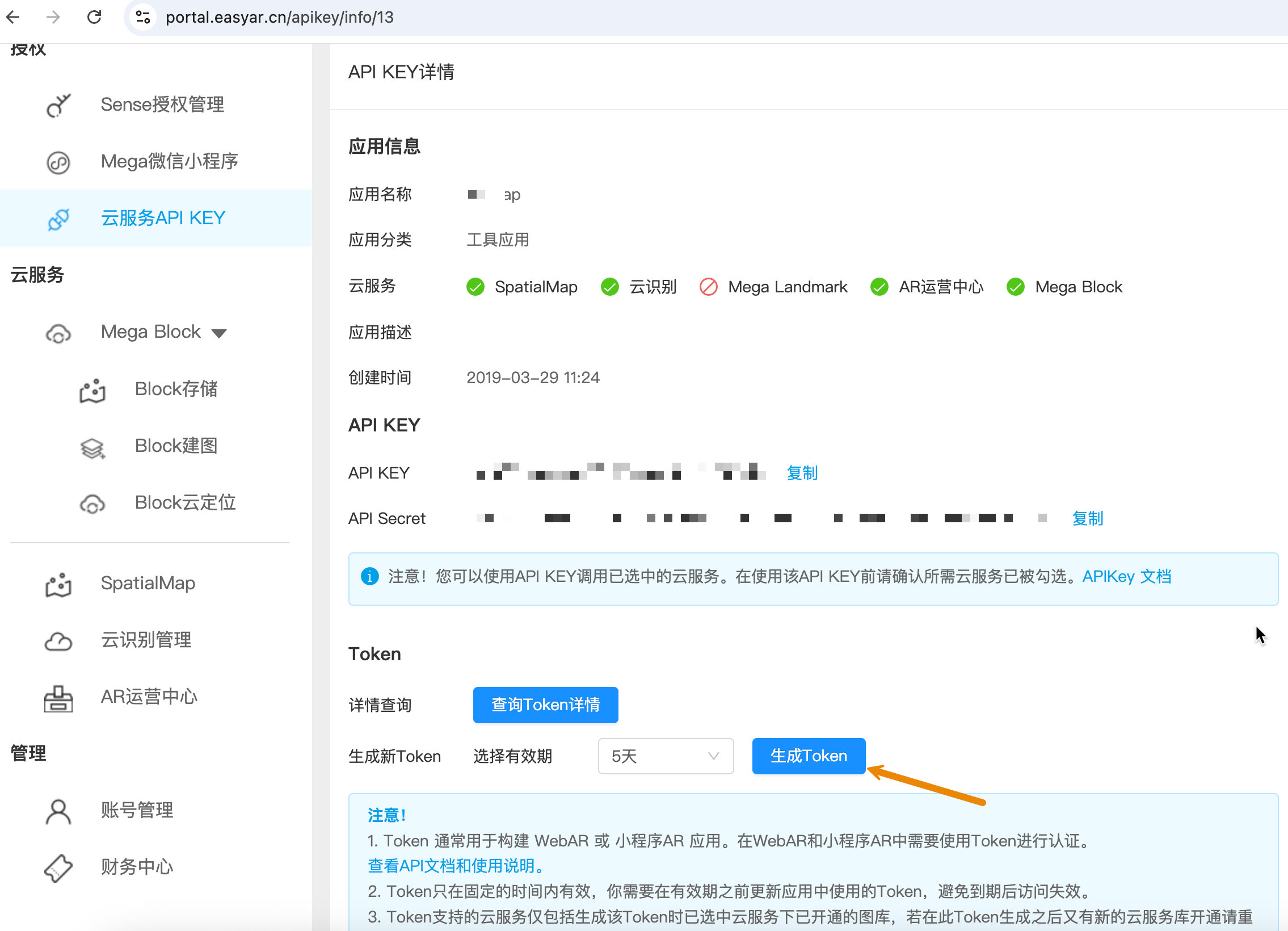
If you need to customize the validity period of the Token, you can refer to UAC API - Create Token and use the original APIKey and APISecret to create a Token.
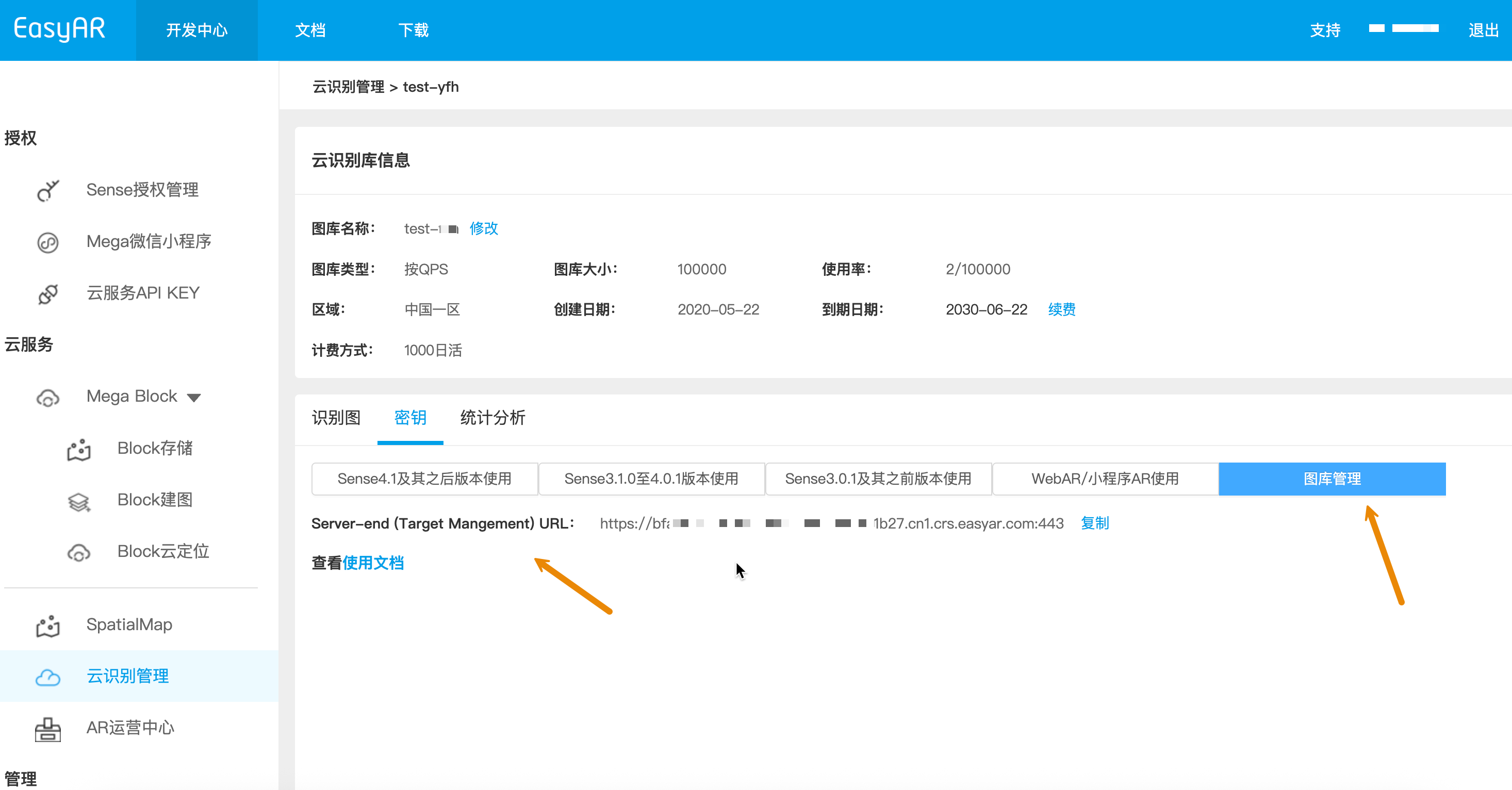
- How to view Cloud URL:
Target image management in the image library uses the Server-end URL port 443, Server-end URL
Developer Center -> Cloud Recognition Management -> Select image library -> Manage -> Key -> Image Library Management
Multi-end integration guide
In actual workflows, target image management is usually integrated into the developer's business server, mobile end, or Unity:
Business service platform: provides API sample code in common server development languages (Curl/Java/NodeJS/PHP) to help developers implement automatic target image upload and metadata (Meta) update.
Mobile end (Unity/Mobile): provides Unity-based target image management sample code, allowing developers to implement their own method for taking photos and uploading target images.
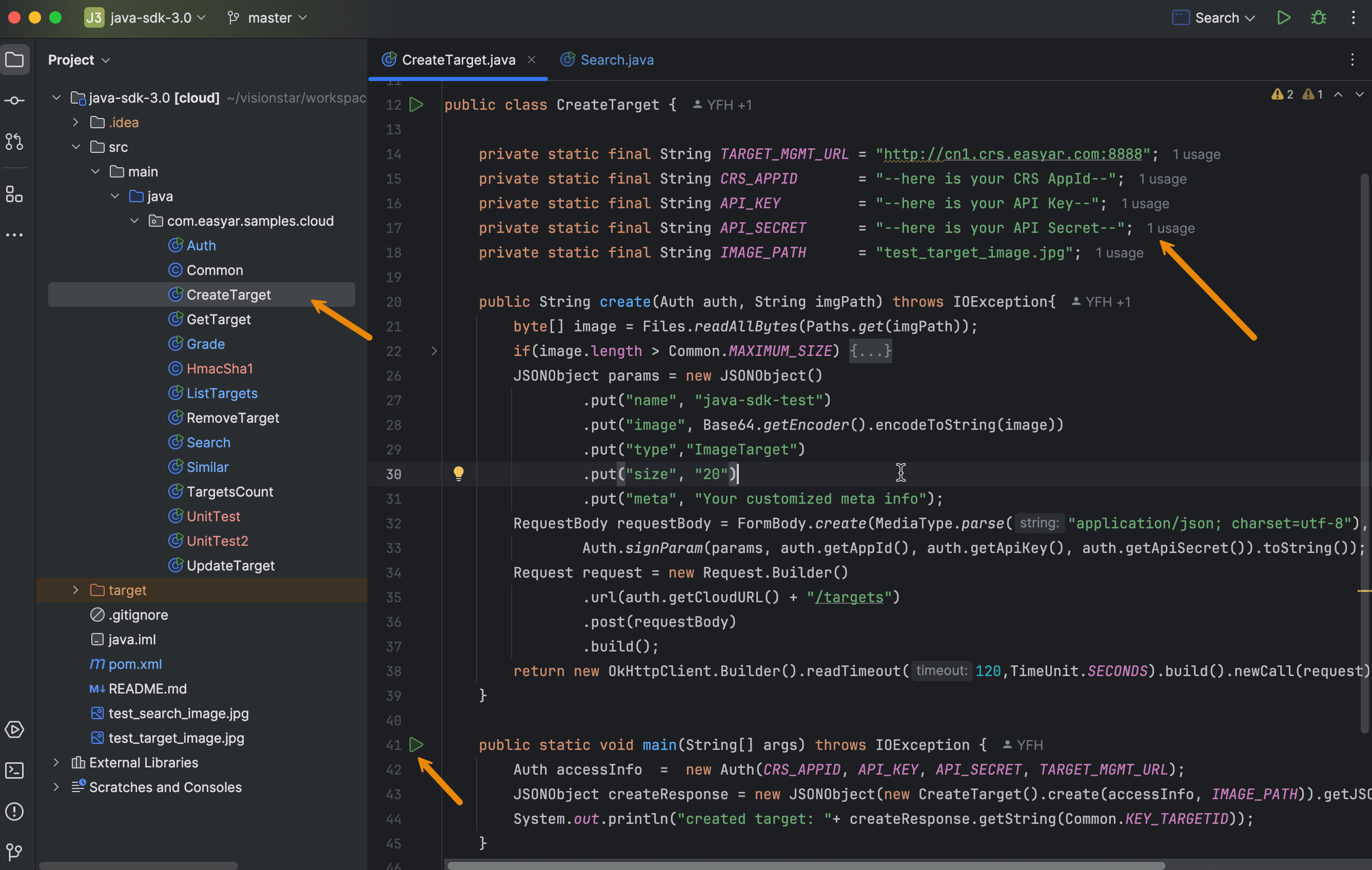
Run the sample code
The following figure shows the use of Java sample code. Fill in each item from your own preparation checklist in the sample code, and then run Main.
Related topics:
Next topics:
Note
In actual workflows, it is recommended to follow best practices when creating target images, and read them carefully.