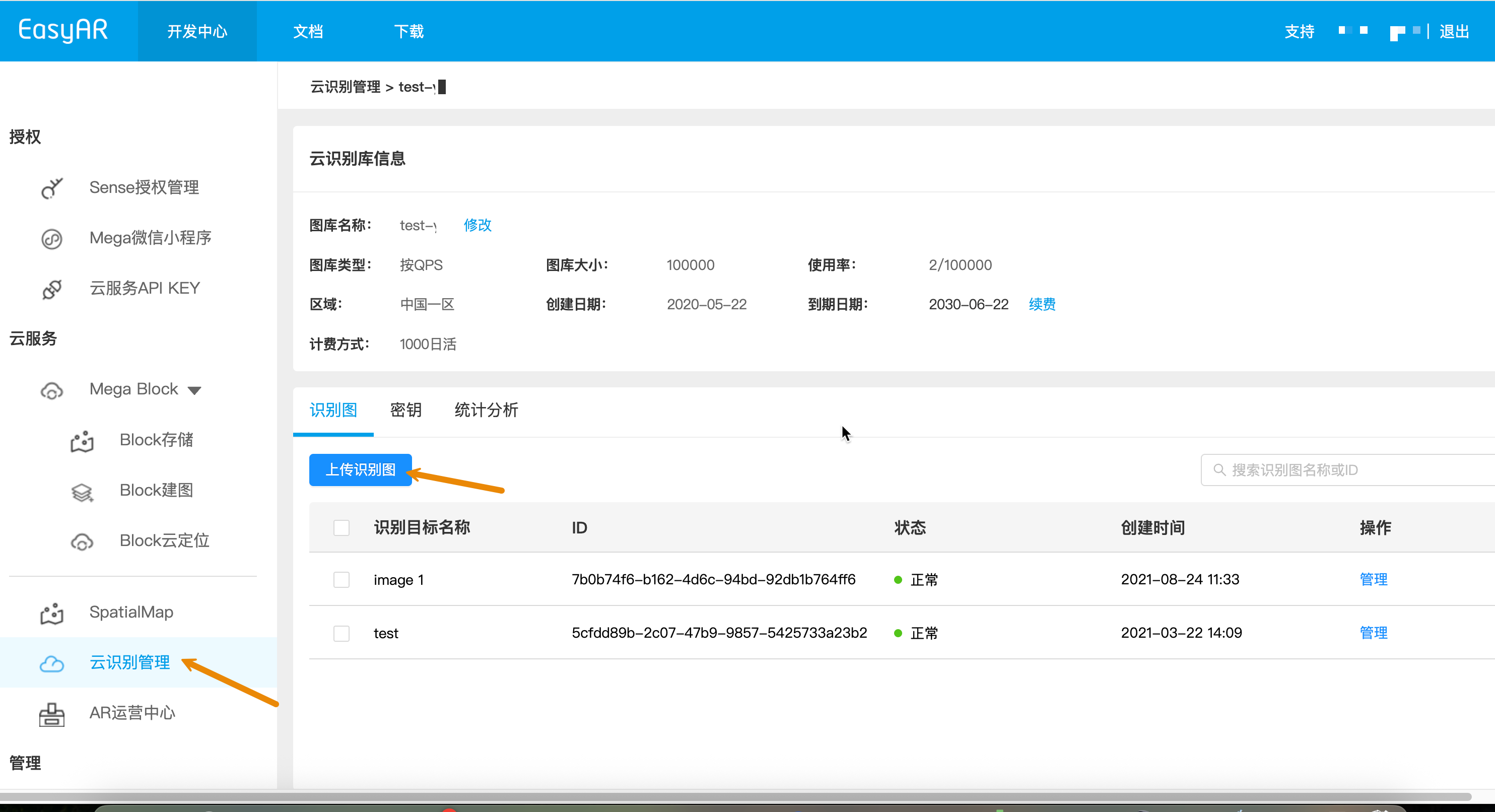
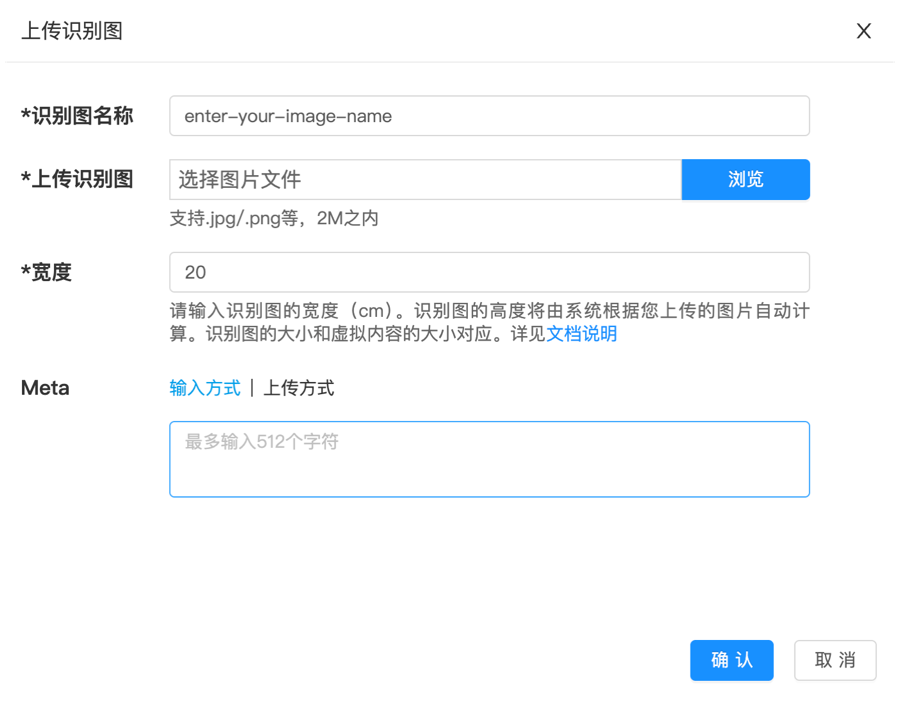
To ensure the stability and accuracy of AR recognition, we recommend uploading images with rich texture, obvious feature points, and no blurred areas.
In production environments, we strongly recommend that developers follow the following three-step method to manage target images automatically through APIs instead of forcibly uploading them directly.
Before officially adding a target, first check whether the current image library already contains the same or extremely similar targets.
Use the algorithm to predict whether the image is suitable as a recognition target image.
After passing the two checks above, you can safely perform the upload operation.
This applies to the verification phase or to maintaining a small number of target images. The Web management console uses a "force create" mode and does not automatically perform similarity checks or validate image recognizability.
For large-scale management or integration into your own backend, use the Web Service REST API for automated creation.
Before initiating the request, make sure you have obtained the following resources (see API call preparation checklist for details):
- First convert the local target image to Base64 (macOS / Linux), and save the result to image_base64.txt.
base64 -i ./target.jpg | tr -d '\n' > image_base64.txt
- Replace the placeholders with actual parameters and run the curl script.
- Your-Server-side-URL -> actual API host
- Your-Token -> actual API Key Authorization Token
- Your-CRS-AppId -> your appId
- demo_target -> target name
- size -> target image width (cm)
curl -X POST "https://<Your-Server-side-URL>/targets" \
  -H "Content-Type: application/json" \
  -H "Authorization: <YOUR-TOKEN>" \
  -d '{
    "appId": "<Your-CRS-AppId>",
    "image": "'"$(cat image_base64.txt)"'",
    "active": "1",
    "name": "demo_target",
    "size": "20",
    "type": "ImageTarget",
    "allowSimilar": "1"
  }'
Download the Java sample code
Import the project through Maven
Step 1. Open the related code file CreateTarget.java
Step 2. Modify the global variables and replace them with the authentication parameters in your preparation checklist
- CRS AppId
- API Key / API Secret
- Server-end URL
- IMAGE_PATH: target image file to upload
public class CreateTarget {

    private static final String TARGET_MGMT_URL = "http://cn1.crs.easyar.com:8888";
    private static final String CRS_APPID       = "--here is your CRS AppId--";
    private static final String API_KEY         = "--here is your API Key--";
    private static final String API_SECRET      = "--here is your API Secret--";
    private static final String IMAGE_PATH      = "test_target_image.jpg";

    public String create(Auth auth, String imgPath) throws IOException{
        byte[] image = Files.readAllBytes(Paths.get(imgPath));
        if(image.length > Common.MAXIMUM_SIZE) {
            System.err.println("maximum image size is 2MB");
            System.exit(-1);
        }
        JSONObject params = new JSONObject()
                .put("name", "java-sdk-test")
                .put("image", Base64.getEncoder().encodeToString(image))
                .put("type","ImageTarget")
                .put("size", "20")
                .put("meta", "Your customized meta info");
        RequestBody requestBody = FormBody.create(MediaType.parse("application/json; charset=utf-8"),
                Auth.signParam(params, auth.getAppId(), auth.getApiKey(), auth.getApiSecret()).toString());
        Request request = new Request.Builder()
                .url(auth.getCloudURL() + "/targets")
                .post(requestBody)
                .build();
        return new OkHttpClient.Builder().readTimeout(120,TimeUnit.SECONDS).build().newCall(request).execute().body().string();
    }

    public static void main(String[] args) throws IOException {
        Auth accessInfo  =  new Auth(CRS_APPID, API_KEY, API_SECRET, TARGET_MGMT_URL);
        JSONObject createResponse = new JSONObject(new CreateTarget().create(accessInfo, IMAGE_PATH)).getJSONObject(Common.KEY_RESULT);
        System.out.println("created target: "+ createResponse.getString(Common.KEY_TARGETID));
    }
}
Step 3. Run Main
Download the NodeJS sample code.
Step 1. Configure the key file keys.json.
- CRS AppId
- API Key / API Secret
{
  "appId": "--here is your appId for CRS App Instance for SDK 4--",
  "apiKey": "--here is your api key which is create from website and which has crs permission--",
  "apiSecret": "--here is your api secret which is create from website--"
}
Step 2. Run it, specifying the test image, key file, and Server-end URL.
node bin/addTarget test.jpeg -t <Server-end-URL> -c keys.json
[Optional] Target image parameter code
For the logic that adds a target image, modify the code file addTarget.js.
Edit target image parameters, such as meta and target image name, corresponding to the anonymous target structure passed to the createTarget method.
var argv = require('yargs')
    .usage('Usage: $0 [image] -t [host] -c [keys]')
    .demand(1)
    .default('t', 'http://localhost:8888').alias('t', 'host')
    .default('c', 'keys.json').alias('c', 'keys')
    .help('h').alias('h', 'help')
    .epilog('copyright 2015, sightp.com')
    .argv;

var fs = require('fs');

var imageFn = argv._[0];
var host = argv.host;
var keys = JSON.parse(fs.readFileSync(argv.keys));

var farmer = require('../farmer')(host, keys.appKey, keys.appSecret);

farmer.createTarget({
    'image': fs.readFileSync(imageFn).toString('base64'),
    'name':'test2',
    'allowSimilar': '1',
    'active':'1',
    'size':'20',
    'type':'imageTarget'
})
.then(function(resp) {
    console.log(resp.result.targetId);
})
.fail(function(err) {
    console.log(err);
});
createTarget calls the cloud service API. The sample code is in farmer.js.
function createTarget(target) {
    return Q.promise(function(resolve, reject) {
        request.post(host + '/targets')
        .send(signParams(target))
        .end(done(resolve, reject));
    });
}
Create the related code file create_target.py, modify the global variables, and then run
pip install requests
python create_target.py
import base64, hashlib, json, time, requests

APP_ID = "your_app_id"
API_KEY = "your_api_key"
API_SECRET = "your_api_secret"
IMAGE_PATH = "test.jpg"
API_HOST = "https://cn1-crs.easyar.com"

def sha256_hex(s: str) -> str:
    return hashlib.sha256(s.encode()).hexdigest()

image_b64 = base64.b64encode(open(IMAGE_PATH, "rb").read()).decode()
timestamp = int(time.time() * 1000)

sign_params = {
    "image": image_b64,
    "name": "demo_target",
    "size": "20",
    "meta": "",
    "type": "ImageTarget",
    "timestamp": timestamp,
    "appId": APP_ID,
    "apiKey": API_KEY
}

sign_str = "".join(f"{k}{sign_params[k]}" for k in sorted(sign_params)) + API_SECRET
print(sign_str)
signature = sha256_hex(sign_str)

body = dict(sign_params)
body["signature"] = signature

headers = {
    "Content-Type": "application/json",
    "appId": APP_ID
}

resp = requests.post(f"{API_HOST}/targets", headers=headers, json=body)
print(resp.text)
Download the PHP sample code
Step 1. Open the entry code demo.php
Step 2. Modify the global variables and replace them with the authentication parameters in your prepared list
- CRS AppId
- API Key / API Secret
- Server-end URL
- imageFilePath : path of the target image file to upload
<?php
include 'EasyARClientSdkCRS.php';
$apiKey = 'API Key';
$apiSecret = 'API Secret';
$crsAppId = 'CRS AppId'
$crsCloudUrl = 'https://cn1-crs.easyar.com';
$imageFilePath = '1.jpg'

$sdk = new EasyARClientSdkCRS($apiKey, $apiSecret, $crsAppId, $crsCloudUrl);

$params = [
  'name' => 'image 1',
  'active' => '1',
  'size' => '1',
  'meta' => base64_encode('hello world'),
  'image' => base64_encode(file_get_contents($imageFilePath)),
];

$rs = $sdk->targetAdd($params);
if ($rs->statusCode == 0) {
  print_r($rs->result);
} else {
  print_r($rs);
}
Step 3. Run php demo.php
Cargo.toml:
[dependencies]
reqwest = { version = "0.11", features = ["json"] }
serde_json = "1"
sha2 = "0.10"
base64 = "0.21"
tokio = { version = "1", features = ["full"] }
main.rs:
use std::{fs, collections::BTreeMap};
use sha2::{Sha256, Digest};
use base64::Engine;
use reqwest::Client;
use std::time::{SystemTime, UNIX_EPOCH};

const APP_ID: &str = "your_app_id";
const API_KEY: &str = "your_api_key";
const API_SECRET: &str = "your_api_secret";
const IMAGE_PATH: &str = "test.jpg";
const API_HOST: &str = "https://cn1-crs.easyar.com";

fn sha256_hex(s: &str) -> String {
    let mut h = Sha256::new();
    h.update(s.as_bytes());
    format!("{:x}", h.finalize())
}

#[tokio::main]
async fn main() {
    let img = fs::read(IMAGE_PATH).unwrap();
    let image_b64 = base64::engine::general_purpose::STANDARD.encode(img);
    let timestamp = SystemTime::now()
        .duration_since(UNIX_EPOCH).unwrap()
        .as_millis();

    let mut sign = BTreeMap::new();
    sign.insert("image", image_b64);
    sign.insert("name", "demo_target".into());
    sign.insert("size", "20".into());
    sign.insert("meta", "".into());
    sign.insert("type", "ImageTarget".into());
    sign.insert("timestamp", timestamp.to_string());
    sign.insert("appId", APP_ID.into());
    sign.insert("apiKey", API_KEY.into());

    let mut raw = String::new();
    for (k, v) in &sign {
        raw.push_str(&format!("{}{}", k, v));
    }
    raw.push_str(API_SECRET);

    sign.insert("active", "1".into());
    sign.insert("signature", sha256_hex(&raw));

    let client = Client::new();
    let resp = client.post(format!("{}/targets", API_HOST))
        .header("Content-Type", "application/json")
        .header("appId", APP_ID)
        .json(&sign)
        .send().await.unwrap()
        .text().await.unwrap();

    println!("{}", resp);
}
cargo run
Create the related code file main.go, modify the global variables, and then run:
go run main.go
main.go:
package main

import (
  "bytes"
  "crypto/sha256"
  "encoding/base64"
  "encoding/json"
  "fmt"
  "os"
  "sort"
  "net/http"
  "time"
)

const (
  AppID     = "your_app_id"
  ApiKey    = "your_api_key"
  ApiSecret = "your_api_secret"
  ImagePath = "test.jpg"
  ApiHost   = "https://cn1-crs.easyar.com"
)

func sha256Hex(s string) string {
  sum := sha256.Sum256([]byte(s))
  return fmt.Sprintf("%x", sum)
}

func main() {
  img, _ := os.ReadFile(ImagePath)
  imageB64 := base64.StdEncoding.EncodeToString(img)
  timestamp := time.Now().UnixMilli()

  sign := map[string]string{
    "image":     imageB64,
    "name":      "demo_target",
    "size":      "20",
    "meta":      "",
    "type":      "ImageTarget",
    "timestamp": fmt.Sprint(timestamp),
    "appId":     AppID,
    "apiKey":    ApiKey,
  }

  keys := make([]string, 0, len(sign))
  for k := range sign { keys = append(keys, k) }
  sort.Strings(keys)

  builder := ""
  for _, k := range keys {
    builder += k + sign[k]
  }
  builder += ApiSecret

  signature := sha256Hex(builder)
  sign["signature"] = signature

  body, _ := json.Marshal(sign)

  req, _ := http.NewRequest("POST", ApiHost+"/targets", bytes.NewReader(body))
  req.Header.Set("Content-Type", "application/json")

  resp, _ := http.DefaultClient.Do(req)
  defer resp.Body.Close()

  buf := new(bytes.Buffer)
  buf.ReadFrom(resp.Body)
  fmt.Println(buf.String())
}
Create a .NET console project.
dotnet new console
dotnet run
using System;
using System.IO;
using System.Net.Http;
using System.Security.Cryptography;
using System.Text;
using System.Text.Json;
using System.Collections.Generic;
using System.Linq;

class Program
{
    const string APP_ID = "your_app_id";
    const string API_KEY = "your_api_key";
    const string API_SECRET = "your_api_secret";
    const string IMAGE_PATH = "test.jpg";
    const string API_HOST = "https://cn1-crs.easyar.com";

    static string Sha256(string s)
    {
        return Convert.ToHexString(
            SHA256.HashData(Encoding.UTF8.GetBytes(s))
        ).ToLower();
    }

    static void Main()
    {
        var imageB64 = Convert.ToBase64String(File.ReadAllBytes(IMAGE_PATH));
        var timestamp = DateTimeOffset.UtcNow.ToUnixTimeMilliseconds();

        var sign = new SortedDictionary<string, string> {
            ["image"] = imageB64,
            ["name"] = "demo_target",
            ["size"] = "20",
            ["type"] = "ImageTarget",
            ["timestamp"] = timestamp.ToString(),
            ["appId"] = APP_ID,
            ["apiKey"] = API_KEY
        };

        var builder = string.Concat(sign.Select(p => p.Key + p.Value)) + API_SECRET;
        sign["signature"] = Sha256(builder);

        var json = JsonSerializer.Serialize(sign);
        var client = new HttpClient();

        var resp = client.PostAsync(
            API_HOST + "/targets",
            new StringContent(json, Encoding.UTF8, "application/json")
        ).Result;

        Console.WriteLine(resp.Content.ReadAsStringAsync().Result);
    }
}
- Runtime environment
- Unity 2020 LTS or later
- Scripting Backend: Mono or IL2CPP are both supported
- API Compatibility Level: .NET Standard 2.1 (recommended)
Step 1: Prepare the image file
- Create the directory in the Unity project:
Assets/
└── StreamingAssets/
|    └── target.jpg
└── Scripts/
     └── CreateImageTarget.cs
- According to the Assets directory name
- Create the script CreateImageTarget.cs and copy the sample code below
- Prepare an image target test image
using System;
using System.IO;
using System.Text;
using UnityEngine;
using UnityEngine.Networking;
using System.Collections;

public class CreateImageTarget : MonoBehaviour
{
    [Header("Config")]
    public string apiUrl = "https://Your-Server-end-URL" + "/targets";
    public string authorizationToken = "YOUR API KEY AUTH TOKEN";
    public string imageFilePath = "target.jpg";   // StreamingAssets
    public string crsAppId = "<Your-CRS-AppId>";

    private void Start()
    {
        StartCoroutine(CreateTarget());
    }

    private IEnumerator CreateTarget()
    {
        // Read image file(Unity StreamingAssets)
        string fullPath = Path.Combine(Application.streamingAssetsPath, imageFilePath);

        if (!File.Exists(fullPath))
        {
            Debug.LogError($"Image file not found: {fullPath}");
            yield break;
        }

        byte[] imageBytes = File.ReadAllBytes(fullPath);
        string imageBase64 = Convert.ToBase64String(imageBytes);

        TargetRequestBody body = new TargetRequestBody
        {
            appId = crsAppId,
            image = imageBase64,
            active = "1",
            name = "unity_target",
            size = "20",
            meta = "created from unity",
            type = "ImageTarget",
            allowSimilar = "1"
        };

        string json = JsonUtility.ToJson(body);

        // UnityWebRequest
        UnityWebRequest request = new UnityWebRequest(apiUrl, "POST");
        byte[] jsonBytes = Encoding.UTF8.GetBytes(json);

        request.uploadHandler = new UploadHandlerRaw(jsonBytes);
        request.downloadHandler = new DownloadHandlerBuffer();
        request.SetRequestHeader("Content-Type", "application/json");
        request.SetRequestHeader("Authorization", authorizationToken);

        yield return request.SendWebRequest();

        if (request.result == UnityWebRequest.Result.Success)
        {
            Debug.Log("Create target success:");
            Debug.Log(request.downloadHandler.text);
        }
        else
        {
            Debug.LogError("Create target failed:");
            Debug.LogError(request.error);
            Debug.LogError(request.downloadHandler.text);
        }
    }

    [Serializable]
    private class TargetRequestBody
    {
        public string appId;
        public string image;
        public string active;
        public string name;
        public string size;
        public string meta;
        public string type;
        public string allowSimilar;
    }
}
- In Unity Editor:
- Create an empty GameObject
- Name it TargetUploader
- Drag the CreateImageTarget script onto this object
Step 3: Configure parameters (Inspector)
Step 4: Run
- Click Play
- View the result in Console:
- Success: returns JSON (contains targetId)
- Failure: HTTP / error information