Issue report
Note
EasyAR Mega users must read Mega FAQ and Issue reporting and feedback.
Note
Before giving feedback, be sure to use the latest SDK version and reproduce the issue in a sample. Many issues may have been fixed in newer versions, and EasyAR mainly supports issues that can be reproduced on the latest version. In addition, Unity itself can also have issues. Some Unity issues can be solved by trying to delete the Unity Library folder or the Xcode project generated by Unity.
Use the built-in Ask feature in the plugin to assist with checking and collecting feedback information.
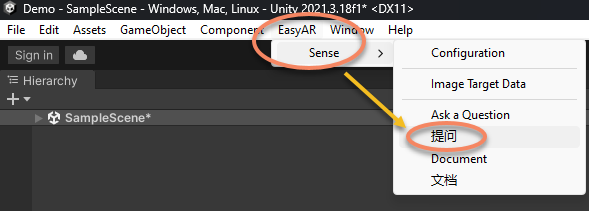
This window can be opened from the EasyAR > Sense > Ask menu.
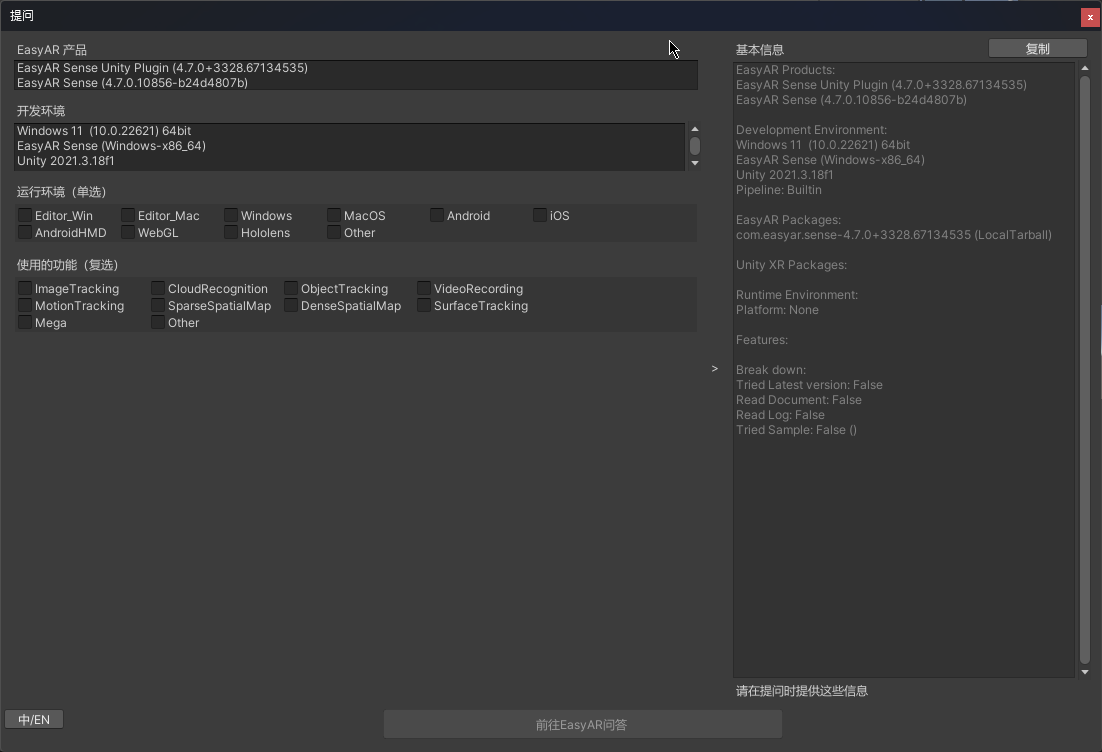
The information is incomplete after opening. You need to select the environment and features you are using.
If you need to report issues on a phone or headset, copy the Session Dump information log.
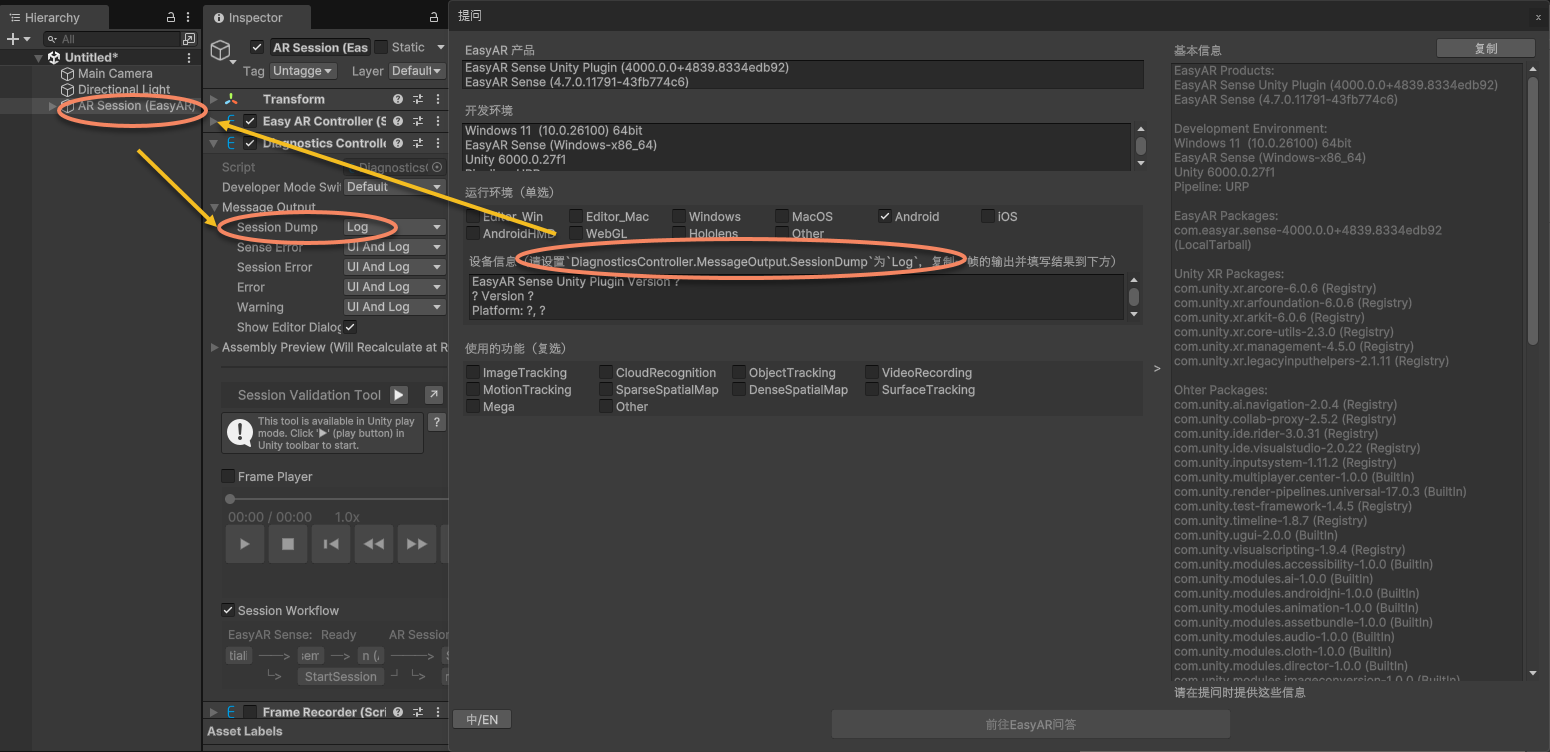
Then fill it into the text box.
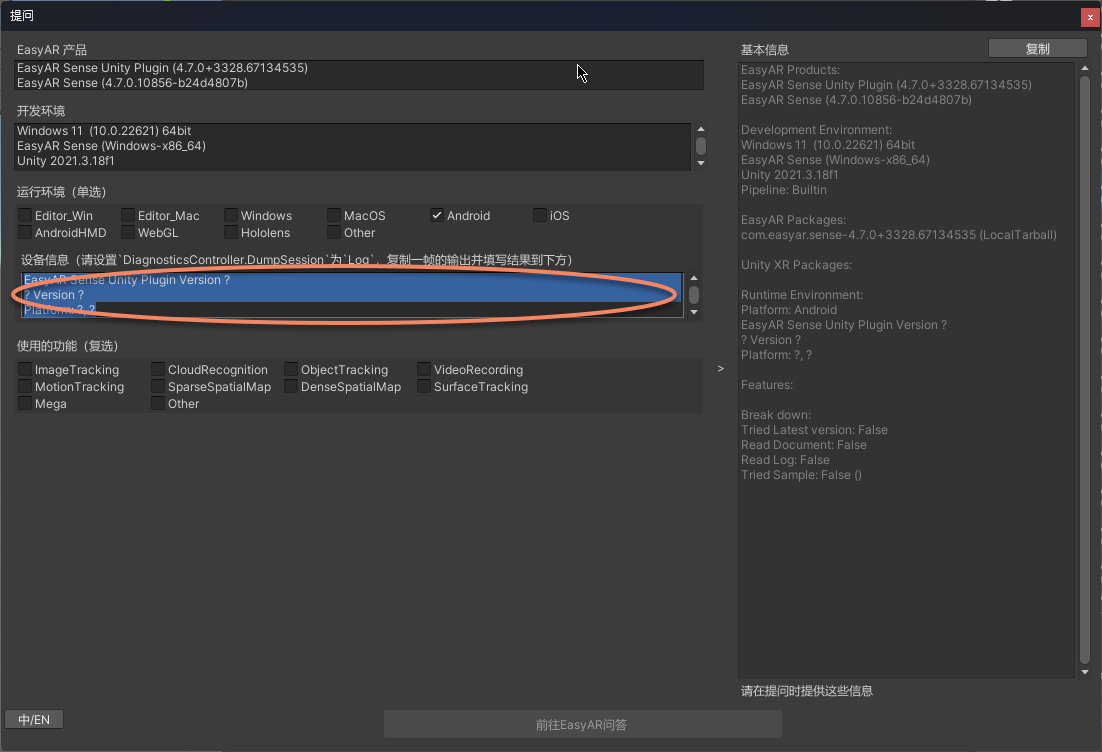
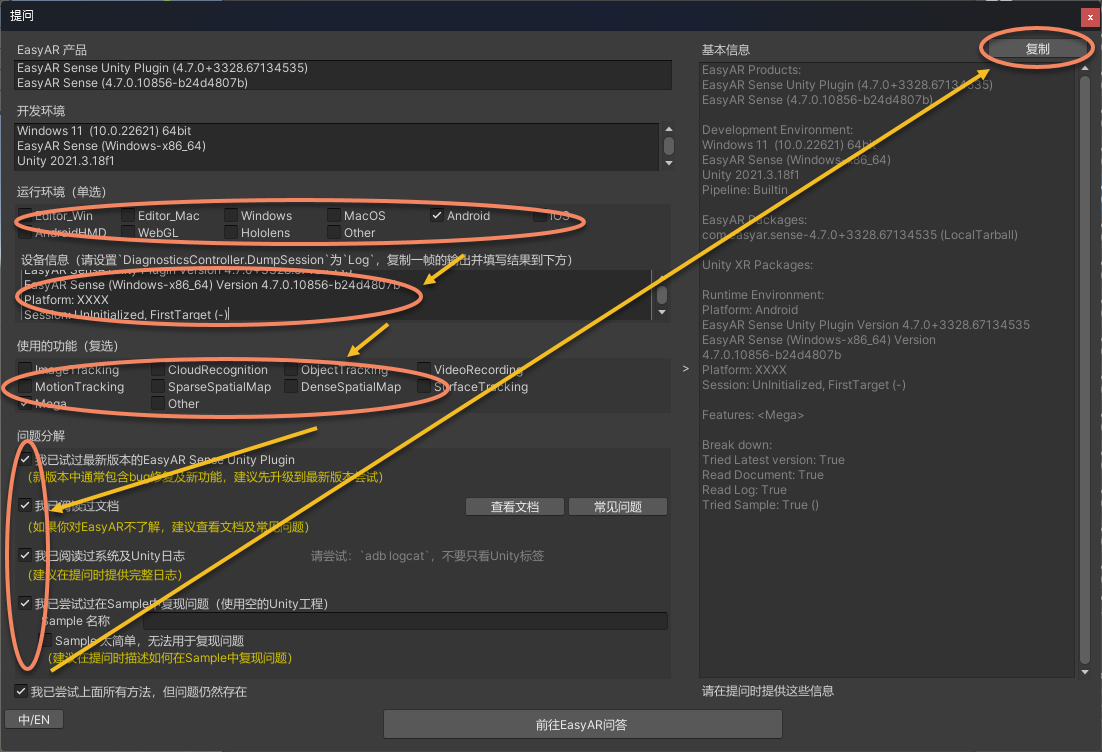
Finally, after completing all operations according to the window prompts, click the copy button in the upper-right corner to copy all information.
Please note that this interface is not only used to obtain a report. It also guides you through preliminary issue screening, so be sure to use it carefully.
If a crash occurs, refer to crash analysis (Android iOS/macOS/visionOS Windows) to obtain related information. In general, if complete information is not provided, the issue report will be invalid.