Use upgraded mapping results to update localization service
This article describes in detail how to add lossless upgraded mapping result Blocks to a cloud localization map library. Choose the corresponding operation method according to the mapping version and cloud localization map library version, so that Mega-related features can be used in actual applications.
Upgrade from version 9.x to version 9.x
If the mapping version is upgraded from 9.x to 9.x and the current cloud localization map library version is V4.0, refer to: Use lossless update results for localization.
Upgrade from version 7.x/8.x to version 9.x
If the mapping version is upgraded from 7.x/8.x to 9.x and the current cloud localization map library version is V2.0 or V3.0, you need to create a new V4.0 cloud localization map library and load the upgraded result Block. The specific steps are as follows:
Create a V4.0 cloud localization map library
Log in to EasyAR Developer Center, select
Mega Block->Block Cloud Localizationfrom the left menu, and click theManagebutton under the corresponding Mega cloud localization service group to enter the cloud localization map library management page.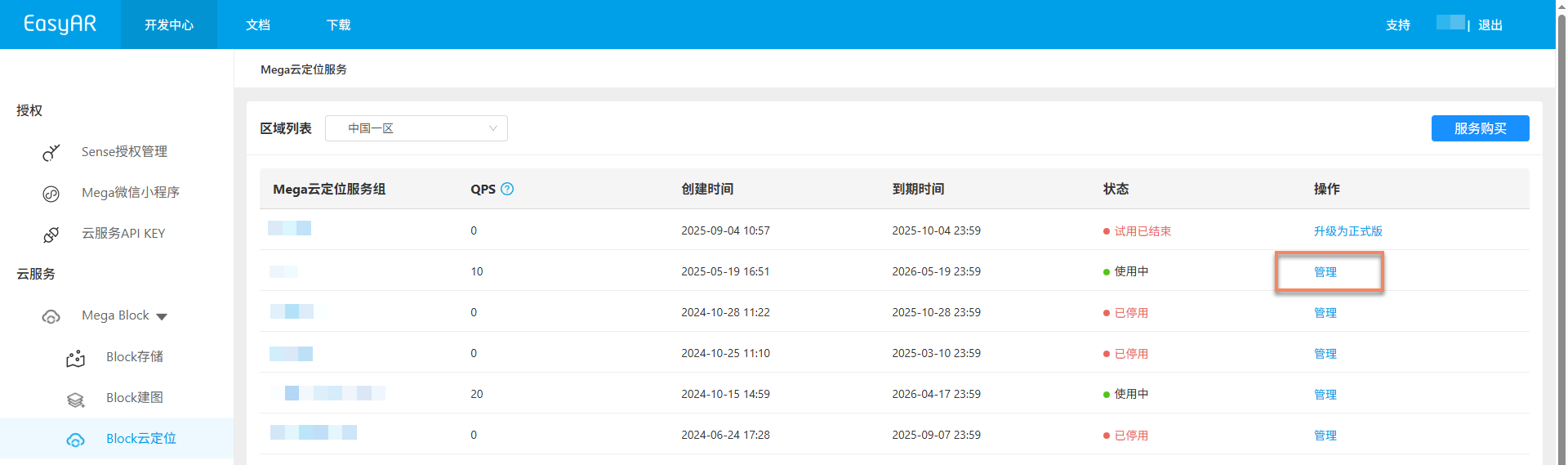
Click the
Createbutton in the upper right corner, fill in the cloud localization map library name in the popup, select the latest cloud localization map library version V4.0, and finally clickConfirmto create the cloud localization map library.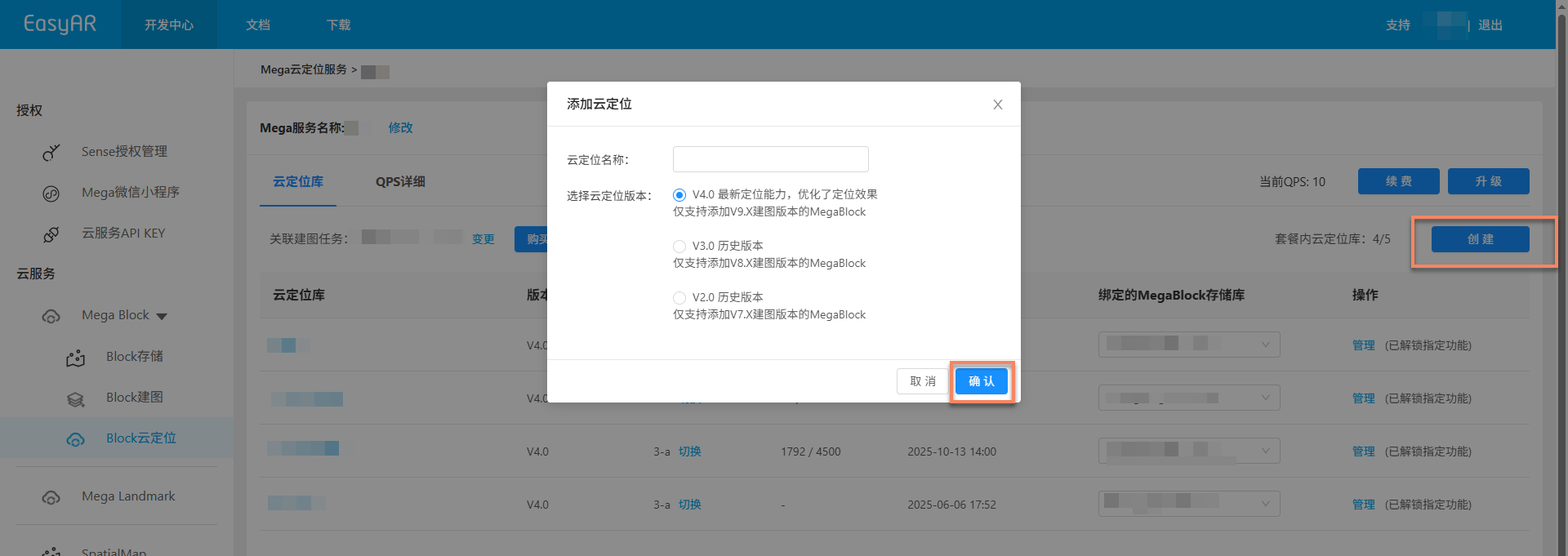
Associate mapping task
Click the
+button in the associated mapping task area.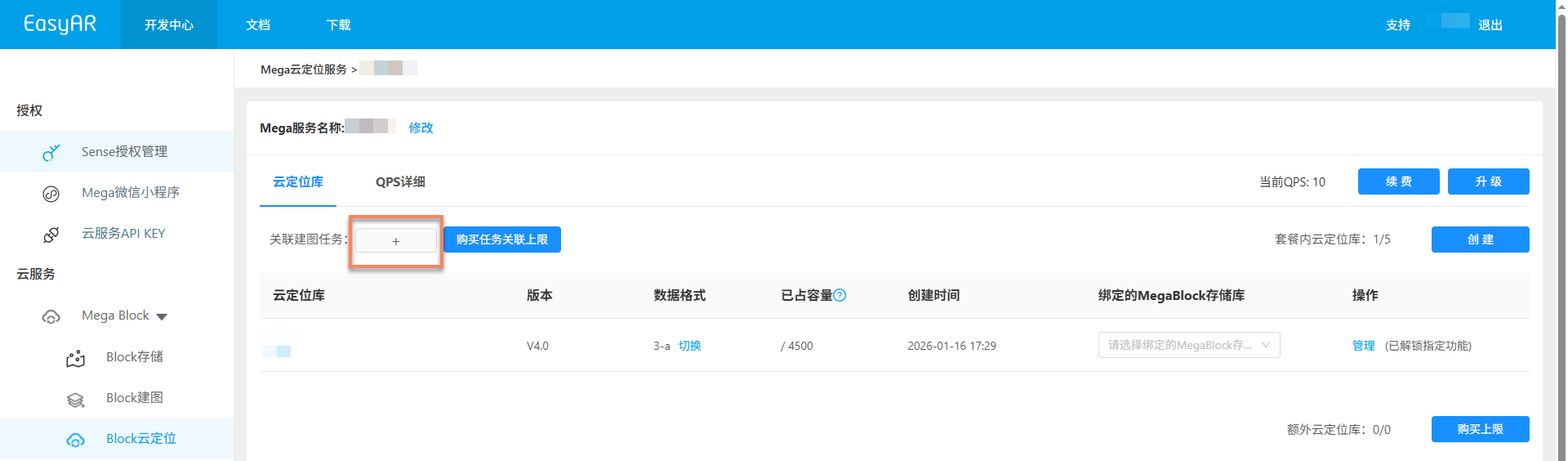
Select the corresponding MegaBlock repository in the popup and click
Confirm.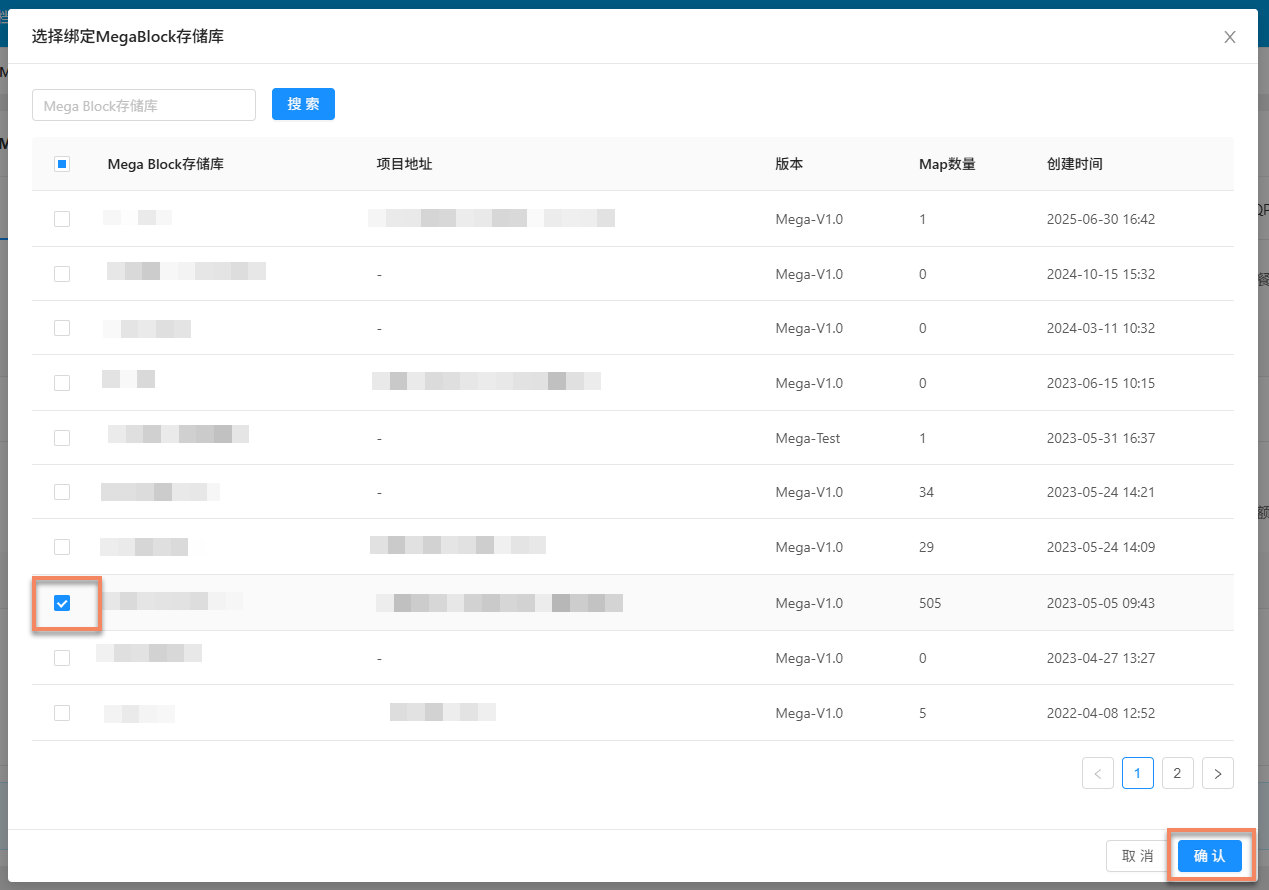
If the associated MegaBlock repository is selected incorrectly, click the
Changebutton to select again.
Bind MegaBlock repository
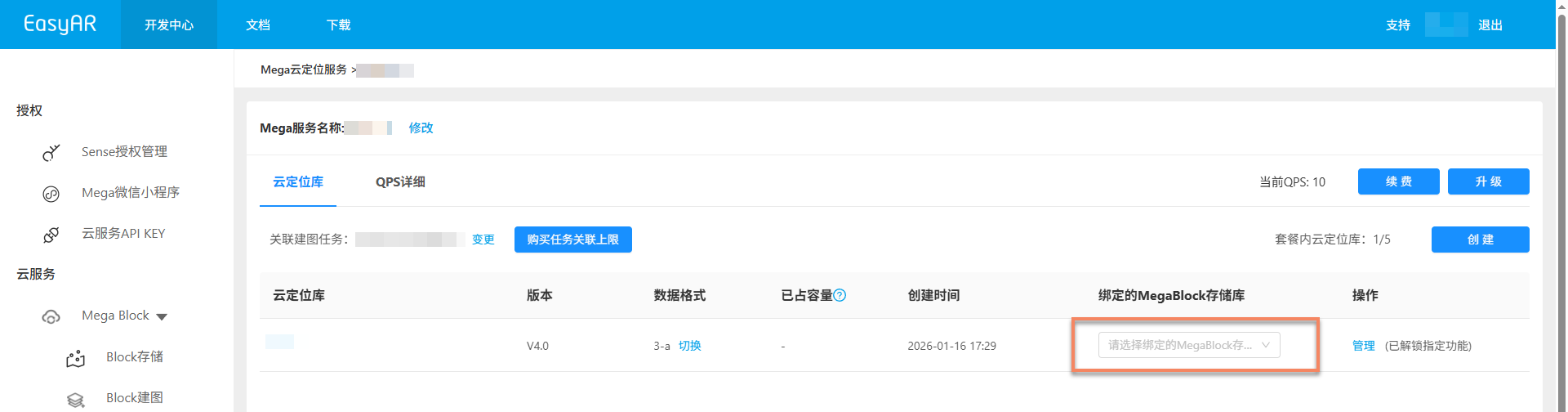
Under the corresponding cloud localization map library, click the Bound MegaBlock repository dropdown and select the required repository.
Load upgraded result Block
After the cloud localization map library is bound to a MegaBlock repository, click the
Managebutton to enter the cloud localization map library management page.
On the cloud localization map library management page, click the
Addbutton.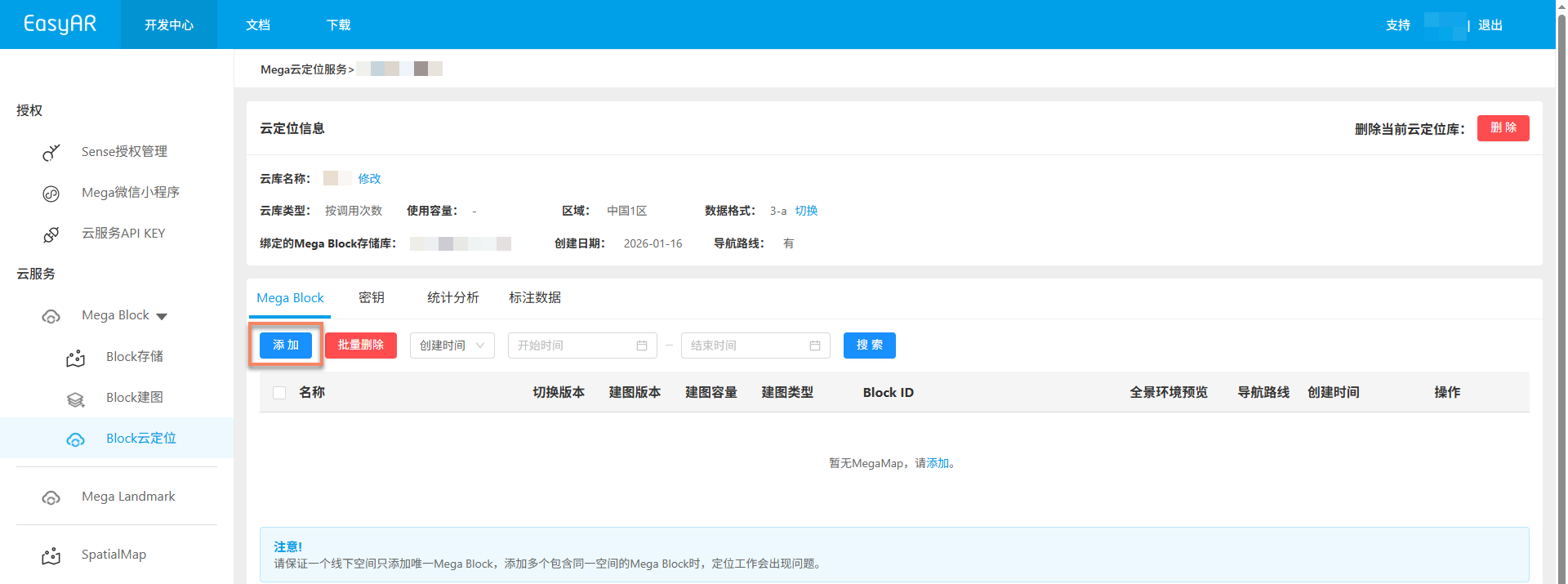
Select the corresponding upgraded mapping result Block in the popup, and finally click
Confirm.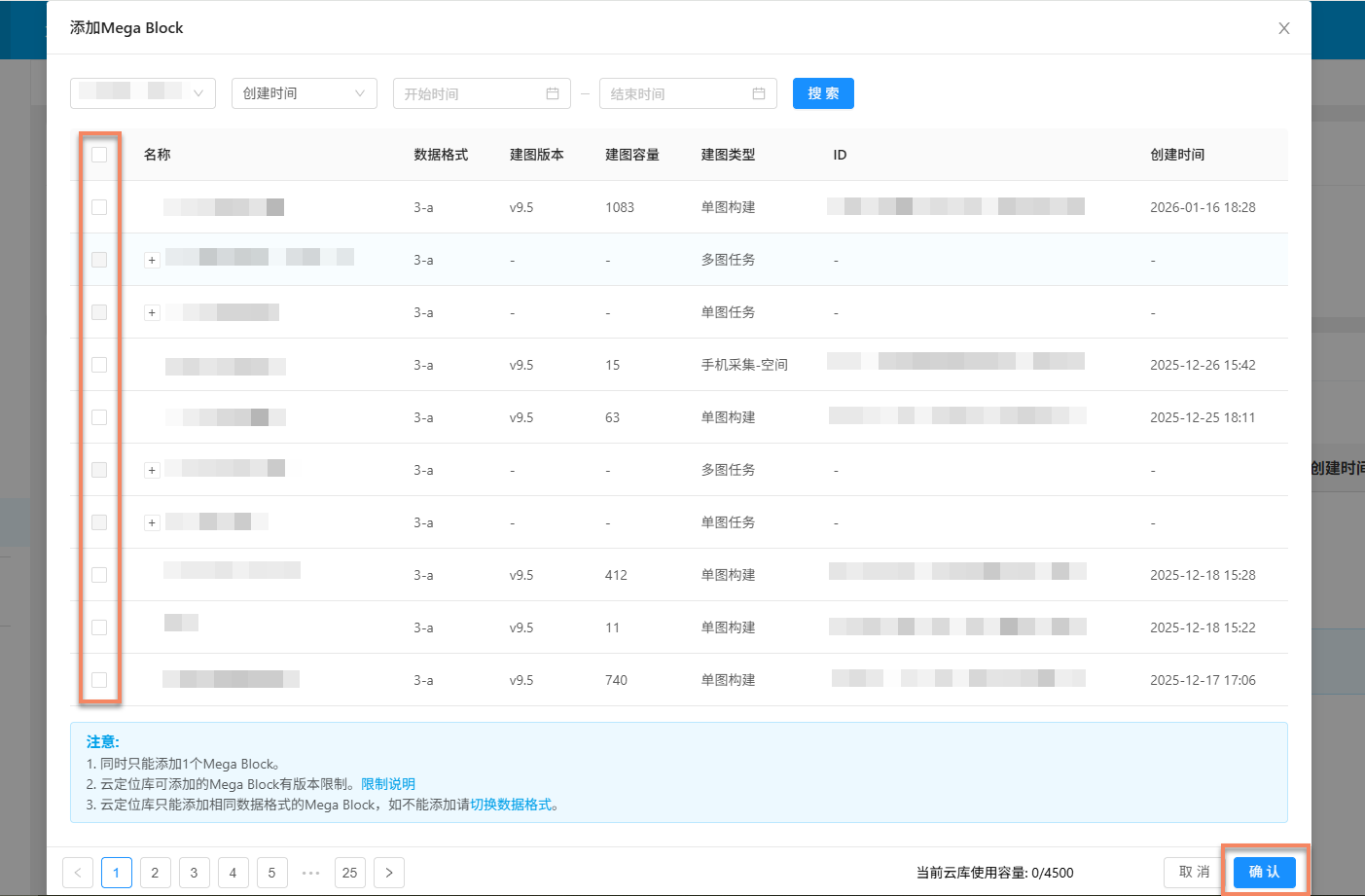
Note
- Only one Block can be added at a time.
- If the corresponding upgraded result Block cannot be found, check whether the cloud localization map library data format and the lossless upgraded mapping data format are consistent.
If they are inconsistent, refer to: Switch cloud localization map library data format.
After confirming the addition, you can view the adding progress on the page.
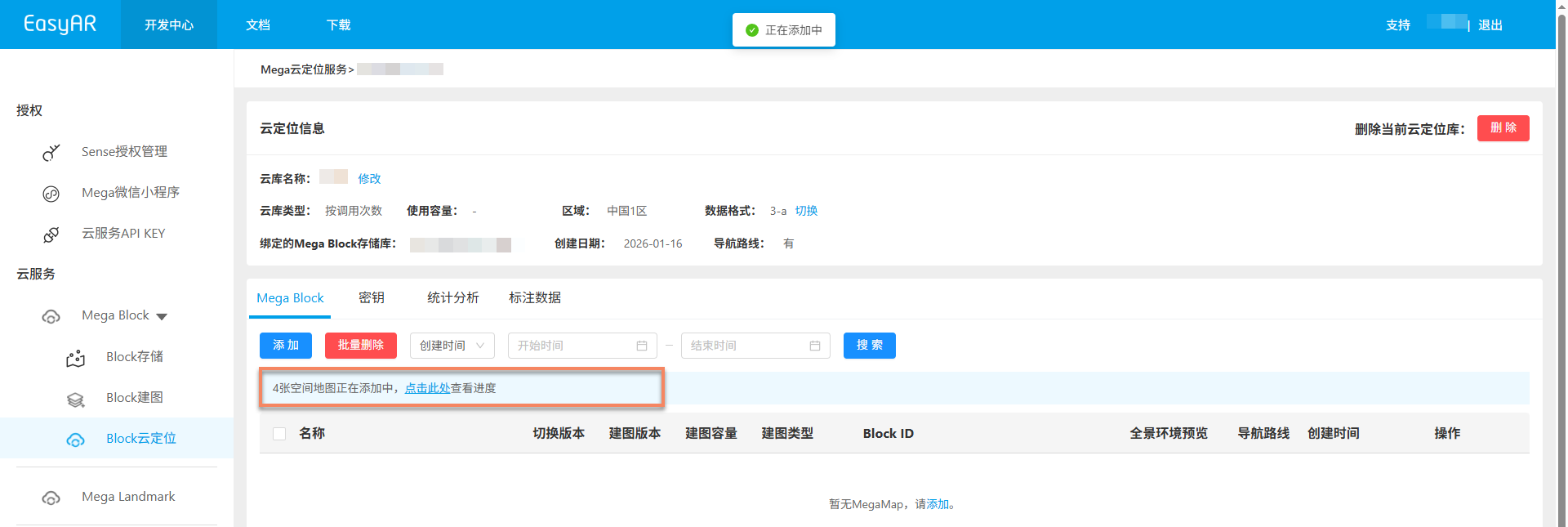
If the addition succeeds, the corresponding Block appears in the Mega Block list of the cloud localization map library.
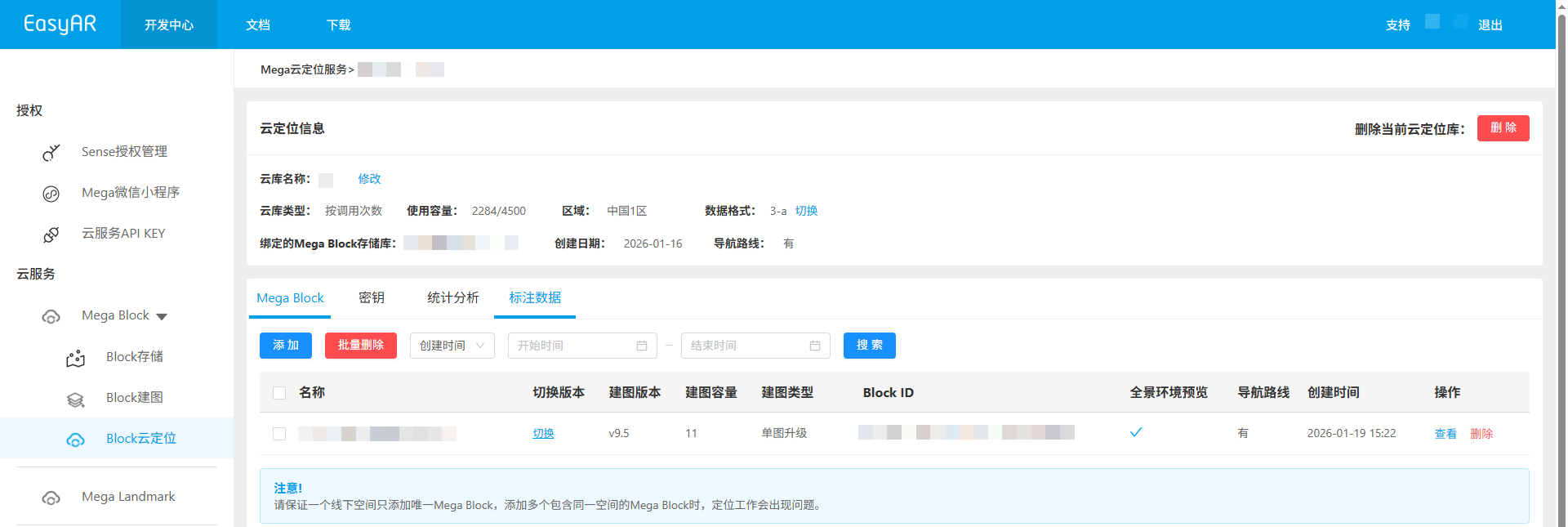
If the addition fails, click the
Clear taskbutton in the progress popup and add it again.