Mapping data acquisition tool
Developers can use this tool to quickly complete mobile mapping data acquisition.
Mobile mapping data acquisition entry
Click the Mapping data acquisition tool button to start mobile acquisition.

Acquisition file management
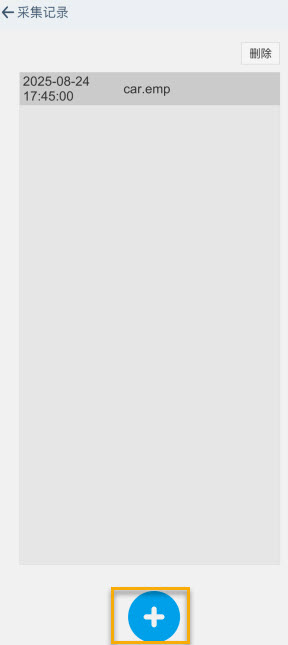
After entering the acquisition file management interface, click the blue + button at the bottom to enter the acquisition page.
Acquire images and mapping data
Perform initialization: before clicking the
red circlebutton at the bottom, point the camera at a nearby texture-rich area, such as a patterned wall.Confirm status: observe the "Tracking status" parameter in the data panel:
When the value changes from
Not TrackingtoTracking, initialization is successful. You can then raise the phone, click thered circlebutton at the bottom, and point it at the target area for acquisition.

Acquisition status monitoring
To ensure data acquisition quality, the entire acquisition process must continuously remain in the Tracking state.

Abnormal interruption: if tracking is lost during acquisition, with the status changing to Not Tracking, the system automatically terminates the current acquisition task and pops up an error prompt.
Note
- The
Trackingstate must be maintained throughout the entire acquisition process. - Acquisition duration cannot exceed 15 minutes. If it exceeds 15 minutes, acquisition will be forcibly ended and the save page will be opened.
- Switching to the background will cause acquisition to fail.
Visual auxiliary feedback
During acquisition, the system generates the camera frustum and motion trajectory lines in space in real time.
Frustum feedback
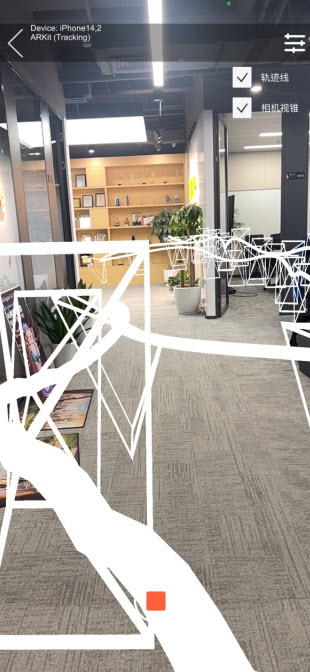
Frustum: represents the camera position and orientation of current and historical keyframes.
Trajectory line: records and displays the collector's movement path.
Through this visual feedback, users can intuitively evaluate coverage completeness of the acquisition area and ensure mapping data quality.
Disable frustum feedback
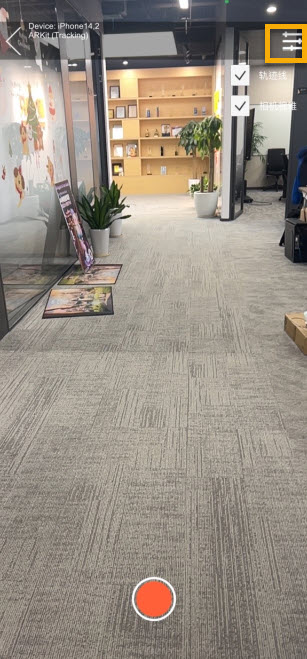
If you need to disable auxiliary tools, click the switch in the upper right and unselect Trajectory line and/or Camera frustum.
End acquisition and save results
Click the red square button to end recording.
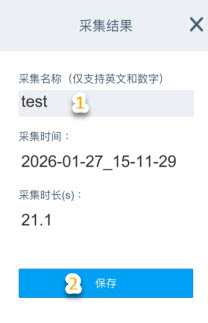
Enter name: enter the name of the current acquired data on the save interface.
Naming rule: only English letters and numbers are supported. Do not use Chinese, spaces, or special characters.
Save: click the [Save] button.
Local storage: after confirmation, the system writes the acquired data file to the phone's local storage.
Record management and deletion
Users can delete redundant or no-longer-used acquisition records as needed to keep the list tidy and free storage space.
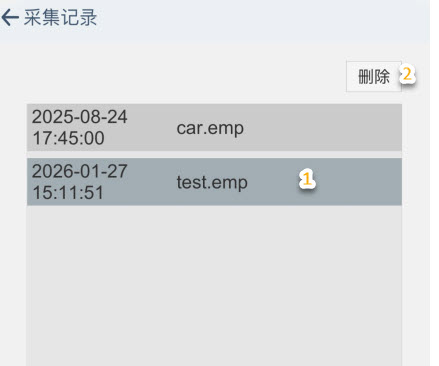
Select record: click the target record in the management list. After it is selected, the item's background color becomes darker as a reminder.
Delete: after confirming the selected state, click the [Delete] button.
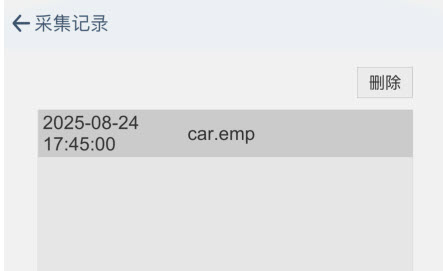
Complete operation: the record will be permanently removed from the list and local storage.
Data export
For data export, refer to: EIF data export