Onsite verification and diagnostics tool
This tool is mainly used to verify the accuracy and stability of the EasyAR Mega cloud localization service in onsite environments, and to acquire EIF data when localization is abnormal for offline analysis and algorithm optimization.
The operation flow of this tool is: parameter configuration -> trigger localization -> data recording (optional) -> data export (optional).
Parameter configuration
Before officially starting the test, you need to configure cloud service credentials and map information.
Enter localization test interface

Log in to account
Fill in the Developer Center account on the EasyAR official website where the localization service is located.
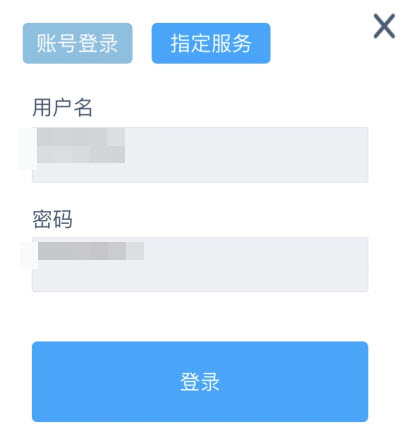
Global configuration
The global configuration window is shown at first login. After closing it, you can click ... in the upper right to enter it again. If no modification is needed, close it directly.
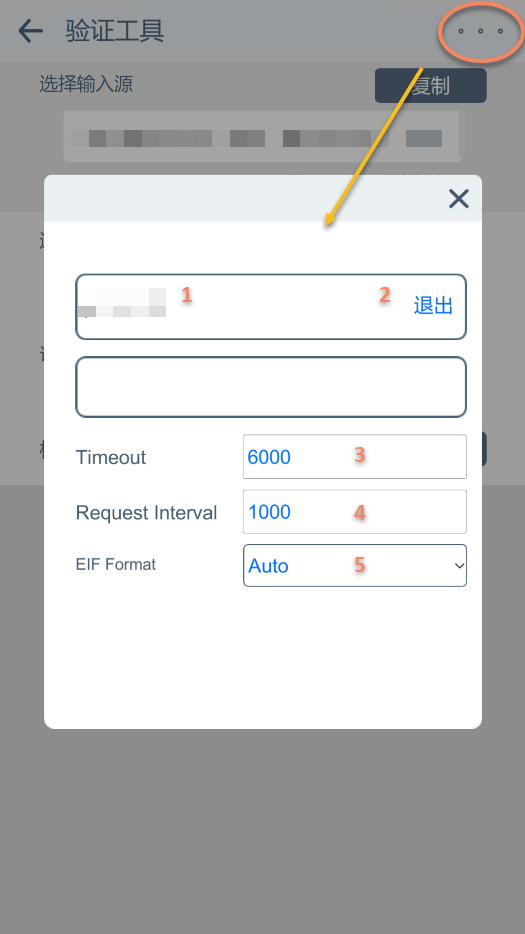
- Current username
- Log out
- Localization request timeout (usually do not modify)
- Localization request interval (usually do not modify)
- EIF format (usually do not modify)
Localization configuration
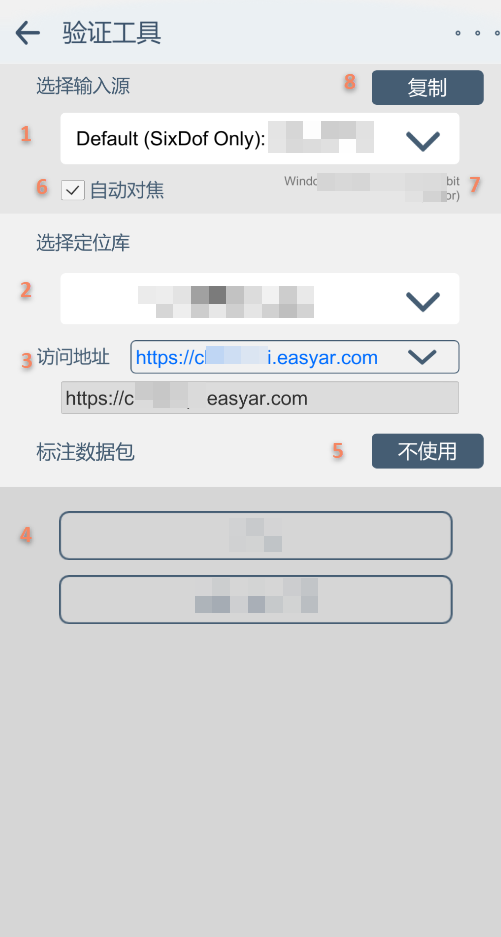
Select input source
Select localization map library
Modify access address (usually no modification is needed; for overseas use, select according to the situation)
Select annotation data and enter localization page
Enter localization page without using annotation data
Modify desired camera autofocus (note: the modification may not take effect, and some devices and systems do not support modifying focus mode)
Current device information
Copy current device information (when reporting issues, copy and send it to the EasyAR team)
Runtime environment configuration
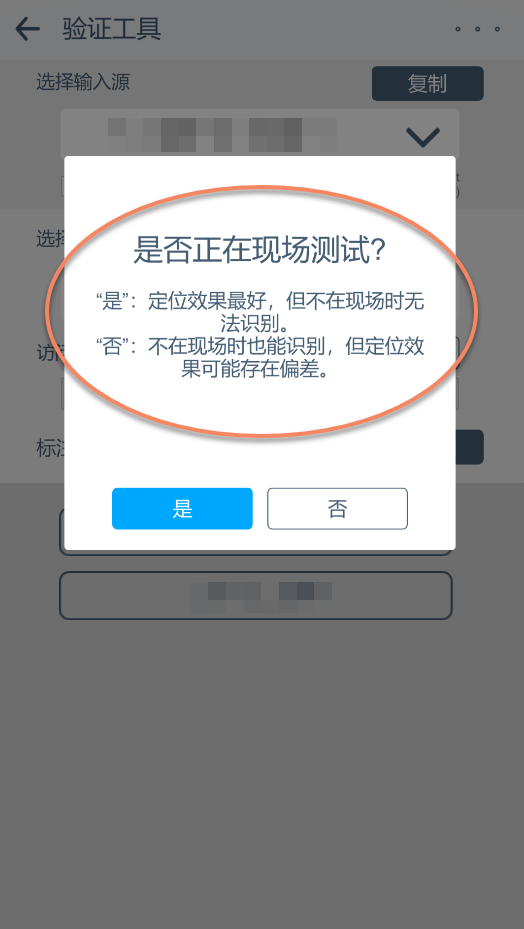
Select according to the actual situation. Select No for localization against an image or video. An incorrect selection will cause localization failure, with no other symptoms.
Trigger localization
After tracking initialization is complete, localization can start.
Localization page
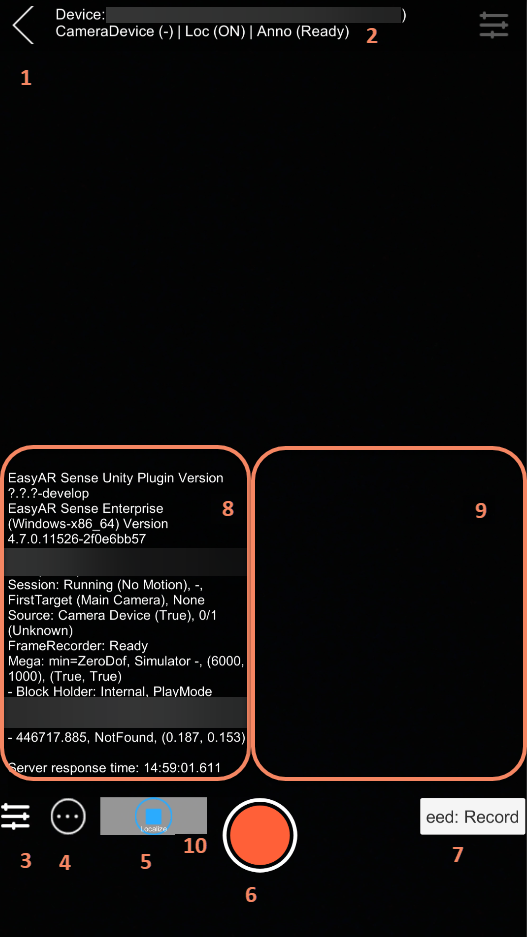
Exit the current page. When exiting the page, if eif is being recorded, make sure to click the stop button first.
Key device information. The displayed content is:
Input source (tracking status|Localization (switch status)|Annotation data (loading status))Expand/collapse advanced settings
Hide/show status information
Stop/start localization
Record/stop recording EIF data. If there is an effect issue, record EIF data while localizing as soon as possible and report it to the EasyAR team.
Record eed dump data. Record and report data according to the EasyAR team's requirements.
Information area (click to copy)
Error information area
Localization status indicator
Localization status indicator colors
Green: located to a Block and device motion tracking is normal. It is shown in green, and if there is no new localization result, it will fade to transparent within 5 seconds.
Yellow: located to a Block but device motion tracking failed. It is shown in yellow, and if there is no new localization result, it will fade to transparent within 5 seconds.
White: cannot locate to a Block. It is shown in white, and if there is no new localization result, it will fade to transparent within 5 seconds.
Red: localization error. It is shown in red and remains displayed until the next localization result returns.
Note
Pay close attention to the content displayed in 9. Information area, which includes current device status, ARSession status, localization service status, and request results (updated asynchronously).
When localized, the located block name is displayed, and the selected annotation data content is shown in space.
Data recording
When localization is abnormal, acquire EIF data for offline analysis and algorithm optimization.
Click the
red circlebutton to start recording.
Click the
red squarebutton to end recording.

Data export
For data export, refer to: EIF data export