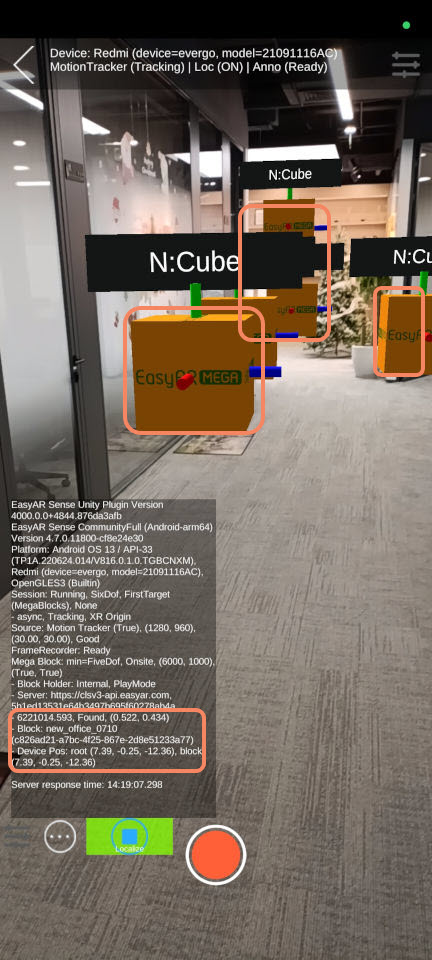
App running effect
This article introduces how to use annotation data created with Mega Studio to verify the effect in Toolbox App.
Note
The following content and tools are not applicable to Unity application development.
If you are developing a Unity application, refer to Package a Unity application for effect verification in the development guide.
Before you begin
Before viewing the real running effect, make sure the following work has been completed:
View the effect
Run Mega Toolbox on your phone. The steps are as follows:
- Select
On-site verification and diagnostic tool.
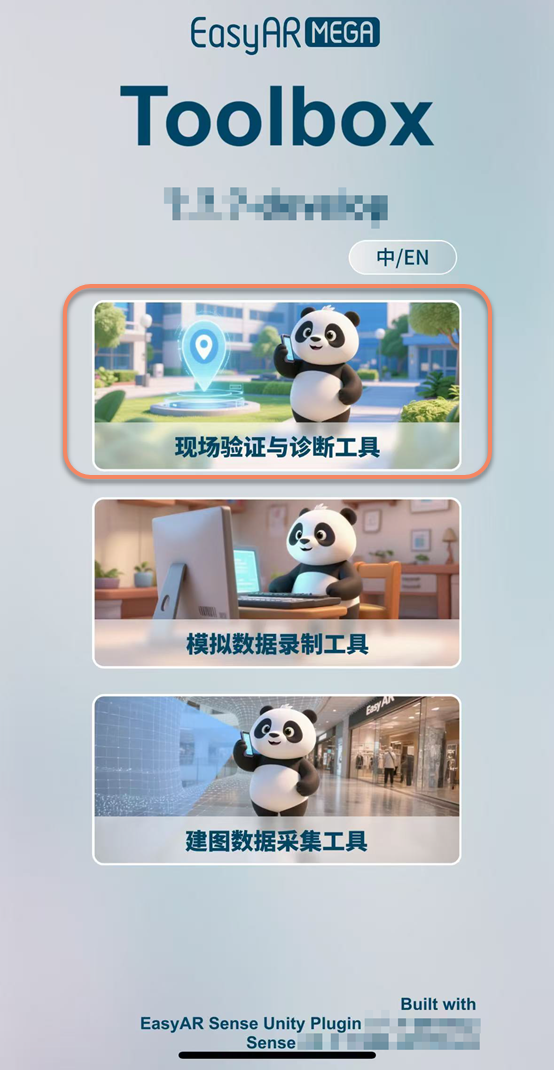
- Enter the EasyAR account username and account password.
- Click "Log in".
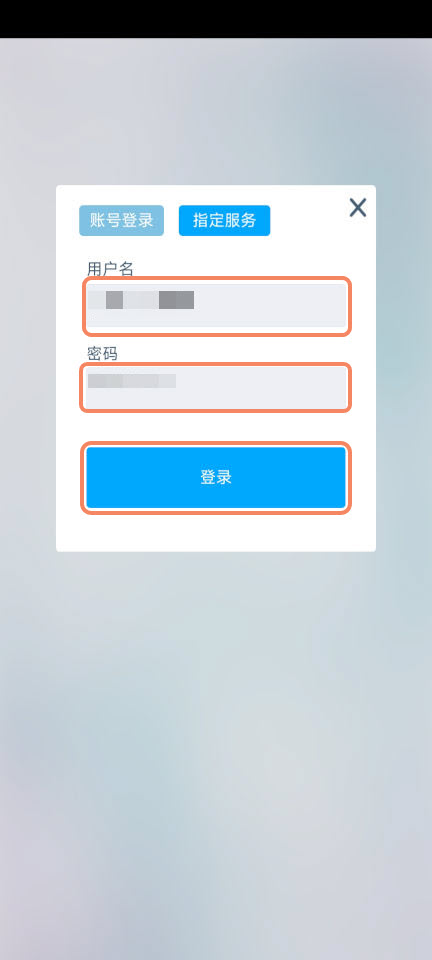
- If this is the first login, directly click the close icon in the upper-right corner of the pop-up window.
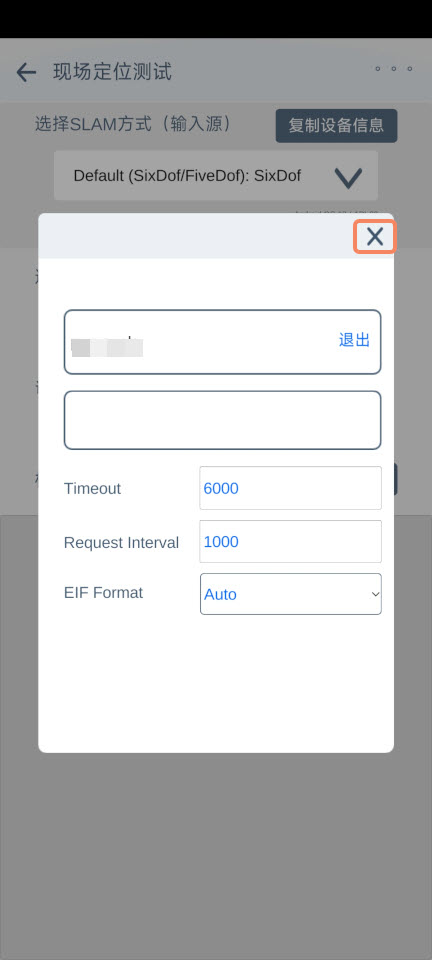
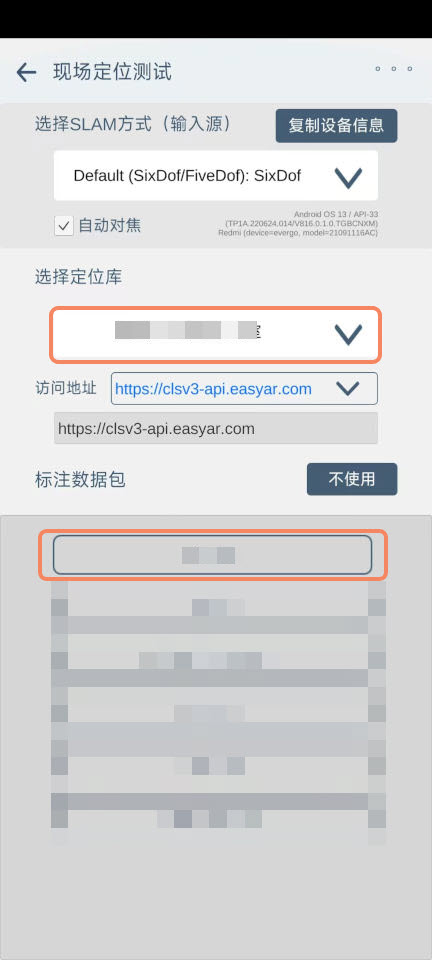
- Select a cloud localization database and annotation data package.
Tip
If you have not created an annotation data package yet, select "Do not use".
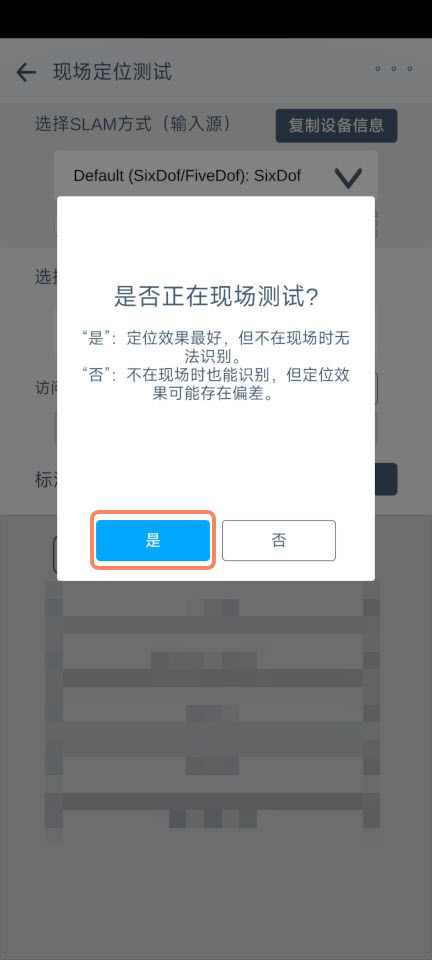
- In the pop-up window, click "Yes", then point the phone camera at the ground or a building and wait a few seconds for localization initialization to complete.
- If you are not at the on-site location, the localization debug information shows the text "Not Found", indicating that the localization service is running normally but has not localized to the target.
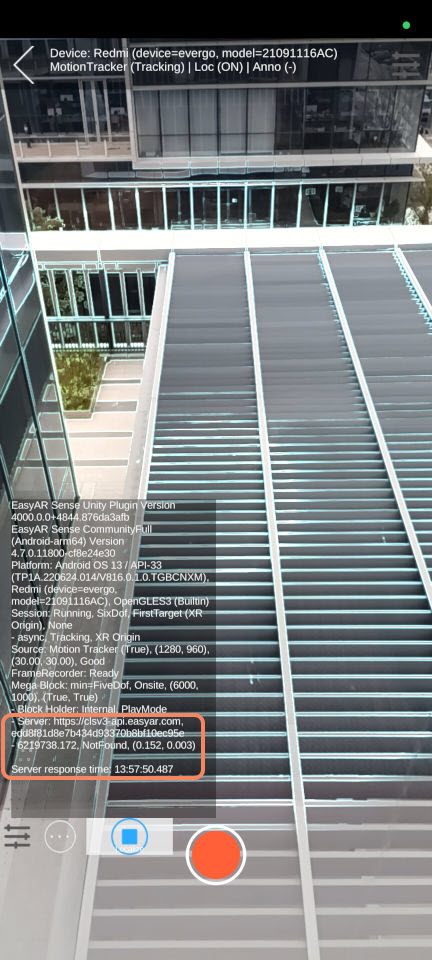
- If you are at the on-site location, the localization debug information shows the text "Found", indicating that the localization service is running normally and has localized to the target.
- The cube annotated in the annotation data is also displayed at the corresponding position.