Mini program runtime effect
This article describes how to use annotation data created by Mega Studio to verify the effect in the Toolbox WeChat mini program.
Note
The following content and tools are not applicable to Unity application development.
If you are developing a Unity application, refer to Packaging a Unity application for effect verification in the development guide.
Steps to view the effect
Before viewing the real runtime effect, make sure you have prepared a WeChat device and have permission to access the WeChat mini program, and make sure the localization service has been configured.
Scan the Toolbox WeChat mini program QR code
Before effect verification, first scan the mini program QR code with WeChat to enter the Mega Toolbox application.

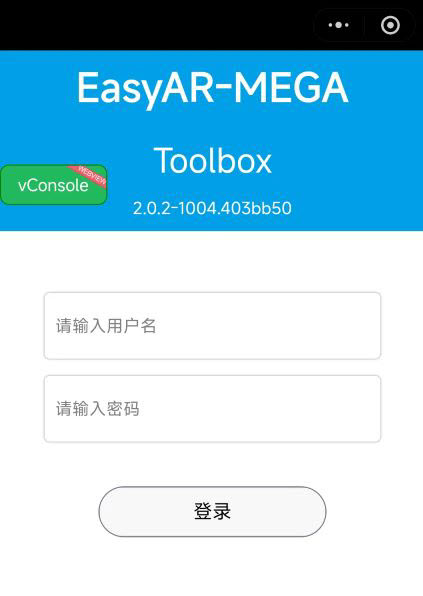
Log in to your EasyAR account
The first step to view the real runtime effect is to log in to your EasyAR account in the mini program.
Select localization library and annotation data
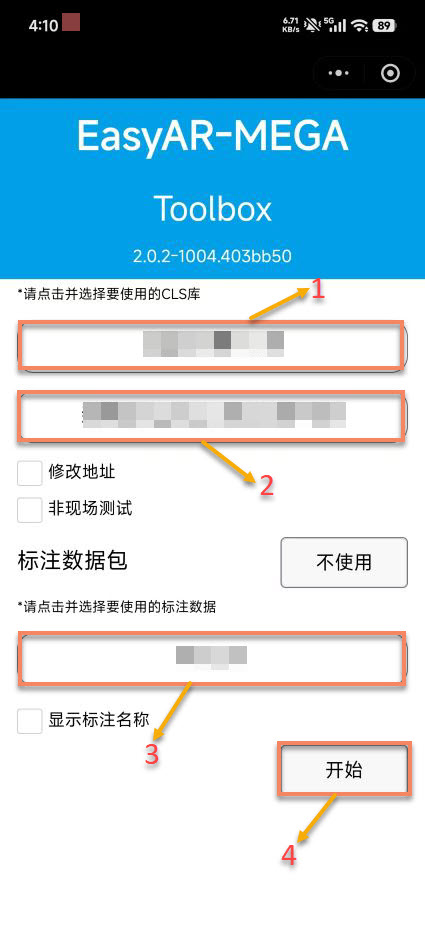
After logging in to the account, you need to select the corresponding localization service and annotation data resources. This is a key step for precise localization. Note: annotation data must be selected to preview the real runtime effect. If the current project has no annotation data, create annotation data first.
Select the corresponding service and data as follows:
- Select
Cloud Localization Service Group, and select it from the dropdown box after clicking. - Select the corresponding
Cloud Localization Library, and select it from the dropdown box after clicking. - Select the corresponding
Annotation Data, and select it from the dropdown box after clicking. (If there is no annotation data, refer to: Create annotation data) - Click
Start.
Authorize related permissions
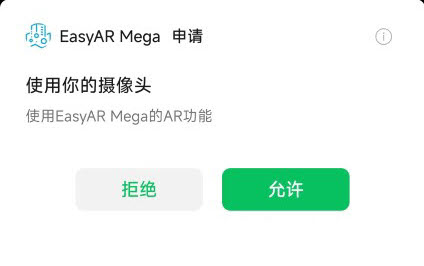
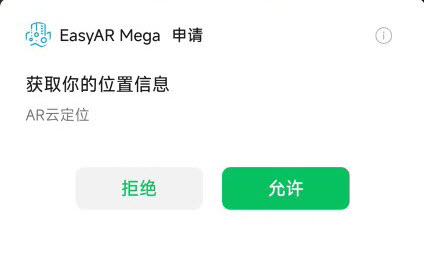
To use the localization function normally, camera and location information permissions must be authorized before normal use.
View the on-site effect
Video demonstration:
Note
For a better visual experience, you can turn off Debug information to view the localization visual effect of annotation content more intuitively.
Status judgment description:
You can determine the current localization status through the following three key indicators:
- Annotation cube status: during normal localization, a white MEGA texture is displayed; when localization fails, it is displayed in gray.
- Parameters in the Debug information return box:
status value: displays the current localization statusSequence parameter: N means not loaded, F means localization failed, and S means localization succeededStatus button: green means localization succeeded, and white means localization failed
The mini program displays status according to the information returned by the service, helping you understand the running status of the localization service:
Localization success status: if you are at the on-site location, the localization debug information displays the
status: Foundtext prompt, theStatus buttonis green, theSequenceparameter displaysS, and the calibrated cube normally displays a white MEGA texture, indicating that the localization service has successfully localized to the target.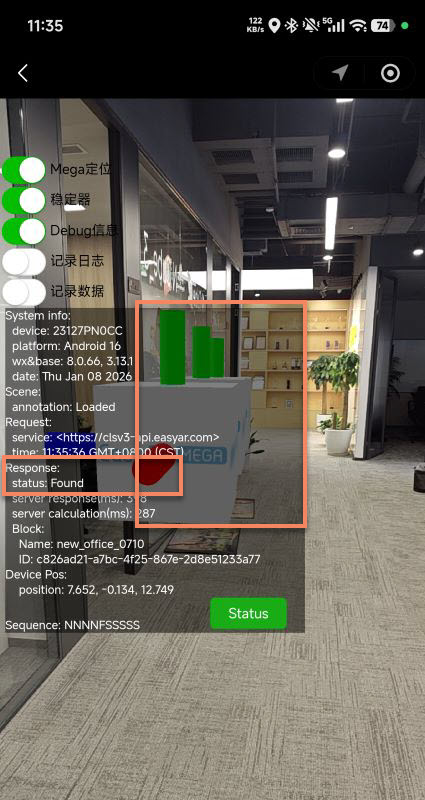
Concurrency warning: if the localization debug information displays the
status: QpsLimitExceededtext prompt, theStatus buttonis white, and theSequenceparameter displaysF, it means the localization service is running normally, but the current QPS exceeds the limit. To resolve this issue, see Localization service capacity limit and expansion.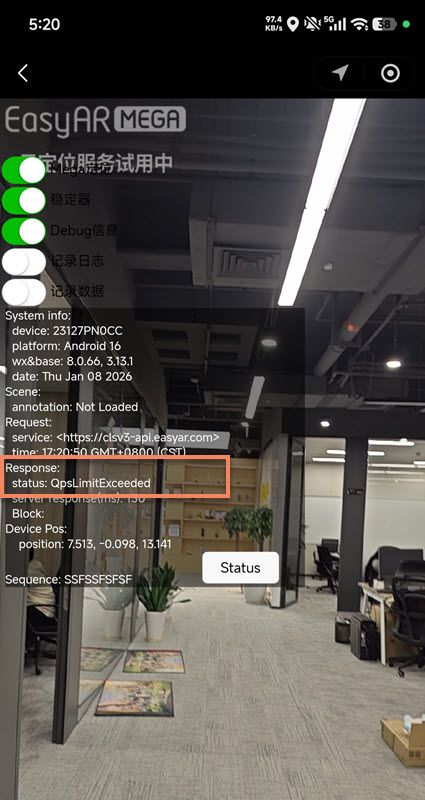
Target not found status: if you are not at the on-site location or there is no matching scene in the localization library, the localization debug information displays
status: Not Found, theStatus buttonis white, and theSequenceparameter displaysF, indicating that the localization service is running normally but failed to localize to the target.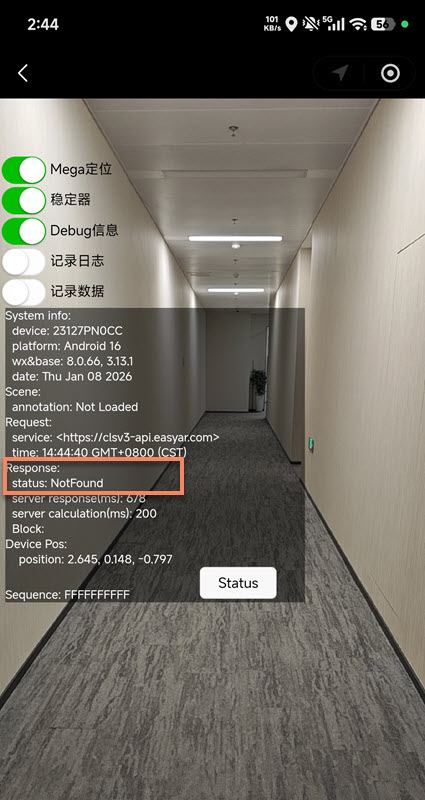
Localization service abnormal: the localization debug information displays the
UnKnownErrortext prompt, indicating that the localization service is abnormal. Turn onRecord LogsandRecord Data, record the error information, and contact EasyAR customer service.