Upgrading mapping using original data
This article details the complete workflow for upgrading mapping using original data in both single-image and multi-image scenarios, including task creation, data upload, mapping operations, and result viewing. It helps users complete map version upgrades while maintaining the original coordinate system.
Upgrading mapping for single-image using original data
Log in to EasyAR development center, select Mega Block -> Block mapping from the left menu bar, choose the corresponding project address, and click the Manage button to enter the mapping task interface.
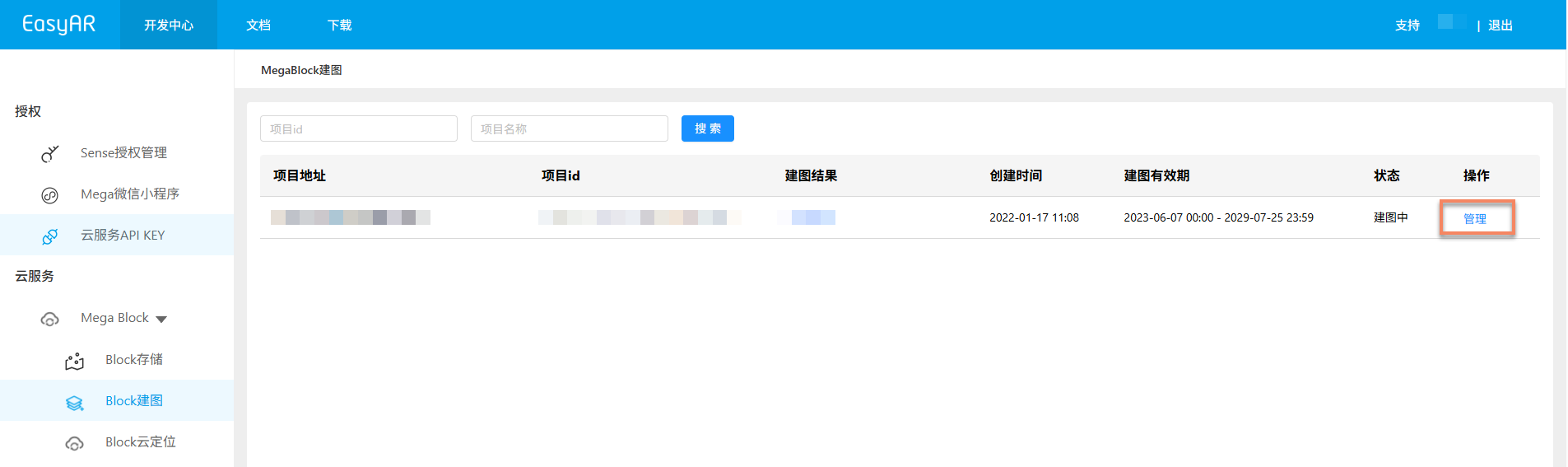
Creating single-image lossless update task
- Select the single-image task that needs lossless upgrade and click the
Lossless point cloud upgradebutton.
- Fill in the following information in the pop-up window:
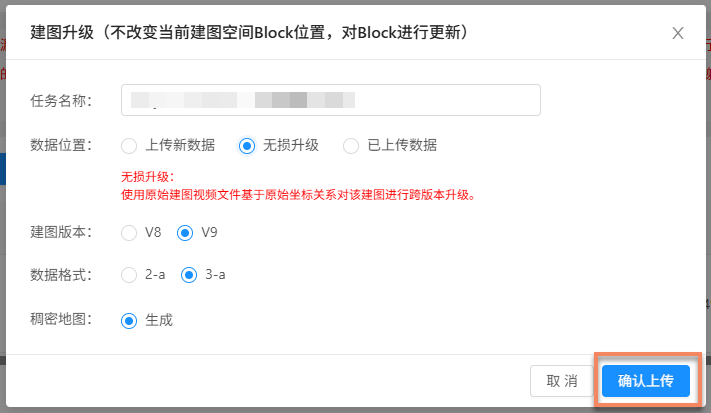
- Task name: Enter the name for this lossless update task.
- Data location: Select
Lossless upgrade. - Mapping version: Recommended to use the latest version V9.
- Data format: Recommended to use the latest version 3-a.
- After confirming all information is correct, click the
Confirm uploadbutton to submit the task. The list will display upload progress and status. During data upload, keep your computer powered on and the network stable. Do not close the browser, refresh the page, or click other menus, otherwise the upload will be interrupted and require re-operation.
Starting mapping
After upload completes, the task automatically enters Under review, as shown below.

After approval, the task automatically enters the mapping process, with status showing Queuing or Generating, as shown below. Please wait patiently for mapping completion.

Confirming mapping results
After the task enters the mapping process, you can determine whether the mapping task is completed through the Task status. When status displays Task completed or Generation failed, it indicates the mapping task has ended.
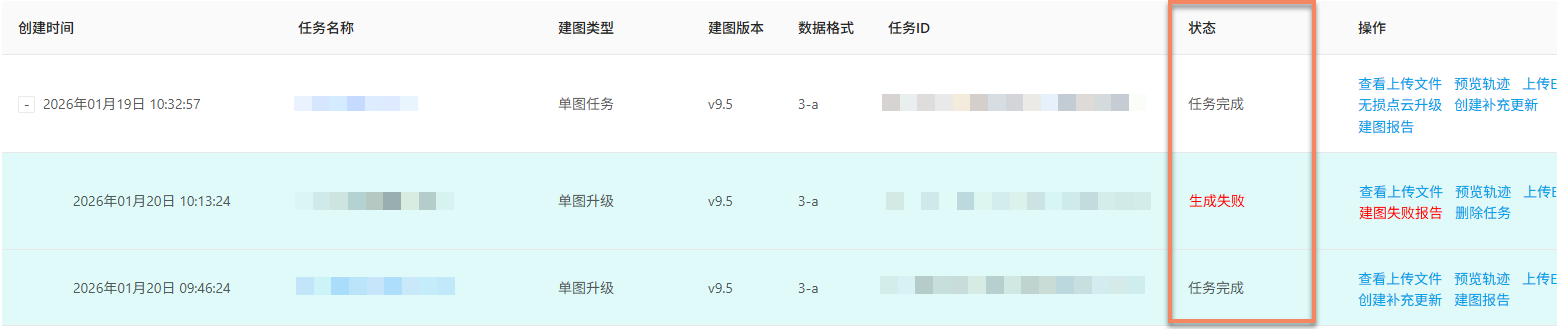
Successful mapping
When task status shows Task completed, it indicates successful mapping and results are generated. You can further view mapping results to confirm if they meet expected requirements. View mapping results:
Mapping failure
When task status shows Generation failed, it indicates mapping failure. Recommended troubleshooting steps:
- View mapping report: View mapping report, find solutions based on report information.
- Reference troubleshooting: Consult Mapping failure troubleshooting guide for common solutions.
- Contact technical support: If above methods don't resolve the issue, contact EasyAR staff and provide the
JobIDfrom the mapping report for quick problem identification.
Upgrading mapping for multi-image using original data
Log in to EasyAR development center, select Mega Block -> Block mapping from the left menu bar, choose the corresponding project address, and click the Manage button to enter the mapping task interface.
Creating multi-image lossless update task
- Select the multi-image task that needs lossless upgrade and click the
Lossless point cloud upgradebutton.
- Enter the task name in the pop-up dialog, select mapping version and data format (recommended to use latest version). After filling, click
Confirm addto create the multi-image point cloud lossless update task.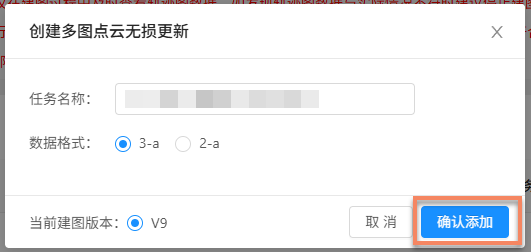
Adding auxiliary mapping
After creating the multi-image lossless update task, you need to add auxiliary mapping tasks for each independent collection area.
- Click
Multi-image merging managementto enter the corresponding management interface.
- Click
Add auxiliary mapping, enter task name and clickConfirmto create a sub-image. Note that each independent collection area requires creating an auxiliary mapping task.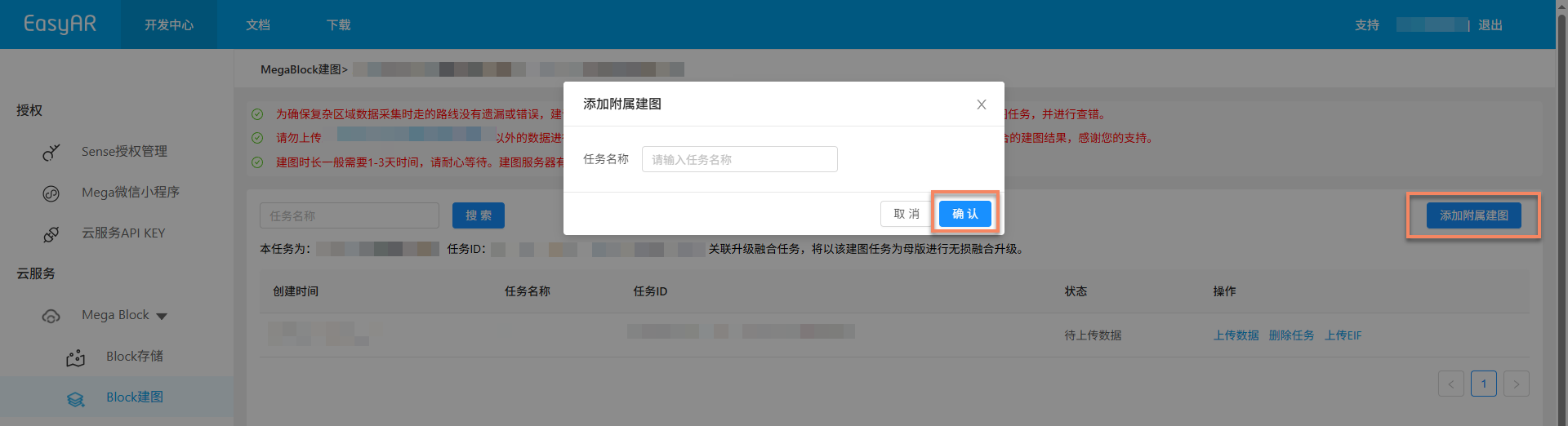
Uploading data
- Copy the name of the multi-image task needing lossless upgrade. Under the corresponding task, click the
Upload databutton.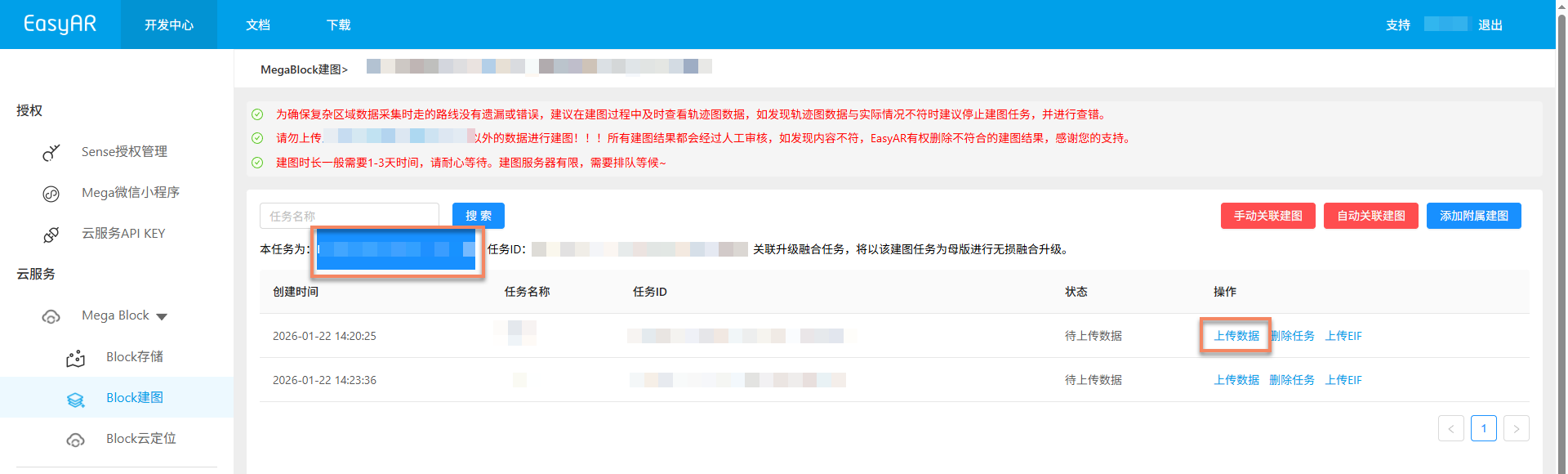
- In the pop-up dialog, select
Uploaded datafor data location, then click theSelectbutton for collection data.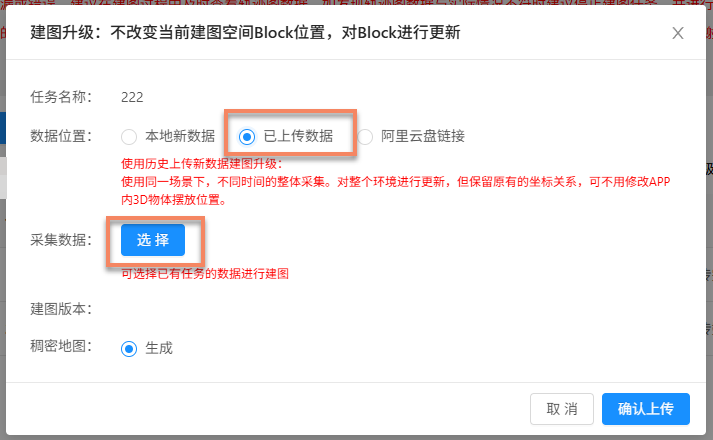
- In the select uploaded data dialog:
- Select corresponding project from "Data belonging project" dropdown
- Paste the multi-image task name needing lossless upgrade in "Data belonging task" dropdown. The system will quickly search for the specified task
- Select data belonging sub-image to view corresponding sub-image data
- Finally click the
Confirmbutton to complete selection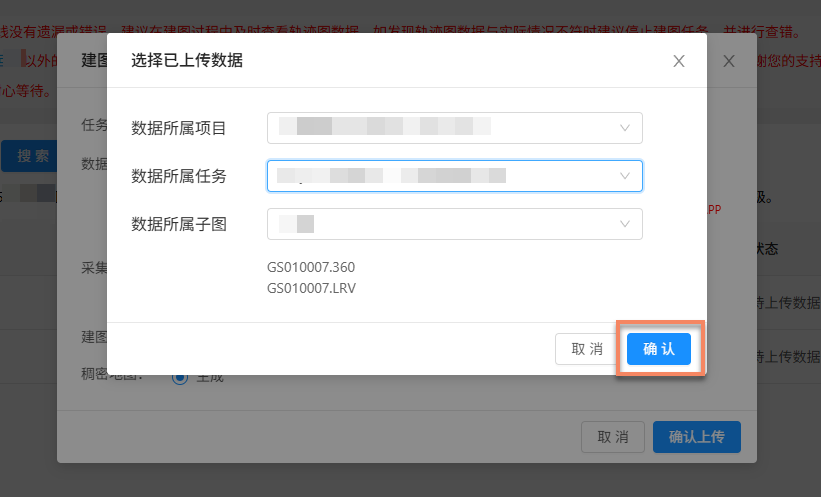
- After confirming data selection is correct, click the
Confirm uploadbutton.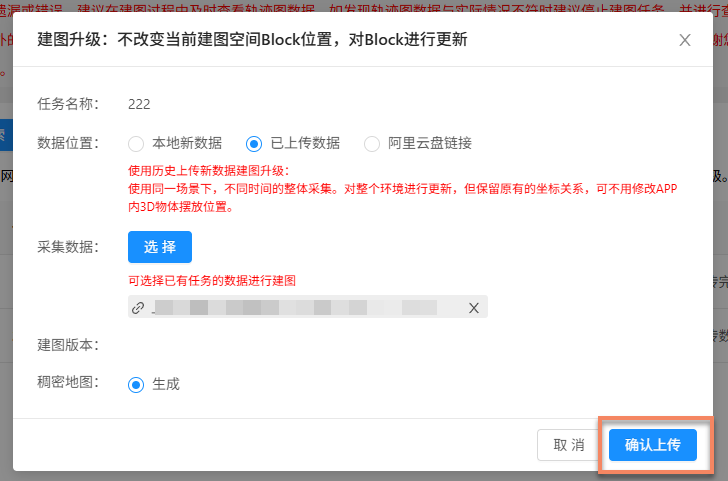
- The task status in the list will update to
Upload completed. When all auxiliary mapping tasks have been uploaded, you can start mapping.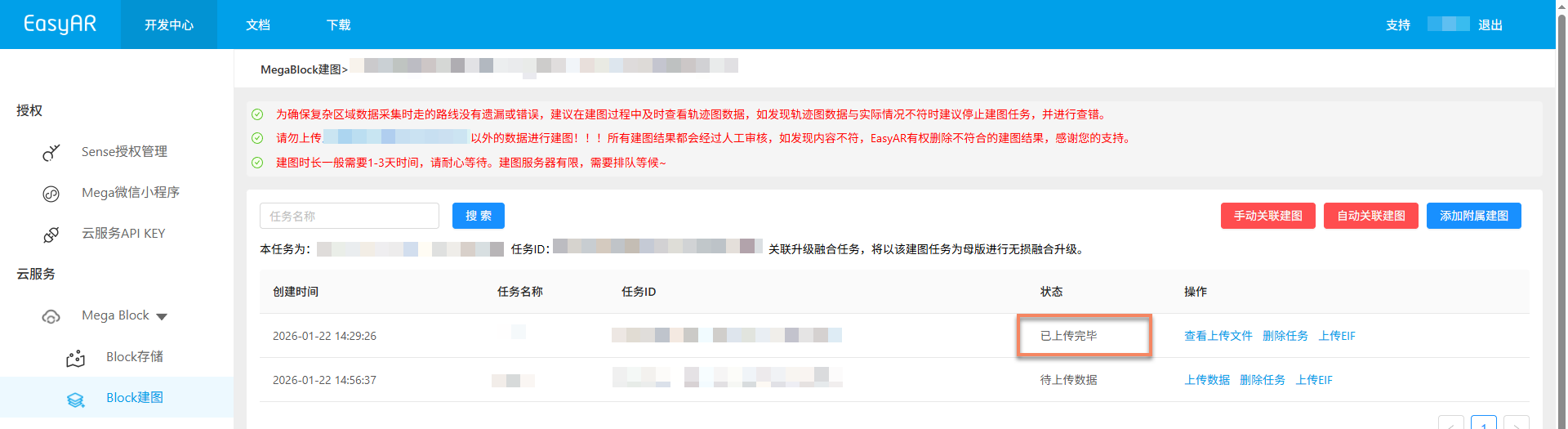
Starting multi-image lossless upgrade mapping
The operation flow for multi-image lossless upgrade mapping is consistent with multi-image merging mapping. For specific steps, refer to the Starting multi-image merging mapping section.
Confirming mapping results
After the task enters the mapping process, you can determine whether the mapping task is completed through the Task status. When the multi-image lossless update task status shows Task completed, Mapping results not ideal or Generation failed, it indicates the mapping task has ended.

Successful mapping
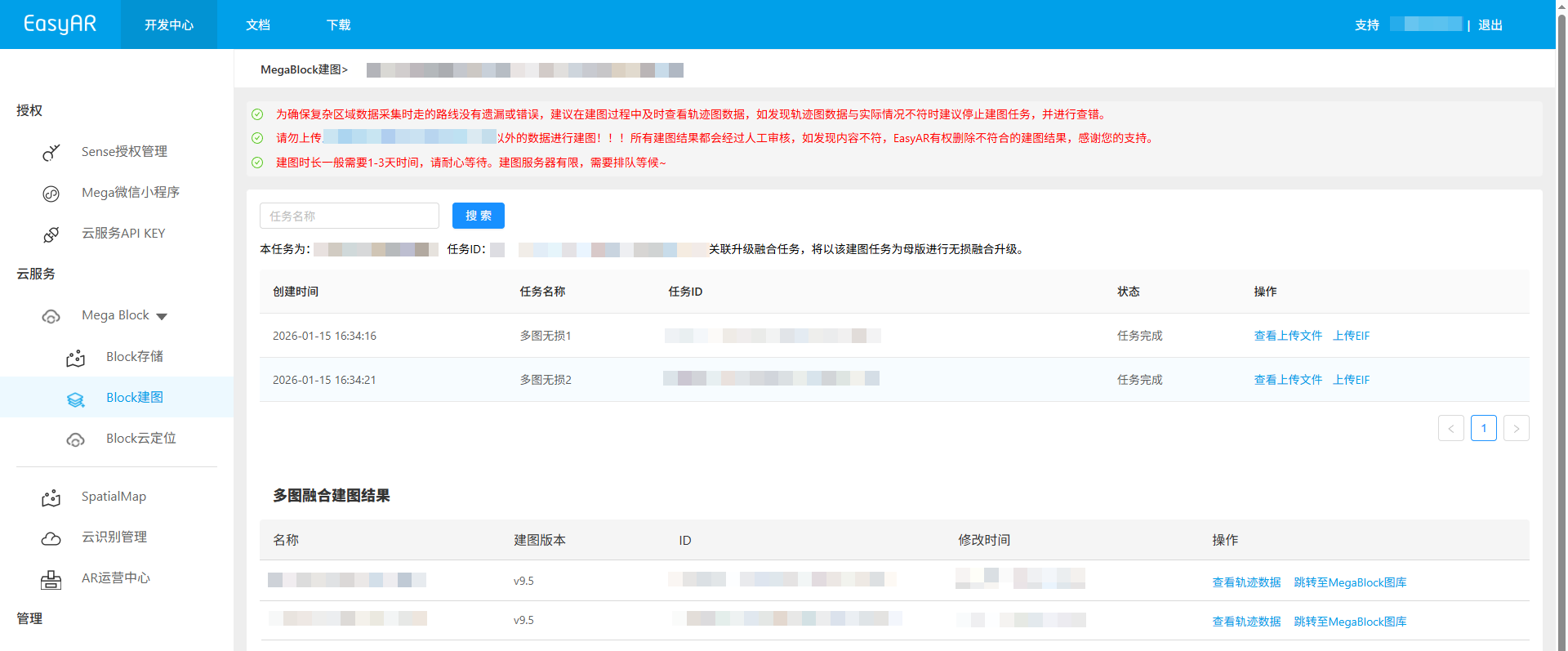
When task status shows Task completed or Mapping results not ideal, it indicates successful mapping and results are generated. After multi-image mapping completes, results will display in the multi-image merging management interface.
Mapping result description:
Task completed: Mapping completed and merging successful. The mapping result is a complete Mega Block.
Mapping results not ideal: Mapping completed but merging poor. The mapping result is multiple Mega Blocks.
 When
When Mapping results not idealstatus appears, recommended checks:- Collection route specification: Ensure collection routes comply with specifications and different sub-images meet overlap requirements. (Reference: Collection specifications)
- File upload completeness: Ensure all files have been uploaded without omissions. (Reference: Preview uploaded files)
- Collection area coverage: Ensure collection areas cover all requirements without missed collections. (Reference: Review collection routes)
- Manual association accuracy: If manual association mapping was performed, ensure sub-image relationships are specified accurately. (Reference: Manual association mapping) If any issues are found, you can correct them and recreate the task. If all checks confirm no issues, contact us for assistance. View mapping results:
Mapping failure
When task status shows Generation failed, it indicates mapping failure. Recommended troubleshooting steps:
- View mapping report: View mapping report, find solutions based on report information.
- Reference troubleshooting: Consult Mapping failure troubleshooting guide for common solutions.
- Contact technical support: If above methods don't resolve the issue, contact EasyAR staff and provide the
JobIDfrom the mapping report for quick problem identification.