Supplemental update mapping
This article describes the complete process of supplemental update mapping in EasyAR Developer Center, including creating a supplemental update task, adding supplemental data, data acquisition and organization specifications, data upload, and starting mapping. It helps users efficiently complete supplemental update mapping for a scene.
Create a supplemental update task
Log in to EasyAR Developer Center, select
Mega Block->Block mappingfrom the left menu bar, select the corresponding project address, and clickManage.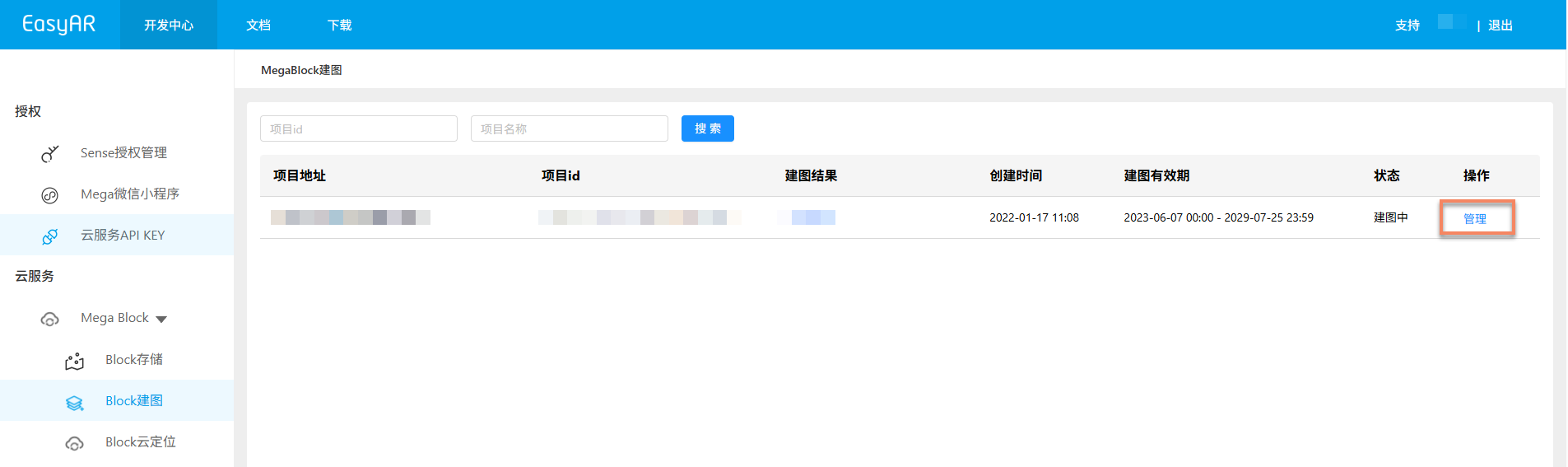
Select the mapping task that needs a supplemental update, and click the
Create supplemental updatebutton.
In the pop-up dialog, fill in the supplemental update task name and remarks, then click
Confirm add.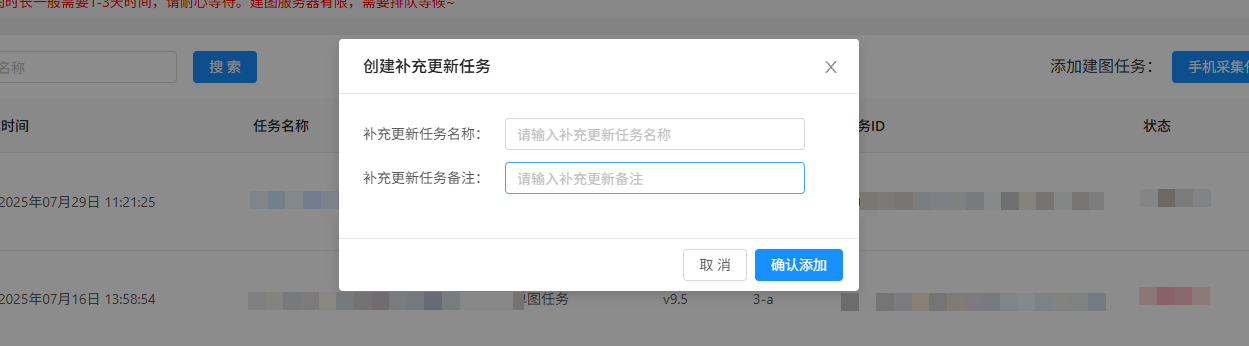
Click the
+before the mapping task that needs supplemental update, and you can see the newly created supplemental update task. Click theSupplemental data managementbutton in the operation column of the supplemental update task to enter the supplemental data management page.
Data preparation
Before starting the mapping task, make sure the spatial data collected by the panoramic camera meets the requirements and is organized and stored according to the specifications. For the specific acquisition method, see: Acquire changed area data.
Related data specifications
- Data folder naming
- Data storage location
- Data file structure specification
- Data file naming specification
Add supplemental data
After entering the supplemental data management page, create the corresponding supplemental data according to the number of supplemental update areas. If there are multiple supplemental update segments, create multiple supplemental data entries.
Add new supplemental data
Applicable scenario: used to add newly acquired data that needs to be updated into the scene.
Operation steps:
Click the
Add supplemental databutton, fill in the supplemental update data name and remarks in the pop-up dialog, and clickConfirm add.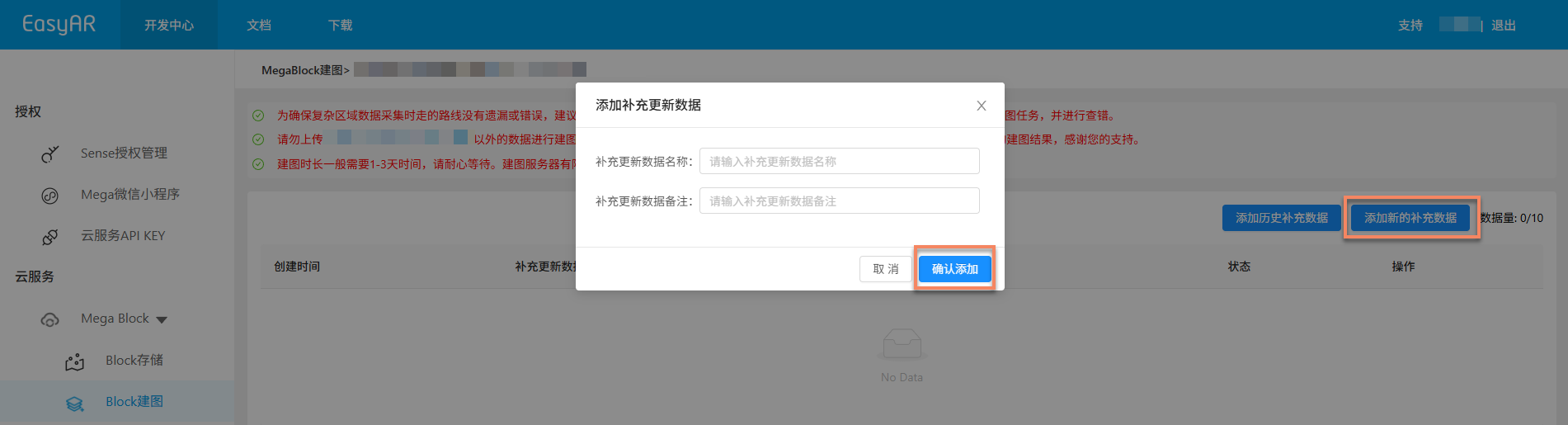
Click the
Upload databutton, click theSelectbutton in the pop-up dialog, and select the folder containing the main data directory for upload. For the upload region, choose the nearest one. After selection is complete, click theConfirm uploadbutton. The upload progress and status will be displayed in the list.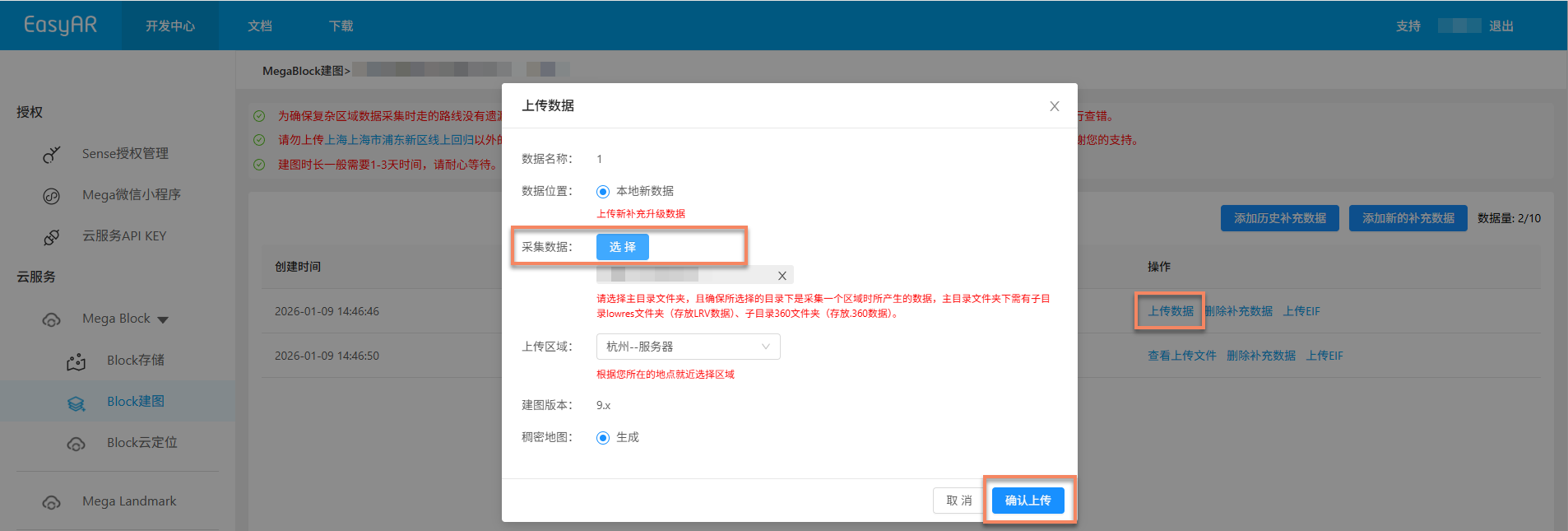
Tip
A single supplemental data entry supports uploading at most 2 segments of 360 video data.
Add historical supplemental data
Applicable scenario: used when this supplemental update task needs to merge previous supplemental data.
Operation steps: click the
Add historical supplemental databutton, select the required data in the pop-up dialog, and after selection, you can click the LRV file in the uploaded files for preview. After confirming that the data is correct, clickConfirm.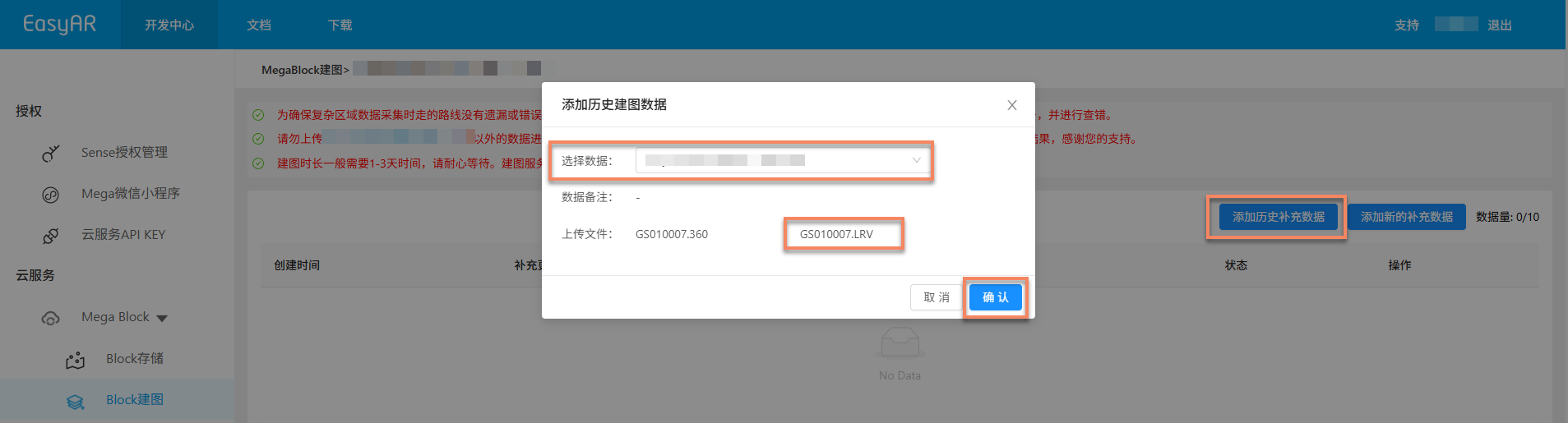
Start mapping
After the supplemental update data has finished uploading, the
Start mappingbutton appears on the page. Click the button to start mapping.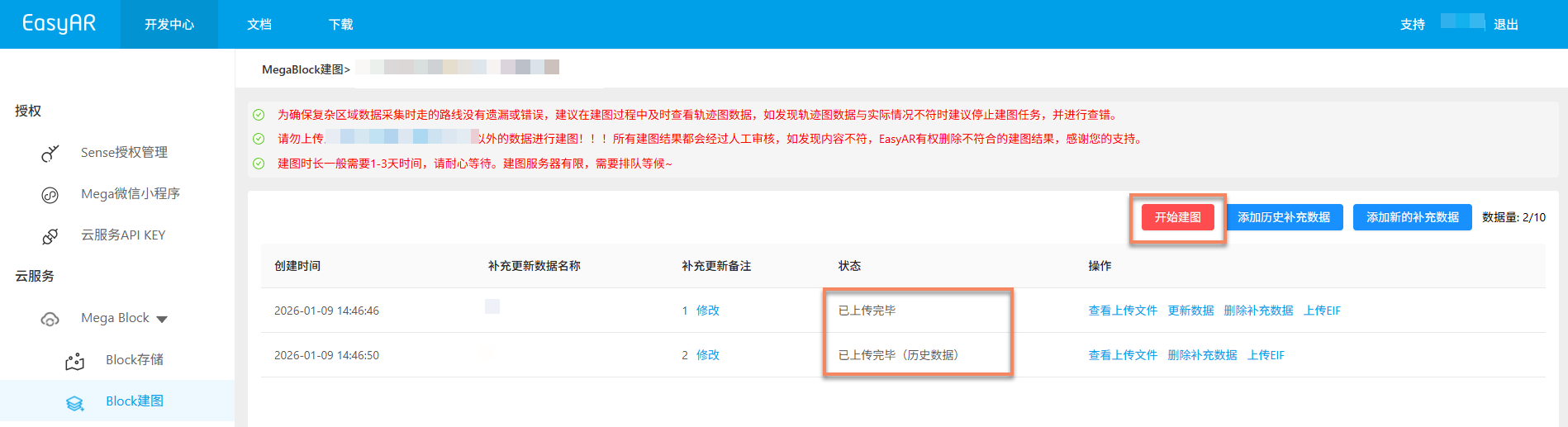
After mapping starts, the task automatically enters
Under review. After review passes, the task automatically enters the mapping process, and the status is displayed asQueuedorGenerating, as shown below. Please wait patiently for mapping to complete.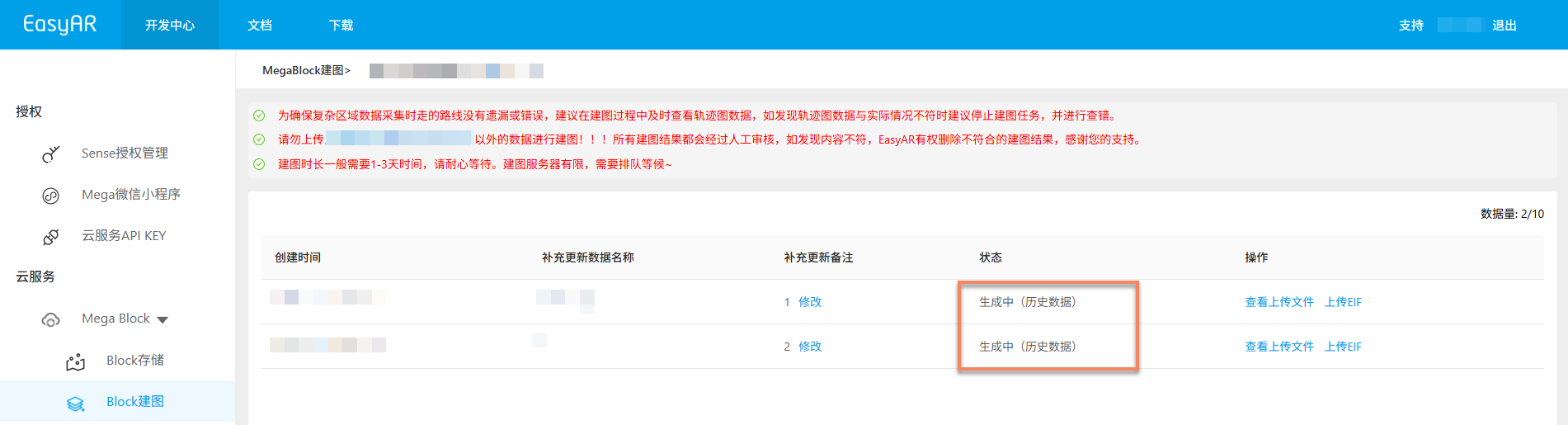
Confirm mapping results
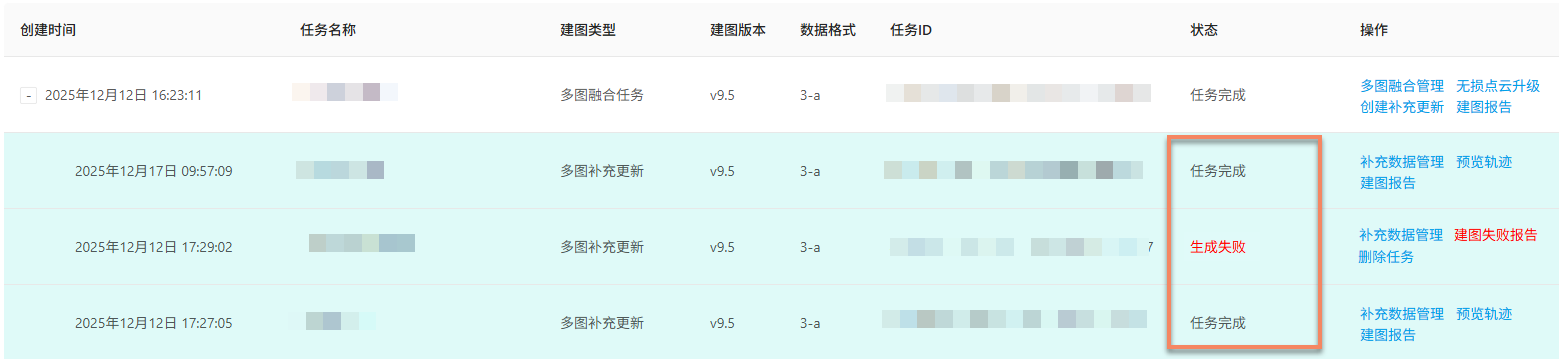
After the task enters the mapping process, you can determine whether the mapping task is complete by Task status. When the status is displayed as Task complete or Generation failed, the mapping task has ended.
Mapping succeeded
When the task status is displayed as Task complete, mapping succeeded and the mapping result has been generated. You can then further view the mapping result and confirm whether it meets expectations.
View mapping results:
Mapping failed
When the task status is displayed as Generation failed, mapping failed. It is recommended to troubleshoot as follows:
- View mapping report: View mapping report, and find a solution according to the report information.
- Refer to troubleshooting: read Mapping failure troubleshooting guide for common solutions.
- Contact technical support: if none of the above methods solves the issue, contact EasyAR staff and provide the
JobIDin the mapping report for quick issue location.